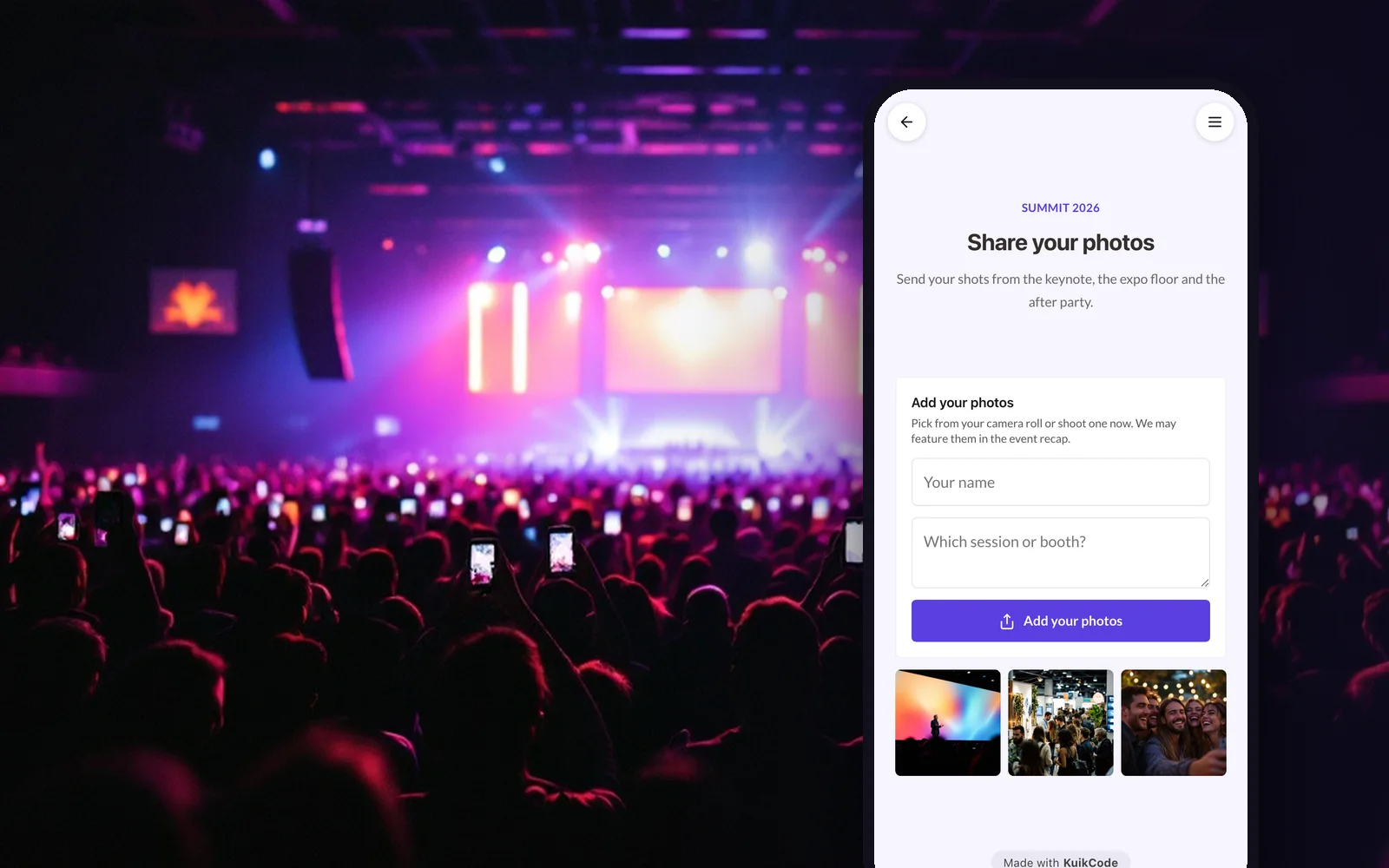
Your attendees take more photos of your event than any photographer you hire. The keynote from the third row, the team at the booth, the crowd at the after party. Most of those photos stay on their phones. One QR code changes that: attendees scan it, send their photos, and your team gets a stream of authentic content to review and use.
Why collect photos from attendees
- Recap content, fast. Photos arrive during the event, so the recap post, newsletter and highlight reel can go out the same week.
- Angles you would never get. Attendees are everywhere at once: sessions, breakouts, booths, dinners.
- Social proof for next year. Real photos of full rooms and busy booths sell the next edition better than stock imagery.
- Moments for sponsors. Photos from sponsor booths and branded spaces become material to share back with partners.
- Internal culture. For offsites, holiday parties and all hands meetings, a shared gallery gives everyone a way to relive the day.
How it works
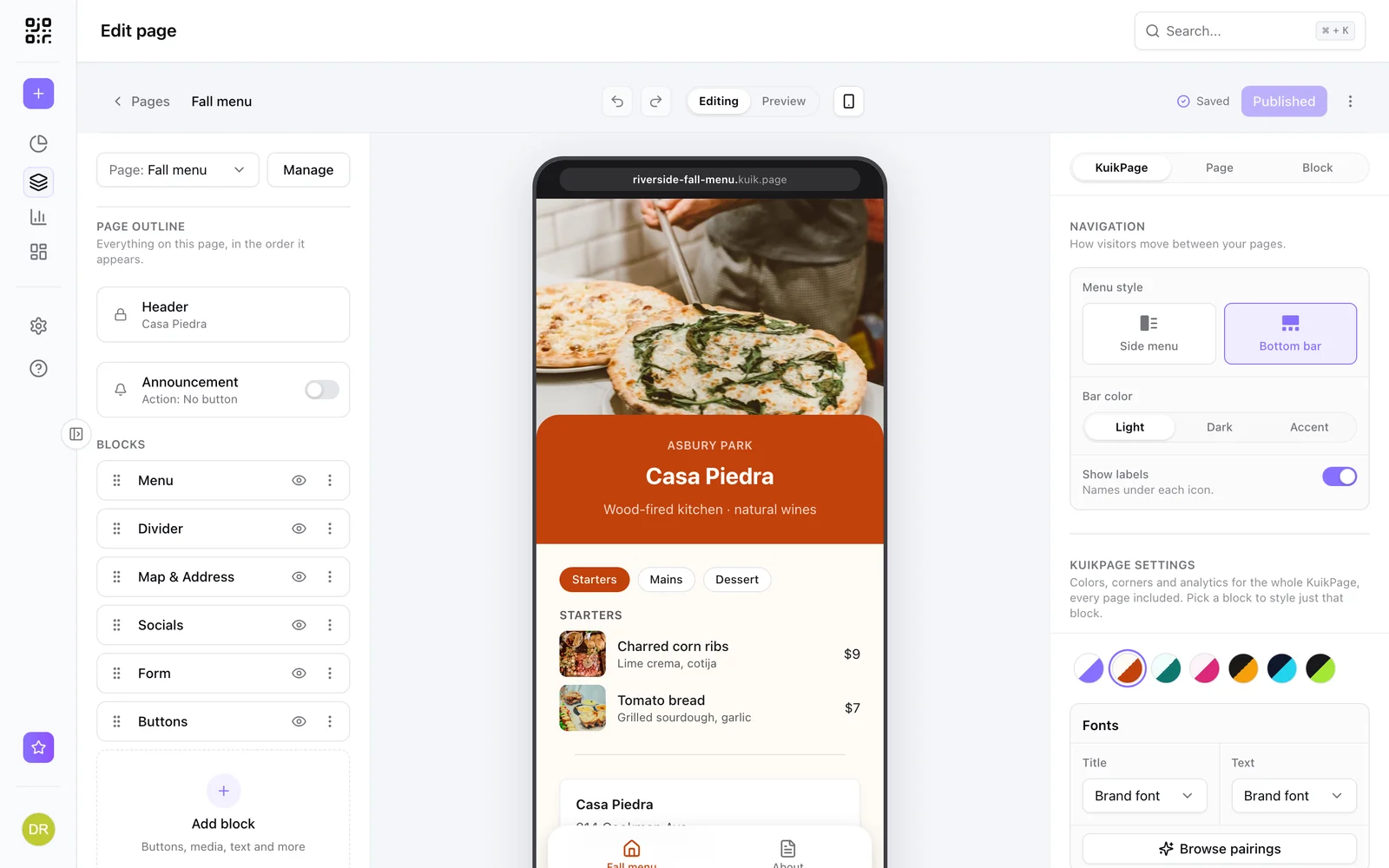
You add a Guest uploads block to a KuikPage, publish it, and put the page's QR code wherever attendees look. When they scan:
- The page opens in their browser, no app needed.
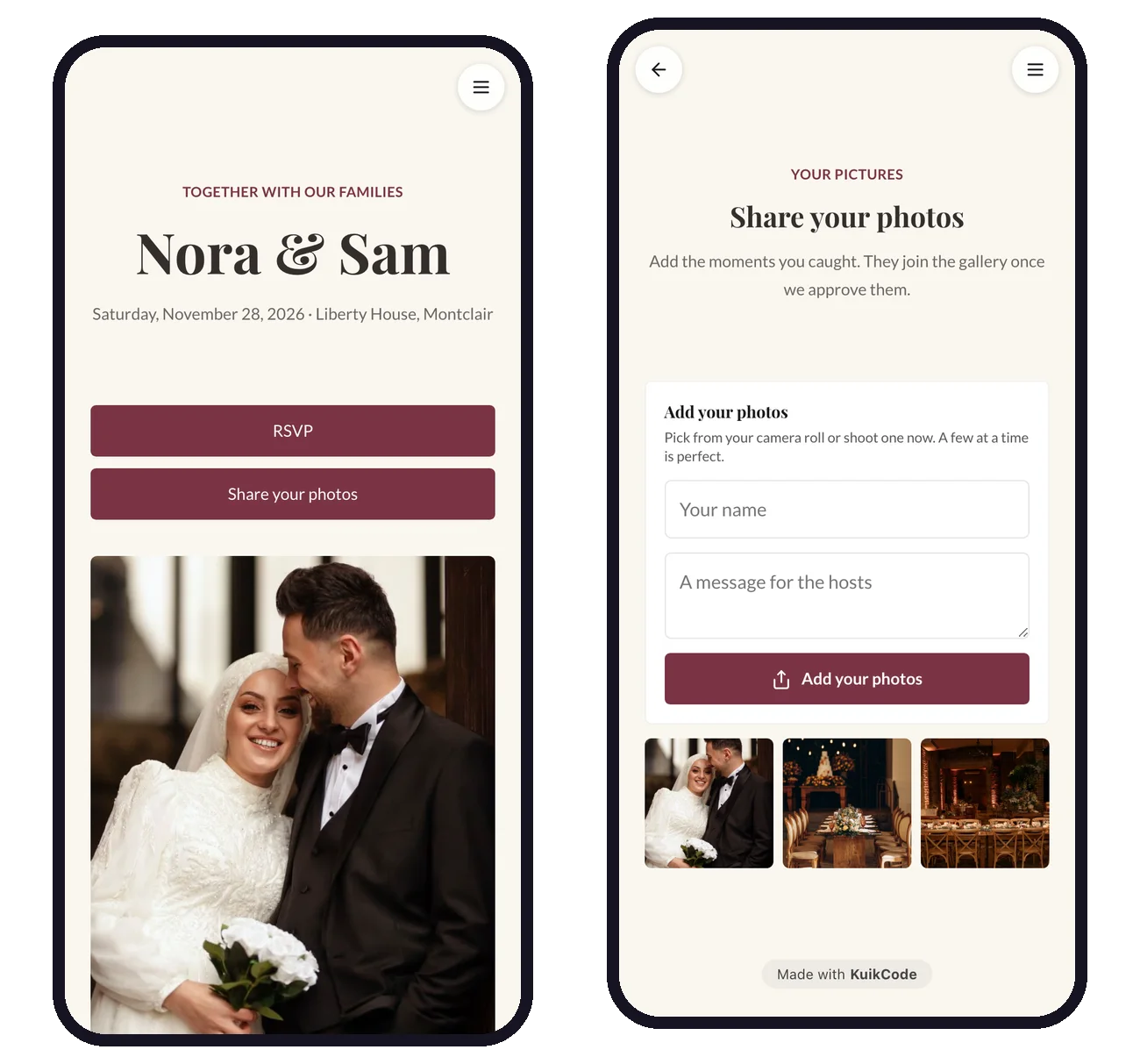
- They tap Add your photos and pick from their camera roll, or take a photo on the spot.
- They can add their name and a short message if you ask for them, handy for credits.
- Photos are resized on the phone before sending, so they upload in seconds even on busy venue wifi.
Everything lands in your workspace, waiting for your team to review.
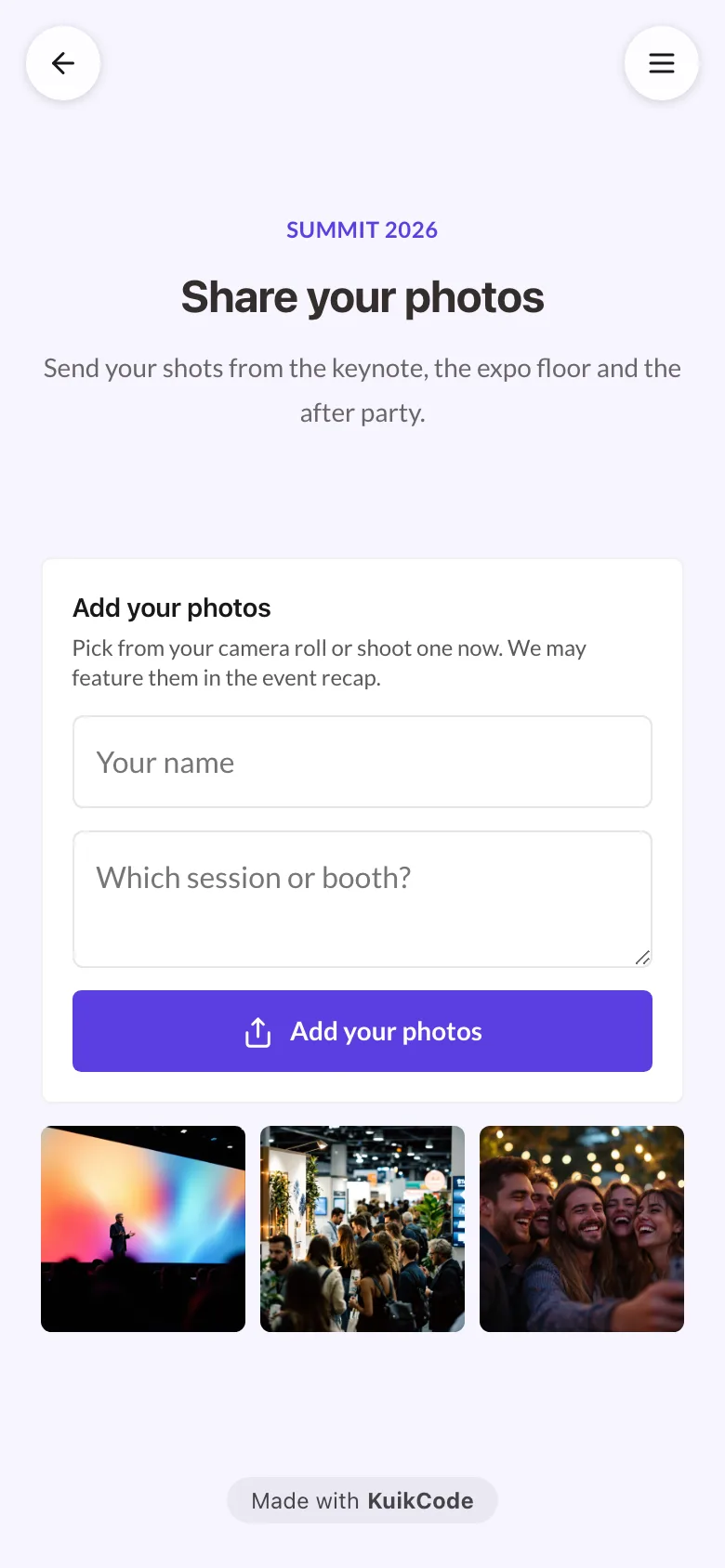
Build the event page
You can make a page just for photos, or add the block to the page you already use for the event. A single page can carry the agenda, the venue map, speaker links and the photo drop, and a multi page KuikPage can give each its own tab. Attendees scan once and find everything.
In the block's settings you choose:
- Text. The title, description, button label and a thank you message, plus how many files each attendee can send per visit, from 1 to 20.
- Accept. Photos only, or photos and videos of up to 60 seconds on PRO and up.
- Before they show. Review first holds uploads until your team approves them. Show right away skips the review.
- Name and message. Optional fields above the button. Names are visible to your team only, never on the page.
- Open from and Close on. The window when uploads are accepted.
- Gallery. Show approved photos on the page in two or three columns, or keep them private.
Tell attendees how you will use their photos
If you plan to use attendee photos in marketing, say so before they upload. The block's description is the right place, for example: Share your photos from the event. By sending them, you agree we may feature them in our recap and on social media. Keep the wording in line with your own policies, and hide or delete any photo someone asks you to remove.
Where to put the code
The best spots are where people already have their phone in hand or are waiting:
- Badges and lanyards. Every attendee carries it all day.
- Stage screens. Show the code between sessions and during breaks.
- Booths and photo walls. Next to anything people love to photograph.
- Table tents and bar counters. For dinners, receptions and after parties.
- Printed agendas and signage. Near the entrance and at the registration desk.
- The last slide. Speakers can end with Share your photos from this session.
Always add a short line next to the code, like Scan to share your photos, so people know why to scan.
Review photos as a team
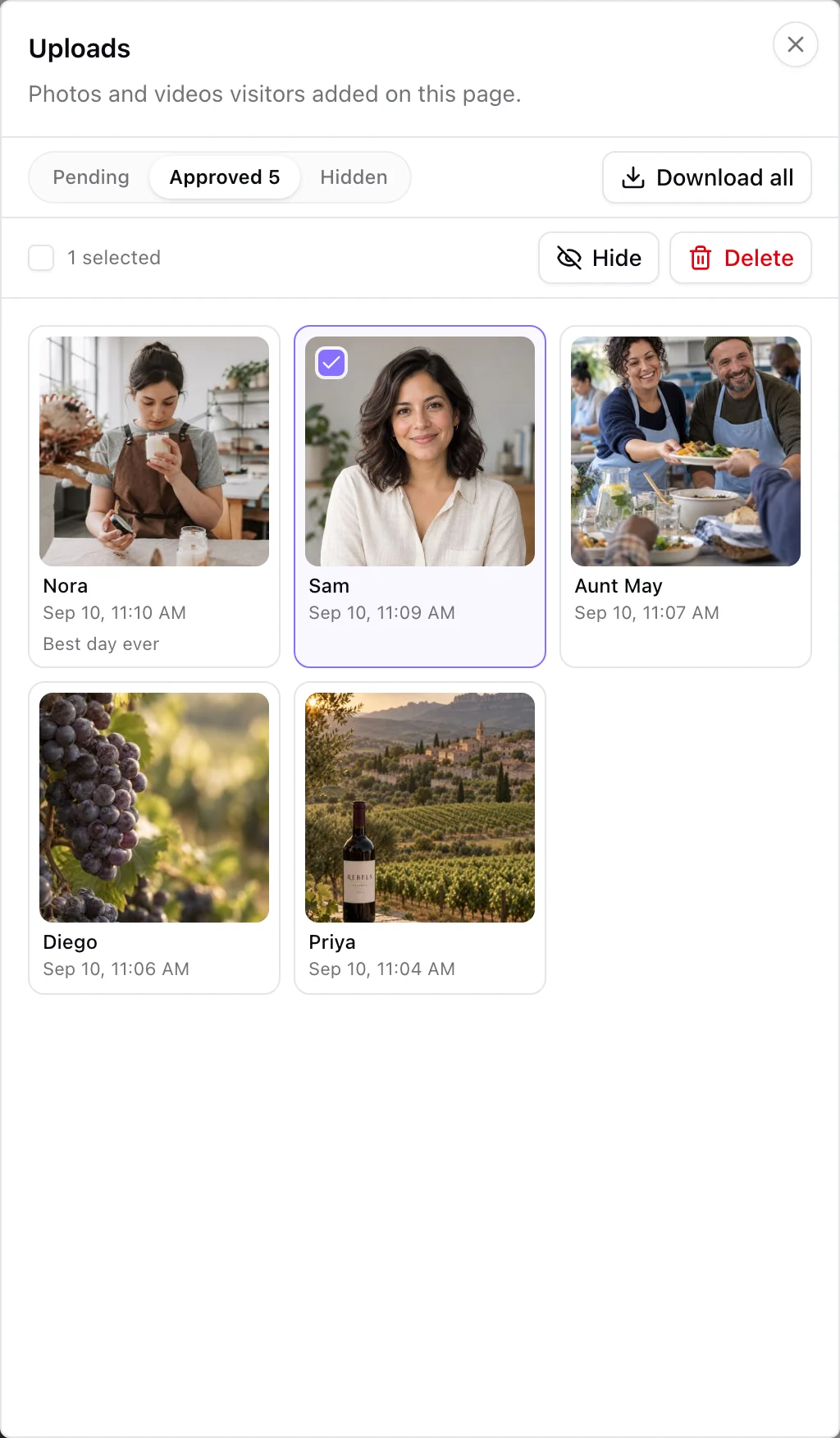
Uploads wait in the Uploads sheet with three tabs, Pending, Approved and Hidden. Each one shows the attendee's name, their message and when it arrived. Select several and approve, hide or delete them in one go. Workspace owners get at most one reminder email an hour per page while photos are waiting, so nothing sits unreviewed for long.
Approved photos appear in the page's gallery within about half a minute. Attendees can open any photo full screen and share or download it, which spreads your event further on their own channels.
Get the photos to your marketing team
- Download all. One click on the Approved tab builds a zip of every approved photo and video and emails you a link, valid for seven days.
- Google Drive sync. On PRO and up, connect Google Drive and approved uploads are copied into a folder named after your page within minutes. Share that folder with your team and the photos are ready for the recap.
If the block has a close date, uploads are kept for ninety days after it, with a warning email a week before anything is removed. Files copied to Google Drive stay there.
Plans and storage
The Guest uploads block is available on Starter and above. Guest photo storage is separate from your other files: 1 GB on Starter, 10 GB on PRO and 50 GB on Business. Video uploads and Google Drive sync come with PRO. For a large conference with several stages, Business gives you the most room. The full setup guide is in the Guest uploads documentation.
Planning a wedding instead?
The same block powers a wedding photo drop, with a ready made Wedding template that includes a Photos page. Read how to collect wedding photos from guests with a QR code.
Frequently asked questions
01What kinds of events is this useful for?+
Any event where people take photos. Conferences, trade shows, expos and conventions, company offsites, holiday parties and all hands meetings, product launches, school and community events all work the same way.
02Do attendees need an app or an account?+
No. They scan the code with their phone camera, and the page opens in their browser. They tap Add your photos, pick from their camera roll or take one, and send.
03How do we keep inappropriate photos off the gallery?+
Review first is the default. Every upload stays private until someone on your team approves it, and anything you hide or delete never appears on the page.
04Can attendees send videos?+
Yes, on PRO and up. Switch the block to Photos and video and attendees can add clips of up to 60 seconds, which work well for recap reels.
05How does the marketing team get the photos?+
Download every approved photo and video as one zip from the review sheet, or connect Google Drive on PRO and up so approved files are copied into a folder automatically. Share that folder with your team in Drive.
06How much storage do we get?+
Guest uploads have their own allowance per workspace, 1 GB on Starter, 10 GB on PRO and 50 GB on Business. Photos are stored at up to 1600 pixels on the long edge, which keeps even a large event well within the allowance.
07Can we stop collecting when the event ends?+
Yes. Set an open and a close date on the block. Outside that window the upload button is replaced by a short note and the page refuses new files, even though the printed codes stay out there.