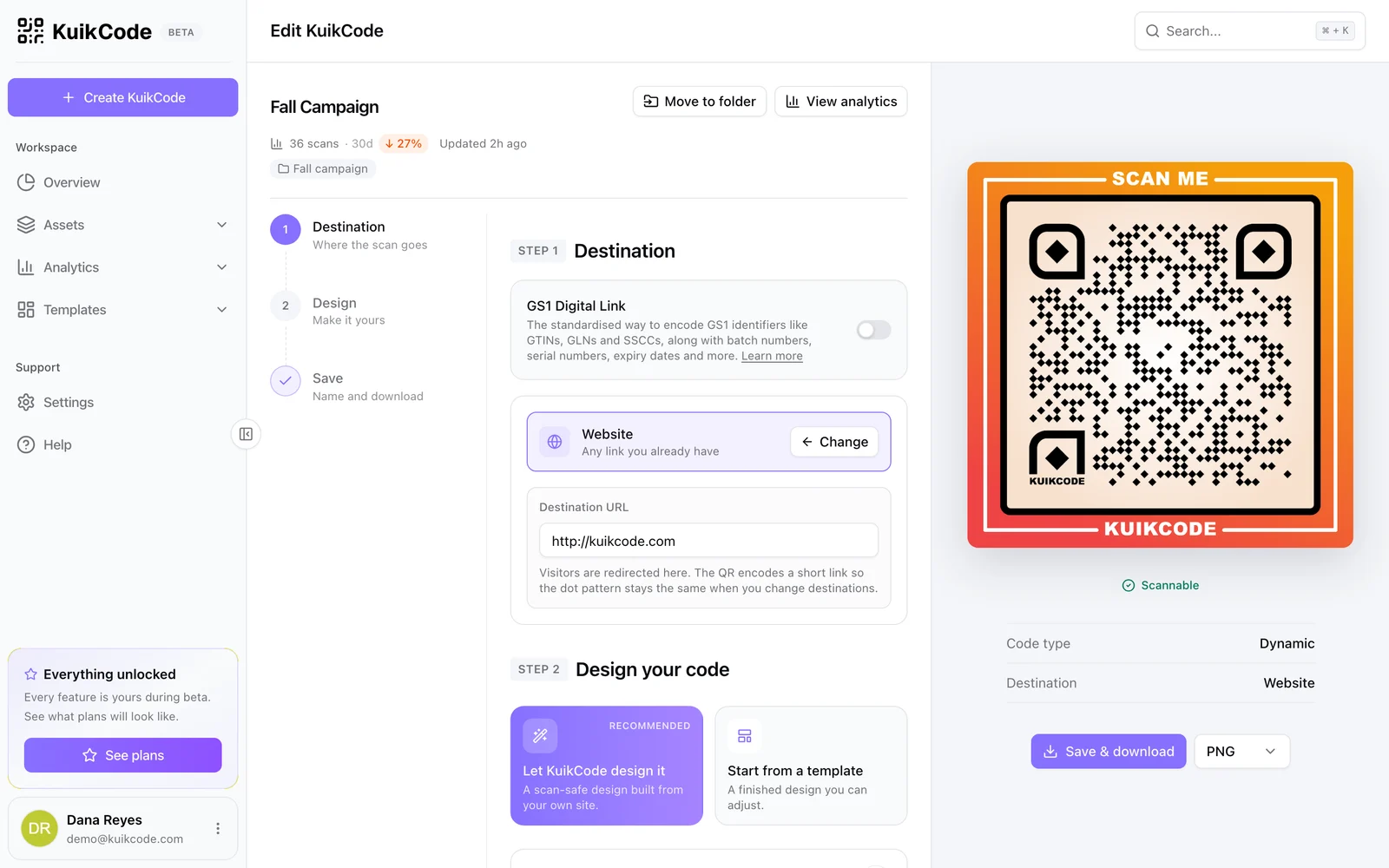
Every guest at a wedding carries a camera. By the end of the night there are hundreds of candid photos spread across dozens of phones, and most of them never reach the couple. A QR code on the tables fixes that: guests scan it, add their photos, and everything lands in one place you control.
How it works
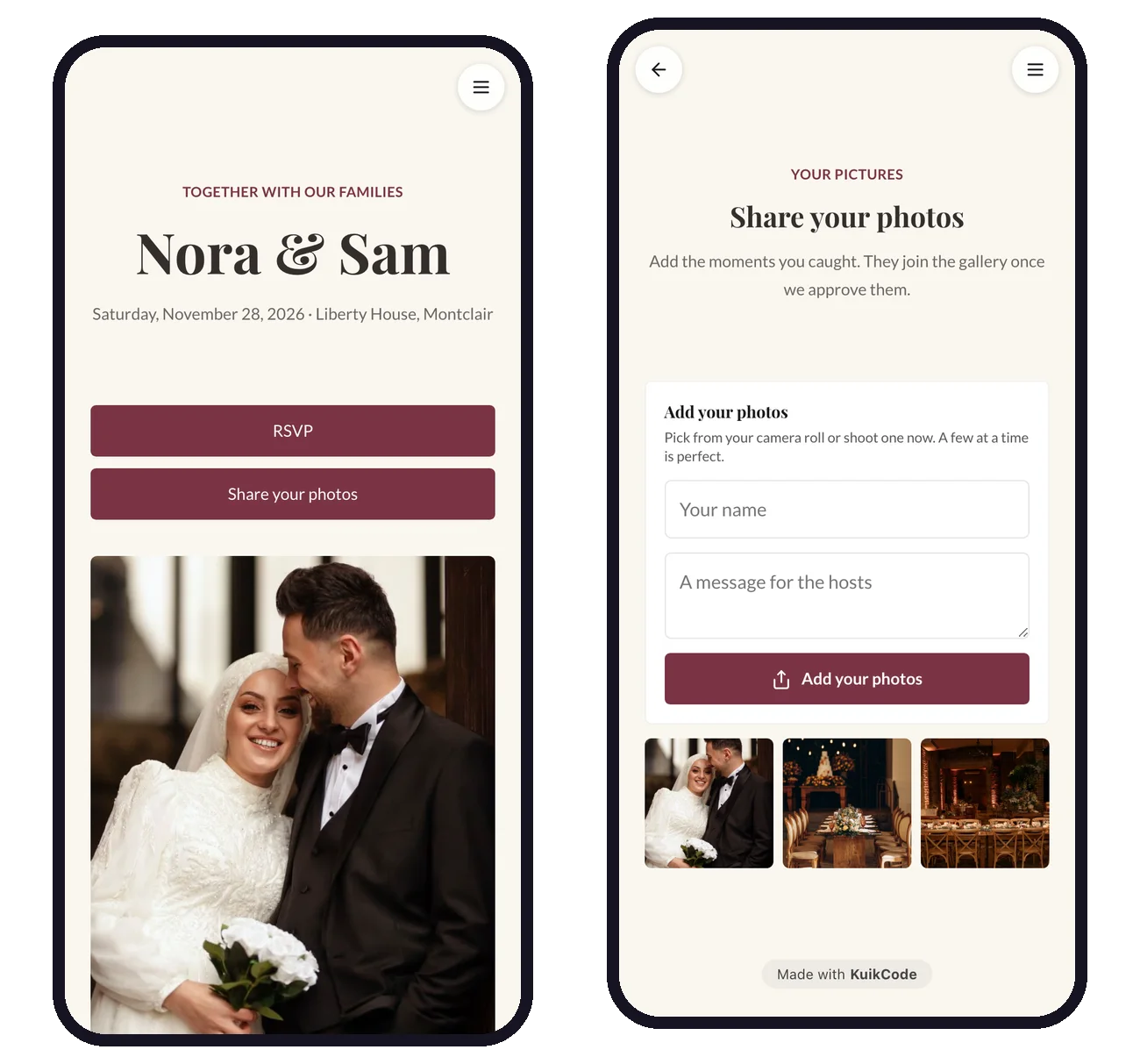
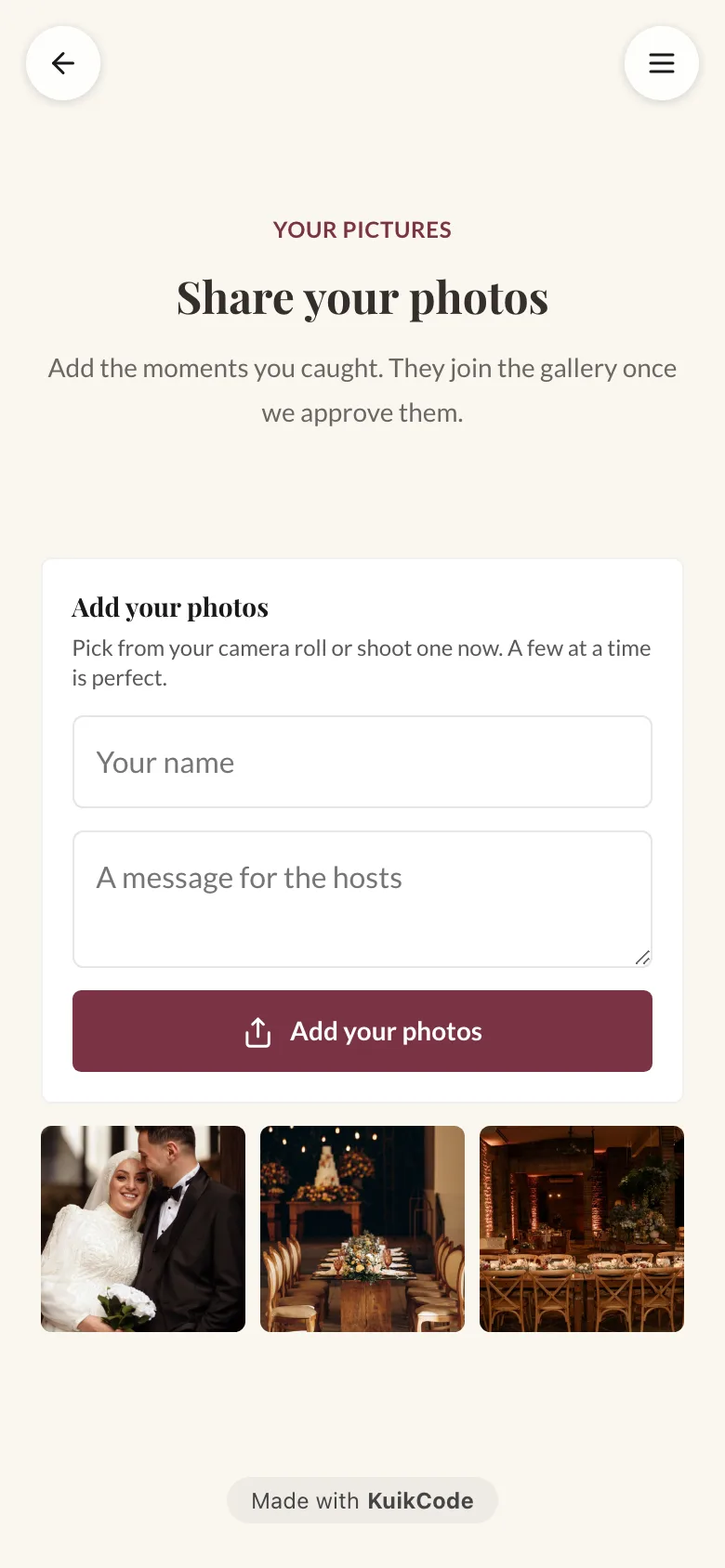
You add a Guest uploads block to a KuikPage, publish the page, and print its QR code on your table cards, programs or signs. Guests scan it and see a simple card:
- They tap Add your photos.
- They pick photos from their camera roll, or take one on the spot.
- They can add their name and a short message if you ask for them.
- The photos upload in seconds, even on crowded venue wifi, because they are resized on the phone first.
There is no app to install and no account to create. If a guest can open a link, they can share their photos.
Start from the Wedding template
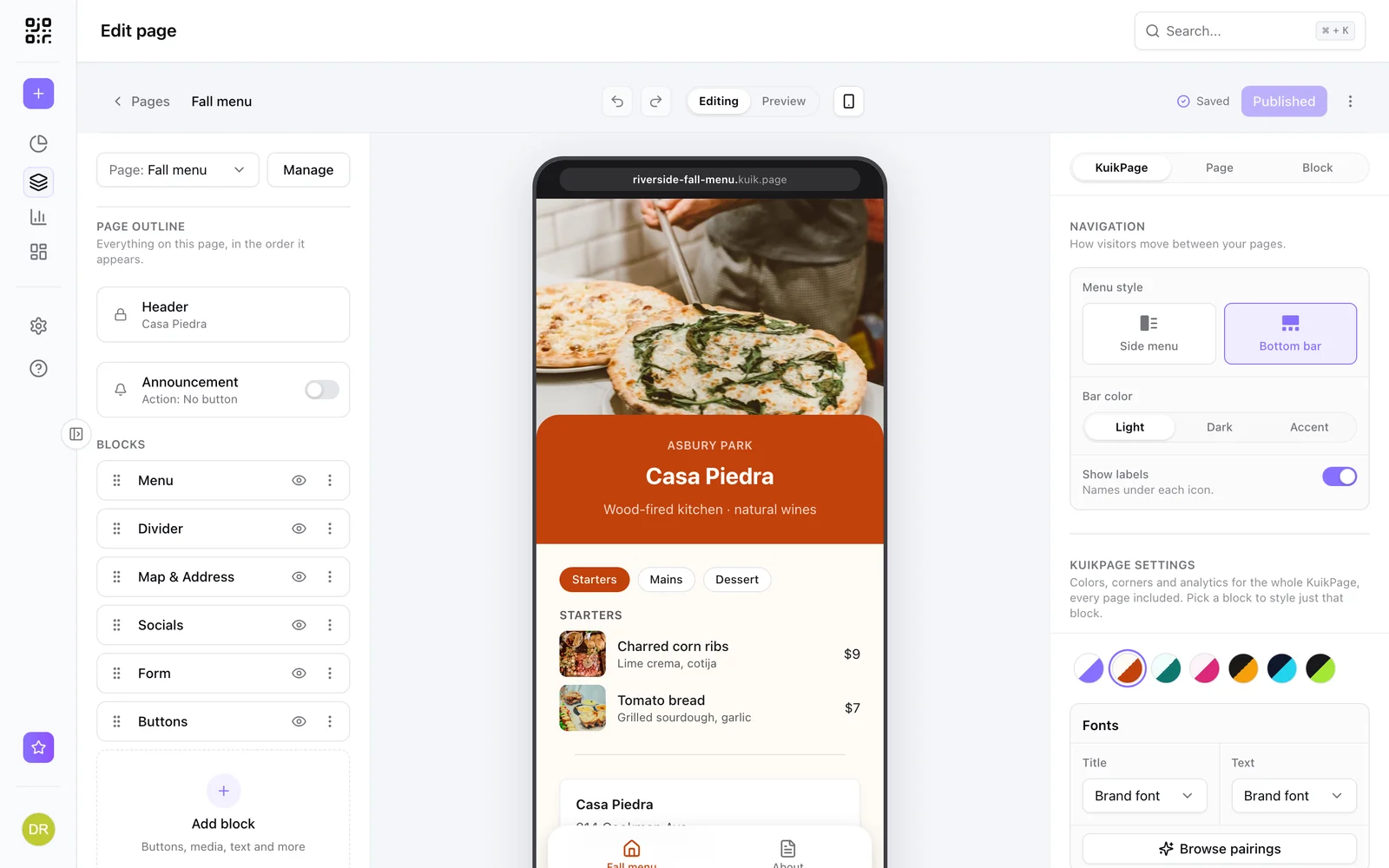
The quickest way to set this up is the Wedding template in KuikPages. It is a five page site with a home page, the schedule, the venue, an RSVP form and a Photos page that already carries the Guest uploads block. Change the names, the date and the photos, publish, and your photo drop is ready.
You can also add the block to any page you already have. Open the page in the editor, choose Guest uploads from the blocks list, and it appears on the canvas with its settings beside it.
Set it up in a few minutes
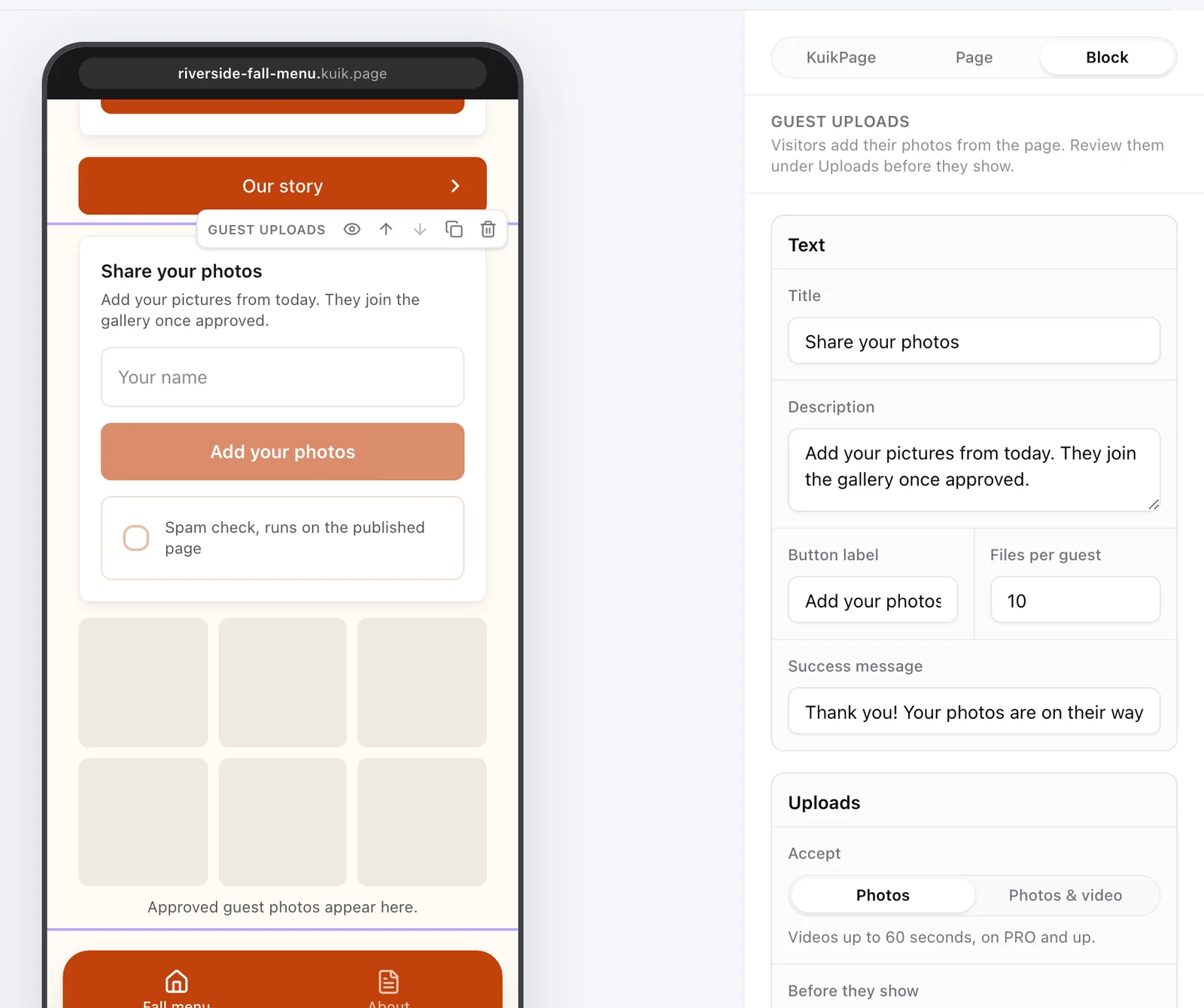
The block's settings cover everything a host usually asks about:
- Text. The title, description, button label and the message guests see after uploading, plus how many files each guest can send per visit, from 1 to 20.
- Accept. Photos only, or photos and videos of up to 60 seconds on PRO and up.
- Before they show. Review first keeps every upload private until you approve it. Show right away puts photos in the gallery the moment they arrive.
- Name and message. Ask guests who they are and let them leave a note. Names are only visible to you, never on the page.
- Open from and Close on. Choose when uploads start and stop. After the close date the button is replaced by a short note and the page refuses new files.
- Gallery. Show the approved photos on the page in two or three columns, or hide the gallery and keep the photos to yourself.
Review and approve the photos
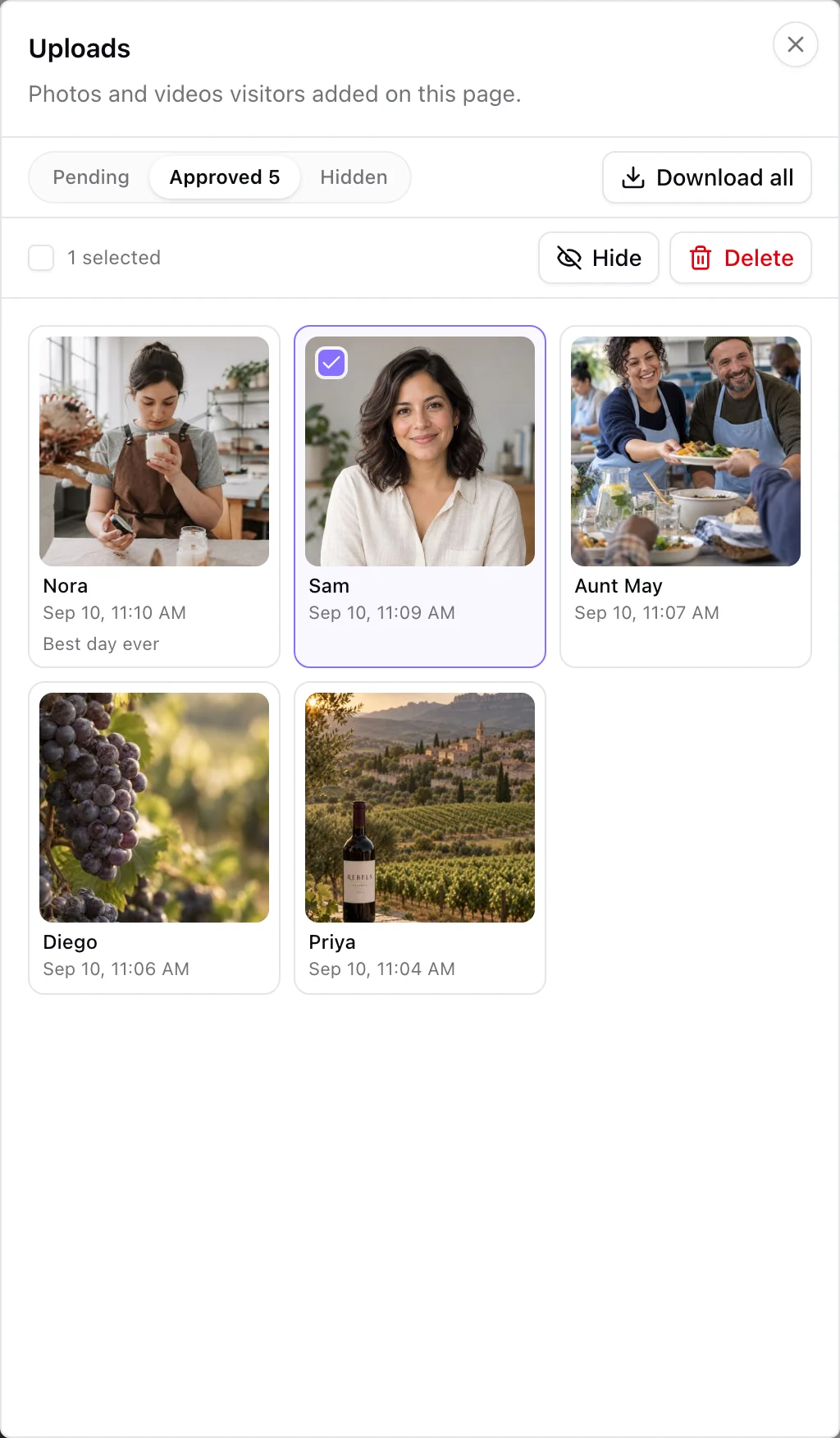
New photos wait in the Uploads sheet, opened from the block's Review uploads button or from the page menu. It has three tabs, Pending, Approved and Hidden. Each photo shows the guest's name, their message and when it arrived. Select one or many and approve, hide or delete them together.
While photos are waiting, workspace owners get at most one reminder email an hour per page, with a link straight to the review sheet. Switch the block to Show right away if you would rather skip reviewing.
Share the gallery with everyone
Once photos are approved, a See the photos link appears under the button and the gallery fills the page, newest first. Guests tap any photo to open it full screen, then share it or download it to their phone. New approvals appear for everyone on the page within about half a minute, so the gallery grows through the night.
Keep every photo after the wedding
When the celebration is over, you have two ways to keep everything:
- Download all. In the review sheet, choose Download all on the Approved tab. You get an email with a link to a zip of every approved photo and video, valid for seven days.
- Google Drive sync. On PRO and up, connect Google Drive from the block's settings. A folder named after your page appears in your Drive, and every approved photo is copied there within a few minutes. KuikCode can only manage the files it creates.
If the block has a close date, uploads are kept for ninety days after it. Owners get a warning email a week before anything is removed, and photos already copied to Google Drive stay there.
Tips for more photos
- Print the code where people pause. Table cards, the bar, the photo booth and the guest book table all work better than one sign at the entrance.
- Say what to do. A line like Scan to add your photos next to the code tells guests exactly why to scan.
- Mention it once out loud. A quick word during the toasts reminds everyone while their phones are already out.
- Open the gallery early. When guests see other people's photos appear, they add their own.
- Keep the close date a few days after. Plenty of the best photos get shared the morning after.
Plans and storage
The Guest uploads block is available on Starter and above. Storage for guest photos is separate from your other files: 1 GB on Starter, 10 GB on PRO and 50 GB on Business. Video uploads and Google Drive sync come with PRO. The full setup guide lives in the Guest uploads documentation.
Beyond weddings
The same block works anywhere a crowd takes photos: birthdays, school events, reunions and shop openings, and just as well for company get togethers, conferences, expos, trade shows and conventions. One printed code, one page, and every picture ends up with the people who hosted it. Our guide to collecting event photos from attendees covers the business side: brand safe review, where to place the code at a venue and getting photos to your marketing team.
Frequently asked questions
01Do guests need to download an app to share their photos?+
No. Guests scan the QR code with their phone camera and add photos from the page that opens in their browser. There is nothing to install and no account to create.
02Can I approve photos before other guests see them?+
Yes. Review first is the default, so every photo stays private until you approve it. You can switch to Show right away if you prefer photos to appear the moment they land.
03How do I get all the photos after the wedding?+
Open the Uploads sheet, go to Approved and choose Download all. You get an email with a link to a zip of every approved photo and video, valid for seven days. On PRO and up you can also connect Google Drive and approved photos are copied to a folder there.
04What resolution are the photos saved at?+
Photos are resized on the guest's phone before they upload, so they arrive in seconds even on venue wifi. They are stored as JPEG at up to 1600 pixels on the long edge, which is ideal for sharing, slideshows and small prints.
05Can guests upload videos too?+
Yes, on PRO and up. Switch the block to Photos and video and guests can add clips of up to 60 seconds.
06How much storage do I get?+
Guest uploads have their own allowance per workspace, 1 GB on Starter, 10 GB on PRO and 50 GB on Business. When it is full, the page tells guests the hosts have run out of space and nothing already collected is lost.
07Does this work for events other than weddings?+
Yes. The same block works for birthdays, school events, reunions and shop openings, and for company get togethers, conferences, expos, trade shows and conventions, anywhere you want people to share what they captured.