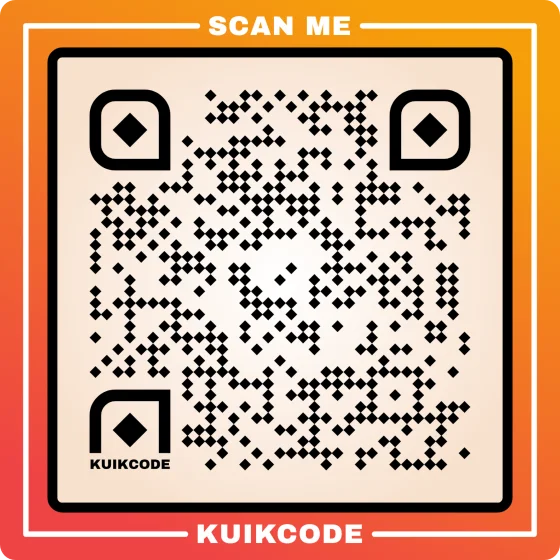
To scan a QR code on Android, open the Camera app, point it at the code and tap the link that appears. That's it on almost every phone sold in the last few years, with no app to install. Android phones come from many brands, though, so here are the five ways to scan, what changes on Samsung and Pixel, and what to try when nothing happens.
1. With the Camera app
- Open the Camera.
- Point it at the code and hold still for a second. The whole code should fit on the screen.
- A link, a banner or a small chip appears. Tap it to open the code.
You don't need to take a photo. The camera reads the code as soon as it sees it.
On some phones the setting has to be on first:
- Samsung Galaxy: open the camera's Settings and turn on Scan QR codes. On recent versions, the settings sit behind the camera's quick controls; older ones show a gear at the top corner.
- Google Pixel: the Pixel Camera reads codes out of the box, through its Google Lens suggestions.
- Other brands: look for QR code, Scan or Google Lens in the camera settings or modes. Some phones, like many Xiaomi models, also include a separate Scanner app.
2. From quick settings
Samsung, Pixel and many other phones have a Scan QR code button in the quick settings, the panel you pull down from the top of the screen. It opens a scanner straight away, even from the lock screen on some phones.
- Samsung: swipe down twice to open the full quick panel and tap Scan QR code.
- Pixel: swipe down and tap the Scan QR code tile. Swipe sideways if there are more pages of tiles.
If you don't see the button, tap the pencil or edit icon in the panel and drag Scan QR code into it. It's worth doing once: from then on, scanning is one swipe and one tap from anywhere.
3. With Google Lens
If the camera does nothing, Google Lens almost always works. It comes with nearly every Android phone. Open it from:
- the Lens button in the camera, on phones that have one,
- the camera icon in the Google search bar on the home screen,
- or the Google app.
Point it at the code and tap the link that appears.
4. A code on your own screen: Circle to Search
A code in an email, a PDF, a web page or a video is on your screen, so the camera can't see it. Circle to Search reads it where it is:
- Press and hold the home button, or the navigation bar at the bottom if you use gestures.
- Circle the code with your finger.
- Tap the link that appears.
Circle to Search is on recent Pixel and Samsung Galaxy phones and on more Android phones every year. To check, open Settings and search for Circle to Search.
5. A code in a screenshot or a photo
No Circle to Search? Take a screenshot (or use the photo you already have), open it in Google Photos and tap Lens. The link appears on the screen; tap it.
The same works for a code someone sent you in a chat: save the picture, open it in Photos, tap Lens.
When nothing happens
- Clean the lens. A smudge from a pocket is the most common reason a phone won't read a code.
- Change the distance. Hold the phone about 15 to 30 cm away for a code on a table or a flyer, farther for a poster. Too close is as bad as too far.
- Let in more light, or tap the screen to focus. Glossy paper and glass reflect; tilt the phone a little.
- Check the camera setting from section 1, then try Google Lens.
- Try another phone. If no phone reads it, the code is the problem: low contrast, too small, or printed without white space around it. Our guide on why a QR code is not scanning covers each cause.
Scan safely
Before you tap, look at the address the phone shows you. If a parking meter or a "missed delivery" sticker sends you to a strange address, or a page asks for your card or password right away, close it. Our guide on whether QR codes are safe shows how to spot a fake one.
Try it now
Point your camera at the code at the top of this page. It's a KuikCode, and it opens kuikcode.com. If the link appears, your phone is ready. For iPhone steps and more on scanning in general, see how to scan a QR code.
Frequently asked questions
01How do I scan a QR code on Android?+
Open the Camera app and point it at the code for a moment. A link or a banner appears; tap it to open the code. If nothing appears, use the Scan QR code button in quick settings or Google Lens.
02Do I need an app to scan QR codes on Android?+
No. Recent Android phones scan from the built in camera, the quick settings and Google Lens, which comes with the phone. Third party scanner apps are only needed on very old phones, and many of them are full of ads.
03How do I scan a QR code on a Samsung phone?+
Open the Camera and point it at the code, then tap the link that appears. If it doesn't react, turn on Scan QR codes in the camera settings. You can also swipe down twice from the top and tap Scan QR code in the quick panel.
04How do I scan a QR code on a Google Pixel?+
Point the Pixel Camera at the code and tap the link, or swipe down from the top of the screen and tap the Scan QR code tile. If you don't see the tile, tap the pencil icon to add it.
05How do I scan a QR code that's on my phone's screen?+
Use Circle to Search: press and hold the home button or the navigation bar, then circle the code. On phones without it, take a screenshot, open it in Google Photos and tap Lens.
06Why won't my Android phone scan a QR code?+
Usually the camera's QR scanning setting is off, the lens is dirty, or the phone is too close or too far. Clean the lens, hold the phone 15 to 30 cm away and try Google Lens. If no phone can read it, the code itself is the problem.