On this page
- A quick checklist
- Problems with the code itself
- Low contrast
- Inverted colors
- No quiet zone
- Too small for the distance
- Damage, glare and curves
- Too much data in a static code
- A logo that is too big
- A blurry export
- Problems with the phone or camera
- Problems with the destination
- How KuikCode helps
- Test before the whole run
A QR code that will not scan feels like a mystery, but the cause is almost always one of a short list. The useful first question is: does the camera react at all?
- Nothing happens when you point the phone at it. The phone cannot read the pattern, so look at the code and the camera.
- The phone shows a link, but the page fails or shows an error. The code is fine. Look at the destination.
A quick checklist
Work down this list. Most problems show up in the first five checks.
- Contrast. Are the dots clearly darker than the background?
- Colors the right way round. Dark dots on a light background, not the reverse.
- Clear margin. Is there empty space around the code, about four small squares wide?
- Size. Is the code big enough for the distance people scan from?
- Print quality. Any scratches, creases, glare, smudges or blur?
- Logo. Does a logo or sticker cover the corner squares or a big part of the pattern?
- Amount of data. Is it a static code holding a very long link?
- Light and angle. Is the code in shadow, behind glass, or scanned at a steep angle?
- The link. Does the destination open on a phone, with no typo?
- The account. For a dynamic code, is the code active and the account in good standing?
Problems with the code itself
Low contrast
Phone cameras find a QR code by the difference between dark and light. Pale gray on white, pastel on pastel, or a mid-tone photo behind the code all make that difference too small. Pick a dot color that is clearly darker than the background, and check every color the dots use, including both ends of a gradient.
Inverted colors
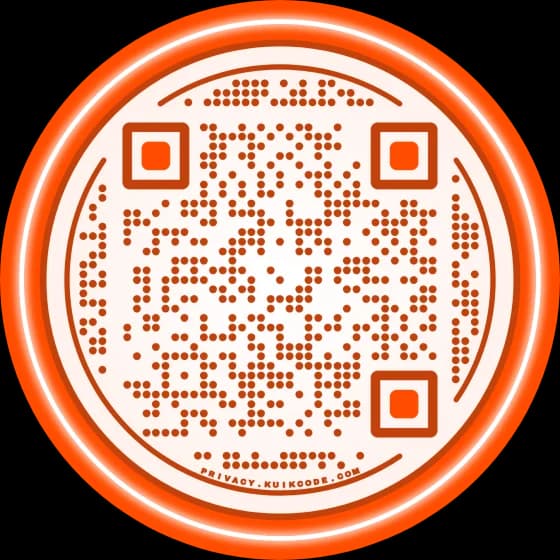
Light dots on a dark background look striking, and some phones read them, but many scanners expect dark on light and fail. For anything printed, keep the dots darker than the background. If your design needs a dark surface, put the code on a light panel.
No quiet zone
A scanner needs empty space around the code to know where it starts. Text, borders, photos or a busy pattern running right up to the edge make the code hard to find. Leave a clear margin of about four modules on every side (a module is one small square of the pattern).
Too small for the distance
A code that works on a business card can fail on a poster across a room. Print at least 2 x 2 cm (0.8 x 0.8 in) for anything held in the hand, and for anything read from further away make the code about one tenth of the scanning distance. Our guide to QR code size for print has a table by placement.
Damage, glare and curves
Scratches, a crease through a corner square, a smudged ink run, a glossy laminate that reflects light, or a code wrapped around a narrow bottle all cost the camera part of the pattern. Use a matte finish where you can, keep codes off folds and seams, and print bigger on curved surfaces.
Too much data in a static code
A static code stores its whole content in the pattern. A long web address with tracking parameters turns into a dense grid of tiny squares that needs a bigger, sharper print. A dynamic code stores only a short link, so the pattern stays open and scans at smaller sizes.
A logo that is too big
QR codes carry spare data so they can still read with part of the pattern missing, which is what makes a logo in the middle possible. A logo that is too big, or that touches any of the three large corner squares, uses up that spare and the code stops reading. Keep the logo centered, keep the corner squares clear, and give a code with a logo a little more size.
A blurry export
A small image stretched for print loses the sharp edges between squares. Use a vector file such as SVG or PDF for professional printing, or a high resolution PNG.
Problems with the phone or camera
- Light. Low light, a shadow across the code, or a bright reflection all make scanning harder. Move the phone or the code, or turn on more light.
- Angle and distance. Hold the phone straight on, not at a steep angle, and move closer or further until the code fills a good part of the screen.
- Focus and lens. Give the camera a moment to focus, and wipe the lens. A fingerprint smear is a surprisingly common cause.
- Codes on screens. Turn the screen brightness up. A code shown on a dim screen, or photographed from a screen, can be hard to read.
- Older phones and camera settings. Most current phones read QR codes in the built in camera app. On some phones, code scanning can be switched off in the camera settings, and very old phones need a separate scanner app. If one phone fails, try a second one: if that one works, the code is fine.
Problems with the destination
If the phone shows a link but the page does not load, the code did its job. The problem is where it points.
- A dead link. The page was moved, renamed or taken offline. This is the most common reason an old print "stops working".
- A typo in the address. One wrong letter sends every scan to an error page. Open the link on a phone before printing.
- A blocked site. Company and school networks, and browser safety warnings, can block a page for some scanners and not others. Plain
http://links and unusual domains are more likely to trigger warnings. - An expired trial or a paused account. A dynamic code depends on the service that runs its short link. If a free trial ended, a scan limit ran out or a plan was cancelled, the code may stop redirecting. Our guide to whether QR codes expire covers what to check before you print.
- An archived or deleted code. Someone on the team may have turned the code off in the account that made it.
How KuikCode helps
Applies after beta. During beta every feature is unlocked, nothing pauses and nothing is charged.
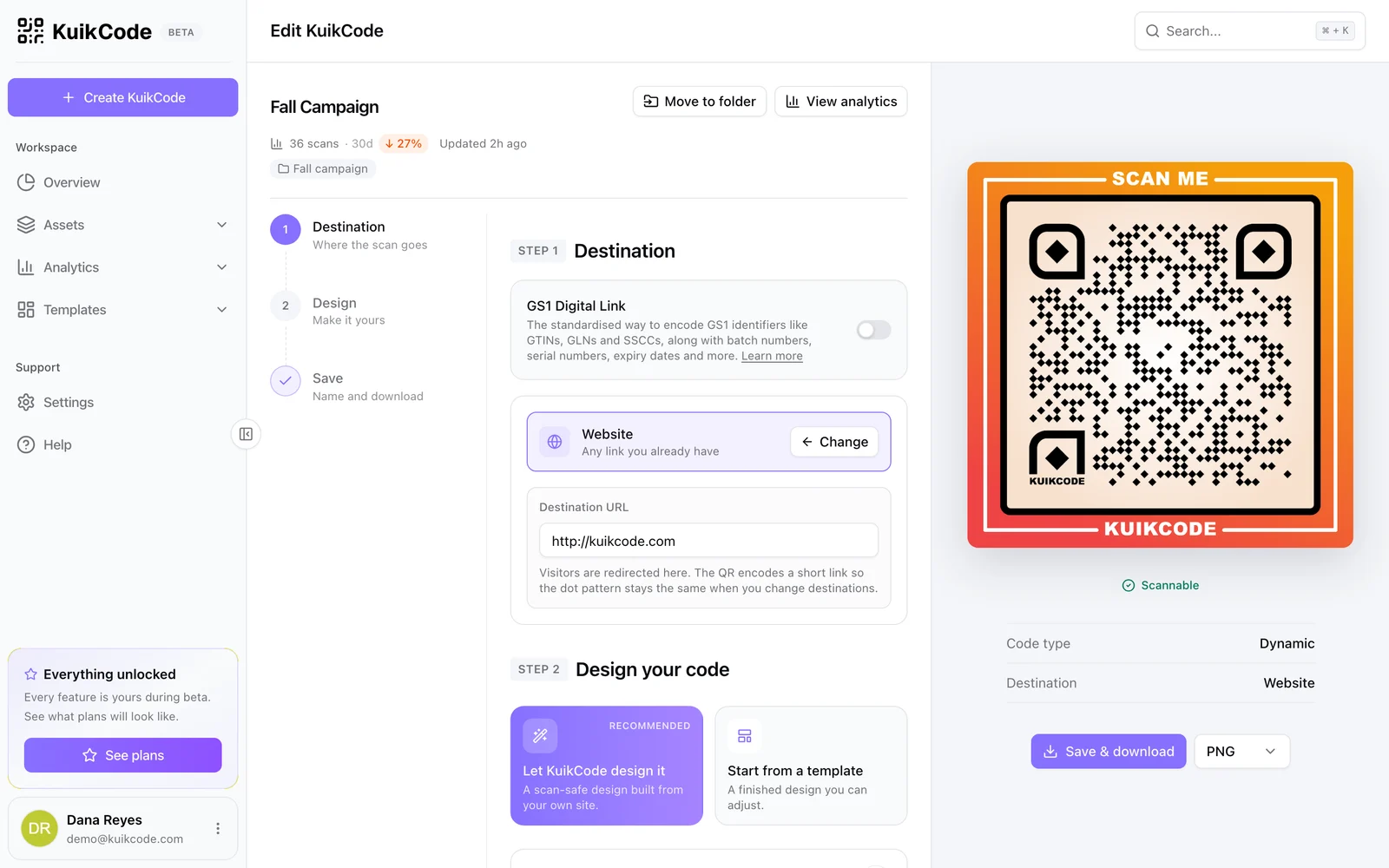
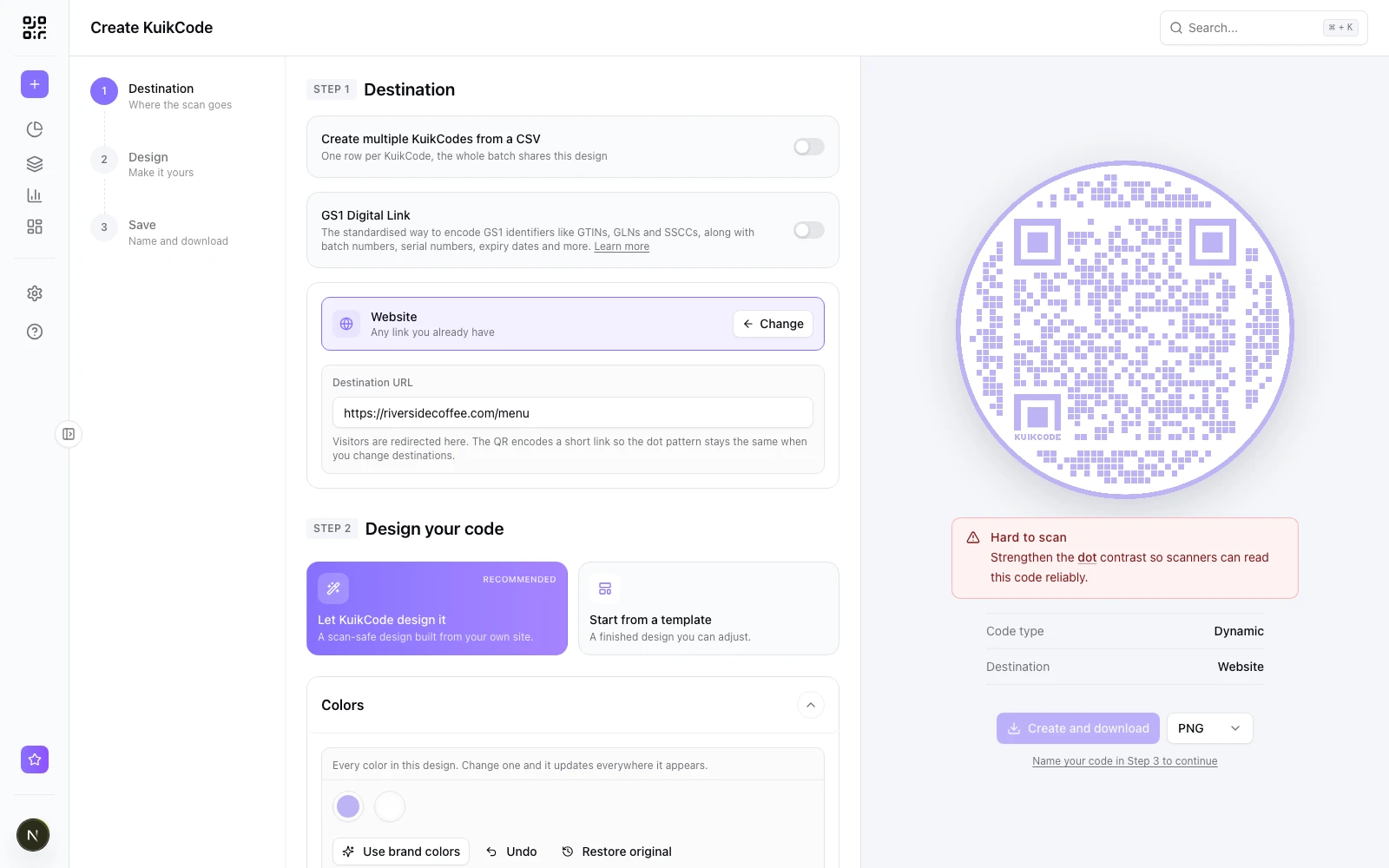
- A scannability check while you design. The KuikCode editor checks the contrast of the dots and corner squares against the background as you design. When a code gets hard to read it shows a Hard to scan warning that names the color to change, and it tells you when light dots on a dark background will fail. When the design reads cleanly, it decodes it and shows Scan verified.
- Every KuikCode is dynamic. The code holds a short link, so the pattern stays open, and every KuikCode is made with the highest error correction level, which gives a logo the most room.
- Fix the destination without reprinting. If the page moved or the link had a typo, change the destination in the dashboard and the same print sends scans to the right place. Our guide to changing a QR code's destination after printing shows how.
- No scan limits. KuikCodes have no scan limit on any plan, so a popular poster never stops redirecting because it did well.
- A neutral page and an email if a workspace pauses. If a trial ends or a plan lapses without a plan in place, the workspace pauses. Scanners see a neutral "temporarily unavailable" page, never an ad or someone else's content, and the owner gets an email when a paused code is scanned. Everything is kept for 60 days, and choosing a plan in that time brings the same codes back.
Test before the whole run
Print one sample at the real size and put it where it will live: on the wall, the box, the table. Scan it with two different phones, one iPhone and one Android if you can, from the distance your customers will stand, in the light they will have. Then open the page it leads to and make sure it loads quickly on mobile data. Five minutes of testing costs far less than a reprint.
Frequently asked questions
01Why is my QR code not scanning?+
The most common causes are low contrast between the dots and the background, light dots on a dark background, no clear margin around the code, a code printed too small for the scanning distance, and damage, glare or a curved surface. If the phone reads the code but nothing opens, the link behind it is the problem.
02Why does my QR code scan but not open anything?+
The phone read the code, so the problem is the destination. The page may be offline, the link may have a typo, a network or browser may be blocking the site, or the dynamic code's account may be paused or the code archived. Open the link yourself on a phone to see what scanners see.
03Can a logo stop a QR code from scanning?+
Yes, if it covers too much of the pattern or any of the three large corner squares. QR codes carry spare data so they can lose part of the pattern and still read, but a logo uses up some of that spare. Keep the logo in the center, keep the corner squares clear, and print a little larger.
04Do inverted QR codes work?+
Some phones read light dots on a dark background, but many scanners do not. For anything printed, use dark dots on a light background.
05How do I fix a printed QR code that goes to the wrong page?+
If it is a dynamic code, sign in to the service that made it and change the destination; the printed code stays the same. If it is a static code, the link is fixed inside the pattern, so you need a new code and a reprint.
06What do people see when a paused KuikCode is scanned?+
A neutral page that says the code is temporarily unavailable, with no ads and no one else's content. The owner gets an email that a paused code was scanned, and the workspace is kept for 60 days, so choosing a plan brings the same printed codes back.