Yes, a QR code can be almost any color, and a colored code is often the one people notice and scan. The rule is short: the dots have to stay clearly darker than the background. Scanners don't care about hue. They turn the picture into light and dark and look for the pattern, so two colors that look different to you can be the same gray to a camera.
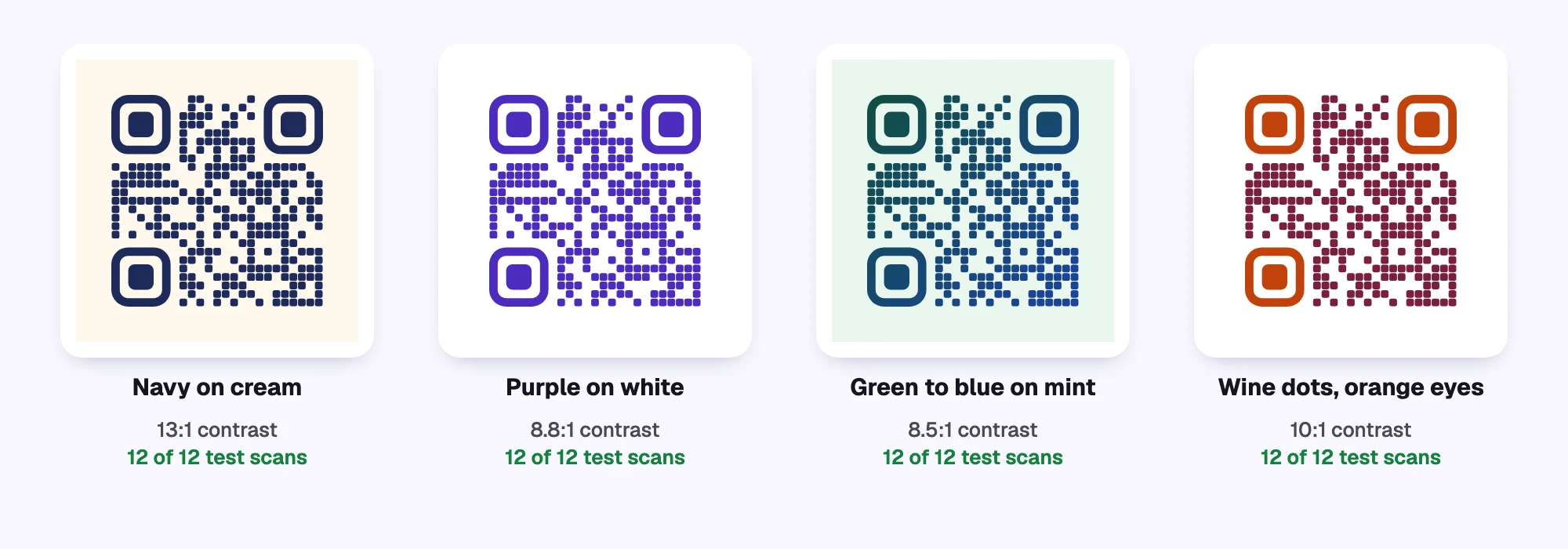
To show where the line is, we made eight codes with the free QR code generator, all pointing to the same link, and read each one 12 times under simulated camera conditions: smaller in the frame, slightly blurred, unevenly lit and with sensor noise, the way a phone sees a printed code across a table.
Why contrast matters more than color
A phone camera reads a QR code in grayscale. Each square is either "dark" or "light", decided by its brightness compared with its neighbors. When the dots and the background have very different brightness, the decision is easy even in a dim room, at an angle or from a distance. When they're close, glare, shadows and a cheap camera push some squares to the wrong side and the code stops reading.
The way to measure it is the contrast ratio, the same number designers use for readable text: 1:1 means identical brightness, 21:1 is black on white. For QR codes:
- 4.5:1 or more is the safe zone. Every color pair in the KuikCode editor's ready-made Pairs sits there.
- Between 2.5:1 and 4.5:1 usually scans, but slower in low light.
- Below about 2.5:1 many phones fail. The free generator blocks the download and tells you to darken the dots or lighten the background.
What failed in our test
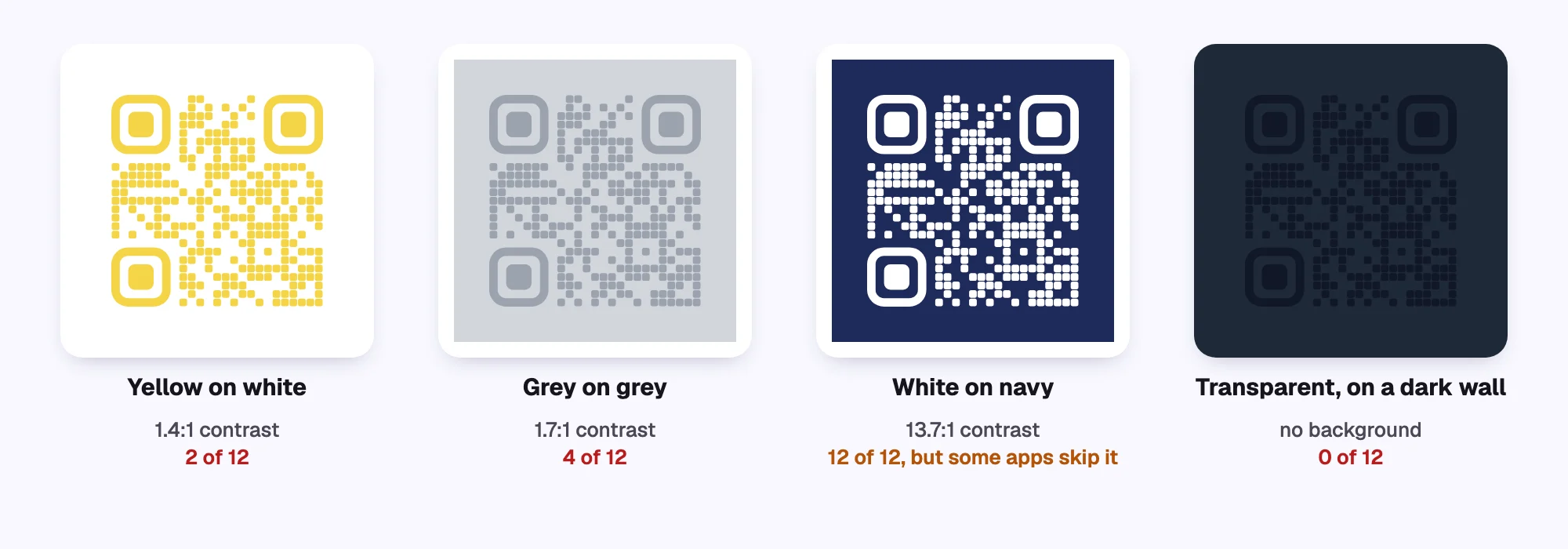
- Light colors as dots. Yellow on white looks bright and cheerful, but at 1.4:1 it read in only 2 of 12 shots. Pastel pink, light blue and silver have the same problem.
- Two mid tones. Gray dots on a slightly lighter gray background, 1.7:1, read in 4 of 12. This is the classic "elegant" design that fails at the event.
- Flipped colors. White dots on navy read every time in our test, because the reader we used tries both ways. Not every app does: some only look for dark dots on a light background. Most recent phone cameras handle it, but for a poster or a package that anyone might scan, dark on light is safer.
- Transparent on dark. A transparent background is great on white paper. Print the same file on a black box, a dark wall or a photo, and the dark dots vanish into it: zero reads.
Rules for a colored QR code that scans
- Pick a dark color for the dots. Navy, deep purple, forest green, wine, chocolate or black. If your brand color is light, use it for the frame or the corner squares instead.
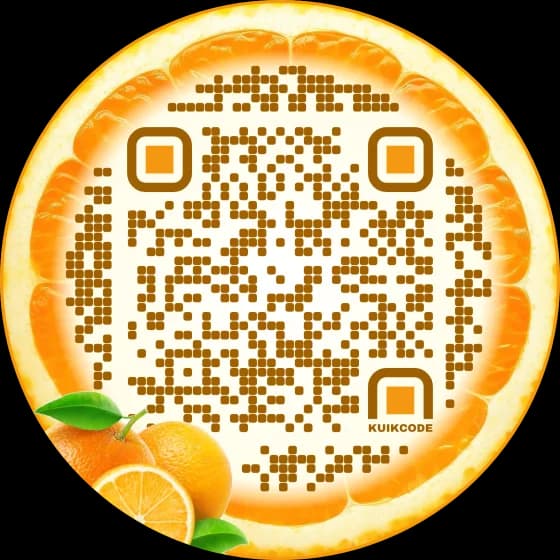
- Keep the background light and plain. White, cream, a pale tint of your brand color. Avoid busy photos directly behind the dots.
- Gradients are fine if every color in them is dark. Check the lightest end of the gradient against the background, not the darkest.
- Color the corner squares freely, within the same rule. A different color on the three large squares is a nice touch, as long as they stay dark too.
- Don't rely on hue. Red on green, blue on purple and orange on pink can look distinct and still have nearly the same brightness. Compare brightness, not color names.
- Decide where a transparent code will live. On light surfaces keep the dots dark; on dark surfaces use light dots or give the code its own light background.
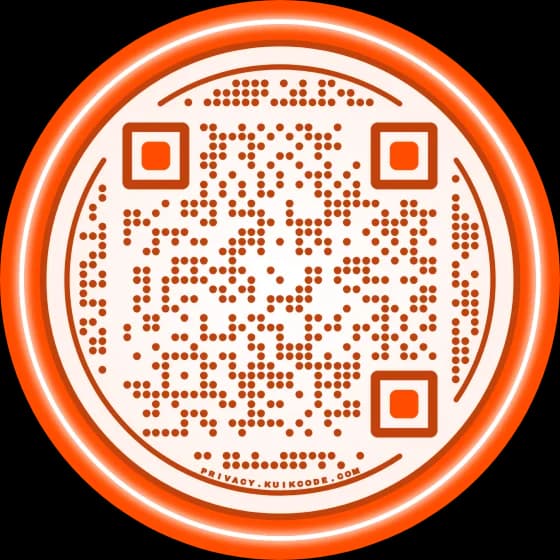
- Put the boldest color around the code, not in it. A frame, a texture or a sticker can be any color, because the scanner doesn't read it.
How to check before you print
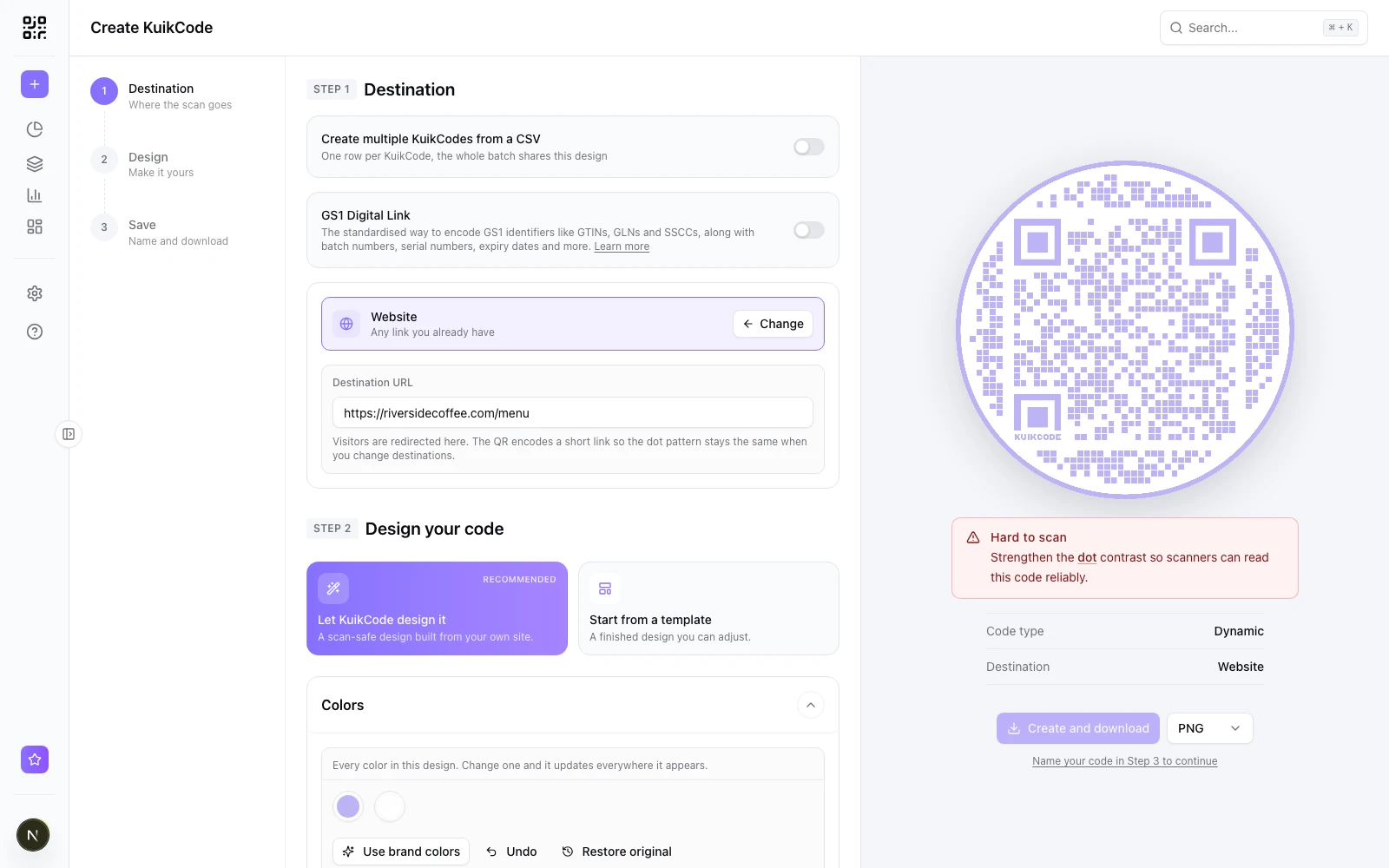
The quickest check is the one built into the tool you design with. In the KuikCode editor, a badge under the preview reports how well the design reads: green Scannable, amber Scannable, improve contrast, or red Hard to scan with a link to the part to fix. When the editor can decode the preview itself, it says Scan verified. Light dots on a dark background get their own amber note, because of the apps that skip flipped colors.
Then do the real test: print a proof at the size you'll use (see what size a QR code should be) and scan it with two different phones, one of them older, in the light where it will hang. If it's slow, raise the contrast before you raise the size.
When a code still won't scan
Color is the most common cause, but not the only one. If your code has good contrast and still fails, the problem is usually size, a missing quiet zone around the edges, or a logo covering too much. Our guide on why a QR code is not scanning walks through each one.
Frequently asked questions
01Can QR codes be different colors?+
Yes. The dots, the three corner squares and the background can each be any color, as long as the dots stay clearly darker than the background. A contrast of 4.5:1 or more scans reliably; below about 2.5:1 many phones struggle.
02What is the best color for a QR code?+
Any dark color on a light background: navy, deep purple, forest green, wine or black. Your brand color works too when it is dark enough. Light colors such as yellow, pastel pink or light grey make poor dots.
03Can a QR code have a transparent background?+
Yes. Download it as a PNG with a transparent background and it takes the color of the surface under it. That works on white or light paper, but on a dark surface dark dots disappear, so either keep a light background or switch to light dots.
04Do white QR codes on a black background work?+
On most recent phone cameras, yes. Some scanner apps only look for dark dots on a light background and skip a code with its colors flipped, so dark on light is the safer choice for anything printed for a wide audience.
05Can a QR code be red or another bright color?+
A dark red such as wine or brick scans well on white. A bright red or orange on white is borderline, and red on green can fail even though the colors look different, because both can have the same brightness to a camera.
06How do I know if my colored QR code will scan?+
Check the contrast before you download. The KuikCode editor shows a scan badge that turns amber or red when the colors are too close and reads Scan verified when it decodes the code itself, and the free generator warns you below a safe contrast. Then scan the printed proof with two phones.