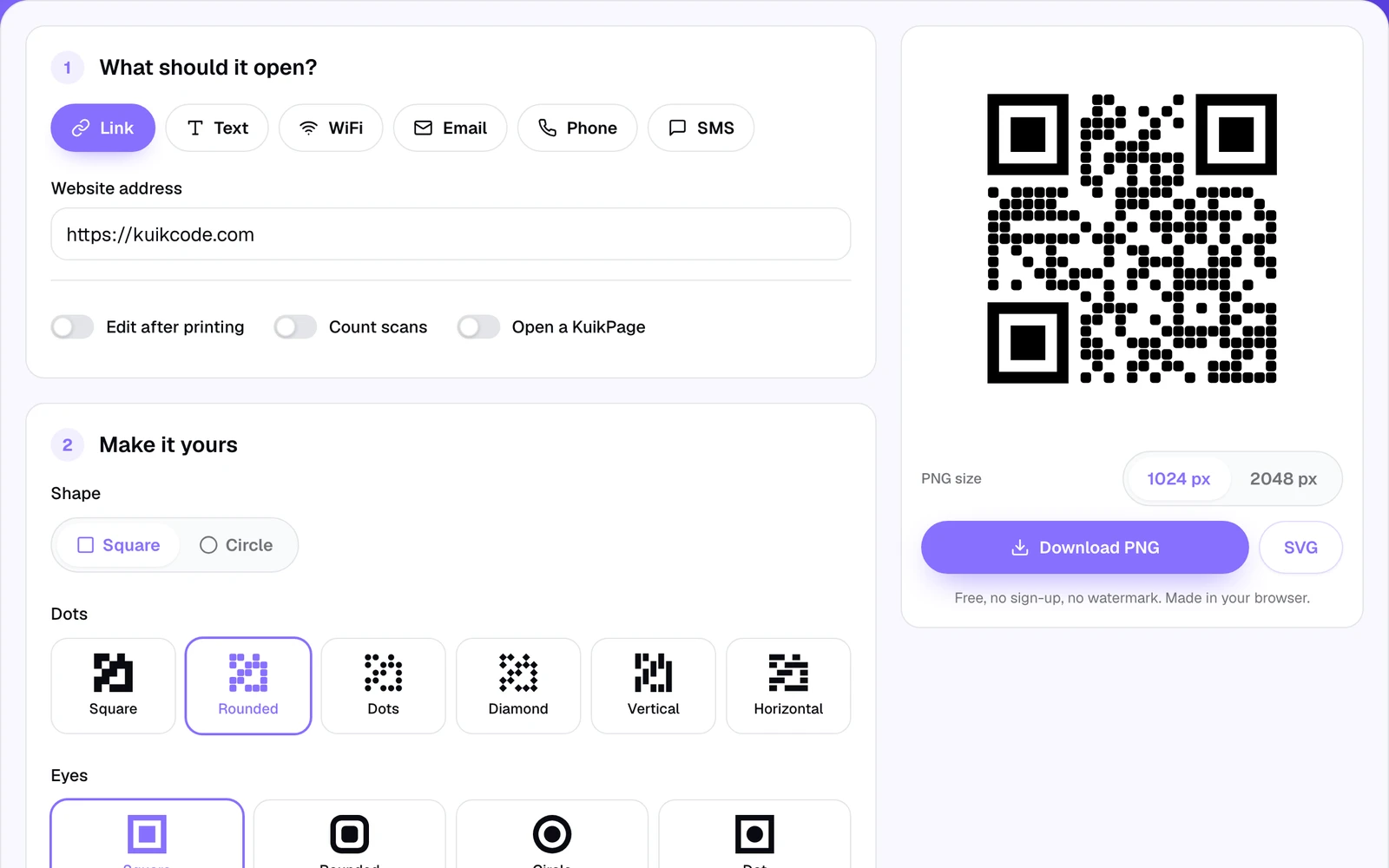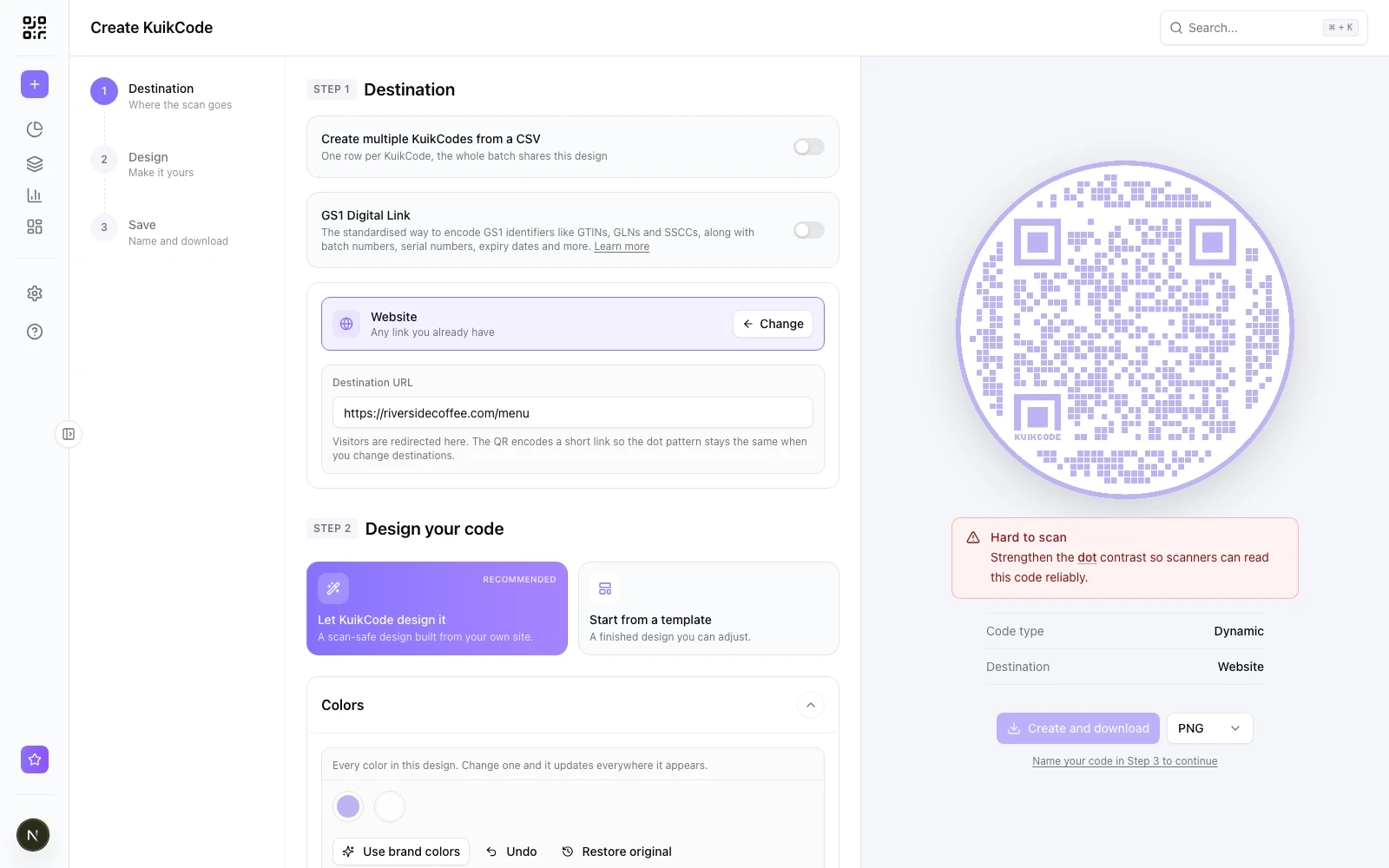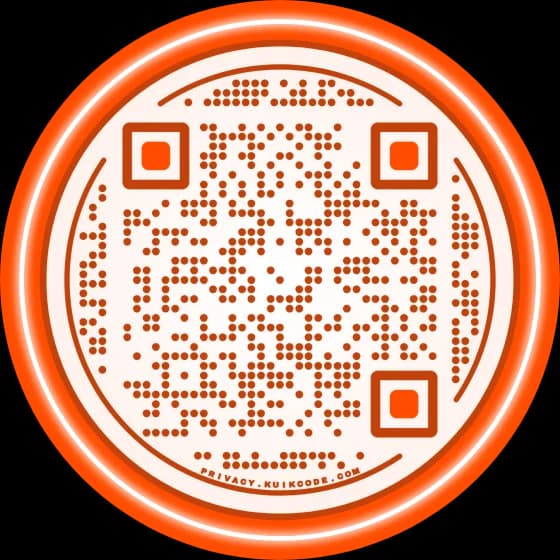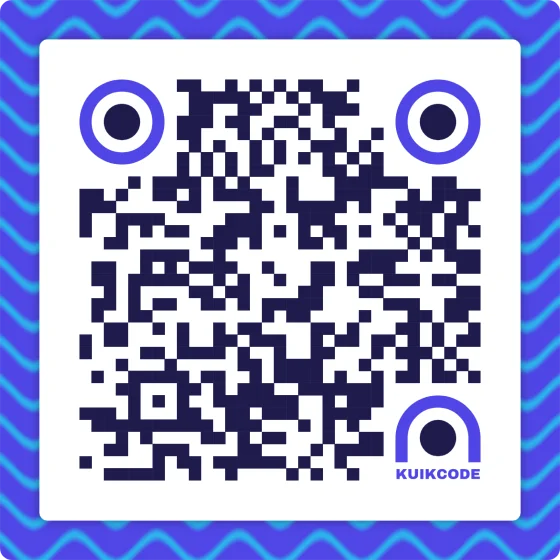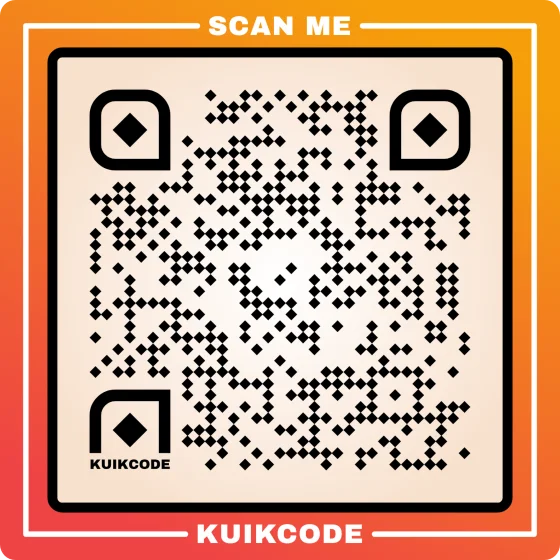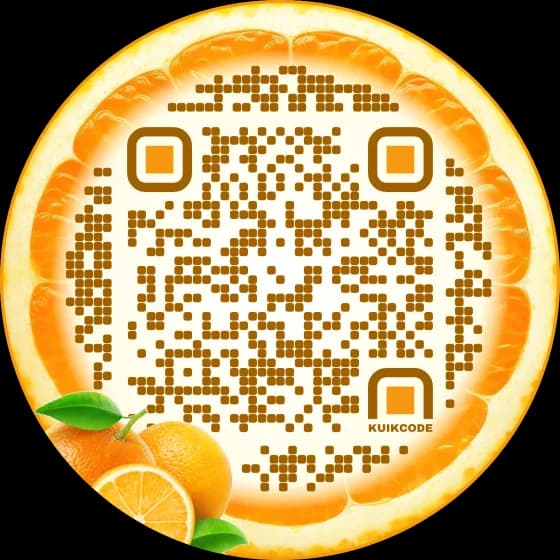
Yes, you can put a photo or an image in a QR code, and done right it still scans on every phone. The rule is simple: the picture goes where the scanner doesn't need to read. That leaves four good places: the middle, the frame, the background and the edge.
Why a QR code can hold an image at all
A QR code is a grid of dark and light squares, and the scanner reads it module by module. If part of the grid is missing, the code can still be read thanks to error correction: extra data built into every code that lets a scanner rebuild what it can't see. At the highest level, called H, a code survives about 30% of its data going missing.
That spare capacity is what makes room for a logo in the middle. Everything else in this post works without touching the dots at all.
1. A logo or photo in the middle
The classic way. The image sits in a cleared space in the center, and error correction covers the gap.
- Keep it to about a fifth of the code's width. Bigger eats into the data.
- Use a PNG with a transparent background for logos. A JPG brings its own box.
- A clean square crop works best: a face, a product, a mark.
The KuikCode free QR code generator does this with no account: add a logo and it switches the code to level H and clears the space. In the KuikCode editor, the logo lives under Shape, Text & Logo, where you can upload one and crop it. See QR codes with a logo for more.
2. A photo as the frame
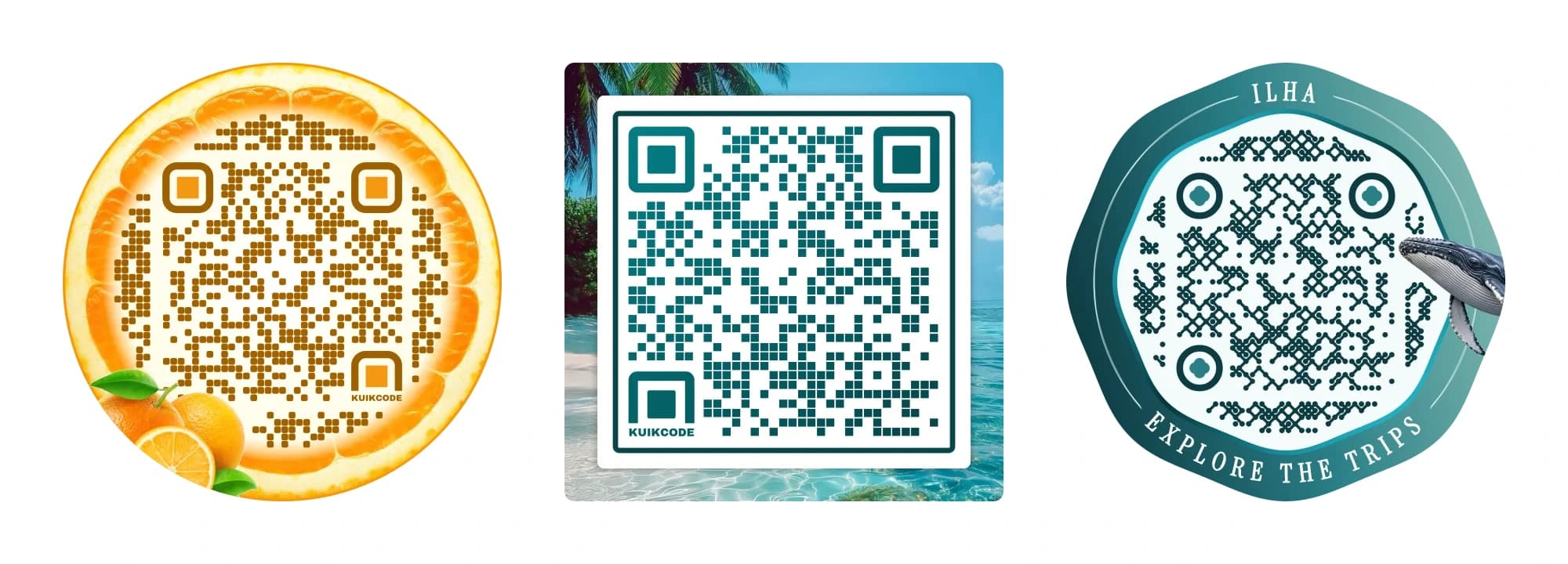
Put the photo around the code instead of over it. In the KuikCode editor, turn on the Frame and choose a Frame image: a slice of orange, a wood texture, a shot of your shop front. You can zoom and move it until the right part shows. The dots stay on their own clean surface, so the photo can be as busy as you like.
3. A photo behind the code
A beach for a tour company, a dish for a restaurant. A photo behind the code works when the dots still sit on something light and plain. A busy photo right under the dots is the most common reason designed codes fail. In the editor, set the image under Background, or use a frame image and keep a light panel behind the dots, like the beach code above.
4. A photo cutout as a sticker
Stickers sit on the frame, so they can break out of the circle without touching the data. The library has Photo cutouts of real things next to illustrations, doodles and 3D props, and you can add your own photo and remove its background so only the subject shows. The whale on the right of the figure is a cutout on the frame's edge.
Turn the Frame on first: stickers sit on the frame band, so they need one.
Keep it scannable
A picture changes what the scanner sees, so a few rules matter more than usual:
- Dots darker than what's under them. Dark on light reads everywhere. Light dots on a dark photo fail on many phones.
- Hands off the three corner squares. Those big squares are how a phone finds the code. Never put an image over them.
- Leave space around the code. A photo that runs right up to the dots blurs the edge of the grid.
- Print it big enough. A detailed design needs room: at least 2 cm on a card, more for anything read from a distance. Our QR code size guide has the numbers.
- Test it. The KuikCode editor shows Scan verified when the design reads cleanly and warns you about weak contrast. Then scan a printed proof with two phones; our sample QR codes post has a five step check.
How to do it in KuikCode
- Click Create KuikCode and choose what it opens.
- In the design step, add your logo under Shape, Text & Logo.
- Turn on the Frame and pick a Frame image, or set a photo under Background.
- Open Stickers and add a photo cutout, or your own photo with its background removed.
- Check the preview says Scan verified, then name and download your code.
The full design studio is on every plan, starting with Basic, and AI background removal starts on Core. For more finished designs to start from, browse the KuikCode templates.
A QR code that opens a photo
People sometimes mean the opposite: a code that shows a picture when scanned. That's an image QR code. It opens a page with your photo (on PRO, a swipe gallery of several), and you can design that code with a photo too.
Frequently asked questions
01Can you put a picture in a QR code?+
Yes. The picture can sit in the center as a logo, around the code as a photo frame, behind the code as a background, or on the edge as a cutout sticker. What it can't do is cover the dots the scanner reads, beyond the small area error correction repairs.
02How do you put a logo in the middle of a QR code?+
Upload the logo in your QR code generator and let it clear a space in the middle. The code should use the high error correction level (H), which lets scanners rebuild the hidden part. KuikCode's free generator and the KuikCode editor both do this when you add a logo.
03Will a photo stop my QR code from scanning?+
Only if it lowers the contrast under the dots or covers the three large corner squares. A photo around or behind the code is fine when the dots sit on a light, plain area. Test the design on two phones before printing.
04What is the difference between a QR code with an image and an image QR code?+
A QR code with an image has a photo in its design. An image QR code opens a photo when someone scans it. KuikCode does both: design the code with your picture, and point it at a page that shows your images.
05Can I use my own photo as a sticker on a QR code?+
Yes. In the KuikCode editor, add a photo as a sticker on the frame and remove its background so only the subject shows. Manual background removal is on every plan, and AI background removal starts on Core.