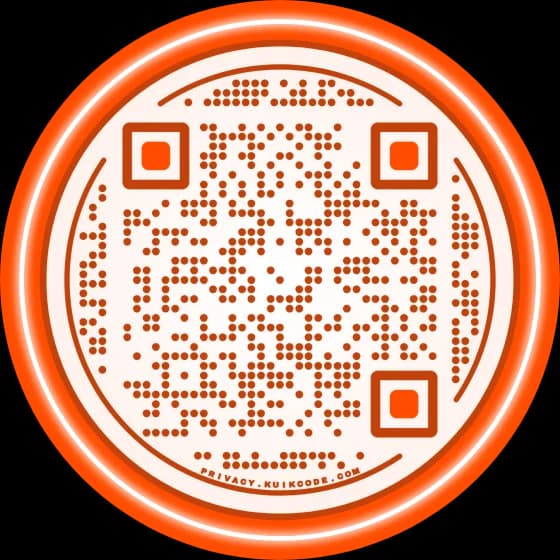
Looking for a sample QR code to try? Below are three you can scan right now. Each one does something different, so you can see what your phone does with a link, a message and a WiFi network. After that, a short check to run on your own code before it goes to print.
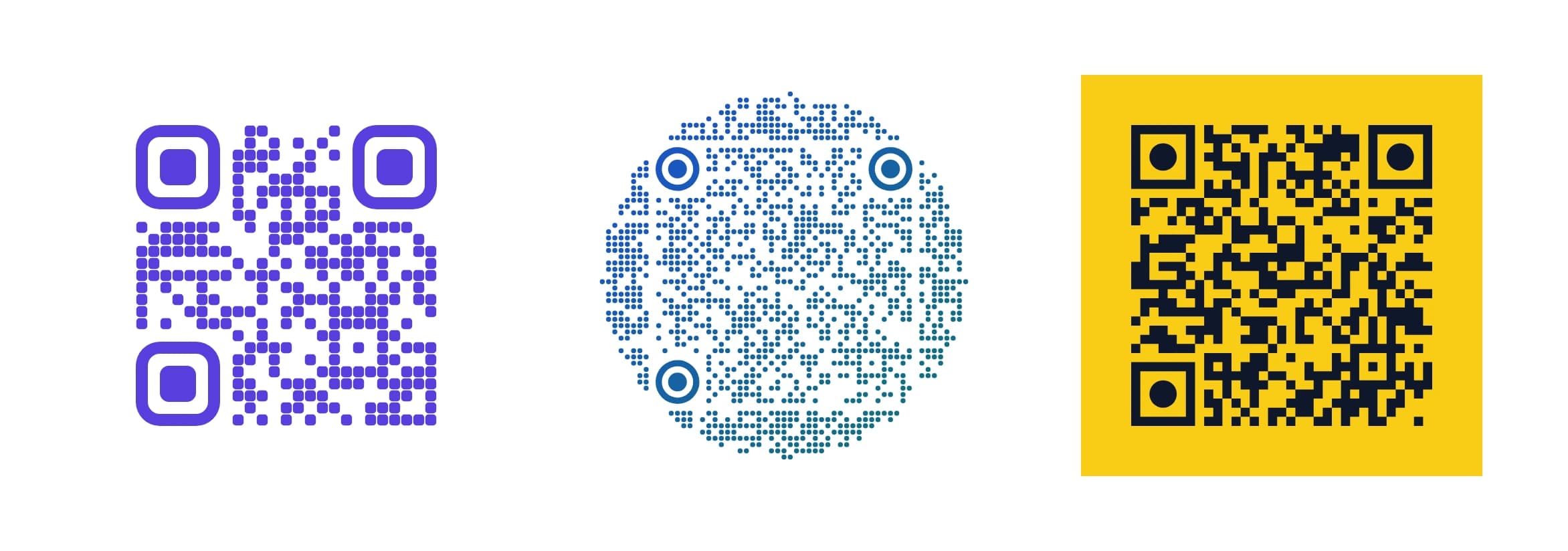
What each sample code should do
Open your camera, point it at one code and wait for a banner or a small yellow button to appear. Tap it.
- The violet code opens kuikcode.com in your browser. It is the most common kind of QR code: a web address.
- The round blue code shows a short message on your screen. Text codes hold the words themselves, so they work with no internet at all.
- The yellow code asks whether you want to join a WiFi network called KuikCode Test. That network doesn't exist, so nothing connects. It shows you what a guest sees when they scan a WiFi code in a café or a hotel room.
If all three did what they should, your phone reads QR codes and you're ready to test your own.
If nothing happens when you scan
- Move back. The whole code has to fit in the frame with a little space around it. Too close is the most common reason a scan fails.
- Lower the screen brightness if you're scanning from another screen. Glare washes out the dots.
- Check the camera settings. Recent iPhones and Android phones scan from the built in camera. If no banner appears, look for a QR scanning switch in the camera settings, or open Google Lens on Android.
- Hold still for a second. Phones need a sharp frame, and a moving hand blurs the small dots.
Our guide on why a QR code won't scan goes through the rarer causes, from colors to damaged print.
Make your own test code
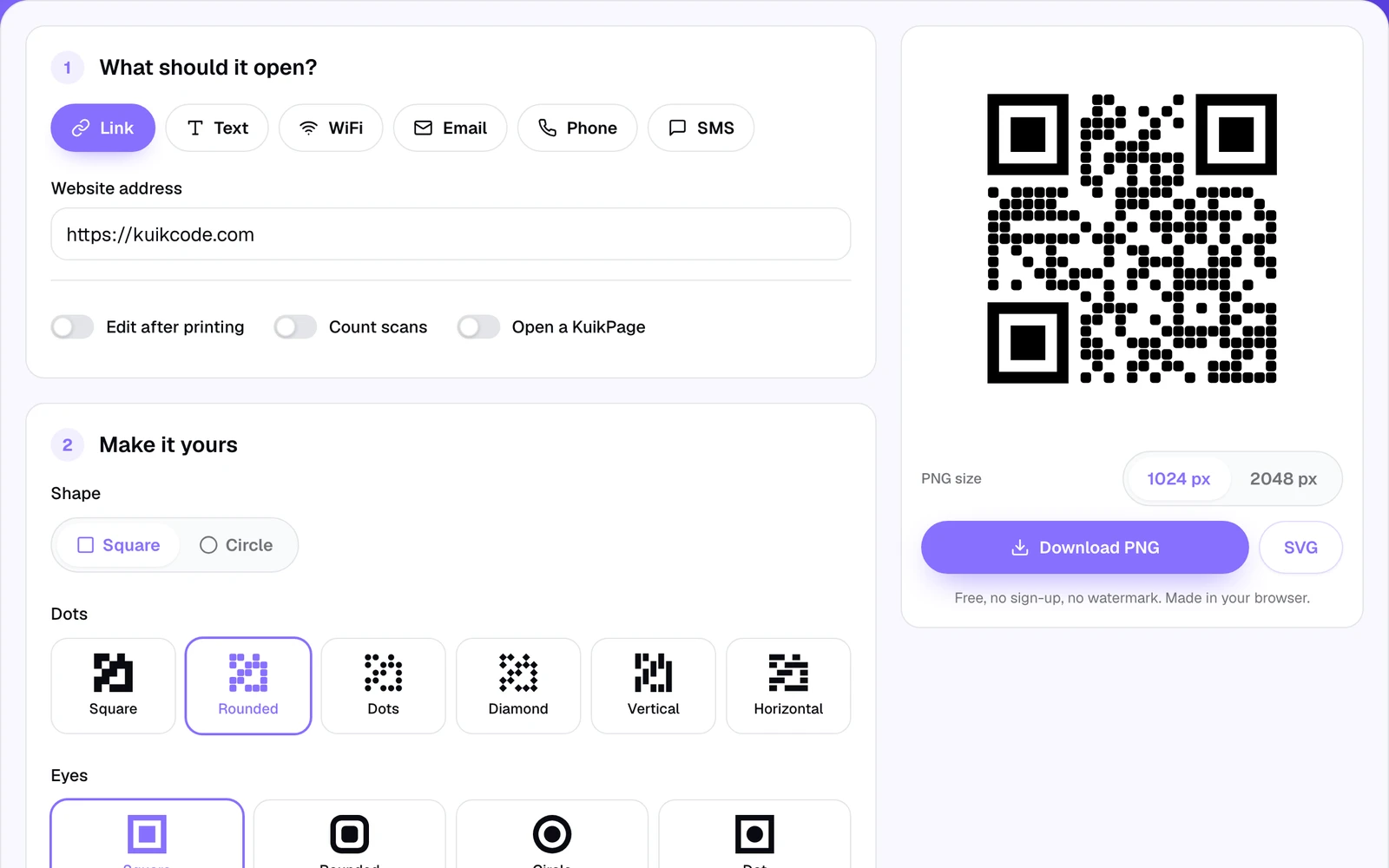
You don't need an account to make a code for a quick test. The free QR code generator makes a static code for a link, text, WiFi, email, phone number or SMS in your browser. Pick the dots, the eyes, the colors, a frame and a logo, then download it as PNG (1024 or 2048 px) or SVG. There is no watermark and no sign up.
A good first test is the exact link you plan to print. Type it in, scan the preview from your phone and make sure it opens the page you expect.
Check your own code before you print
A code that scans on your desk can still fail on a poster across the room. Run these five checks before anything goes to the printer.
- Scan it with two phones. One iPhone and one Android if you can. Phones read differently, and a code that works on both is a safe bet.
- Test it at its real size and distance. Print one copy at the size you'll use and scan it from where people will stand. As a rule of thumb, the code should be about a tenth of the scanning distance across. Our QR code size guide has a table for common distances.
- Keep the dots darker than the background. Dark on light scans everywhere. Light dots on a dark background fail on many scanners, and pale colors like yellow on white often don't read at all.
- Open the link on mobile data. Turn WiFi off and scan again. A page that only loads inside your office network, or asks for a login, is a dead end for everyone else.
- Check the page itself. It should be quick to load and easy to read on a phone. The scan is only the first second; the page is what people came for.
Static or dynamic: why it matters for testing
The free generator makes static codes: the link is written into the dots. Once it's printed, it opens that address forever, and a typo means a reprint. That's why the checks above matter so much for static codes.
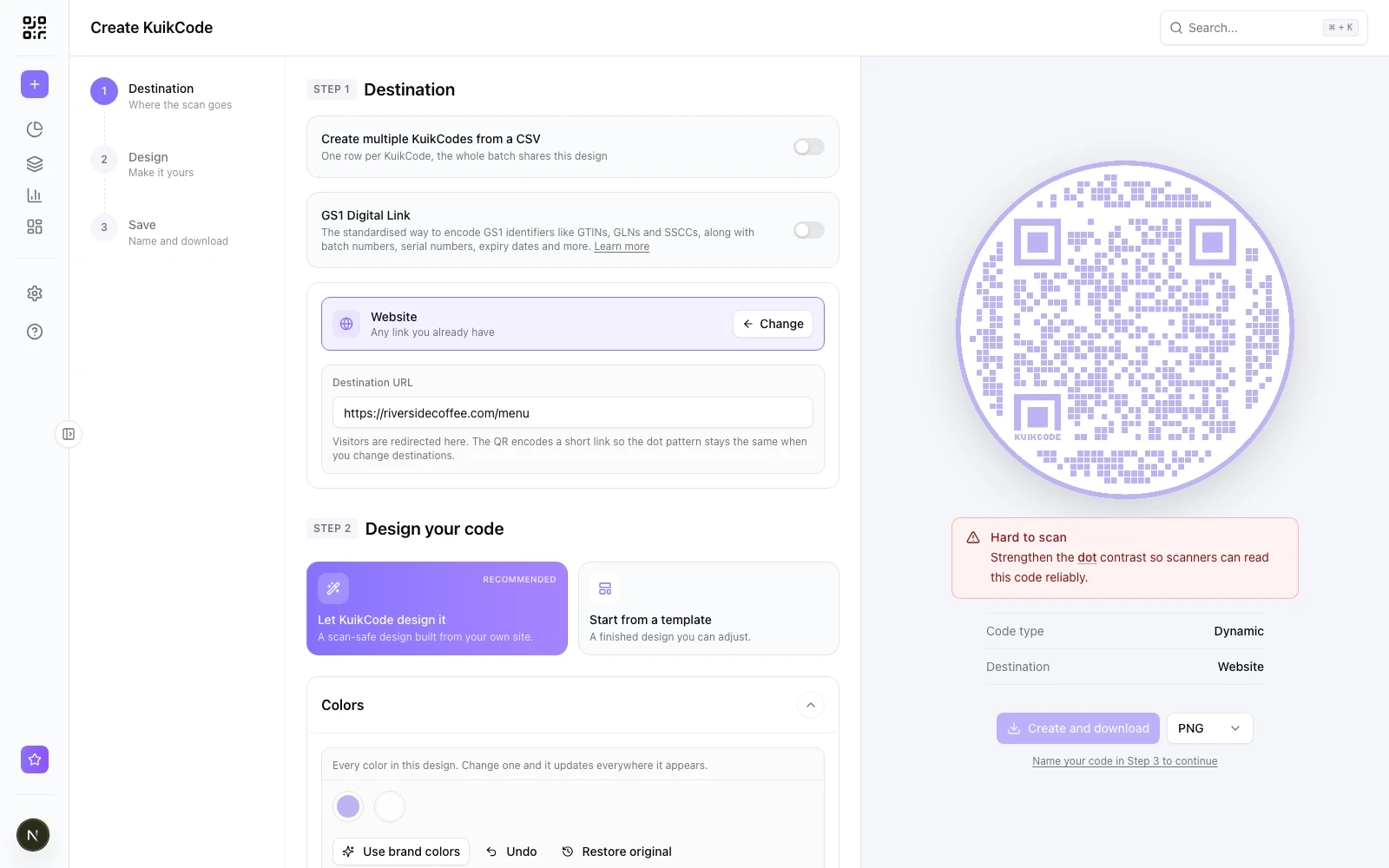
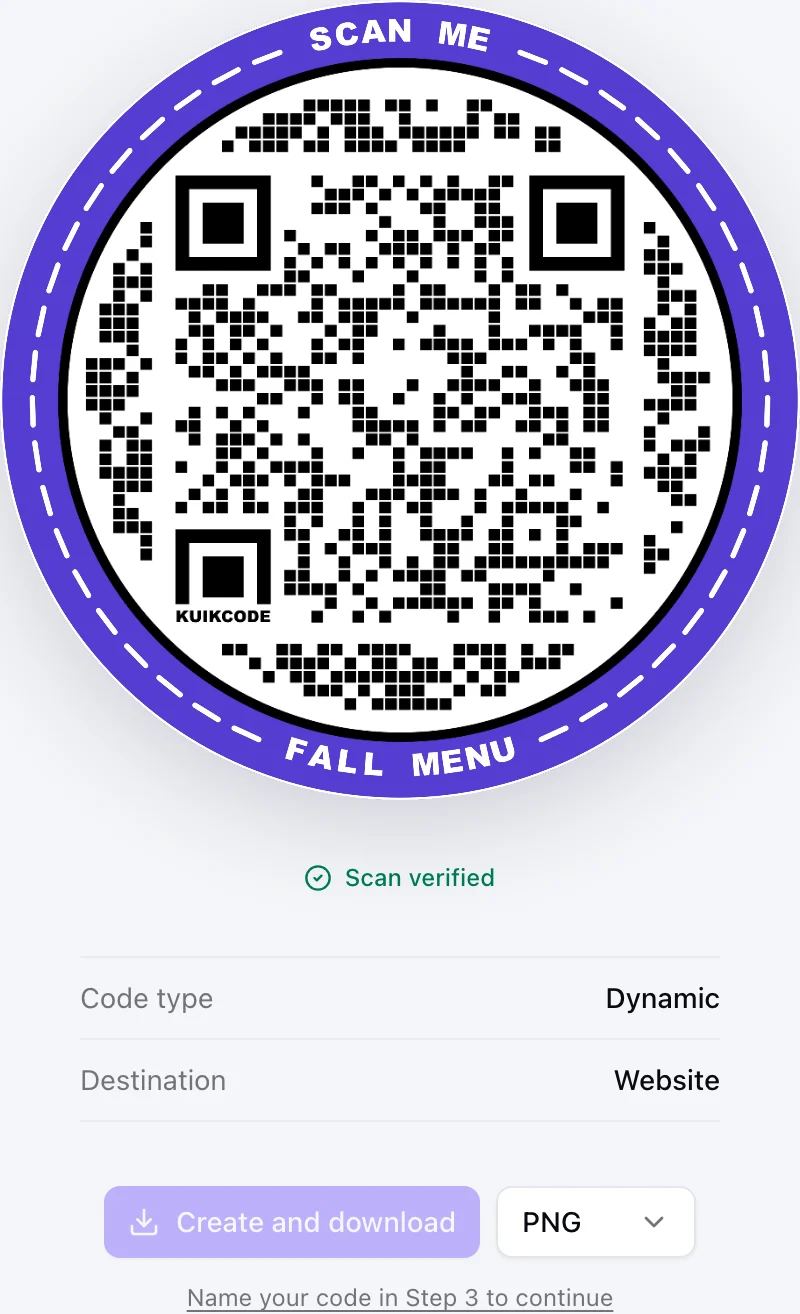
A dynamic code, which is what a KuikCode is, prints a short link instead. You can change where it opens after printing, and every scan is counted, so you can even see your test scans show up. In the KuikCode editor, the preview shows Scan verified when the design reads cleanly, and warns you about weak contrast before you download. More on the difference in static vs dynamic QR codes.
About "random" QR codes
People also search for a random QR code to scan, to see what happens. The sample codes on this page are safe because you know what's in them. In public, be more careful with codes you didn't expect: a sticker over a parking meter or a code in an unknown message can lead to a page that asks for payment or a password. Our post on whether QR codes are safe covers what to look for before you tap.
Ready to make the real one? See all the QR code types KuikCode supports, from links and WiFi to menus, files and whole mobile pages.
Frequently asked questions
01Is there a sample QR code I can scan to test my phone?+
Yes. The three codes on this page are safe test codes: the first opens kuikcode.com, the second shows a short text message, and the third offers to join a WiFi network called KuikCode Test, which does not exist, so nothing connects.
02How do I test a QR code before printing?+
Scan it from the screen with two different phones, then print one copy at the real size, put it where it will hang and scan it from the distance people will stand. Check that it opens the right page on mobile data, not only on your office WiFi.
03What is a test QR code?+
A QR code made only to check that scanning works: that a phone can read it, that it opens the right thing, and that it still reads at the size and in the colors you plan to print.
04Why does my phone not scan the sample code?+
Most often the camera is too close or the screen is too bright. Move back until the whole code fits with some space around it. If the camera shows no banner at all, check that QR scanning is on in the camera settings, or try Google Lens on Android.
05Can I make my own test QR code for free?+
Yes. The KuikCode free QR code generator makes static codes for a link, text, WiFi, email, phone or SMS, with no account and no watermark, and downloads them as PNG or SVG.