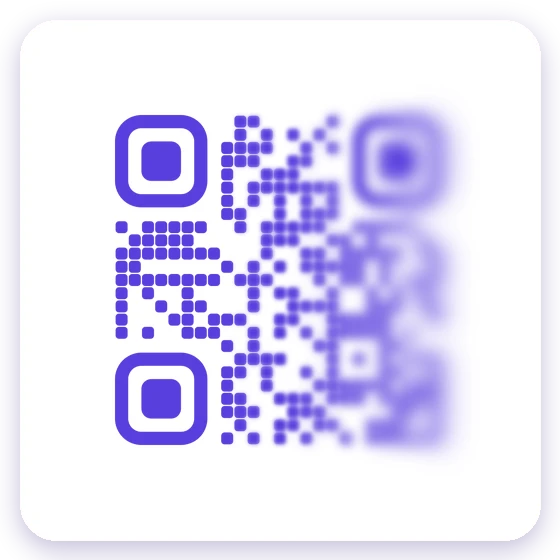
A blurred QR code doesn't always fail. Scanners are forgiving, and a code that looks soft can still open its link. But blur has a limit, and past it, no app reads the code. We tested where that limit sits, so this guide can answer three questions with numbers: will your blurry code scan, how do you fix it, and how much blur does it take to hide a code on purpose.
Will a blurry QR code scan?
A scanner reads a QR code by telling each small square apart: dark or light. Blur spreads each square into its neighbors. As long as there's still a difference between a dark square and the light one next to it, the code reads. Once neighbors melt into the same gray, it doesn't.
A quick test by eye: if you can still see the gap between two squares that sit side by side, the code will most likely scan. If the squares have merged into gray blobs, it won't.
Our test: how much blur a QR code survives
We made codes with the same encoder our free QR code generator uses: a short link (25 by 25 squares) and a long tracking link (49 by 49 squares), at different error correction levels. Then we blurred them step by step, three ways (a soft focus blur, a sideways shake and pixelation), and read about 300 pictures with the QR reader built into Chrome. We measured blur in squares, the width of one small square of the code, so the result holds at any size.
Sharp
Scans

¼ square
Scans

½ square
Scans
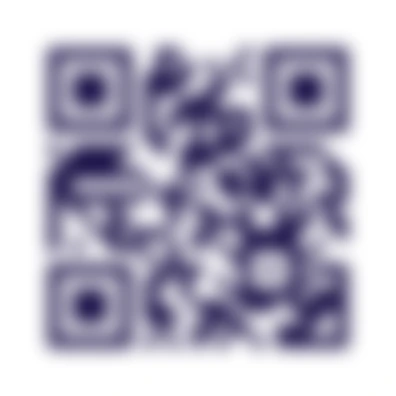
¾ square
Doesn't scan
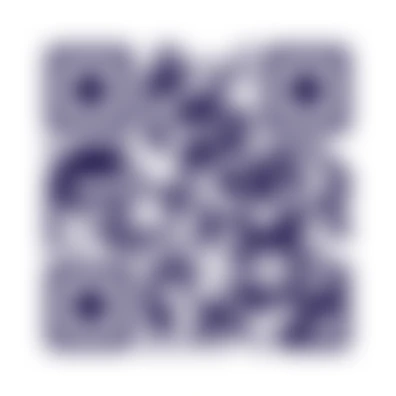
1 square
Doesn't scan
| Blur | What we did | Result |
|---|---|---|
| Soft focus blur | Blurred up to half a square | Read, on every code |
| Soft focus blur | Three fifths of a square or more | Failed, on every code |
| Sideways shake (motion blur) | Up to one and a half squares | Read |
| Sideways shake (motion blur) | Two squares | Failed |
| Pixelation | Blocks up to about half a square | Read |
| Pixelation | Blocks of about one square | Read or failed, depending on where the grid fell |
| Pixelation | Blocks bigger than a square | Failed |
What it means:
- Half a square is the line. Short link or long link, the codes read with a soft blur of up to about half a square and failed beyond. A long link has more squares, so each one is smaller at the same size, and the same blur in pixels hurts it sooner.
- A shaky hand is less of a problem than bad focus. A sideways shake only smears in one direction, and the codes survived three times more of it.
- Error correction didn't help. Lowest level or highest, the codes failed at the same blur, measured in squares. Error correction repairs a part of the code that's missing or covered; blur softens every square at once. A short link code 300 pixels wide read with 4 pixels of blur at every level and failed by 6 pixels at every level. The highest level can't do better at a fixed size: it adds squares (29 by 29 instead of 25 by 25 for our short link), so each one is smaller.
Our reader is one scanner. Phone cameras, apps and lighting all vary, so treat these numbers as a guide, not a promise.
Why QR codes come out blurry
In print, almost always because the image had too few pixels for its size. A code saved at 300 pixels and printed 10 cm wide gets stretched, and the printer smooths the edges between squares. Other causes: a code printed too small for the distance people scan from, ink that spreads on soft or uncoated paper, and a low resolution export pasted into a document.
On a screen or in a photo, the camera is the usual cause: held too close to focus, moving, or in low light, which makes the phone use a slower shutter. Screenshots of a tiny code that get enlarged, and pictures shrunk by a chat app, lose detail the same way. Our guide on how to scan a QR code from an image has its own test on how small a code in a screenshot can get.
How to scan a blurry QR code
- Step back. Phone cameras can't focus very close. Move back until the code is sharp on screen, even if it looks small.
- Add light. More light means a faster shutter and less shake. Avoid glare across the code.
- Hold still for a second. Brace your elbow or rest the phone on something.
- Scan it from a photo. Take a picture, zoom in so the code fills the frame, and scan the picture with Google Lens or the Photos app.
- Raise the contrast. In any photo editor, push contrast up and brightness down a little. That can pull dark squares apart from light ones.
- Ask for the original. If the code came in a message, the sender's file is sharper than the forwarded copy.
Some online tools redraw a blurry code by guessing each square. They can help with a code that's close to the line, but they can't recover detail that's gone. Read the link your phone shows before you open it, as with any code: our post on whether QR codes are safe covers what to check.
How to fix your own blurry QR code
Don't sharpen it. Sharpening an image can't restore edges that were never saved, and it can create new specks the scanner trips on. Make the code again at the right size instead.
- Download a vector file. An SVG stays sharp at any size, from a sticker to a banner. The free QR code generator downloads SVG, or PNG at 1024 or 2048 pixels.
- Give a PNG enough pixels. For print, aim for about 120 pixels per centimeter (300 dpi). A 10 cm code needs about 1200 pixels; a 2048 pixel PNG prints sharp up to about 17 cm.
- Print it big enough. At least 2 cm wide, and about a tenth of the scanning distance. Our QR code size guide has a table.
- Keep the link short. A short link makes fewer, bigger squares at the same size, so the code tolerates more blur. That's one reason dynamic codes, which hold a short link, are easy to scan.
- Test the print. Scan the first copy from the distance people will stand, with two phones.
A KuikCode is dynamic: you can download it again at any size, any time, and the destination stays the same. The editor checks contrast as you design and shows Scan verified when the design reads cleanly.
How to blur a QR code on purpose
People blur codes for two reasons: to show a code in a mockup or a post without it opening anything, or to hide the code on a ticket, a boarding pass or a receipt before sharing a photo.
For a mockup, any photo editor's blur works. Use at least a full square of blur, two to be safe, so nobody scans a placeholder by accident. Or skip the blur and use a sample QR code that opens a harmless page.
To hide a code, don't trust blur or pixelation. Tickets, boarding passes and receipts can carry a booking reference or a name, and our test shows how much a scanner tolerates:
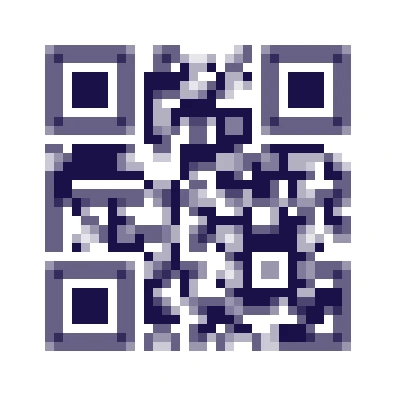
Fine pixelation
Scans
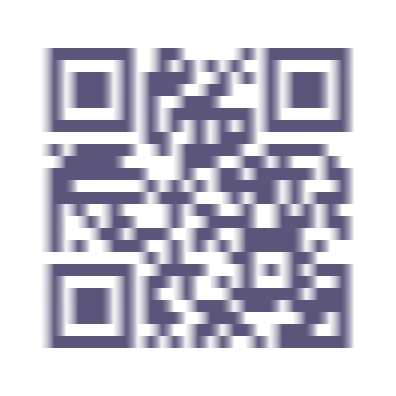
Shaken 1 square
Scans
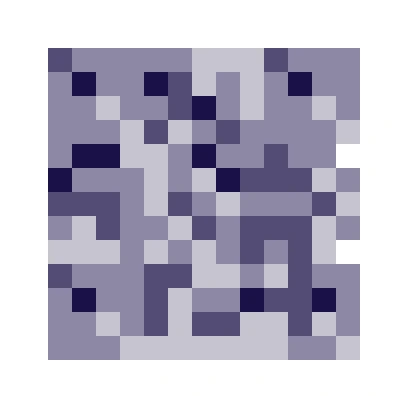
Big blocks
Doesn't scan

Covered
Doesn't scan
- Cover it with a solid shape that hides the whole code, or crop the code out of the photo. That's the only way that leaves nothing to read.
- If you blur, blur hard. Several squares of blur, not a light softening. A code that looks blurred to you can still be enough for a scanner.
- Check before you post. Point your phone at your edited photo. If it opens anything, cover more.
Distorted QR codes
A distorted QR code has a different problem from blur: the squares are sharp but out of shape. Scanners correct a code seen at an angle well, because they find the three corner squares and straighten the grid between them. What they can't fix is a code stretched to the wrong proportions, or wrapped around a tight curve. When you resize a code in a document, hold Shift so it stays square, and on a bottle or a can put it where the surface is flattest.
Blurred barcodes: same idea, one direction
A barcode's bars run up and down, so it reacts to blur differently from a QR code. Blur along the bars changes almost nothing, while blur across them merges the thinnest bars and gaps. And a barcode's smallest detail is its narrowest bar, which is usually thinner than a QR code's square at the same width, so barcodes give up sooner when a photo is soft. The fixes are the same: a sharp source file, enough size, good light. To hide one, cover it.
We tried a barcode in our test too, but our reader was inconsistent with barcodes even when they were sharp, so we don't publish numbers for them.
Frequently asked questions
01Can a blurry QR code still scan?+
Often, yes. A scanner only needs to tell dark squares from light ones. In our test, codes still read with a blur of up to about half the width of one square, and failed beyond that. If you can still see a gap between two neighboring squares, it will most likely scan.
02How do I fix a blurry QR code?+
If it's your code, make it again rather than sharpening the image: download it as SVG, which stays sharp at any size, or as a large PNG, and print it at least 2 cm wide. If it's someone else's code, step back, add light, hold still, or take a screenshot and scan it from the image.
03How do I scan a blurry QR code?+
Move the phone back until the camera can focus, add light, and hold still for a second. If that fails, take a photo or screenshot, zoom in so the code fills the frame, and scan it from the picture with Google Lens or the Photos app. Raising the contrast in a photo editor can help.
04Does error correction help with a blurry QR code?+
Not much. Error correction repairs a damaged or covered part of the code, but blur softens every square at once. In our test, codes at the lowest and highest levels failed at the same blur, measured in squares. At the same printed size, the highest level adds squares, so each one is smaller and blur hurts it sooner.
05Is blurring a QR code enough to hide it?+
Not always. In our test, codes still scanned with a light blur and with fine pixelation. To hide a code on a ticket, a boarding pass or a receipt before you post a photo, cover it with a solid shape or crop it out.
06Why is my QR code blurry when I print it?+
Usually because a small image was stretched to a bigger size. A 300 pixel PNG printed 10 cm wide has to invent the missing detail, so the edges go soft. Use an SVG, or a PNG with enough pixels for the size: about 1200 pixels for 10 cm at 300 dpi.