A QR code on screen can be fixed in a second. On paper, it's final: a code that doesn't scan on 5,000 flyers is 5,000 flyers. Almost every failure comes from the same short list, and you can catch all of them before the print run.
1. Start from a vector file
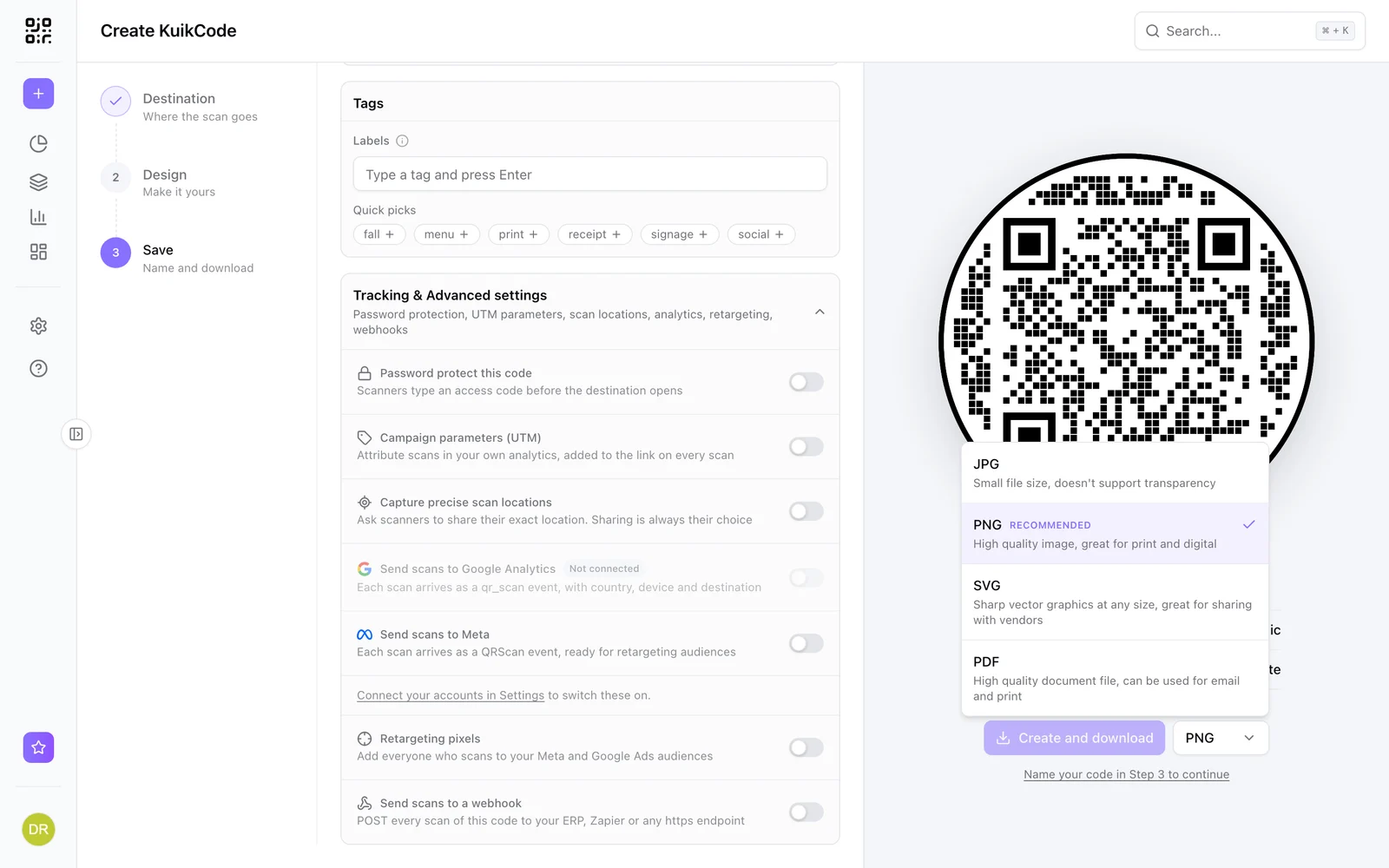
The best file to print a QR code is a vector file, SVG or PDF. The squares are shapes, not pixels, so they stay sharp at any size, from a business card to a banner. Printers and design tools such as Illustrator, InDesign, Affinity and Canva all take SVG.
A PNG is fine for small prints when it has enough pixels for the size: at 300 dpi, a 2048 pixel PNG prints sharp up to about 17 cm. Two things to avoid:
- Screenshots. They are small, often blurred, and sometimes cropped at the edge.
- Stretching. Resize a code only with its proportions locked. A code squeezed in one direction can stop reading.
The free QR code generator downloads SVG and PNG at 2048 pixels; the KuikCode editor adds PDF and JPG.
2. Pick the size from the distance
A printed code should be at least 2 cm (about 0.8 in) wide, and about a tenth of the distance people scan from. A table card read from 30 cm is fine at 3 cm; a poster read from 3 meters needs about 30 cm. Long links make busier codes with smaller squares, which need more size. Our QR code size guide has a calculator.
3. Keep the margin empty
Every QR code needs an empty border around it, the quiet zone, at least four squares wide. Phones use it to find where the code starts. The most common print mistake is a designer cropping it to save space, or placing text, a photo edge or a border line inside it.
Also keep the code away from:
- Folds and creases on brochures and menus.
- Trim edges and bleed, where the cutter can shave the margin.
- The binding of a booklet, where the page curves into the spine.
- Corners where hands hold a card or a flyer.
4. Ink and color
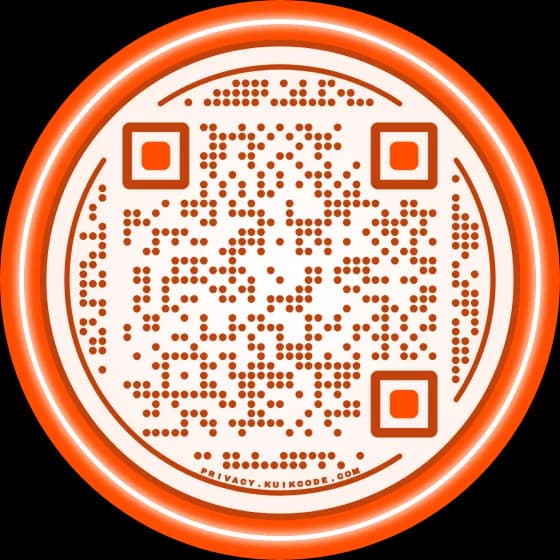
Phones read dark squares on a light background. Color is fine when that stays true, and our guide on QR code colors shows which pairs scan.
For print specifically:
- Use pure black for small codes. A rich black built from four inks can print with a slight colored halo when the plates don't line up perfectly. One ink, 100% black, prints the sharpest edges.
- Check the color conversion. When a design moves from screen colors (RGB) to print colors (CMYK), a dark brand color can come out lighter and a light background darker. Look at the proof, not the screen.
- Mind ink spread. On uncoated paper ink spreads a little, so very thin rounded dots can merge at small sizes. Bolder dot styles hold up better.
5. Paper and finish
- Matte over gloss. Glossy paper and lamination reflect light, and a bright spot across the code can stop a scan. Matte and uncoated papers don't.
- Textured papers such as linen or kraft are fine for larger codes; give small ones more size.
- Transparent stickers and glass need a light backing behind the code, or the dark squares sit on whatever is behind the glass.
- Curved surfaces such as bottles and cups bend the code away from the camera. Keep the code small compared with the curve, or put it on the flattest side.
6. Test a proof before the run
Print one copy at full size, at 100% scale on the final paper if you can, and:
- Scan it with two phones, one of them a few years old.
- Scan it in the real light: a dim restaurant, a sunny window, a trade show hall.
- Scan it from the real distance, a little further than people will stand.
- Check that the link opens the right page on a phone, not just on a laptop.
If it's slow, raise the contrast first, then the size.
7. Print a code you can still change
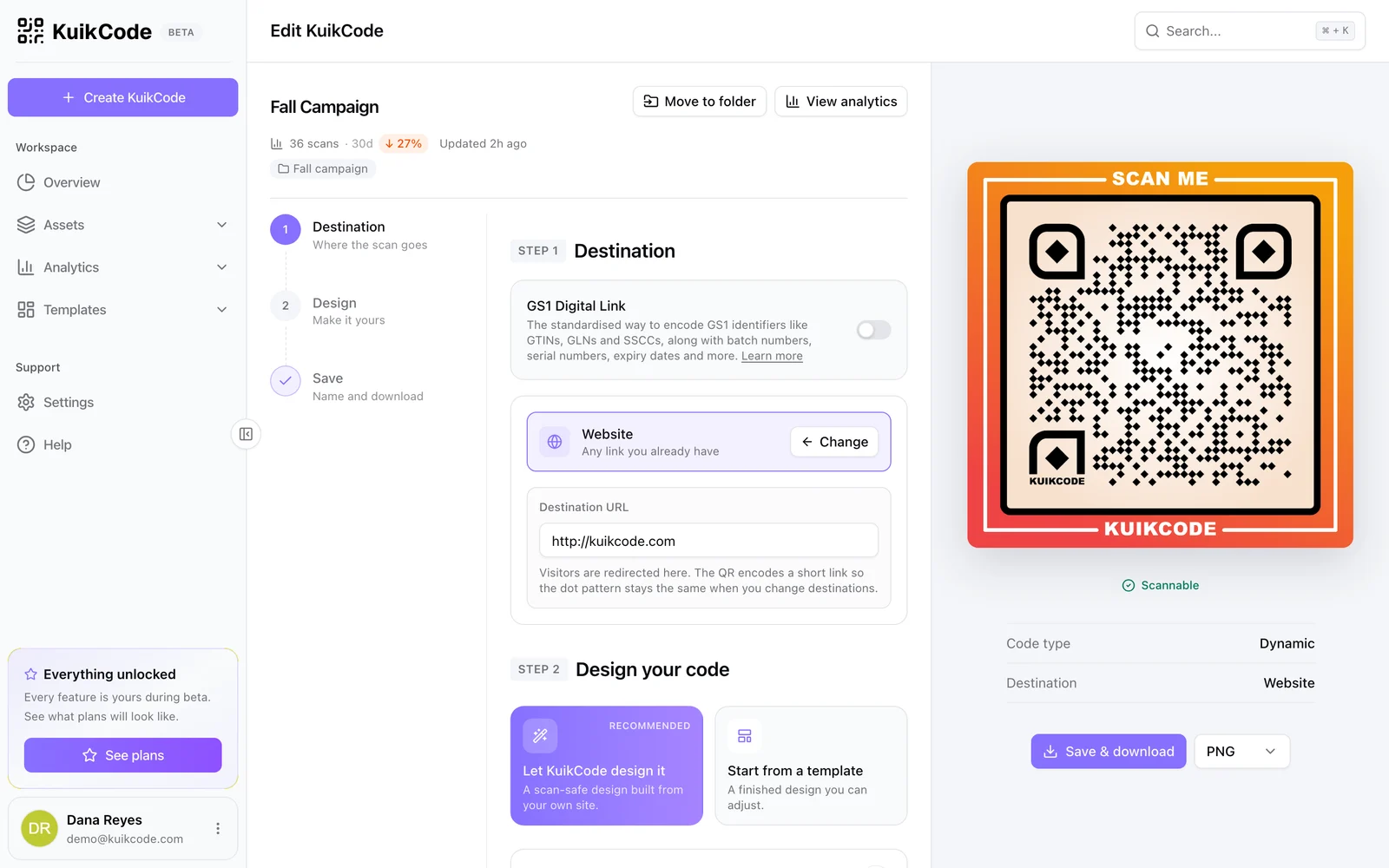
Print is the point where a static code can no longer be fixed: a typo in the link, a page that moves or an offer that ends means a reprint. A dynamic QR code prints a short link that you can point anywhere afterward, so the paper keeps working while the destination changes. It also counts scans, and if each print run or location gets its own code, you can see which one people actually scan. Here's how to change where a printed QR code goes.
When a printed code still won't scan, our guide on why a QR code is not scanning goes through every cause and its fix.
Frequently asked questions
01What is the best file format to print a QR code?+
SVG or PDF. They are vector files, so the squares stay sharp at any size. A PNG is fine for small prints if it is large enough: 2048 pixels prints sharp up to about 17 cm at 300 dpi.
02What size should a printed QR code be?+
At least 2 cm (about 0.8 in) wide, and about a tenth of the distance people scan from. A poster read from 3 meters needs a code about 30 cm wide.
03Can I print a QR code on a home printer?+
Yes. Any laser or inkjet printer works. Print at 100% scale: the Fit to page option can shrink the code below a size phones read easily.
04Should I print a QR code in color?+
You can, as long as the dots stay clearly darker than the background. For small codes, pure black or one dark ink prints sharper than a color mixed from four inks.
05Glossy or matte paper for a QR code?+
Matte. Gloss paper and lamination reflect light, and a bright spot over the code can stop a scan. If the piece has to be glossy, test it under the lights where it will hang.
06Why does my printed QR code not scan?+
Usually it is too small, the margin around it was cropped, the colors are too close, or it sits on a fold or a curve. Our guide on why a QR code is not scanning walks through each fix.