Scanning a QR code takes about two seconds and, on most phones, no app at all: open the camera, point it at the code, tap the link that appears. Below are the exact steps for iPhone and Android, how to scan a code that's in a screenshot or on your own screen, and what to check when nothing happens.
The short version
- Open the camera on your phone.
- Point it at the QR code so the whole code fits on the screen, with a little space around it.
- Hold still for a second. A link, a small banner or a button appears.
- Tap it. The phone opens what the code holds: a website, a menu, a WiFi network, a contact, a payment page.
You don't take a photo. The camera reads the code from the live view.
How to scan a QR code on iPhone
With the Camera app
- Open Camera and use the normal photo mode.
- Point it at the code. A yellow link appears near the code.
- Tap the link.
With the Code Scanner
iPhones also have a dedicated scanner that only reads codes. Open Control Center (on most iPhones, swipe down from the top right corner) and tap Code Scanner. If it isn't there, you can add it when you edit Control Center. It's handy in low light, because it can turn on the flashlight.
If the camera ignores codes
Open Settings, then Camera, and make sure Scan QR Codes is on.
How to scan a QR code on Android
Android phones come from many brands, so menus differ a little, but every recent phone has at least one of these:
With the camera
- Open the Camera app.
- Point it at the code and wait a moment.
- Tap the link or the banner that appears.
On some phones the setting has to be on first: look for Scan QR codes in the camera settings.
With Google Lens
If the camera does nothing, use Google Lens, which comes with nearly every Android phone. Open it from the Lens button in the camera, from the Google app, or from the camera icon in the search bar on your home screen. Point it at the code and tap the link.
From quick settings
Many phones have a Scan QR code button in the quick settings you pull down from the top of the screen. If you don't see it, edit the quick settings and add it.
Try it now
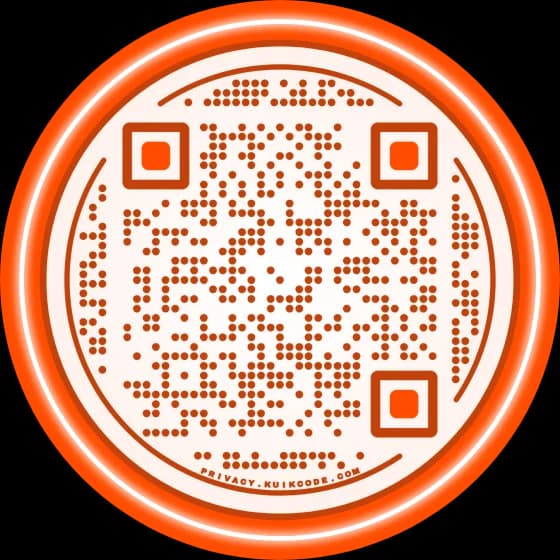
Here are three test codes. The first opens a website, the second shows a short message and the third offers to join a WiFi network that doesn't exist, so nothing connects.
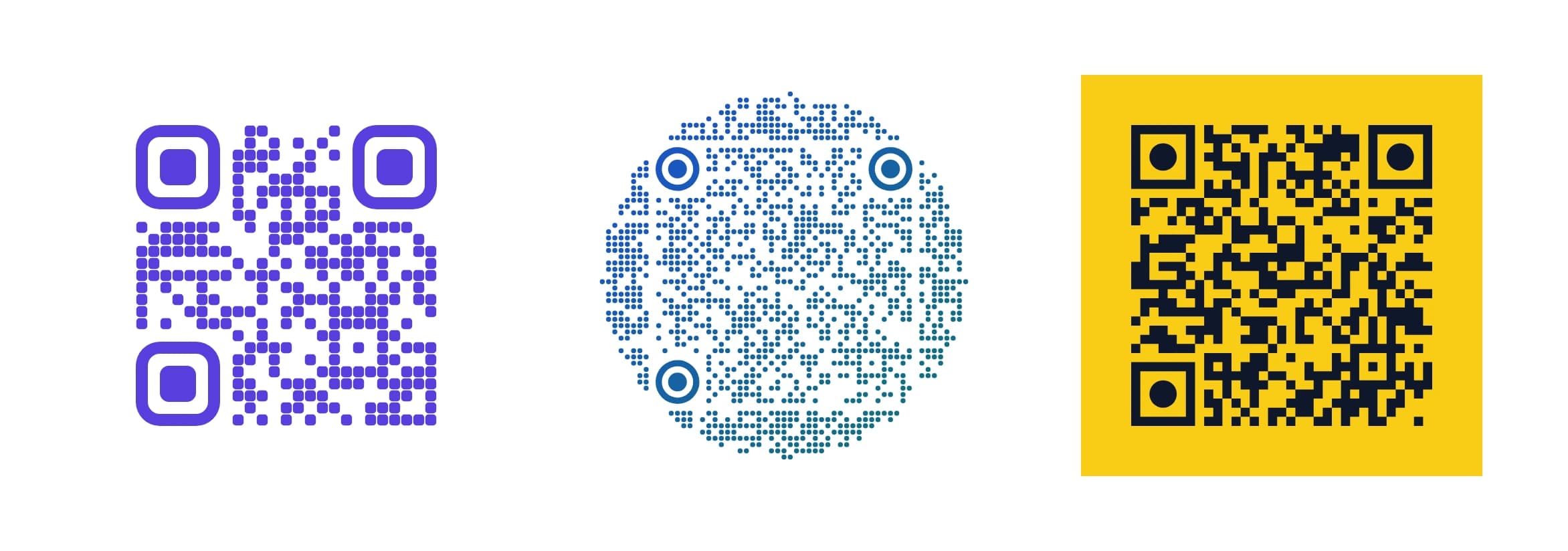
More about these codes, and a five step check for your own, in sample QR codes to test.
How to scan a QR code from a screenshot or a photo
Sometimes the code is on your own screen: in an email, a ticket or a message. You can't point your camera at your own phone, but you can scan the picture.
- iPhone: take a screenshot or open the photo in Photos. Touch and hold the code, or tap the Live Text button, and tap the link it finds.
- Android: open the screenshot in Google Photos and tap Lens. The link appears on the screen.
- On a computer: in Chrome, right click the page and choose Search with Google Lens, then select the code. Or simply scan it from the computer screen with your phone.
When nothing happens
- Move back. Being too close is the most common reason. The whole code has to fit, with some space around it.
- Hold still and wait a second. A shaky hand blurs the small squares.
- Fight the glare. Tilt the phone a little if light reflects off a glossy menu or a screen, and lower the screen brightness if you scan from another screen.
- Add light. In a dark restaurant, turn on the flashlight from the Code Scanner or the camera.
- Clean the lens. A fingerprint on the camera is enough to blur a small code.
If one code never scans on any phone, the problem is probably the code itself: low contrast, a size too small for the distance, or damaged print. Our guide on why a QR code won't scan covers each cause, and what the person who made the code can fix.
Scan safely
A QR code can hold any link, so treat it like a link in an email from someone you don't know.
- Read the link before you tap. Your phone shows the address first. Check that it matches who the code claims to be.
- Be careful with codes stuck on top of other codes, on parking meters, chargers or posters. A sticker is easy to swap.
- Don't type passwords or card numbers on a page you reached from an unexpected code. Go to the company's site or app directly instead.
- Ignore codes in unexpected messages that create urgency, like a fine, a delivery problem or a locked account.
Our post on whether QR codes are safe goes deeper.
Making a QR code yourself
Once scanning is second nature, making one is just as quick. The free QR code generator makes a static code for a link, text, WiFi, email, phone or SMS, with no account. And if you want to change where the code goes after it's printed, or see how many people scan it, a KuikCode does that. Curious about the name itself? Here's what QR code stands for.
Frequently asked questions
01How do I scan a QR code with my phone?+
Open the camera app, point it at the QR code so the whole code is in the frame, and hold still for a second. A link or a small banner appears on the screen. Tap it to open what the code holds.
02Do I need an app to scan a QR code?+
Not on a recent phone. iPhones read QR codes from the built in Camera app, and most Android phones read them from the camera or with Google Lens, which comes with the phone. A separate scanner app is only needed on very old phones.
03How do I scan a QR code on an iPhone?+
Open Camera, point it at the code and tap the yellow link that appears. You can also open the Code Scanner from Control Center. If the camera ignores codes, check that Scan QR Codes is on in the Camera settings.
04How do I scan a QR code on Android?+
Open the camera and point it at the code. If no link appears, open Google Lens from the camera, the Google app or the search bar on your home screen. Many Android phones also have a Scan QR code button in the quick settings you pull down from the top.
05How do I scan a QR code that is on my own screen?+
Take a screenshot, open it in your photos, and use Live Text on iPhone or the Lens button in Google Photos on Android. Then tap the link it finds.
06Why won't my phone scan a QR code?+
Usually the camera is too close, the code is too small or blurry, or the light reflects off it. Move back until the whole code fits with some space around it, hold still, and avoid glare. If one code never works, the code itself may have low contrast or damage.