Packaging that ships to six countries, a museum sign read by visitors from everywhere, a menu in a tourist town: one printed QR code can open each person's own language. A phone set to Spanish gets the Spanish page, a phone set to French gets the French one, and everyone else gets your main language. No flags to tap, no wrong page first.
How a QR code knows the language
Every phone tells the websites it opens which language it prefers, taken from its language settings. A dynamic QR code reads that at the moment of the scan and checks it against your language rules. The first language on the phone's list is the one that counts, and regional versions share a language: Spanish from Mexico and Spanish from Spain both match a Spanish rule.
This only works with a dynamic code, because the choice happens after printing, at every scan. A static code always opens the same link.
Set it up step by step
- Make one page per language. Translate the content, not the code. A KuikPage, a PDF or a page on your website all work, as long as each language has its own link.
- Create a KuikCode and choose Smart Rules as the destination.
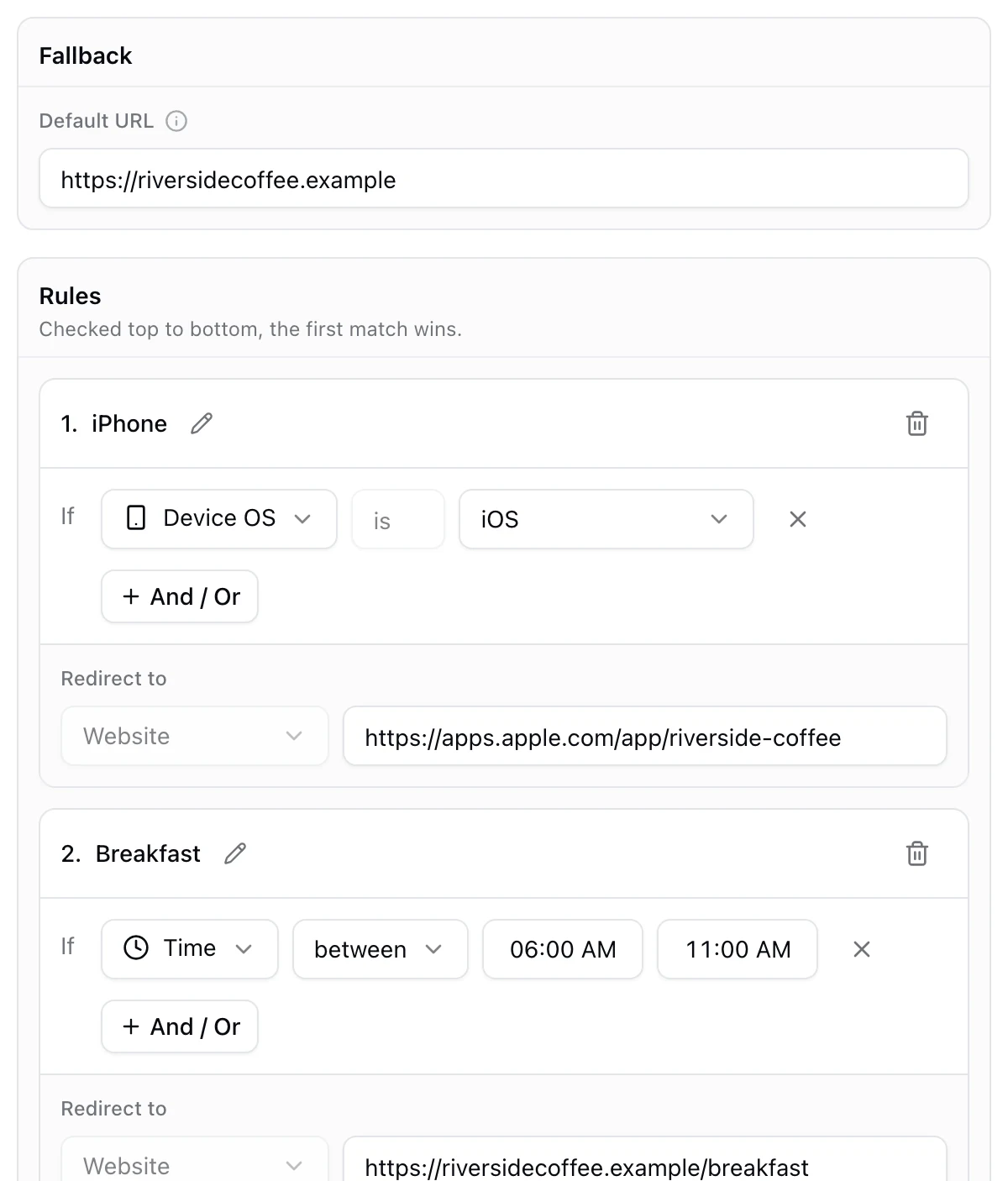
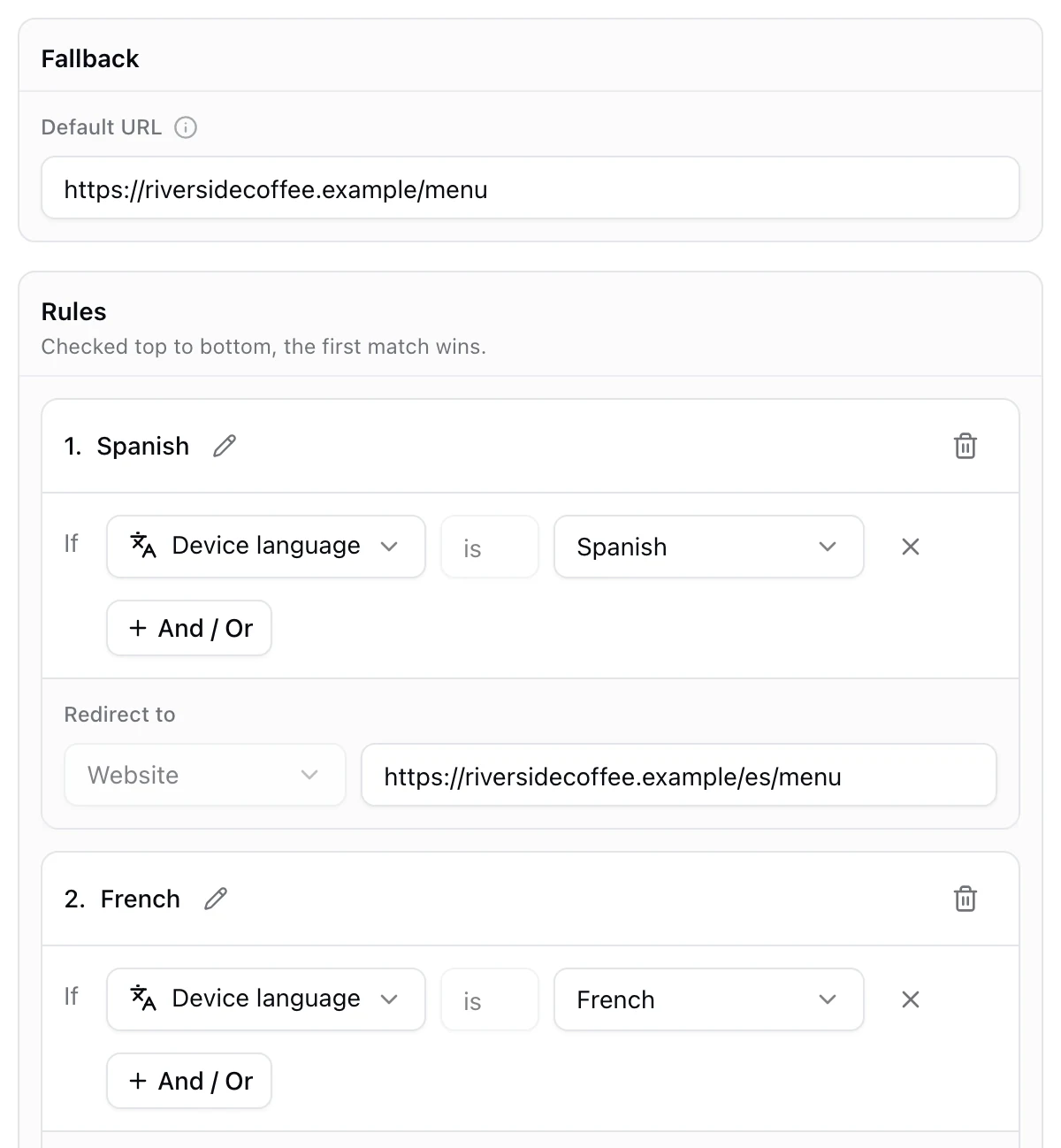
- Set the fallback to your main language. Everyone whose language has no rule lands here.
- Add a rule per language. Choose Device language, pick the language, and paste that page's link. Repeat for each language you offer.
- Test before printing. Switch your phone's language in its settings, scan, and check that the right page opens. Switch it back afterwards.
Language or country?
They answer different questions. Language follows the person: a Spanish speaker visiting Chicago still gets Spanish. Country follows the place: anyone scanning in Mexico gets the Mexican page, whatever their phone's language.
- Use language rules when the content is the same and only the words change: menus, instructions, product information, signs.
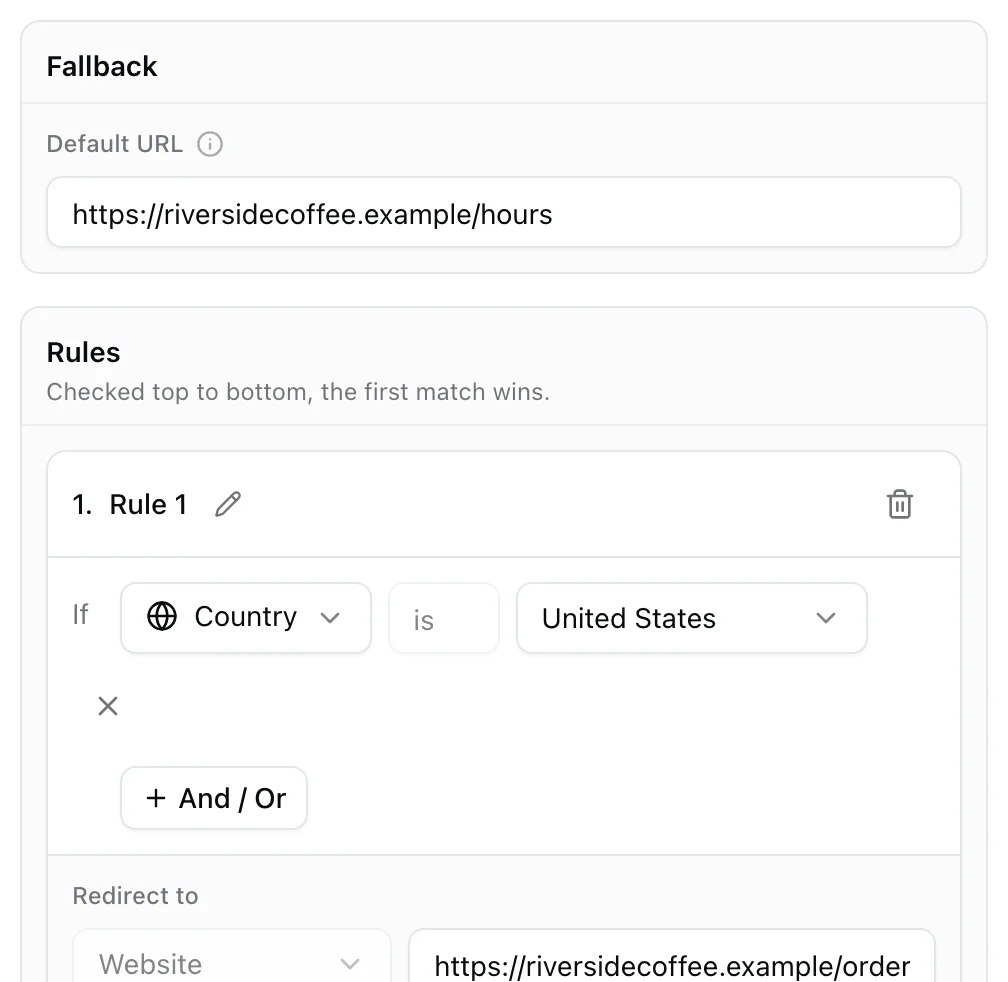
- Use country rules when the page itself changes: local prices, local stores, rules that differ by market. The Geolocation card handles a simple list of links per country.
- Combine both in one code when you need to, for example a rule for Country is Canada and Device language is French above a plain Canada rule.
Where language rules shine
- Packaging. One code on a box sold in many markets, opening instructions or recipes in the buyer's language. See QR codes for packaging.
- Menus in tourist areas. Guests open the menu in their own language, and the staff keep one version of the table card.
- Museums, hotels and signs. One code per exhibit or room, readable by every visitor.
- Manuals and warranty pages. The right language from the first tap, and no shelf of translated leaflets.
Tips for multilingual codes
- Add a language switcher to every page. A phone's language is a good guess, not a promise: some people keep their phone in English and read happily in another language.
- Say it on the print. A line such as "Scan for the menu in your language" tells people they will not land on the wrong one.
- Watch the numbers. Every scan records which rule sent it, so your analytics show how many people opened each language, which tells you which translation to improve first.
For everything else a rule can check, see what a smart QR code is.
Frequently asked questions
01Can a QR code detect the language of the phone?+
Yes. Every phone tells the websites it opens which language it prefers, from its own language settings. A dynamic code reads that at scan time and opens the matching page.
02How do I make a multilingual QR code?+
Make one page per language, then create a dynamic code with a rule for each language, such as Device language is Spanish, pointing at that page. Set the fallback to your main language for everyone else.
03What if the phone's language is not one of my pages?+
The scan opens the fallback link. Use your most common language there, and add a language switcher so people can change it themselves.
04Should I route by language or by country?+
By language when the content is the same and only the words change, such as a menu or instructions. By country when the page itself changes, such as local prices, stores or regulations. You can combine both in one code.
05Do I need a different QR code for each language?+
No. One printed code serves every language, which keeps packaging, signs and menus clean and means nothing to reprint when you add a language.
06Which KuikCode plan includes language rules?+
Language rules are part of Smart Rules, included from the PRO plan.