A printed invitation has room for the essentials and not much else. A QR code on the card fixes that: one scan and guests get the time, the map, a way to RSVP and, after the party, a place to share their photos. Here's what to put behind the code and how to print it so it scans.
What the QR code should open
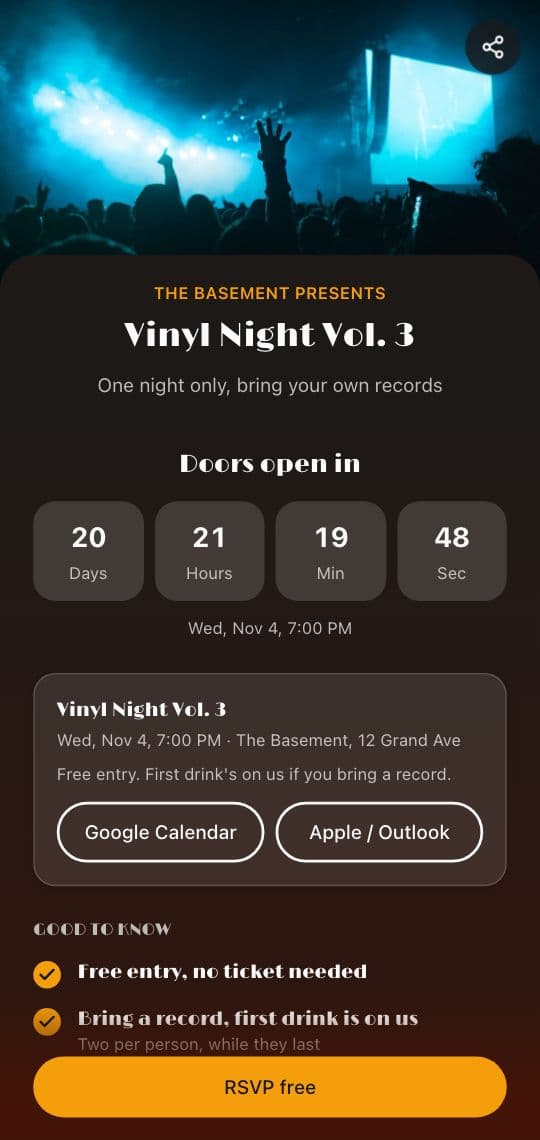
Point the code at a party page, not a single link. A link to a map only gives the address; a link to a form only collects RSVPs. A page can hold all of it:
- The date and a countdown, so the day feels close.
- Add to calendar, so the party lands in the guest's calendar with one tap.
- The venue on a map, with directions from wherever they are.
- An RSVP form for names, head counts and food allergies.
- Good to know: dress code, parking, gifts, whether kids are welcome.
- A place for photos after the party, so you get everyone's pictures in one spot.
The card itself keeps the essentials: who it's for, the day, the place and a short line next to the code, like Scan to RSVP or Scan for the map and the RSVP. Some guests will never scan, so they should still know where to go.
How to make the party page in KuikCode
A KuikPage is a mobile page you build in KuikCode, with its own QR code. The Event template is a good start for a party:
- Open KuikPages and start from the Event template. It comes with a Countdown, an Add to calendar block, a Good to know list, the Map & Address and an RSVP button.
- Change the title and the photo, then set the party's date and time in the Countdown and Add to calendar blocks.
- Swap the RSVP button for a Form block and ask what you need: name, how many are coming, a message for the host. Turn on Email me each one to get every answer in your inbox. They all show under Submissions in the editor.
- Edit Good to know with the details guests always ask about.
- Pick the colors and fonts of your invitation, so the page feels like the card.
- Publish, and preview it on your own phone first.
The page gets its own address on kuik.page and its own designed QR code, ready to place on the invitation.
After the party: collect the photos
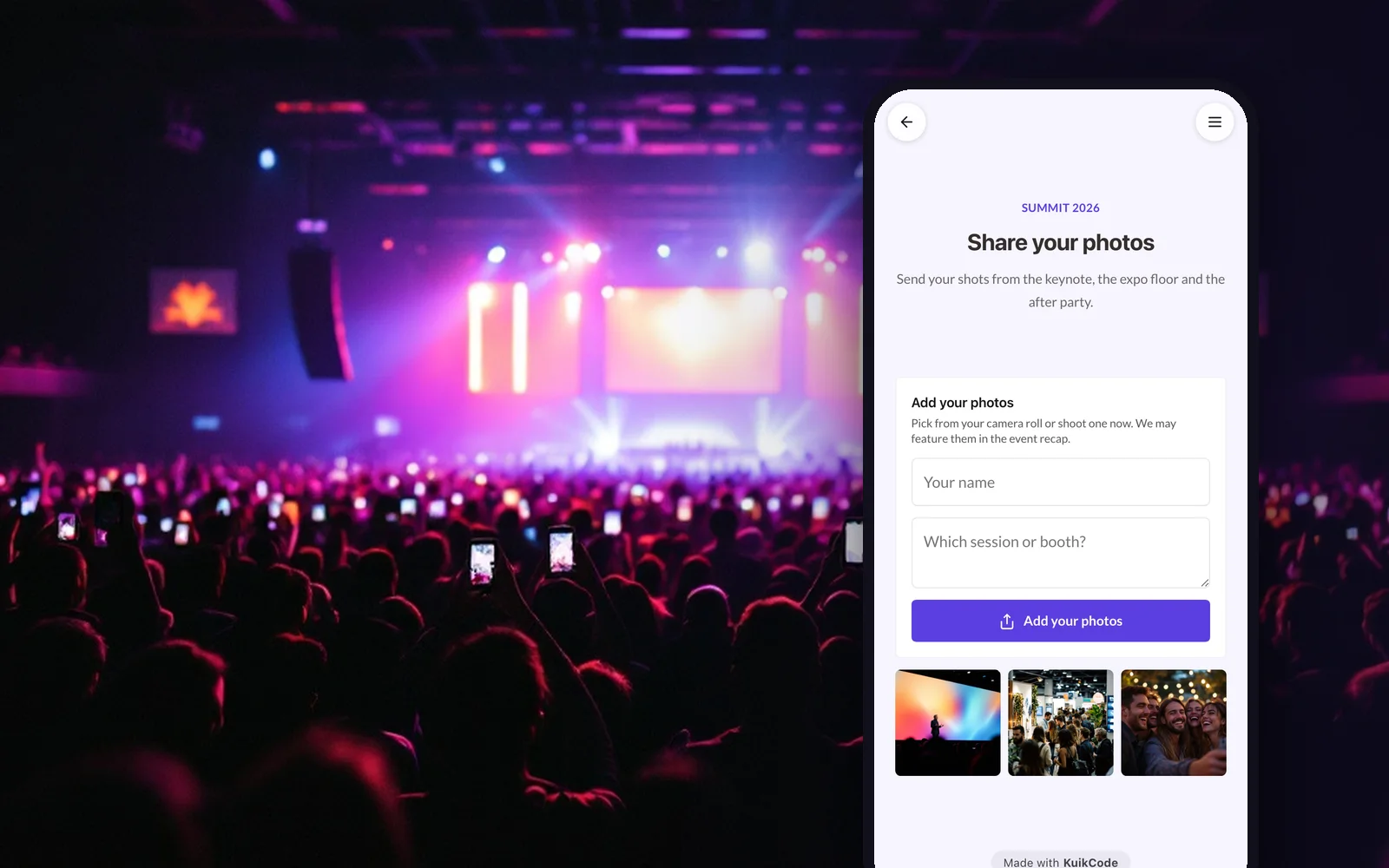
Every guest takes pictures, and most of them never reach the host. Add a Guest uploads block to the same page and guests can send their photos and videos from the phone browser, with no app and no account. The same code on the invitation, on a table card or on a sign at the door now does a second job. Our guide on collecting photos from attendees shows the whole setup.
Print the code so it scans
- Size: at least 2 cm across on a card people hold. On a poster at the door, go bigger: about a tenth of the distance people stand from it. The QR code size guide has the numbers.
- Contrast: dark dots on a light background. A dark invitation can still work if the code sits on a light panel.
- Margin: leave clear space around the code. Text, borders and patterns too close to the dots confuse scanners.
- The line next to it: say what the scan does. "Scan to RSVP" gets more scans than a code on its own. More ideas in our call to action examples.
- Test one copy: print one card, scan it with two phones, then print the rest.
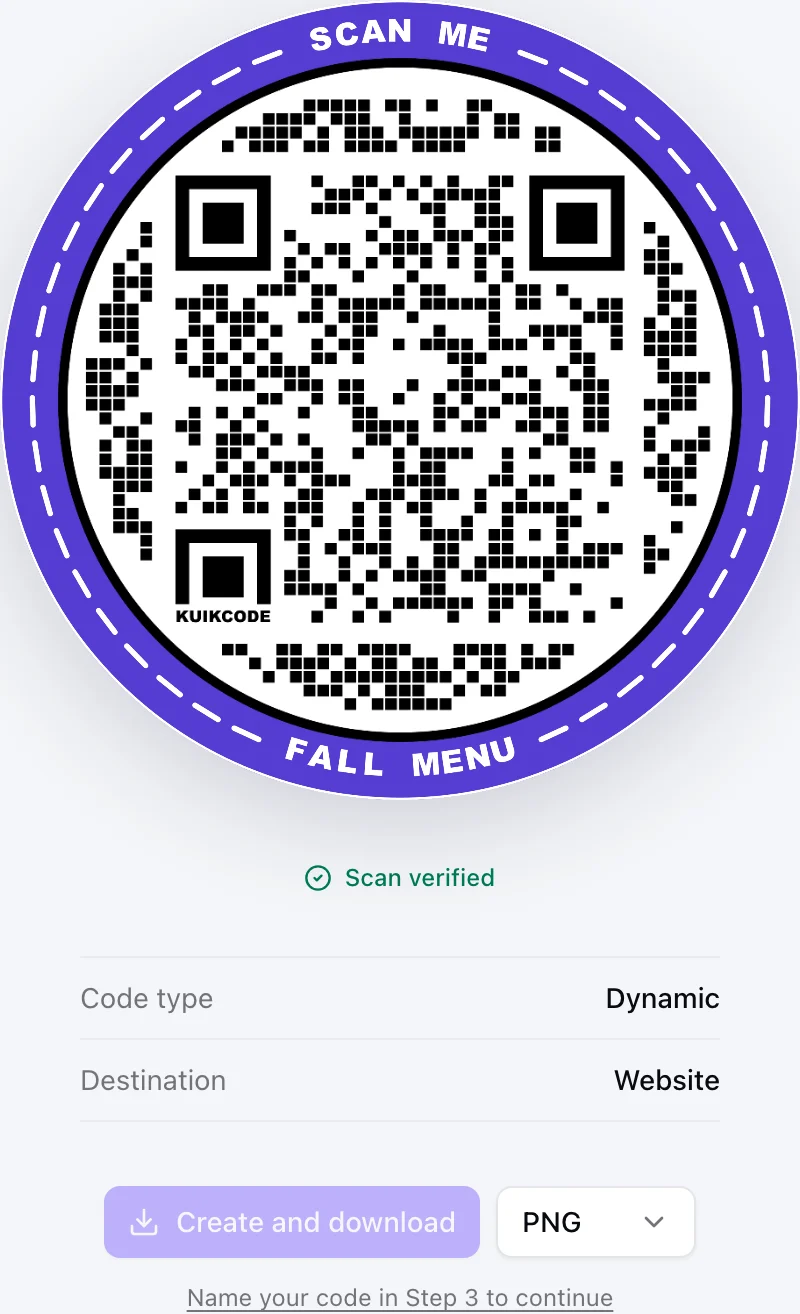
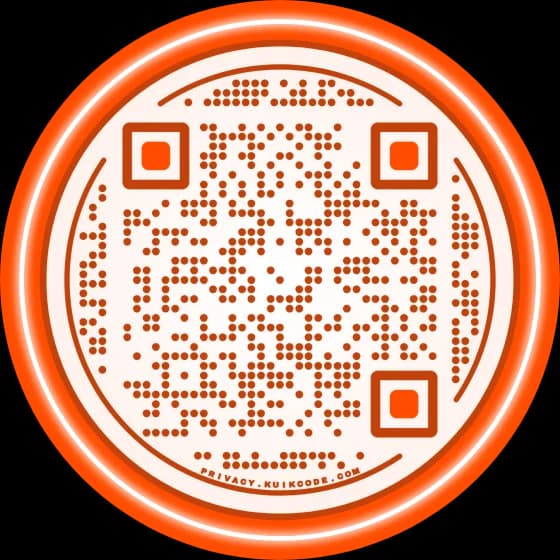
A KuikCode can match the invitation, too: your colors, a frame, a photo or a sticker, so the code looks like part of the design instead of a sticker on top of it.
When plans change
Venues move and start times slip. If the code opens a page you can edit, nothing has to be reprinted: change the time or the address, publish, and everyone who scans sees the new details. If your RSVP form asked for an email, you also have a way to tell the guests who already replied.
Digital invitations work the same way
Sending invitations by WhatsApp, email or a group chat? Share the page link instead of the code. The same page holds the RSVP, the map and the photos, so guests who got a printed card and guests who got a message land in one place.
What you need
The page's Countdown, Add to calendar and Form blocks are on Core and up, and Guest uploads are on PRO. The map, the photo header and the buttons are on every plan. See QR codes for events for more ways to use the same page on the day.
Frequently asked questions
01How do I put a QR code on a party invitation?+
Make a page for the party with the date, the place, an RSVP form and any details guests need, create a QR code that opens it, and place the code on the invitation with a short line like Scan to RSVP. Print one test copy and scan it before printing them all.
02What should the QR code on an invitation link to?+
A mobile page for the party. A single link can only do one thing, while a page can show the countdown, add the date to the guest's calendar, open the map, collect the RSVP and later collect photos.
03Can guests RSVP with a QR code?+
Yes. The code opens the party page, and a form on the page asks for the guest's name, how many people are coming and anything else you want to know. Every answer is saved for you, and you can get an email for each one.
04Can I change the party details after the invitations are printed?+
Yes, if the code opens a page you can edit. Change the time or the address on the page and publish; everyone who scans the printed code sees the new details.
05How big should the QR code be on an invitation?+
At least 2 cm across for a card people hold in their hand, with a clear margin around it. Dark dots on a light background scan best.