Your QR codes collect useful things: scans from every flyer and sign, and leads from the forms on your landing pages. Most of it is more valuable somewhere else, in the sheet your team checks, the CRM your sales team works from, or the channel where people actually see it. Zapier moves it there for you, with no code.
How it works
A Zap has two parts:
- A trigger, something that happens in KuikCode, like a new scan or a new form submission.
- An action, something Zapier does in another app, like adding a row, creating a contact or posting a message.
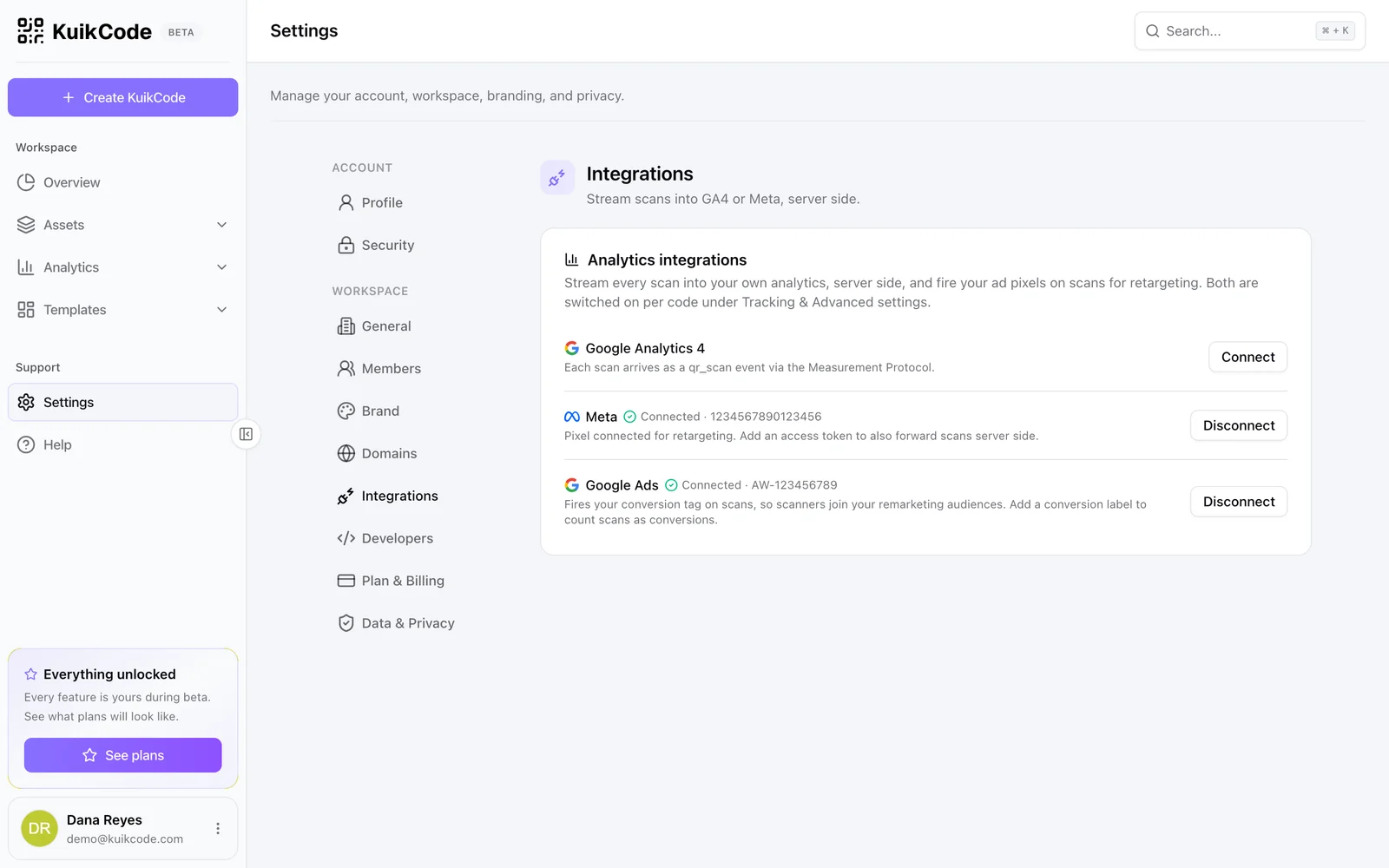
You connect your KuikCode workspace once, then build Zaps from menus. Zapier checks KuikCode for new scans, leads and codes on its own schedule, from every minute to every 15 minutes depending on your Zapier plan.
Zaps worth building first
Leads to your CRM. New Form Submission on your event or quote page, then create a contact in HubSpot, Salesforce or your CRM of choice. Answers arrive keyed by your form's labels, so Name and Email map straight to the contact fields.
Leads to a sheet. Same trigger, then a new row in Google Sheets. Good for small teams, raffles and event sign ups.
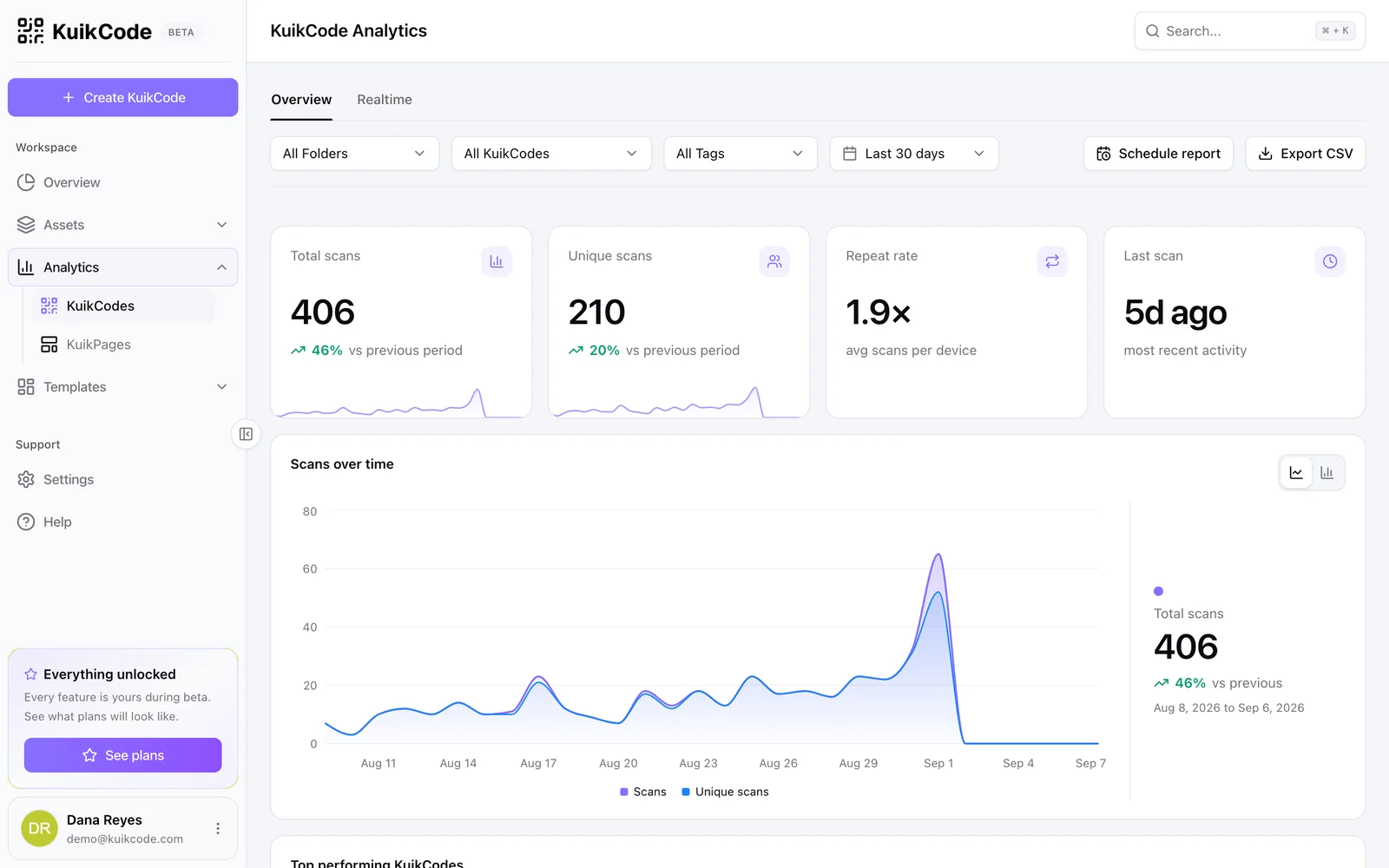
Scans to a team channel. New Scan on your trade show codes, then a message in Slack with the code name and city. Each scan arrives with a one line summary, like "Spring menu scanned in London, United Kingdom".
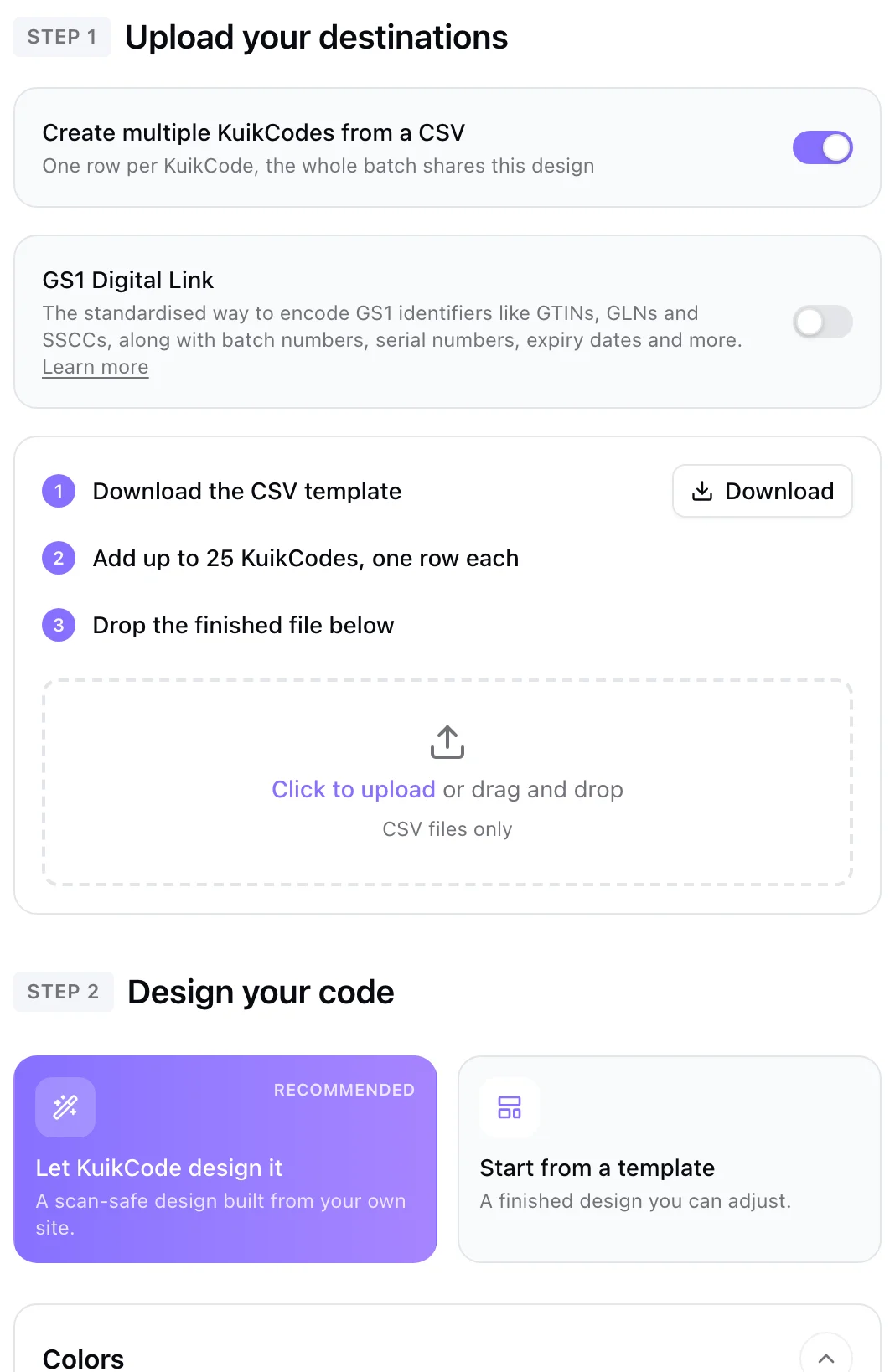
A code for every product. A new row in Google Sheets, or a new product in your store, then Find or Create KuikCode with the product page as the destination, then upload the PNG to Google Drive. One code per product, with no duplicates when a row runs twice.
Repoint when a campaign ends. A row marked done in your planning sheet, then Update Destination to the next campaign's page. The printed code keeps working, it just points somewhere new.
What Zapier can and cannot do in your workspace
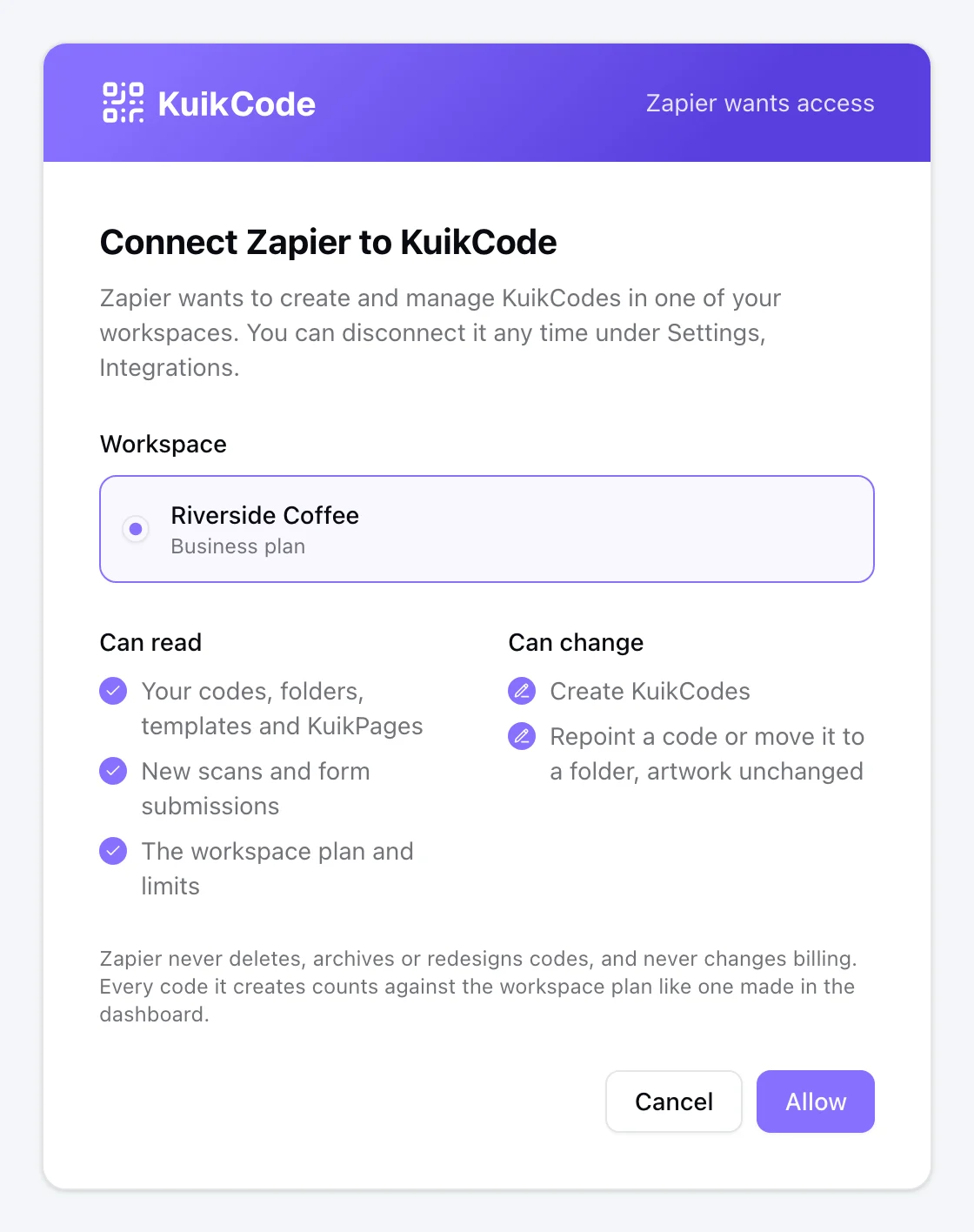
The KuikCode app can read your codes, folders, templates, KuikPages, scans and form submissions, create codes, and change a code's destination or folder. It cannot delete or archive codes, change their design, or touch billing. You choose the workspace when you connect, and you can disconnect it at any time from your settings.
Tips for Zaps that last
- Filter early. Pick a single code or folder in the trigger, so a busy workspace does not flood your sheet.
- Name codes well. The code name travels with every scan, so "Front window, Main St" beats "Code 12".
- Keep marketing consent separate. If your form has a consent checkbox, send only consenting leads to your mailing list.
- Watch your task count. Every run uses Zapier tasks, so a Zap on every scan of a very busy code adds up quickly.
Getting started
Once the app is approved, create a Zap in Zapier, search for KuikCode, pick a trigger or action and sign in to connect your workspace. Our scan analytics page shows what each scan contains, so you know what you can map.
Frequently asked questions
01Can I send QR code scans to Google Sheets?+
Yes. With the KuikCode app for Zapier, use the New Scan trigger and a Google Sheets action to add a row for each scan, with the code name, time, city, country and device.
02How do I send QR code form leads to HubSpot?+
Use the New Form Submission trigger on the KuikPage that holds your form, then a HubSpot action to create or update a contact, mapping the Name and Email answers to the contact fields.
03Can Zapier create QR codes?+
Yes. The Create KuikCode action makes a dynamic code with the destination you choose, and hands back its PNG, so the next step can save it to Google Drive or attach it to an email.
04Do I need to write code?+
No. You sign in to KuikCode from Zapier, choose your workspace, and pick triggers and actions from menus.
05Which KuikCode plan includes the Zapier app?+
The KuikCode app for Zapier is included from the PRO plan.