One QR code is quick to make. Two hundred, one per product, per store, per table or per event badge, is a different job. Making them one by one is slow and error prone. The better way is a spreadsheet: one row per code, uploaded in one go.
When bulk creation is worth it
- Product lines. A code per SKU, each opening its own product page or manual.
- Store and franchise networks. A code per location, each with its own local page or review link.
- Restaurants. A code per table, so you can see which ones get scanned.
- Events. A code per session, room or sponsor booth.
- Real estate. A code per listing sign.
Step 1: build the spreadsheet
Start with one row per code and two columns:
| Name | Destination URL |
|---|---|
| Front window | https://example.com/menu |
| Table 1 | https://example.com/menu |
| Receipt footer | https://example.com/feedback |
The name is how you will find the code later, so make it specific. The destination is where each scan goes.
Optional columns add more to each code:
- Tags, to group codes in your library, such as
signageortables. - UTM parameters, such as
utm_source=window&utm_medium=print, so each placement shows up on its own in your analytics. - Precise location, to ask scanners to share their exact position for that code.
Save the sheet as a CSV file. Every spreadsheet app can do this from its export or download menu.
Step 2: design once
Pick the design every code in the batch will share: colors, dot style, frame, text and logo. A shared design is what makes a product line or a chain of stores look like one brand.
Step 3: upload and check
Upload the file. A good bulk tool checks every row before creating anything, such as missing names or links that do not work. Fix those in the sheet and upload again rather than cleaning up codes afterwards.
Step 4: download and print
Download the whole batch at once as a ZIP of PNG files, or open any code to export it as a vector SVG or PDF for professional printing. Each file is named after its code, so the printer can match every code to the right label.
Make the batch dynamic
Print runs are the worst place to discover a typo. If your bulk codes are dynamic, each one stores a short link, and you can change any single destination after printing without touching the others. A discontinued product, a moved store or a renamed page is a two minute fix, not a reprint.
Packaging and GS1 codes
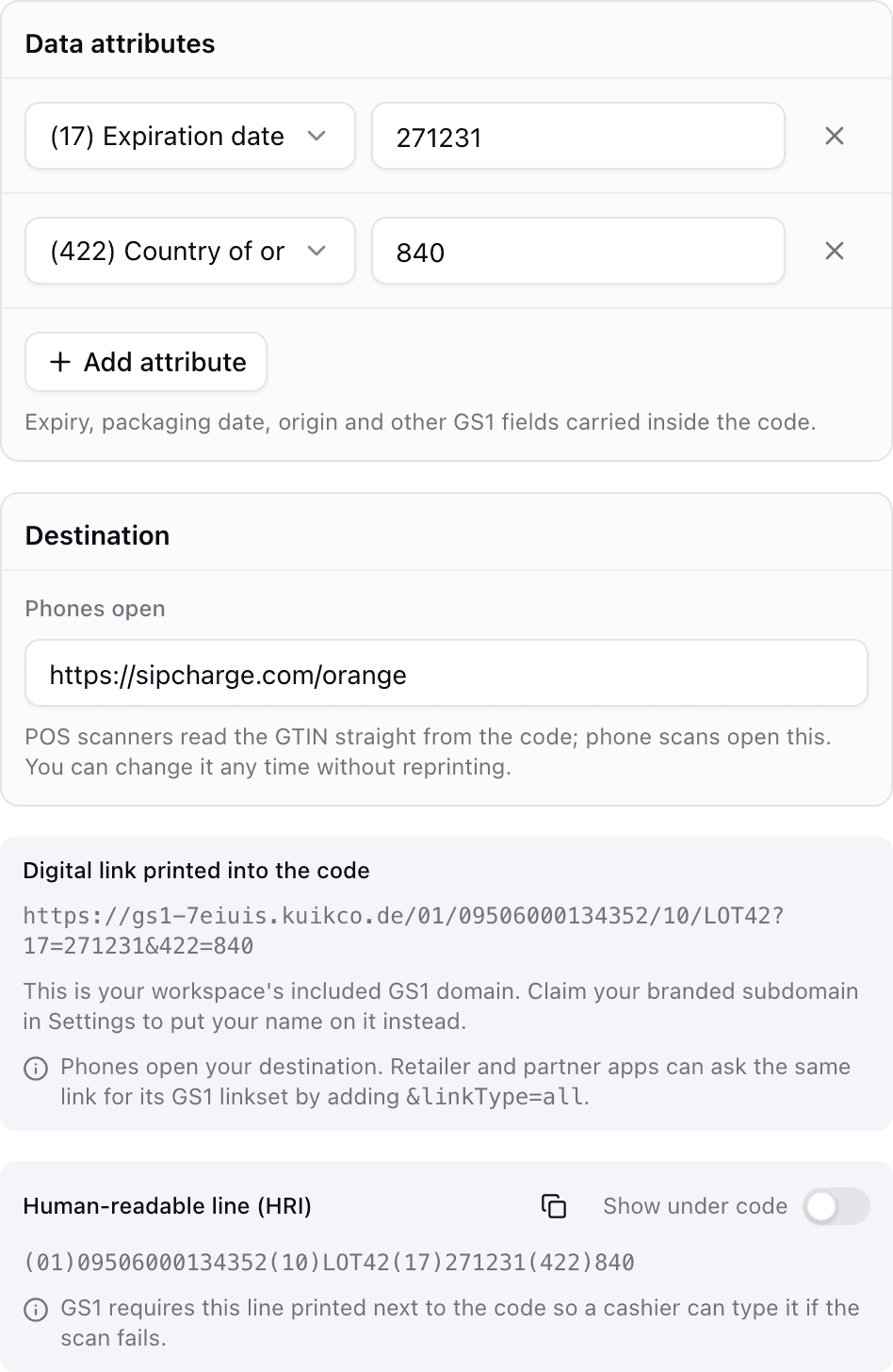
For products sold in stores, a GS1 batch adds the product's GTIN, lot, serial number and expiry date to each code, so the same code can serve shoppers and checkout systems. Our guide to QR codes on packaging with GS1 Digital Link explains how.
How bulk works in KuikCode
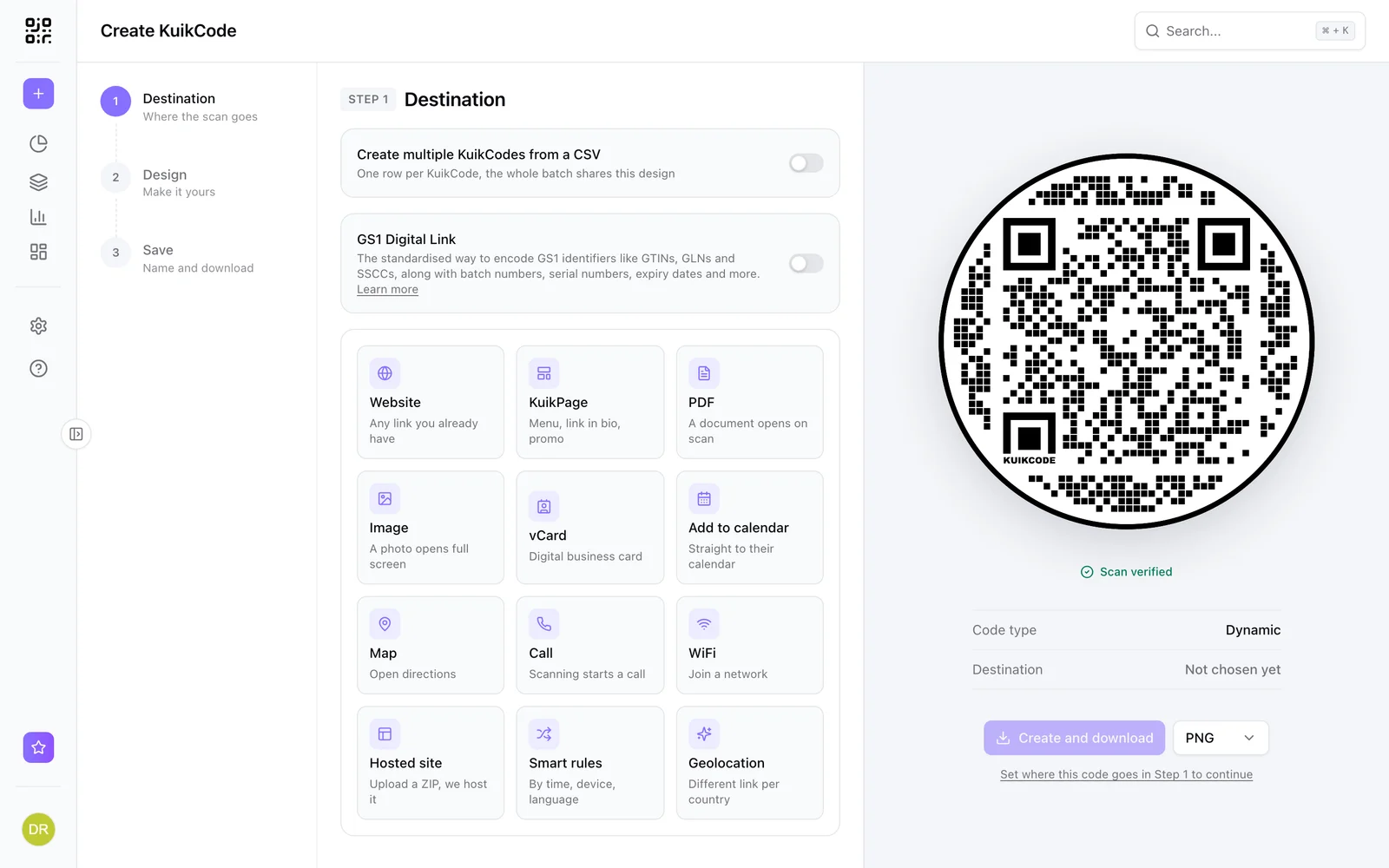
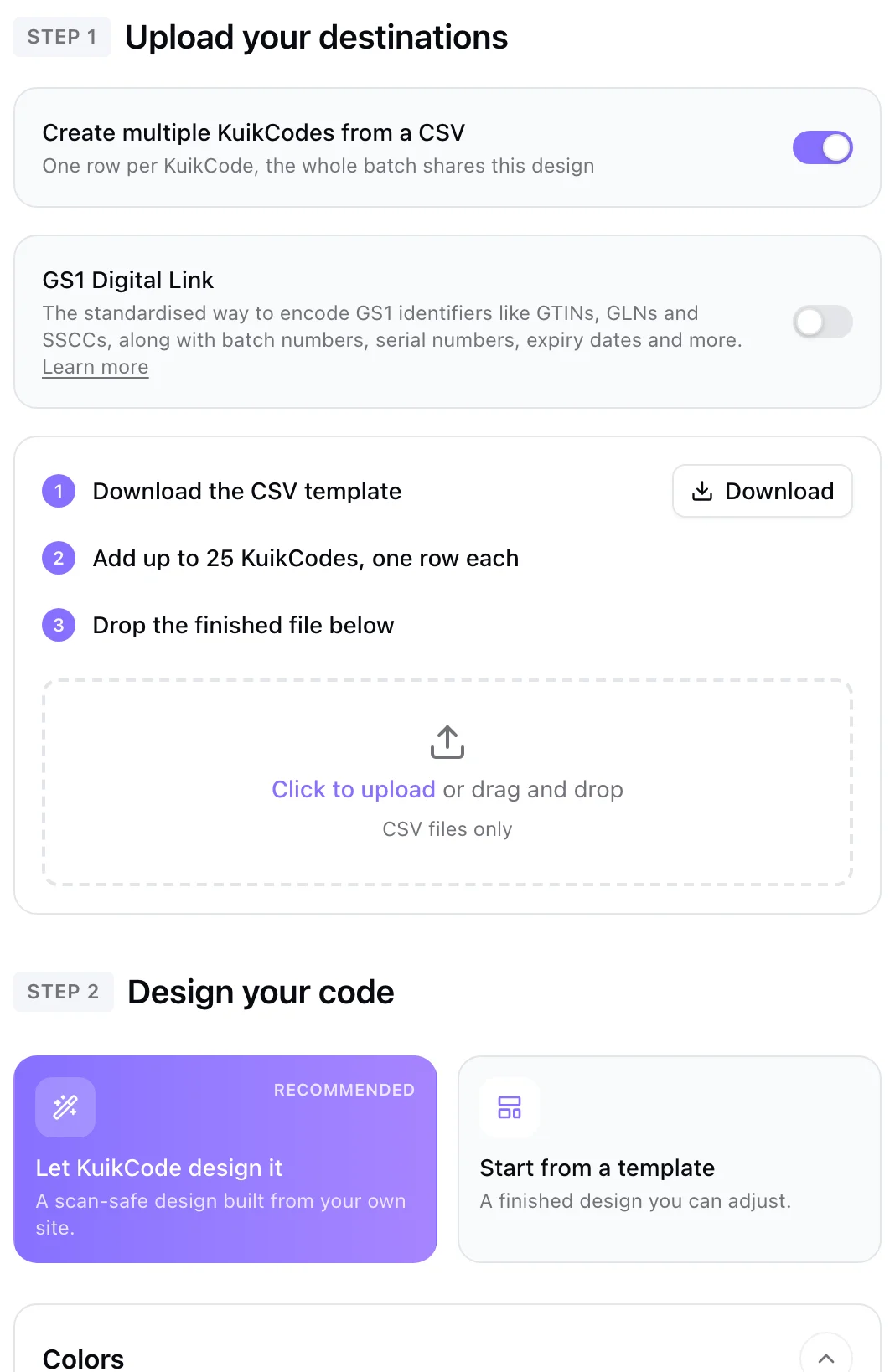
On the create page, switch to bulk, download the template, fill it in and upload it. KuikCode reads loose column names, like Name or Link, reports problems by the line number you see in your spreadsheet, and creates every code with the design you chose. Batches go up to 100 codes on PRO and 500 on Business. See the bulk QR code generator page for more.
Frequently asked questions
01How do I create multiple QR codes at once?+
Put one code per row in a spreadsheet, with at least a name and a destination link, save it as a CSV file and upload it to a bulk QR code generator. Each row becomes its own code with the design you chose.
02What columns does the CSV need?+
For KuikCode, a name column and a destination URL column. Optional columns add tags, UTM campaign parameters and precise scan locations. For product packaging, a GS1 template adds GTIN, batch, serial and expiry columns.
03How many QR codes can I make at once?+
On KuikCode, up to 100 codes per batch on PRO and up to 500 on Business.
04Can each code in a batch have a different design?+
A batch shares one design, which is usually what you want for a product line or a chain of stores. Any code can be restyled on its own afterwards.
05How do I download all the codes?+
After the batch is created, download them all at once as a ZIP of PNG files, or open any single code to export it as SVG, PDF or another format.