On this page
To make QR codes with serial numbers, give every unit its own code with the serial in the link: example.com/a/P-000123, example.com/a/P-000124 and so on. List the serials in a spreadsheet, build each link with a formula, then create the whole batch at once from a CSV. Scanning a code opens the page for that one unit: its manual, its service history, its warranty or its owner.
Serial in the link, or serial as text
A QR code can hold a serial two ways:
- Inside a link (
https://example.com/a/P-000123). Any phone opens a page, and your site knows which unit was scanned. This is the one you want for equipment, products, tickets and anything a person scans. - As plain text (
P-000123). A phone shows the number and nothing else. It's useful for an inventory scanner that types the number into another system, and little else.
The rest of this guide uses the link, with the serial printed as text beside the code so people can read it too.
Step 1: build the serial list
Decide the format once and keep it for good, because it ends up printed on things:
- A prefix for the product or site:
P-for pumps,TR-for trailers. - Fixed width with leading zeros:
000123, so the numbers sort and line up. - A batch or year part if you print in runs:
P-26-000123.
In Excel or Google Sheets, put this in the first row and fill down:
="P-"&TEXT(ROW()-1,"000000")Row 2 becomes P-000001, row 3 P-000002, and so on. Typing the numbers by hand works too, but format the column as text first: both apps drop leading zeros from anything that looks like a number, and the CSV keeps what the sheet shows.
Step 2: build a link for each serial
Add a column that joins your page address and the serial. If the serial sits in column A:
="https://example.com/a/"&A2A path (/a/P-000123) reads cleaner on a label; a parameter (/unit?sn=P-000123) is easier if your site already has one page that looks the number up. Either way, the page has to exist: one page per unit, or one page that reads the serial and shows the right record.
If the page shows anything private, such as a customer name, an address or a warranty owner, don't use the bare serial. Anyone who scans P-000123 can type P-000124. Add a random part to each link (P-000123-k7f2) with a column of random characters, and keep the public serial on the label.
Step 3: create the batch from a CSV
Your sheet now has everything a bulk generator needs. For KuikCode it looks like this:
| Name | Destination URL | Tags |
|---|---|---|
| Pump P-000001 | https://example.com/a/P-000001 | pumps-2026 |
| Pump P-000002 | https://example.com/a/P-000002 | pumps-2026 |
| Pump P-000003 | https://example.com/a/P-000003 | pumps-2026 |
- Save the sheet as CSV.
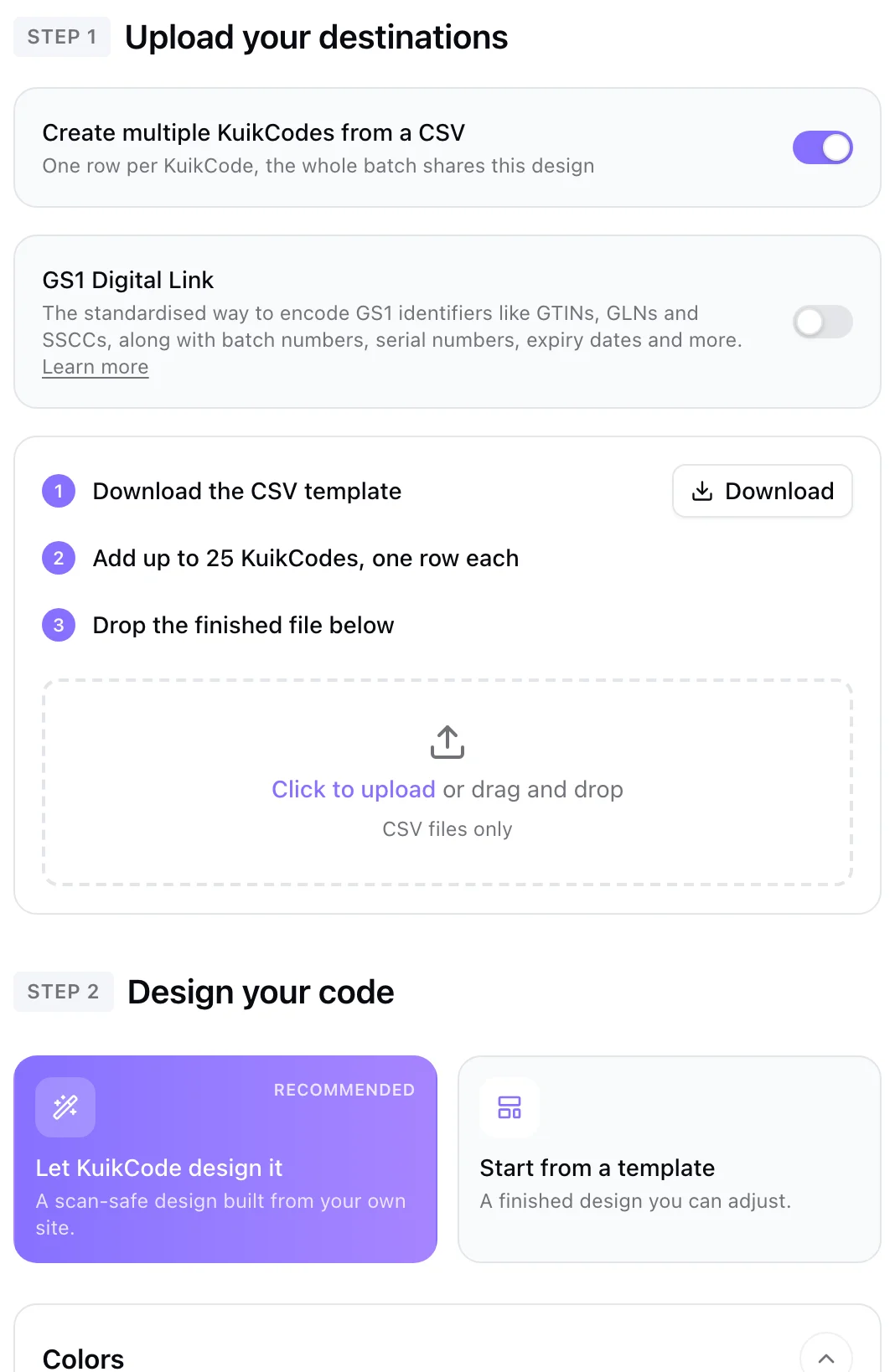
- In KuikCode, start a new code and under How many KuikCodes, choose Many KuikCodes, then A CSV file.
- Drop the file in. The editor checks every row and points at the line of anything it can't use.
- Design the code once. The whole batch shares it: your colors, a frame, your logo.
- Name the batch (it becomes a folder in your library), create it and choose Download all (ZIP).
The download is a ZIP of PNGs, 1024 pixels wide, named after each code's name, so pump-p-000001.png belongs on pump P-000001. That's what makes the next step easy. Batches go up to 100 codes on PRO and 500 on Business; our bulk QR code generator page has the details, and how to make hundreds of QR codes from a spreadsheet covers every column.
Step 4: print each code on the right unit
Because every file is named after its serial, label and print tools can match them up:
- Label software and mail merge can place an image by file name next to the serial text from the same spreadsheet row.
- Sticker printers print a sheet in file order; sort the CSV the way you'll apply the stickers.
- Check a few by hand. Scan the first, a middle and the last label and confirm each opens its own unit. A one row shift turns every label after it wrong.
Print the serial as text next to the code. A technician on a phone call reads it out faster than they scan.
What a code per unit gives you
A batch of dynamic codes is more than a numbering trick:
- Change one unit's page. A recall, a moved manual or a unit sold to a new owner: edit that one code and its printed label follows from the next scan, without touching the others.
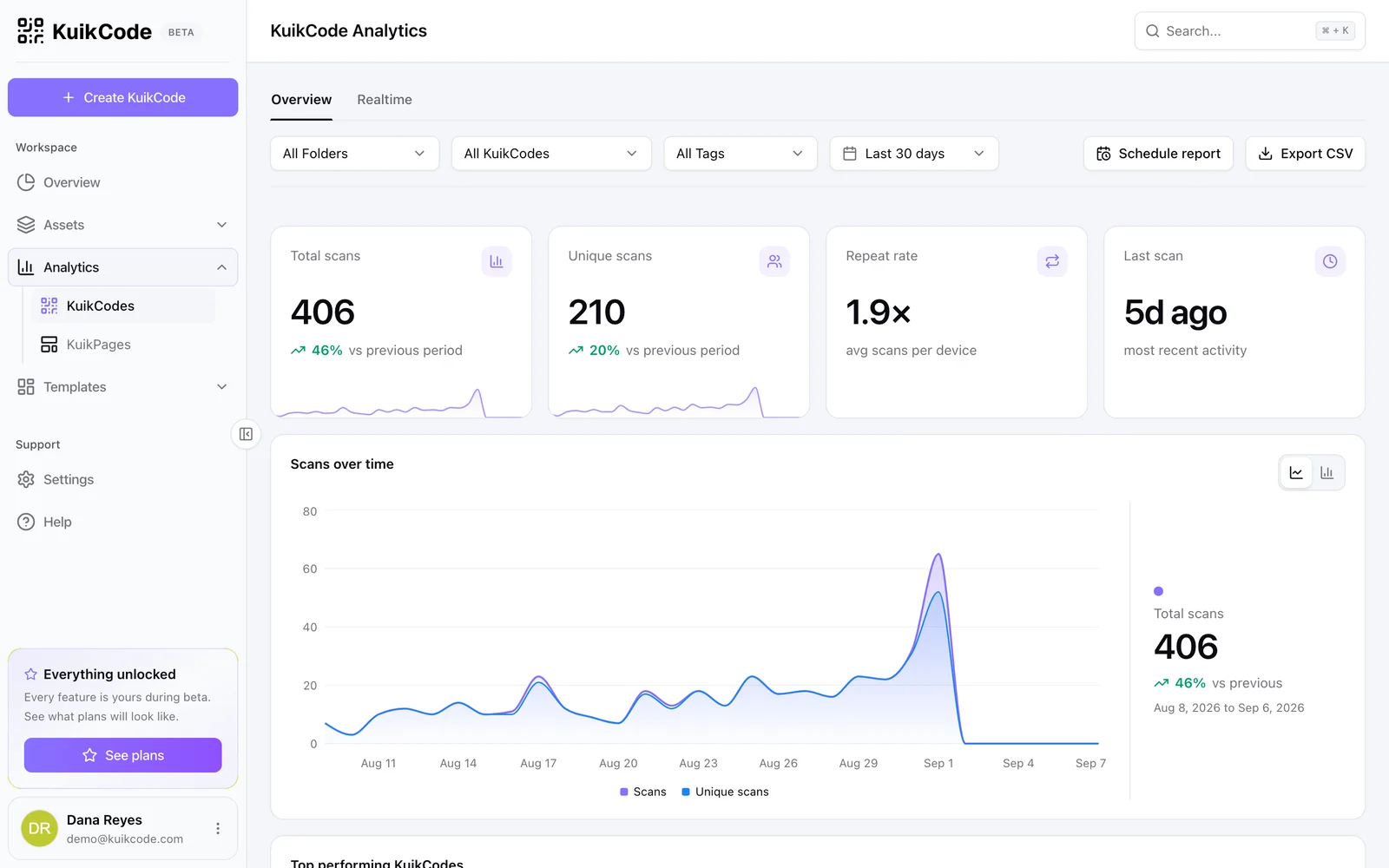
- See which units get scanned. Each code keeps its own scans with time, city and device. You find out which machines are actually serviced, which rentals came back, which serial a customer registered. See how to track QR code scans.
- Group by tag. The Tags column (
pumps-2026) keeps a batch together in your library and your stats.
Where serialized codes are worth it
- Equipment and asset tags: a maintenance log, a manual and a service request per machine, tool or vehicle.
- Warranty registration: the code opens a form already filled with the serial.
- Numbered editions: prints, limited products and certificates, each with its own page.
- Rental gear: check in, check out and the condition report for each item.
- Parts and assemblies in a plant: the spec sheet and the batch the part came from.
GS1 serials on retail products
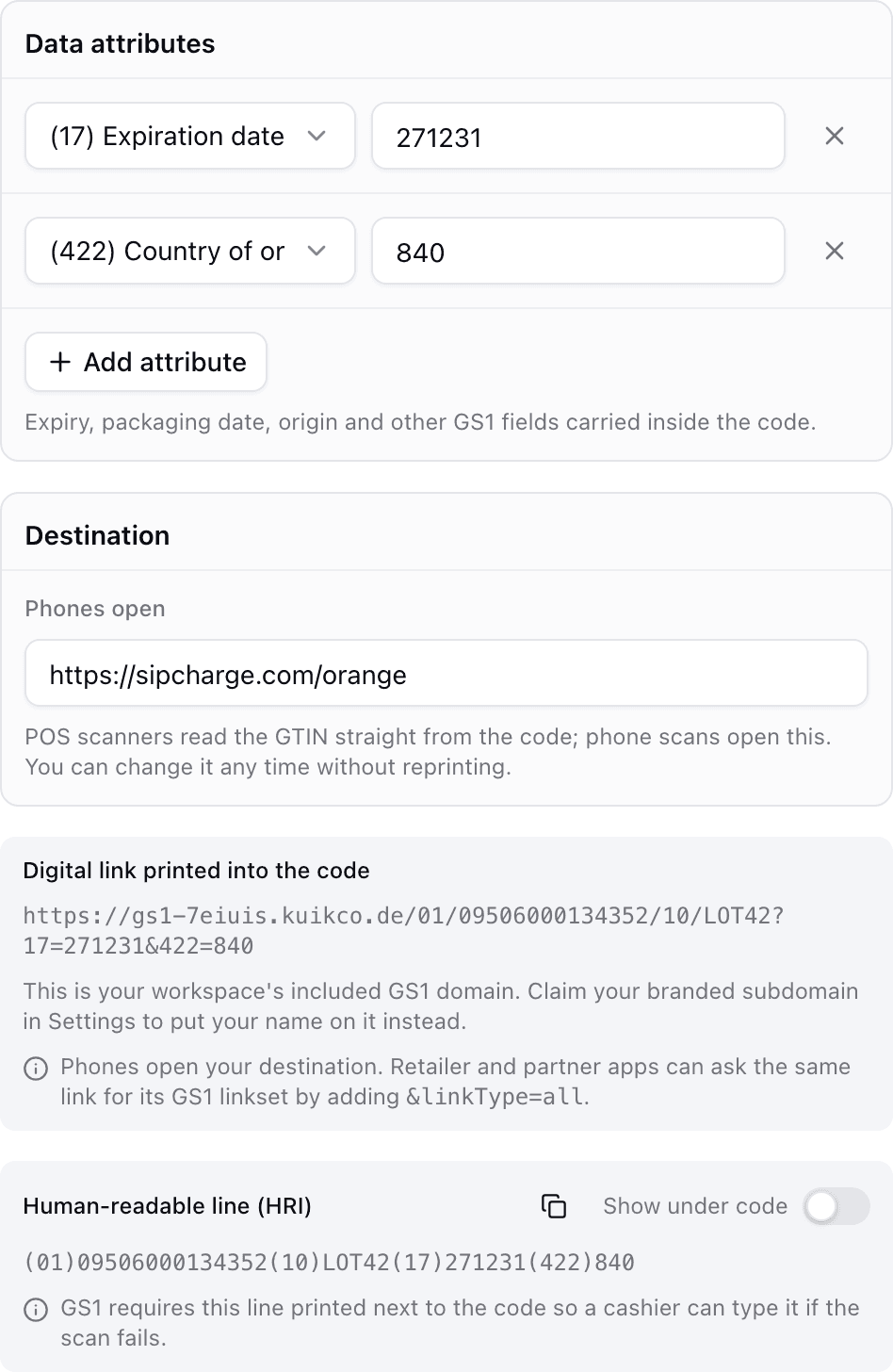
On a product sold in stores, the standard way to serialize is GS1 Digital Link: the code carries the product's GTIN plus a serial in Application Identifier 21, so a phone opens a page and a store's scanner reads the product data from the same code. KuikCode creates GS1 Digital Link codes on Business, with the serial as one of the fields. Our guide to GS1 application identifiers explains 21 and the rest, and GS1 Digital Link covers how the codes work.
Very large runs
A dynamic code per unit fits hundreds of things you track one by one. For tens of thousands of consumer units on a packaging line, the usual way is variable data printing: the label or packaging printer generates a static code per unit from a serialized link on the fly. Your site still reads the serial from the link. The codes just can't be changed after printing, so point them at a page you'll keep, and keep the redirect on your side if you ever need to move it.
Frequently asked questions
01How do I make QR codes with serial numbers?+
List one serial per row in a spreadsheet, add a column that builds each link from the serial, and add a name column. Save it as CSV and upload it to a bulk QR code generator. Each row becomes its own code, and the download names each file after its serial.
02Should the serial go in the link or in the code as text?+
In the link, for almost every use. A link opens a page for that unit on any phone. A code that holds only the number shows plain text, which helps an inventory scanner but tells a person nothing.
03How do I keep leading zeros in serial numbers?+
Format the serial column as text before you type, or build the serial with a formula like TEXT(ROW()-1,"000000"). Excel and Google Sheets drop leading zeros from numbers, and the CSV keeps whatever the sheet shows.
04How many serialized QR codes can I create at once?+
On KuikCode, up to 100 codes per batch on PRO and up to 500 on Business. Every serial is its own dynamic code, so the workspace's code count applies too: 150 on PRO and 600 on Business.
05Can a QR code carry a GS1 serial number?+
Yes. A GS1 Digital Link code carries the GTIN plus a serial in Application Identifier 21, so a phone opens a page and a store scanner reads the product data. KuikCode creates GS1 Digital Link codes on Business, with the serial as one of the fields.
06Can people guess other serials from the link?+
Yes, if the serials run in order and the link is only the serial. That's fine for a public product page. When the page shows a customer, a warranty or a location, add a random part to each link, such as P-000123-k7f2, so nobody can walk the numbers.