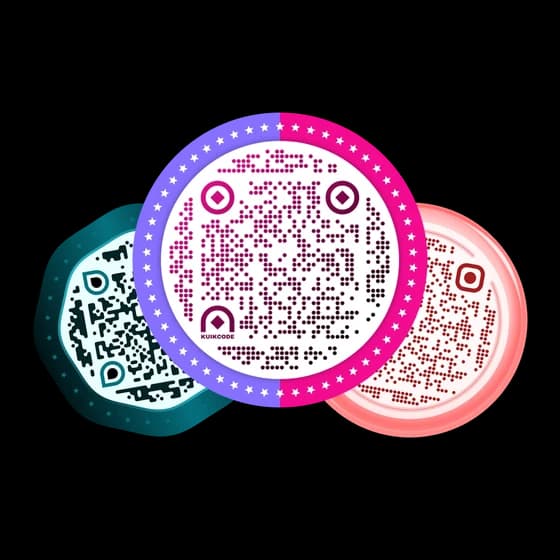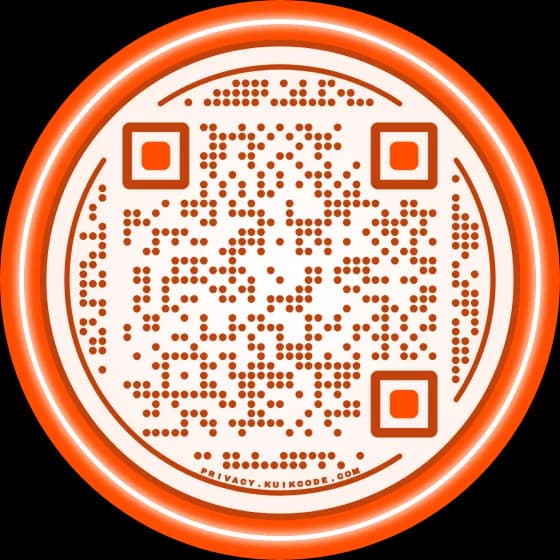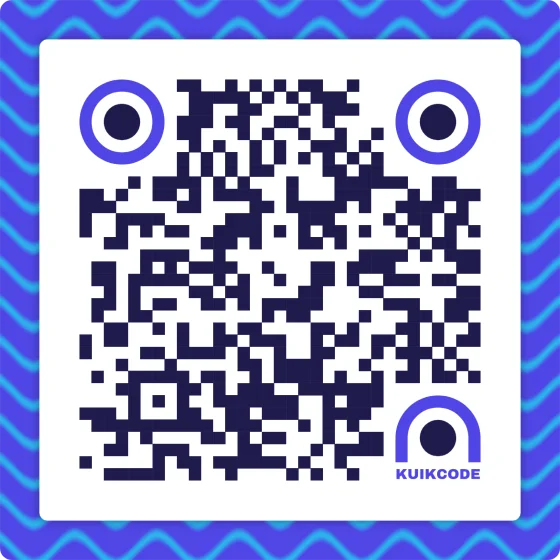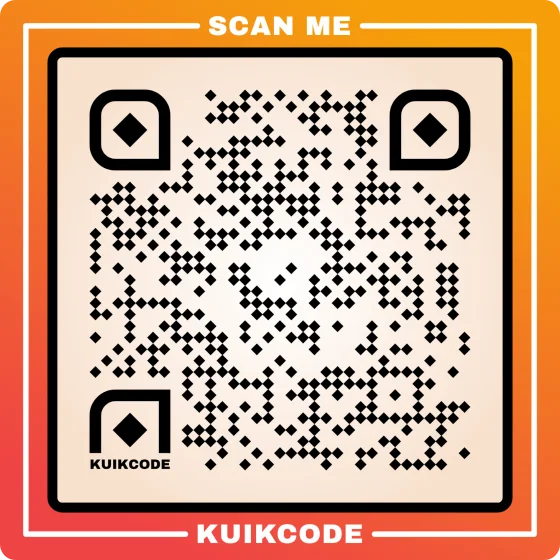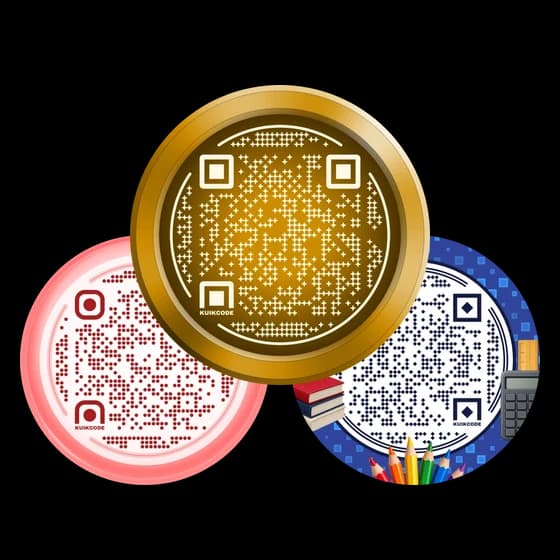
People mean three different things by a 3D QR code: a code that looks like it has depth, a code with a gold or metal finish, or a code printed as a real object on a 3D printer. All three can work, and all three fail for the same reason when they don't.
The rule is the one every QR code follows. To a phone, a QR code is flat: a grid of dark and light squares. Everything 3D happens around that grid, never inside it.
Codes that look 3D
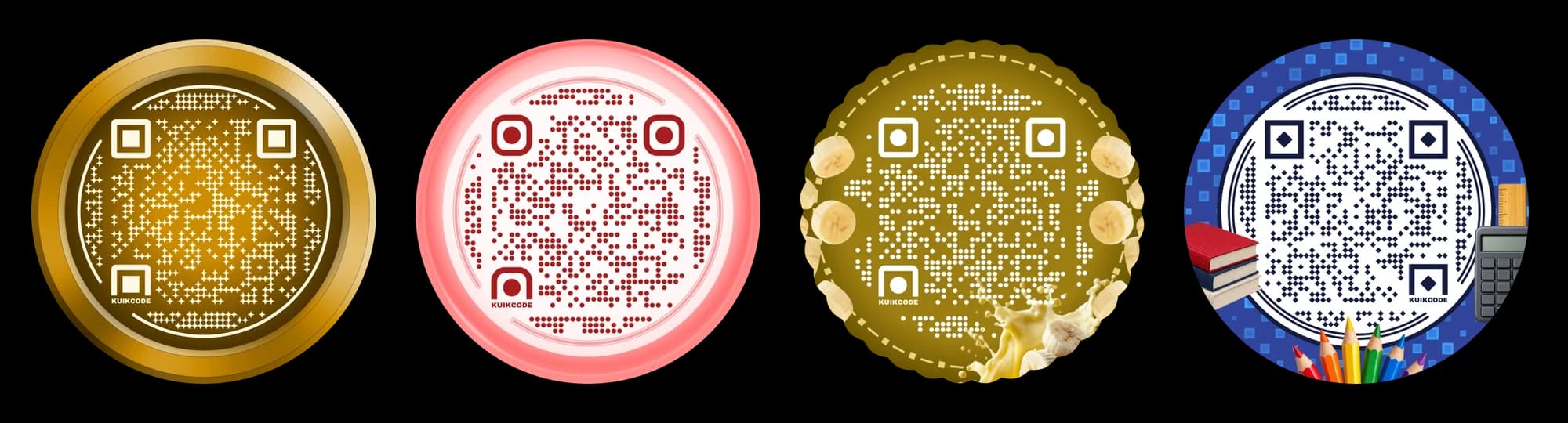
A code looks 3D when the things around it catch light and cast shadows: a polished frame, a glossy rim, objects that sit in front of the edge. In the KuikCode editor that comes from three places:
- Metal frames. A polished metal ring around the code, in gold or any other tone, with a code in matching colors.
- Bubble frames. A glossy frame with a soft shine, like a sticker or a button.
- Stickers. Photo cutouts of real things and 3D props that sit on the frame, so they can break out of the circle without touching the code.
What keeps these codes scanning is that none of the effects reach the squares. The shine is on the frame, the stickers stay outside the code, and the code itself is plain dark and light. A shadow or a highlight painted across the dots would make some of them read as the wrong color.
Gold QR codes
A gold QR code is one of the most asked for looks, and it works in two ways:
- Gold around the code. A gold frame or ring, with dark dots on a light background inside it. This is the safest version.
- Light dots on a dark background. Pale gold or cream dots on a deep brown or black, like the first code above. That is an inverted code: it scans on most recent phones, but some scanner apps skip flipped colors. Our guide on QR code colors explains when that is worth it.
On screen, gold is just a color. In print, real gold foil is a mirror: at some angles it reflects the light straight into the camera and the code turns white. Use foil for the frame and keep the dots in a flat ink.
How to 3D print a QR code
A 3D printed QR code is a real object: a sign on a table, a keychain, a plaque by the door, a tag on a product. It scans like a printed one when the top of the squares and the base are clearly different colors.
- Make the code. Use the free QR code generator with square dots, square eyes, no logo and black on white, and download the SVG. Plain squares print cleanly; rounded dots and small details don't.
- Turn it into a shape. Import the SVG into a 3D modeling tool such as Tinkercad and give the dark squares a height of about 1 mm.
- Add a light base. Put the squares on a light plate that leaves an empty margin of at least four squares on every side.
- Print in two colors. Print the base in a light filament and the squares in a dark one. On a single color printer, pause for a filament change at the layer where the squares begin.
- Test it. Scan the first print in normal light, from a little further than people will stand.
Size and details that matter
- Each square at least about 1.5 mm wide. A standard 0.4 mm nozzle draws nearly four lines across that, enough for clean edges.
- Fewer squares, smaller object. Count the squares across the code, add eight for the margin, and multiply by 1.5 mm. A short link that makes a 29 by 29 code needs about 5.5 cm across. A long link with many more squares needs a much bigger print.
- Matte, not silk. Shiny filaments reflect light the way foil does. Matte black on matte white is the easiest to read.
- Keep it flat. A code on a curved surface or under a glossy coating can still scan, but test it in the place it will be used.
A 3D print is the hardest kind of code to replace: you can't reprint a plaque the way you reprint a flyer. A dynamic QR code solves that. A KuikCode encodes a short link that never changes, so the grid stays small whatever the destination, and you can point it at a new page, a menu or an offer any time without printing the object again. See what a dynamic QR code is for how it works.
3D QR code images
Search for 3D QR code images and you'll find rendered phones, floating codes and glowing cubes. Many of them are illustrations with a made up pattern: they look like QR codes but don't open anything. Before you use one on a slide or a poster, scan it.
If you need a 3D scene with a working code, make a real code first and place it in the scene flat and facing the camera, as large as the layout allows. A code drawn at a steep angle, wrapped around an object or partly hidden is one more thing that can stop a scan.
Frequently asked questions
01Do 3D QR codes scan?+
Yes, when the code itself reads as a flat pattern of dark and light squares. Depth, shine and objects around the code are fine. Shadows or reflections falling across the dots are what stop a scan.
02Can you 3D print a QR code?+
Yes. Download the code as an SVG, raise the dark squares about 1 mm above a light base in a tool such as Tinkercad, and print the squares in a dark filament on a light one. Keep each square at least about 1.5 mm wide and use a matte filament.
03How big should a 3D printed QR code be?+
Count the squares across the code, add eight for the margin, and multiply by 1.5 mm. A short link that makes a 29 by 29 code needs about 5.5 cm across, margin included.
04Can a QR code be gold?+
Yes. Gold works as a frame or as light dots on a dark background. On paper, gold foil reflects light and can blind the camera at some angles, so keep the dots themselves in a flat ink.
05Do 3D QR code images from stock sites work?+
Not always. Many are illustrations with a made up pattern that doesn't open anything. Scan any image before you use it, or make a real code and place it in your design, flat and facing the camera.
06Can I change a 3D printed QR code later?+
Only if it is dynamic. A static code holds the link in its squares, so a new link means a new print. A KuikCode holds a short link that you can point anywhere, any time.