Reviews bring in new customers, and most happy customers are glad to leave one. They just need to be asked at the right moment, with the least possible effort. A QR code that opens your Google review form in one scan does exactly that.
Step 1: Find your Google review link
In your Google Business Profile, open Read reviews and choose Get more reviews. Google gives you a link customers can use to leave a review for your business. Copy the link.
Step 2: Point a dynamic code at it
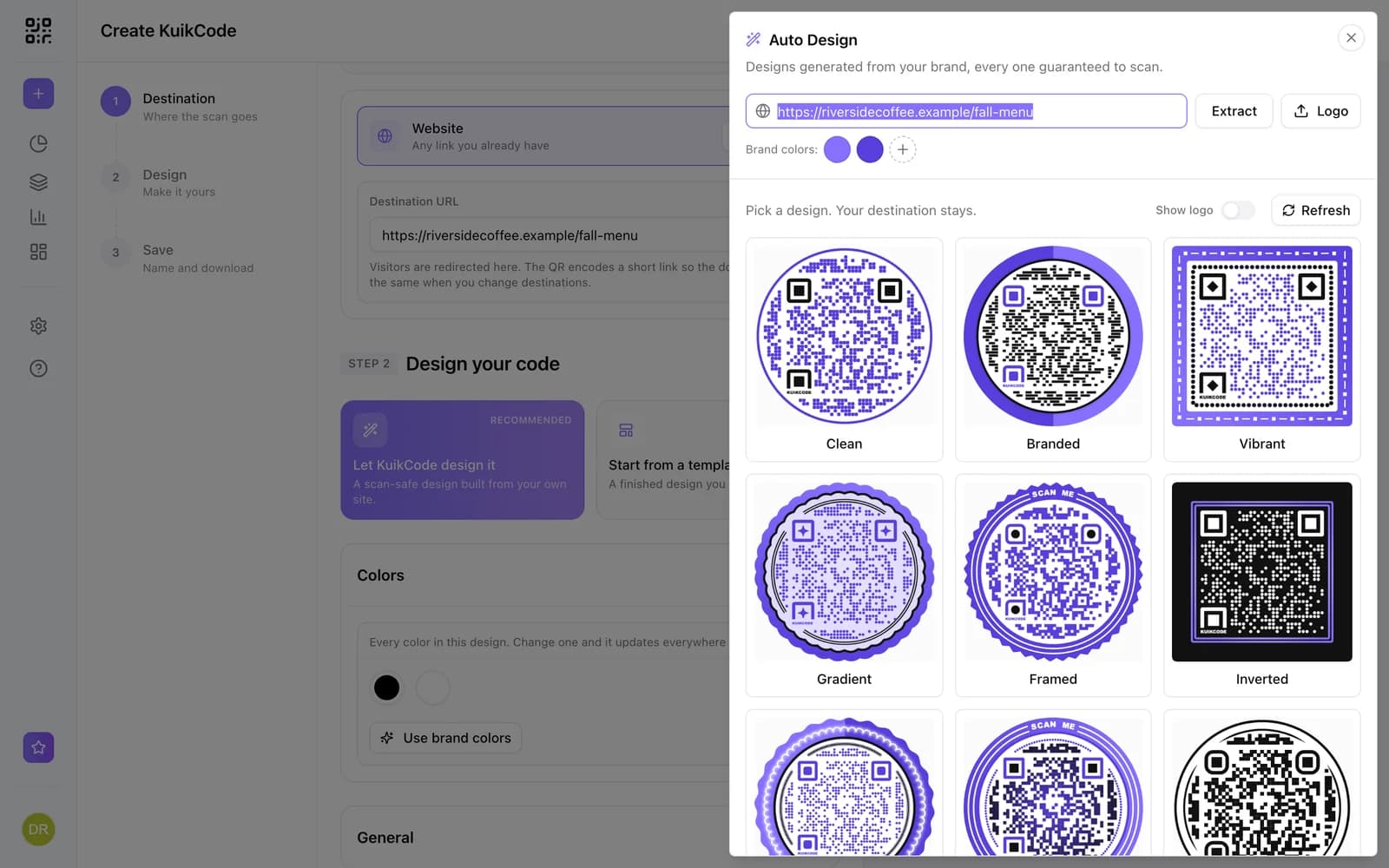
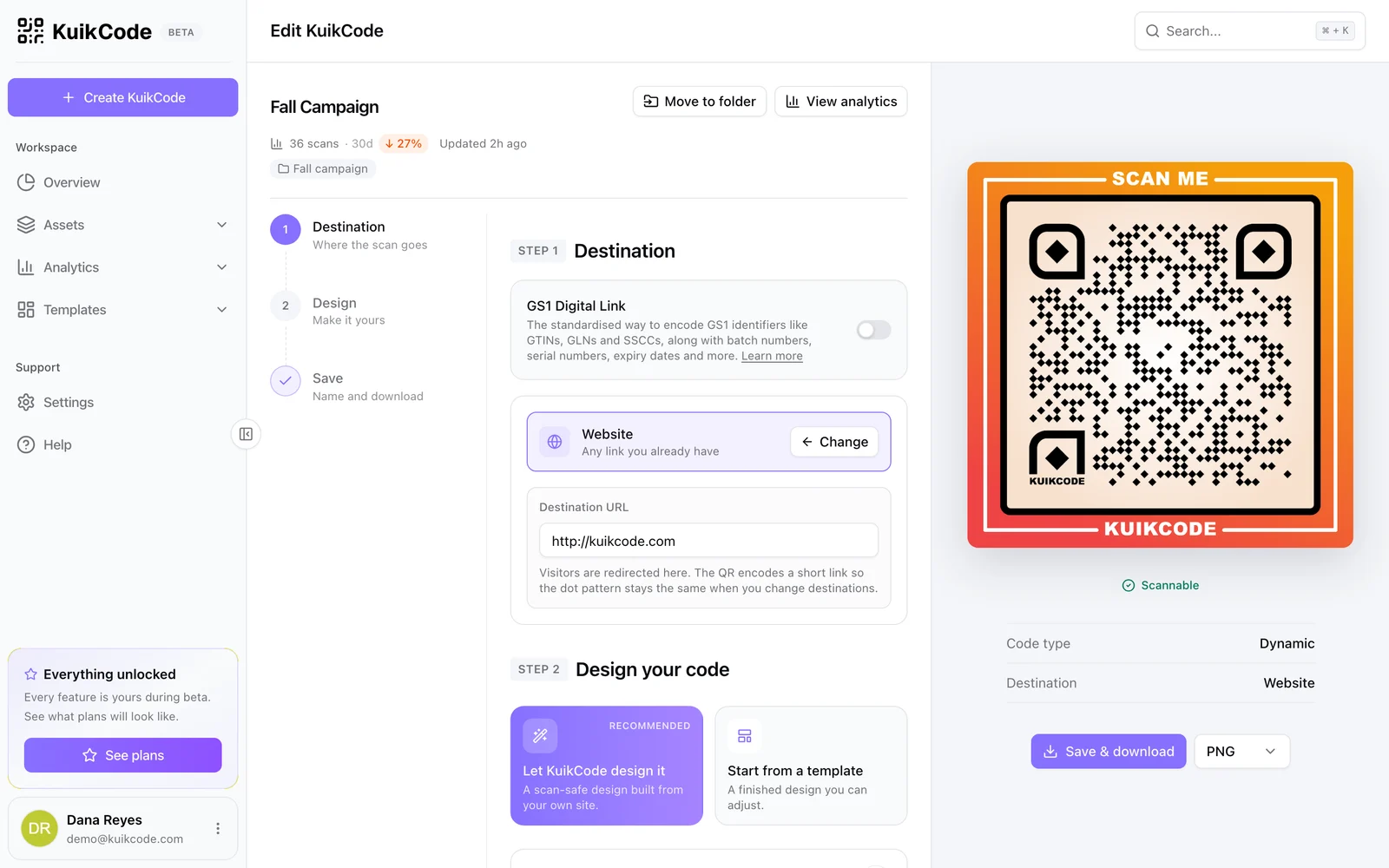
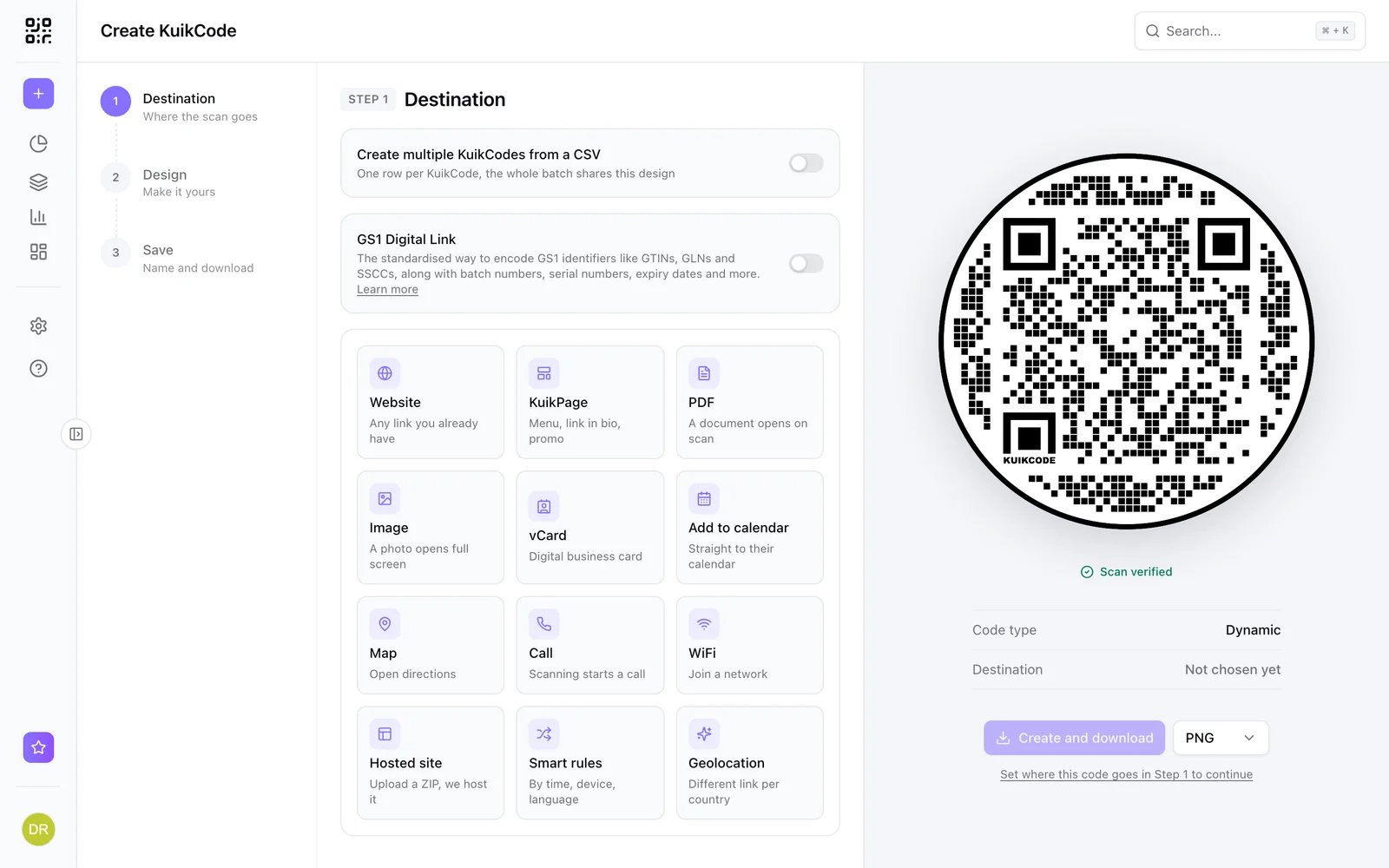
In KuikCode, click Create, choose Website and paste your review link. Design the code with your colors and a frame with a clear line such as Loved it? Leave us a review.
Use a dynamic code rather than a static one. If you open a second location, move to a new review profile or want to try a different site, you change the destination and the printed cards keep working. See how to change where a QR code goes after printing.
Step 3: Put it where the good moments happen
- The counter or register, right after payment.
- The receipt, printed at the bottom.
- The table, with the bill.
- A thank you card in the bag or box.
- A leave behind card after a service visit or a delivery.
Ask everyone, the same way
Google's review policies ask businesses not to discourage negative reviews and not to selectively ask only satisfied customers. They also rule out rewarding people for reviews or pressuring customers to leave one while they are with you. The simplest way to stay on the right side of that is to ask every customer the same way, keep it optional, and reply to reviews, good and bad. Honest reviews, and thoughtful replies, are what future customers trust.
If you also want private feedback, add a separate way to reach you, such as a short feedback form on a KuikPage, alongside the public review link rather than instead of it.
What to say next to the code
Short and specific works best:
- Loved your visit? Tell others on Google.
- Scan to leave us a review. It takes a minute.
- Your review helps a small business grow.
Track what works
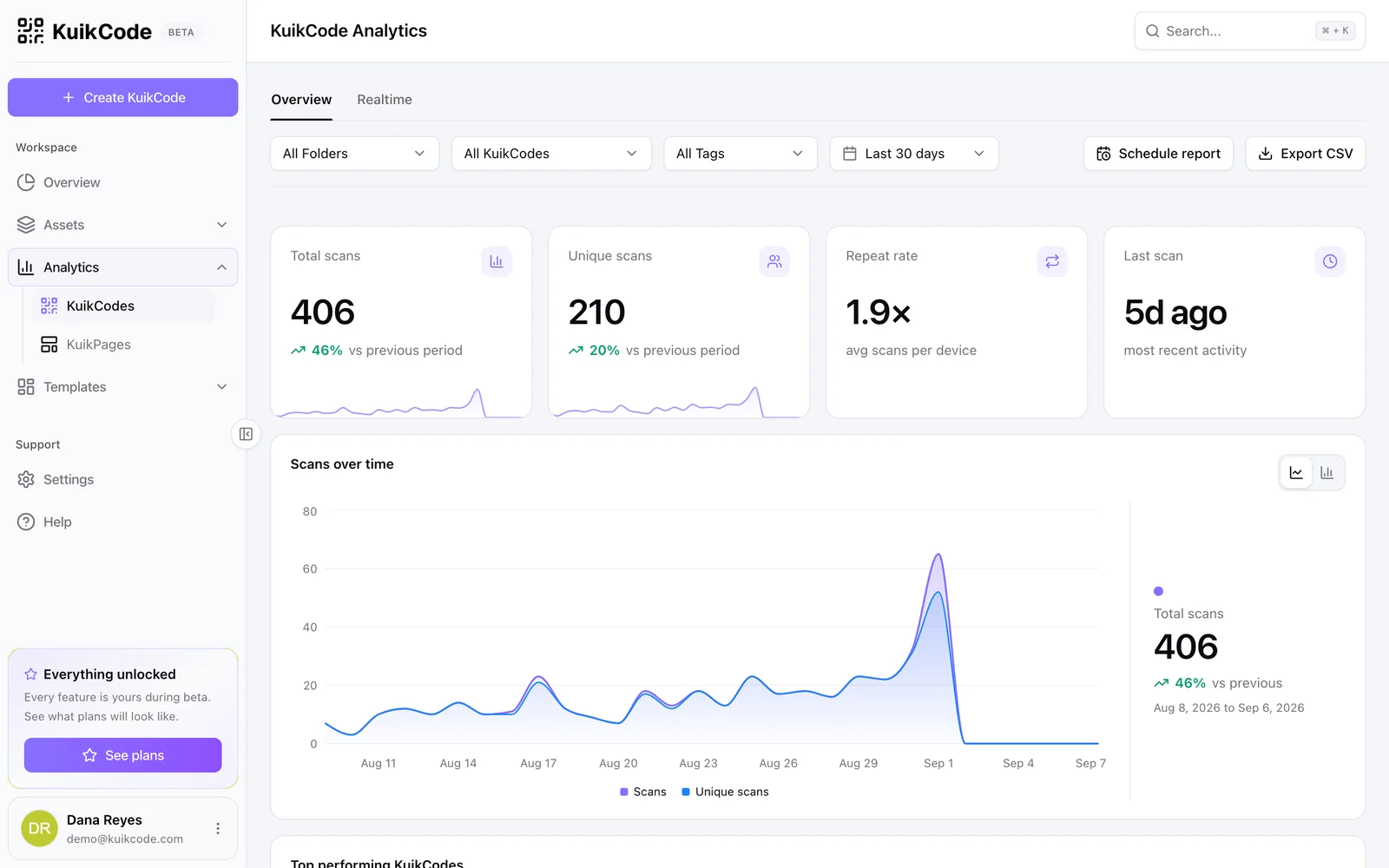
Every scan is counted with its time, city and device. Create one code per location, or one per placement, receipt versus counter, and compare which one brings the most people to your review form.
Frequently asked questions
01How do I get my Google review link?+
In your Google Business Profile, open Read reviews and choose Get more reviews. Google gives you a link customers can use to leave a review.
02Can I make a Google review QR code for free?+
Yes. Point a KuikCode at your review link. Website codes are available on every plan, including Free.
03Can I only send happy customers to Google?+
You should not. Google's review policies ask businesses not to discourage negative reviews or selectively ask only satisfied customers for them, and not to reward or pressure anyone into leaving one. Ask everyone the same way, and reply to every review.
04Where should I put a review QR code?+
Where customers are at the end of a good experience, the counter, the receipt, the table after the meal, a thank you card in the bag or a card left after a service visit.
05Can I track how many people scan the review code?+
Yes. Every scan is counted with its time, city and device. With one code per location, you can compare locations side by side.