A QR code for a link is the most common code there is: a menu, a signup form, a product page, a review page. Making one takes a minute. Making one that people actually scan takes a little more care.
Step 1: Decide if the link should be editable
Before anything else, choose between a static and a dynamic code:
- A static code stores your link directly. It can never change and cannot count scans.
- A dynamic code stores a short link that forwards to yours. You can change the destination anytime and see every scan.
If the code is going on anything printed, choose dynamic. Links break, pages move and campaigns end. See static vs dynamic QR codes for the full comparison.
Step 2: Paste your link
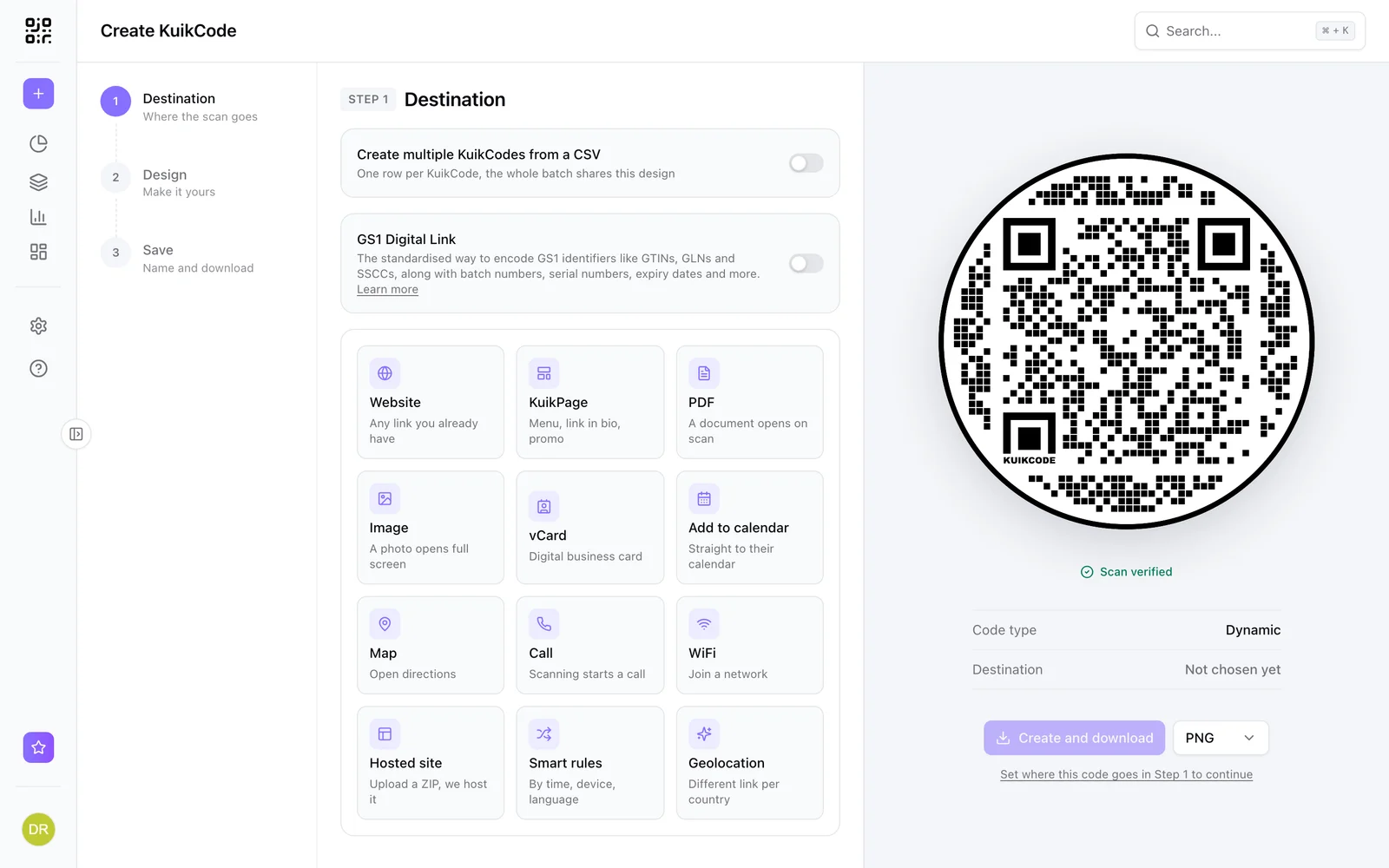
In KuikCode, click Create, choose Website and paste the full address, including https://. If you run campaigns, add UTM parameters so the visits show up correctly in your web analytics.
Step 3: Design the code
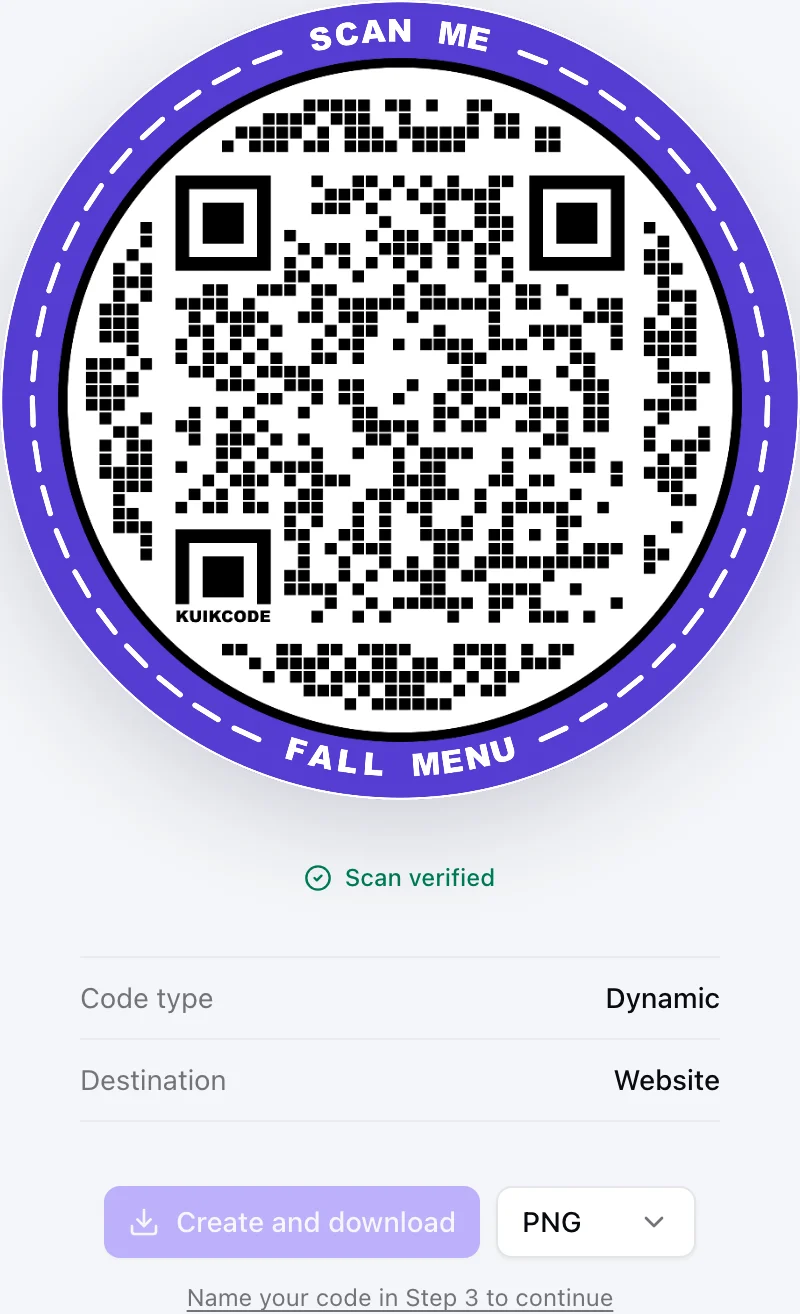
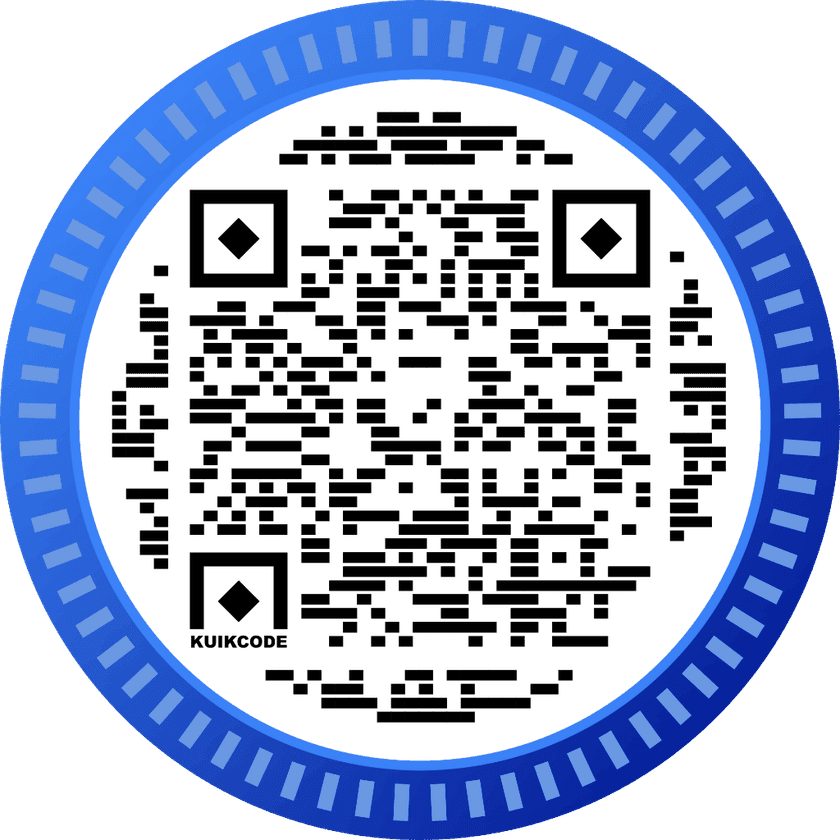
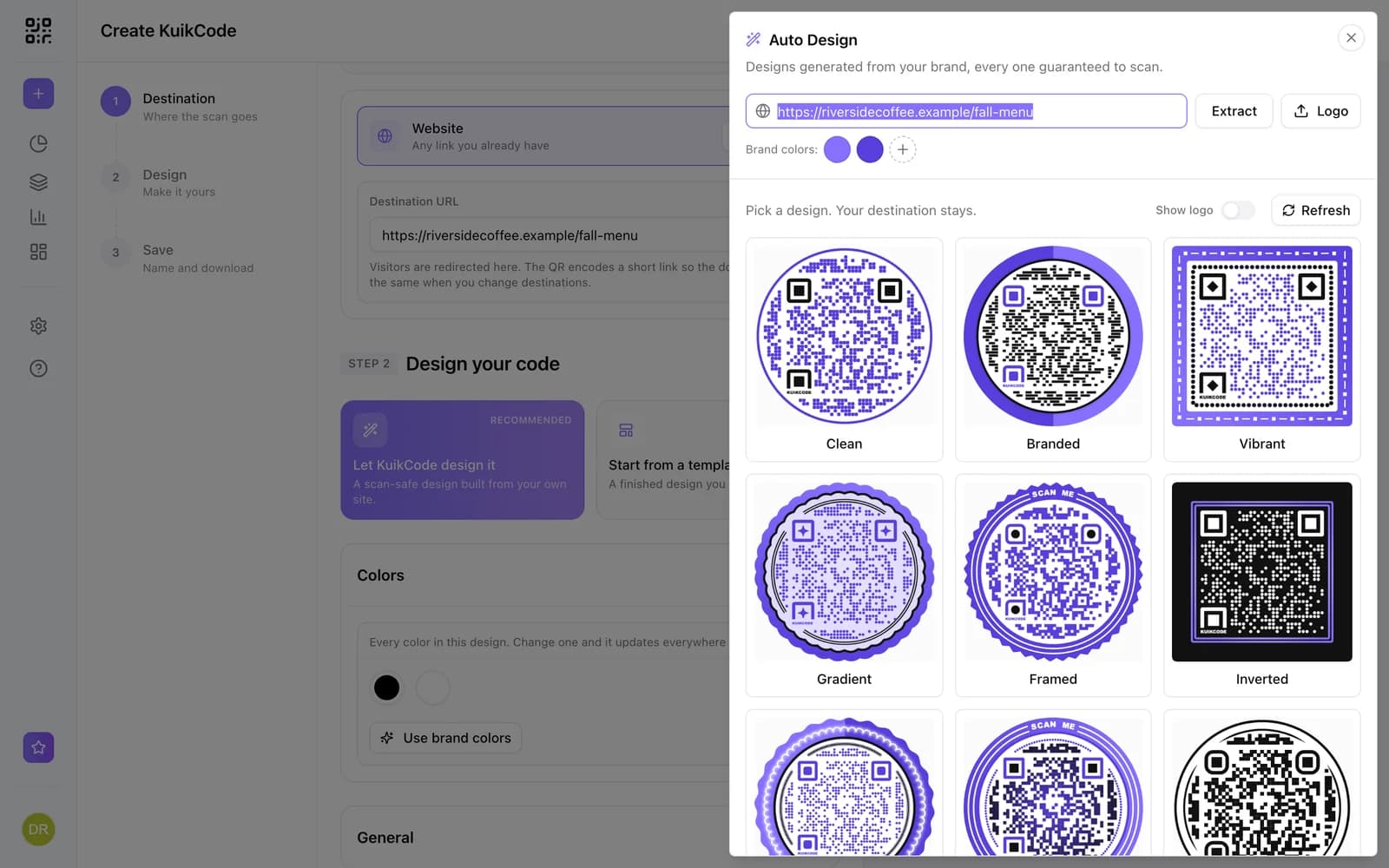
A plain black square works, but a designed code gets more scans because it looks intentional:
- Colors. Use your brand colors, with dots clearly darker than the background.
- Logo. A small logo in the center tells people who the code belongs to.
- Frame and call to action. Words like Scan for the menu or Scan to save 10% explain the payoff before anyone lifts a phone.
On the PRO plan, KuikCode can also design the code for you from your website's colors. On every plan, it checks that each design still scans before you download it.
Step 4: Size and place it for real life
- Size for distance. Aim for a code width of about one tenth of the scanning distance. A poster read from 3 meters needs a code around 30 centimeters wide.
- Keep a quiet zone. Leave empty space around the code so the camera can find its edges.
- Avoid tricky surfaces. Glossy lamination, tight curves and folds make codes harder to read.
- Put it where phones can reach. Not too high, not behind glass with glare, not somewhere people walk past too fast.
Step 5: Test before you print
Scan the final file with at least two different phones, iPhone and Android if you can, from the distance and angle people will use. Then print one proof and scan the proof, because paper and ink behave differently than a screen.
After printing
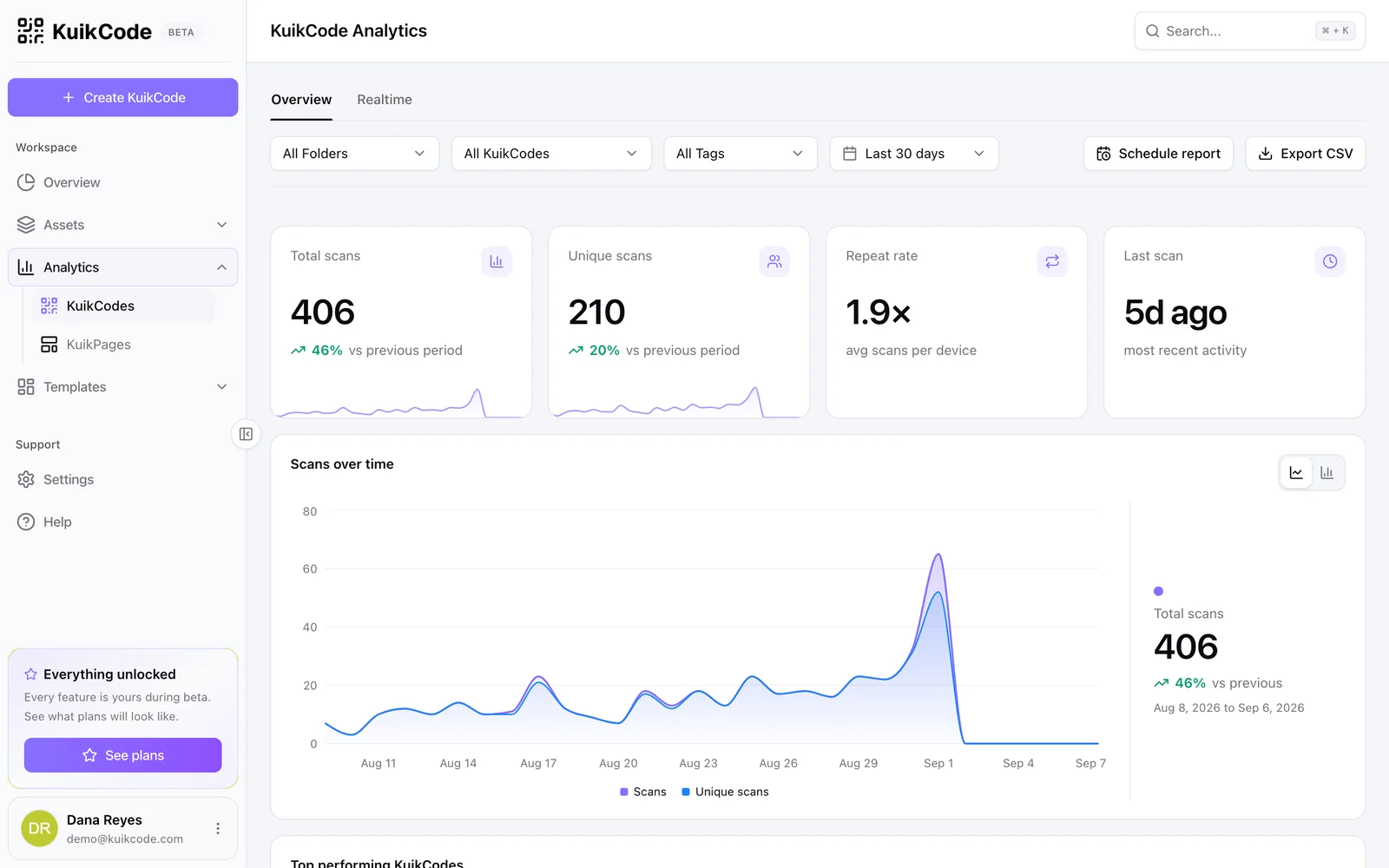
With a dynamic code, the work does not end at the printer. Watch the scans, compare locations and change the destination whenever the link needs to change. Our guide to tracking QR code scans explains what the numbers mean.
Frequently asked questions
01How big should a QR code be?+
A common rule of thumb is a width of about one tenth of the scanning distance. A code read from 1 meter away should be around 10 centimeters wide, and a code on a business card read at arm's length can be closer to 2 centimeters.
02Can I put my logo in the middle of a QR code?+
Yes. QR codes include error correction that tolerates part of the pattern being covered, so a logo in the center is fine as long as it stays small and the code still passes a scan test.
03Can a QR code be colored?+
Yes, as long as the dots are clearly darker than the background. Dark dots on a light background scan most reliably. Inverted codes with light dots on dark backgrounds fail on some phones.
04Does a QR code for a link expire?+
A static code never expires, because the link is stored in the pattern. A dynamic code keeps working as long as the service behind its short link does.