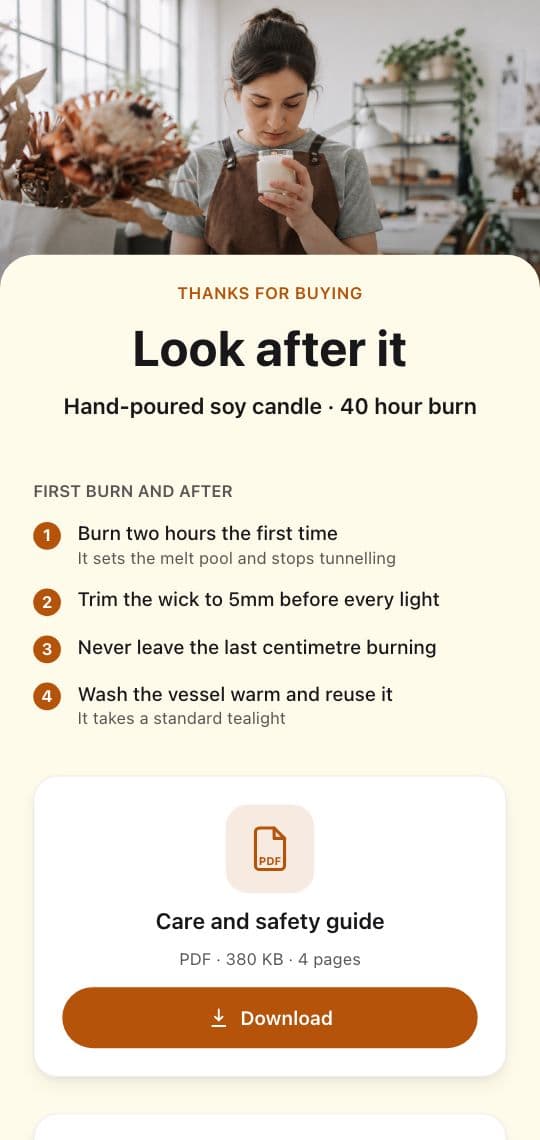
The printed manual is one of the most expensive pages a manufacturer produces, and one of the least read. It goes out of date the day a product changes, it is in one language, and it ends up in a drawer or the recycling. A QR code on the product can replace most of it with a page that stays current.
What the page behind the code should hold
Keep it short and put the most wanted things first. For most products, that is:
- Quick start. The three to five steps to get going, with photos.
- A setup video. Often clearer than any diagram.
- The full manual as a PDF, for people who want every detail.
- Care and cleaning. What to do, what never to do.
- Spare parts and accessories, with links to buy.
- Warranty registration. A short form, right there.
- Support. A phone number, email or chat link.
On a phone, a clean page with these sections beats a 60 page PDF every time. Keep the PDF one tap away for the details.
Warranty registration that people finish
Paper registration cards come back rarely. A form one scan away does better, especially when it is short:
- Ask only what you need: name, email, purchase date, and model or serial number.
- Say what they get: a longer warranty, faster service, or recall alerts.
- Offer marketing consent separately, as its own checkbox, never required.
Each registration becomes a record with the product it came from, which is exactly the data a paper card never gave you.
Why the code must be dynamic
Products live for years, and their documents change: a revised manual, a new firmware guide, a safety notice, a recall. A dynamic code lets you update the page or file behind the code, and every unit already sold opens the new version. A static code would keep opening the old link, or a dead one, for the life of the product.
Where to put the code
- On the product itself, on a durable label on the back, under the lid or inside a door, so it is still there after the box is gone.
- On the box and the quick start card, for setup day.
- Big enough to scan in the place it lives. A label inside a cabinet is scanned up close, a machine on a factory floor maybe from a step away. Our guide to QR code size for print has the numbers.
Many products, one workflow
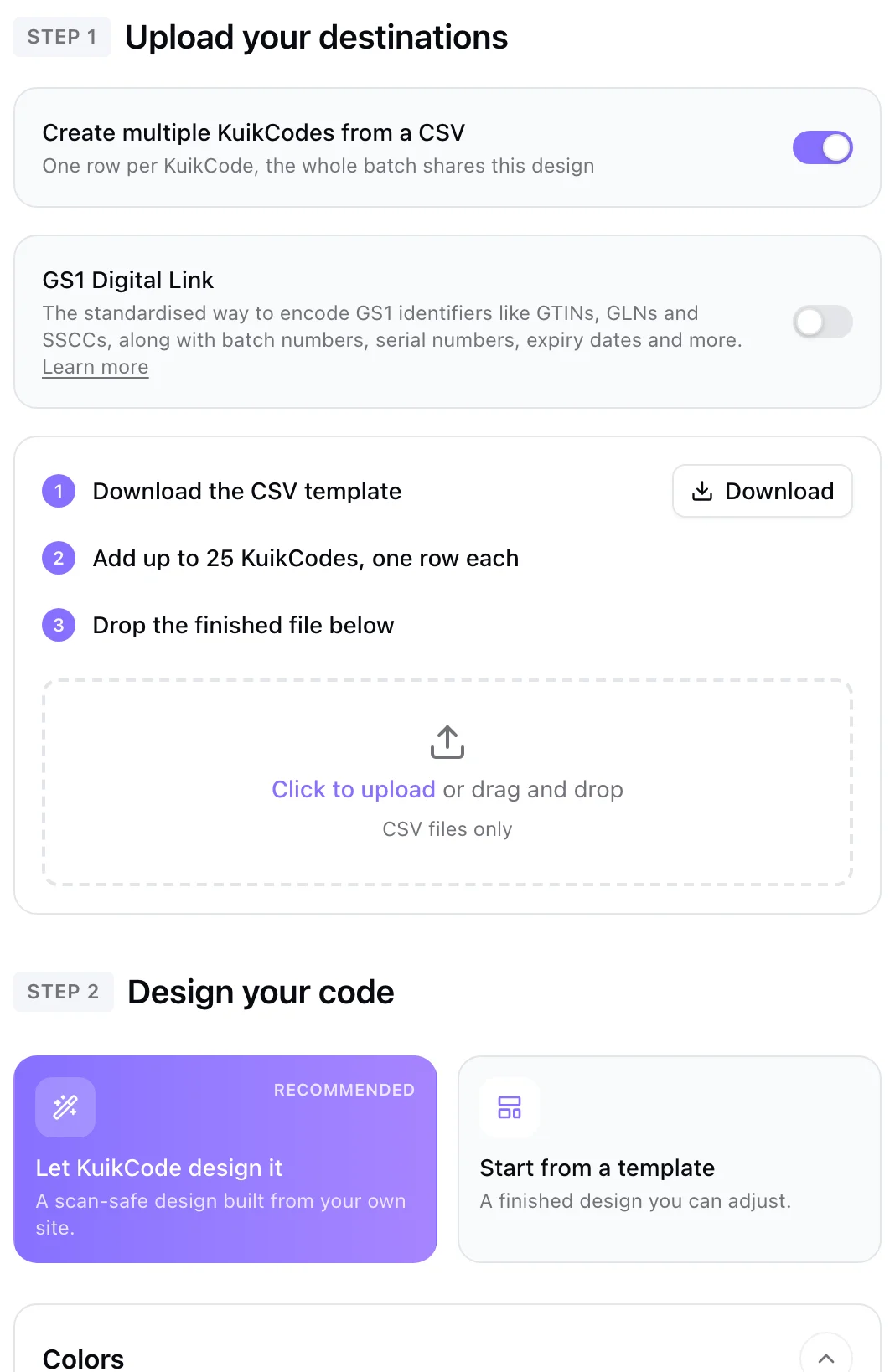
Manufacturers rarely have one product. Make a code per model or product line from a spreadsheet of names and links, with one shared design, and every product gets its own page. Our guide to making QR codes from a spreadsheet covers it.
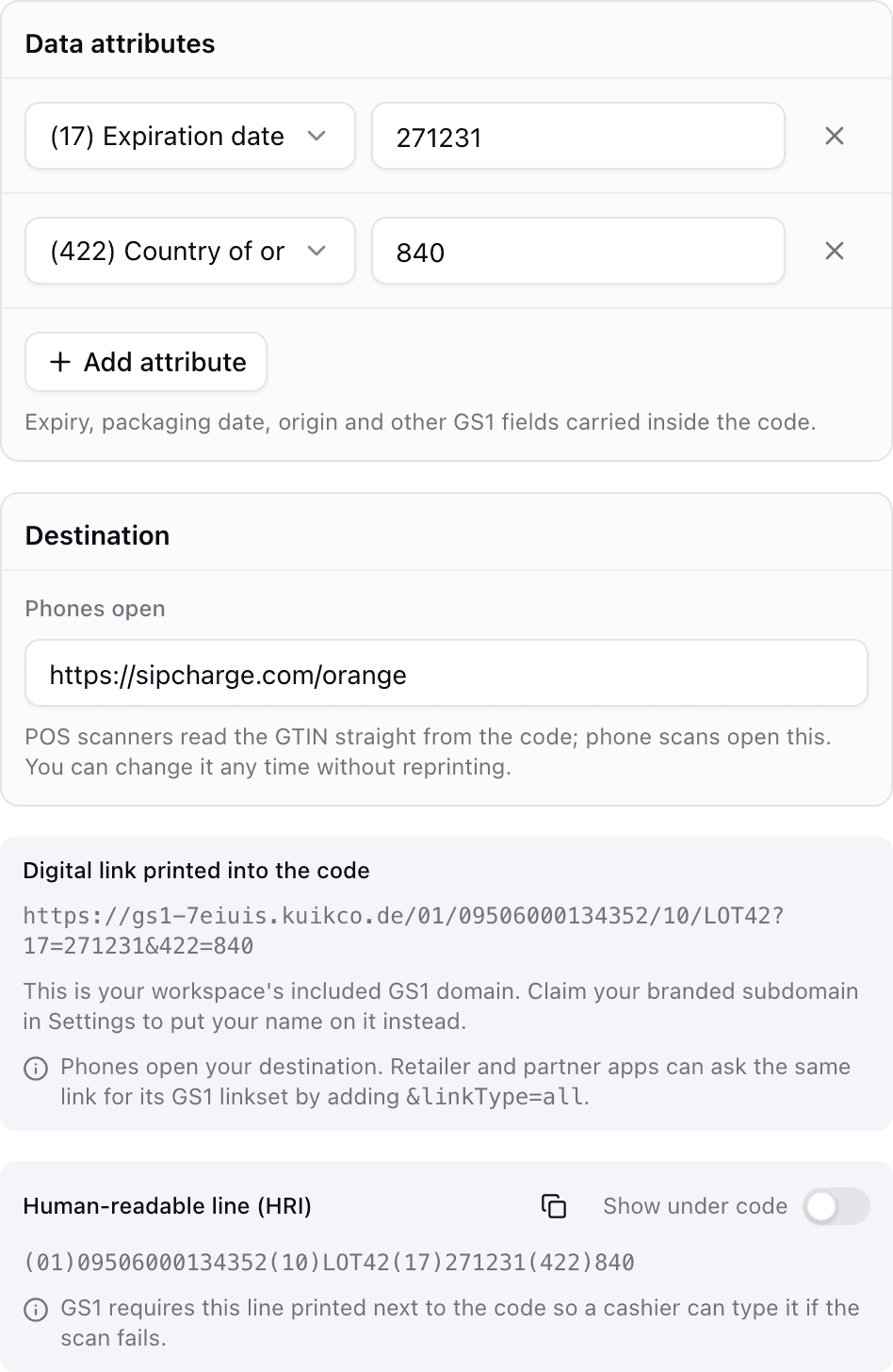
For products sold in retail, a GS1 Digital Link code carries the product's GTIN too, so one code can serve both the shopper and the store's systems. See QR codes on packaging with GS1 Digital Link.
How to build it with KuikCode
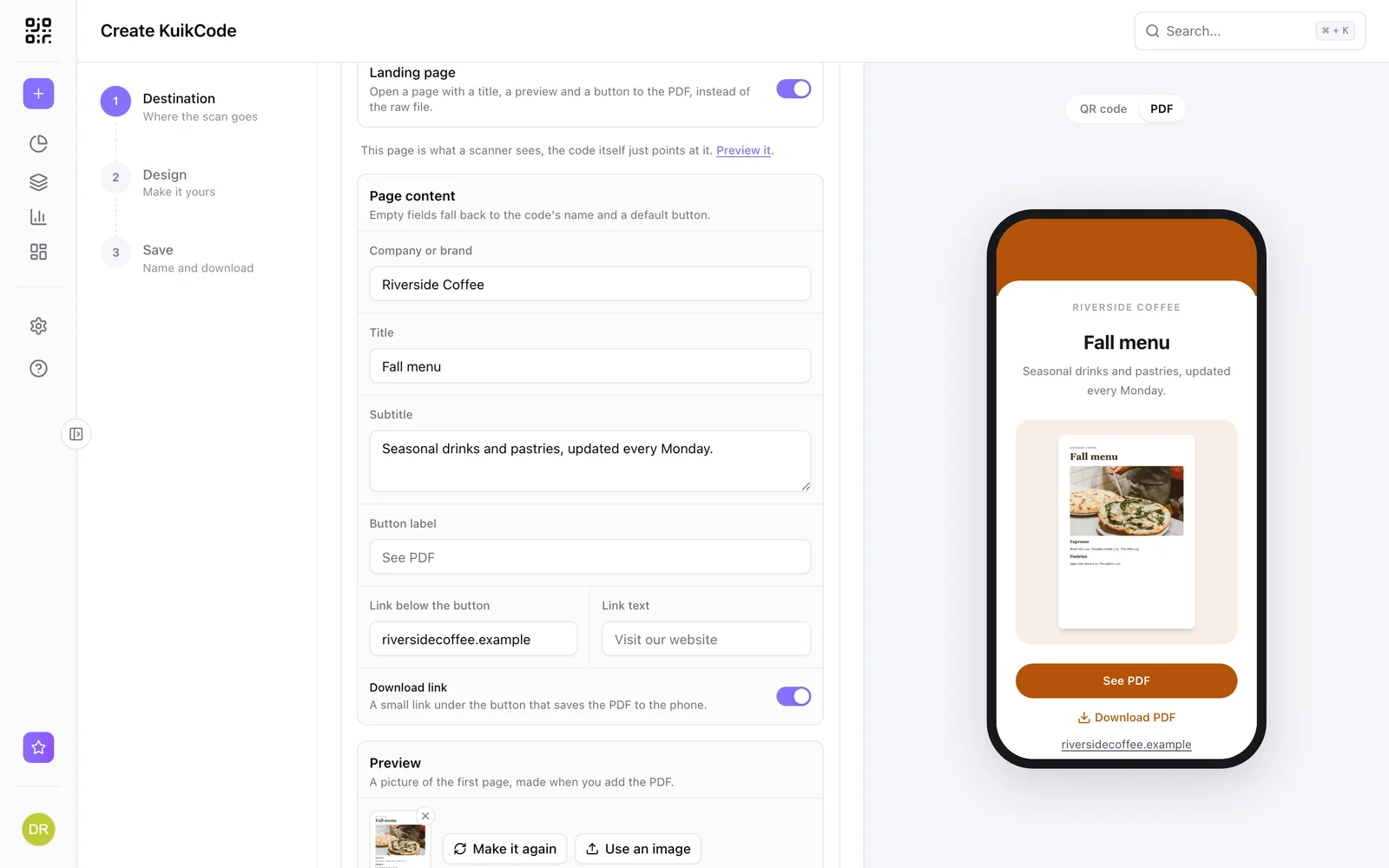
Start a KuikPage from the Care & Warranty template, which already has care instructions and a registration form, or the Product Hub template for a multi page product site with ingredients, care and origin. Add your manual as a PDF, your setup video and your support links. Registrations land in the page's leads, where you can export them as CSV or get an email for each one. Then make a KuikCode that opens the page and print it on the product.
Multi page KuikPages are included from the PRO plan.
Frequently asked questions
01How do I put a product manual behind a QR code?+
Upload the manual as a PDF, or build a short mobile page with the key steps and a link to the full PDF, then make a dynamic QR code that opens it. Print the code on the product, the box or the quick start card.
02Where should the QR code go on a product?+
On the product itself if it will be kept for years, such as a label on the back or inside a door, and on the box or insert for setup. A code on the product still works after the packaging is thrown away.
03Can a QR code be used for warranty registration?+
Yes. The code opens a page with a short form for the buyer's name, email, purchase date and model or serial number. Each registration is saved and can be exported or sent to your CRM.
04What happens when the manual changes?+
With a dynamic code, you update the file or page behind the code and every unit already in customers' hands opens the new version. A static code would keep opening the old link forever.
05Can one code work for every model?+
One code per model or product line works best, so each opens the right manual. A spreadsheet of models and links can create all of them at once.