Menus, brochures, catalogs and price lists all have one thing in common: they change. Printing a QR code that points straight at one PDF means reprinting every time the file changes. There is a better way.
Use a dynamic code for the PDF
A dynamic QR code stores a short link, and the short link decides which file opens. When the menu changes, you upload the new PDF to the same code. The table tents, window stickers and flyers keep working, and they now open the new file.
Open a landing page, not a raw file
When a QR code opens a PDF directly, the visitor sees a file start downloading or a bare document viewer. It works, but it feels anonymous.
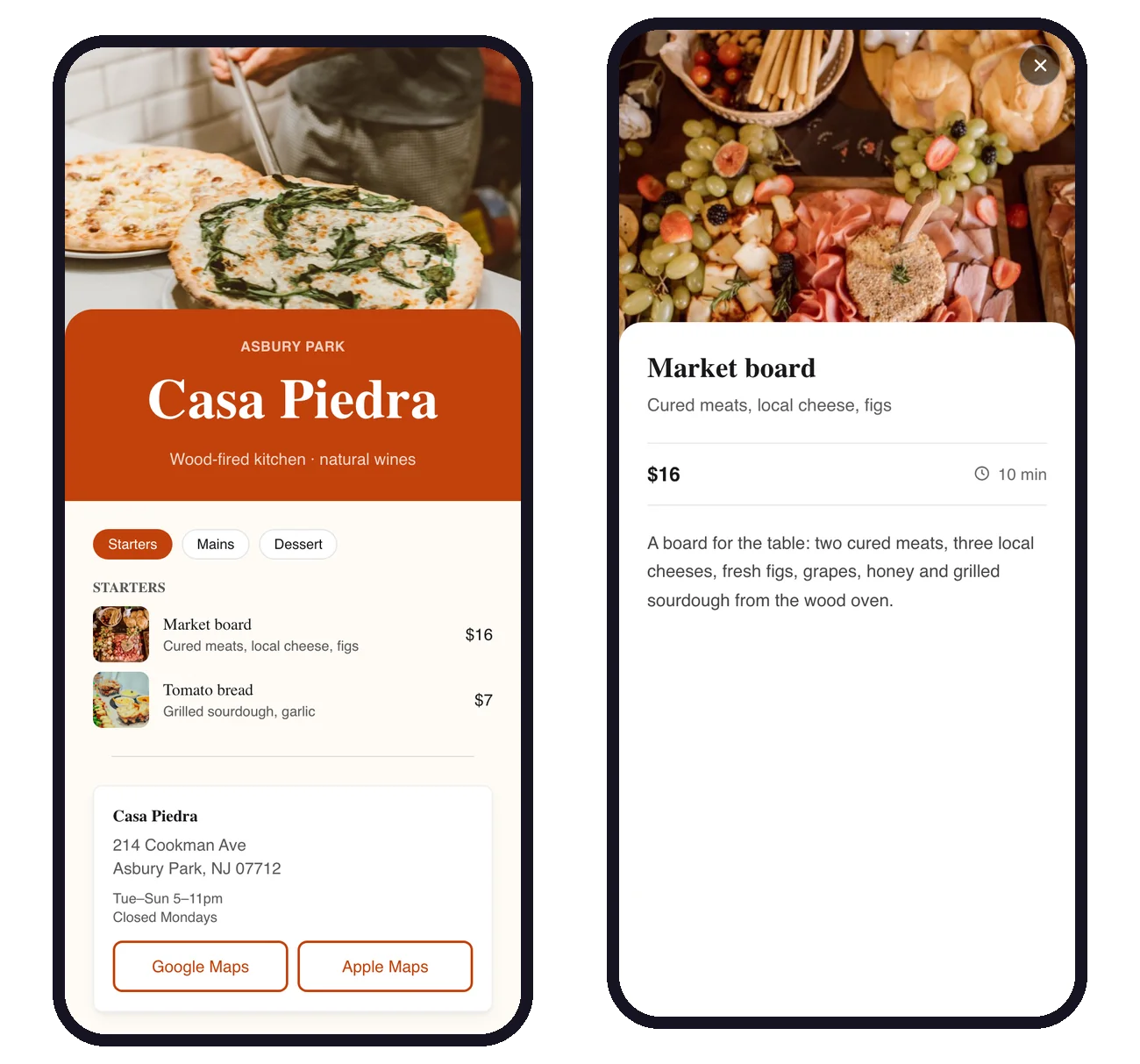
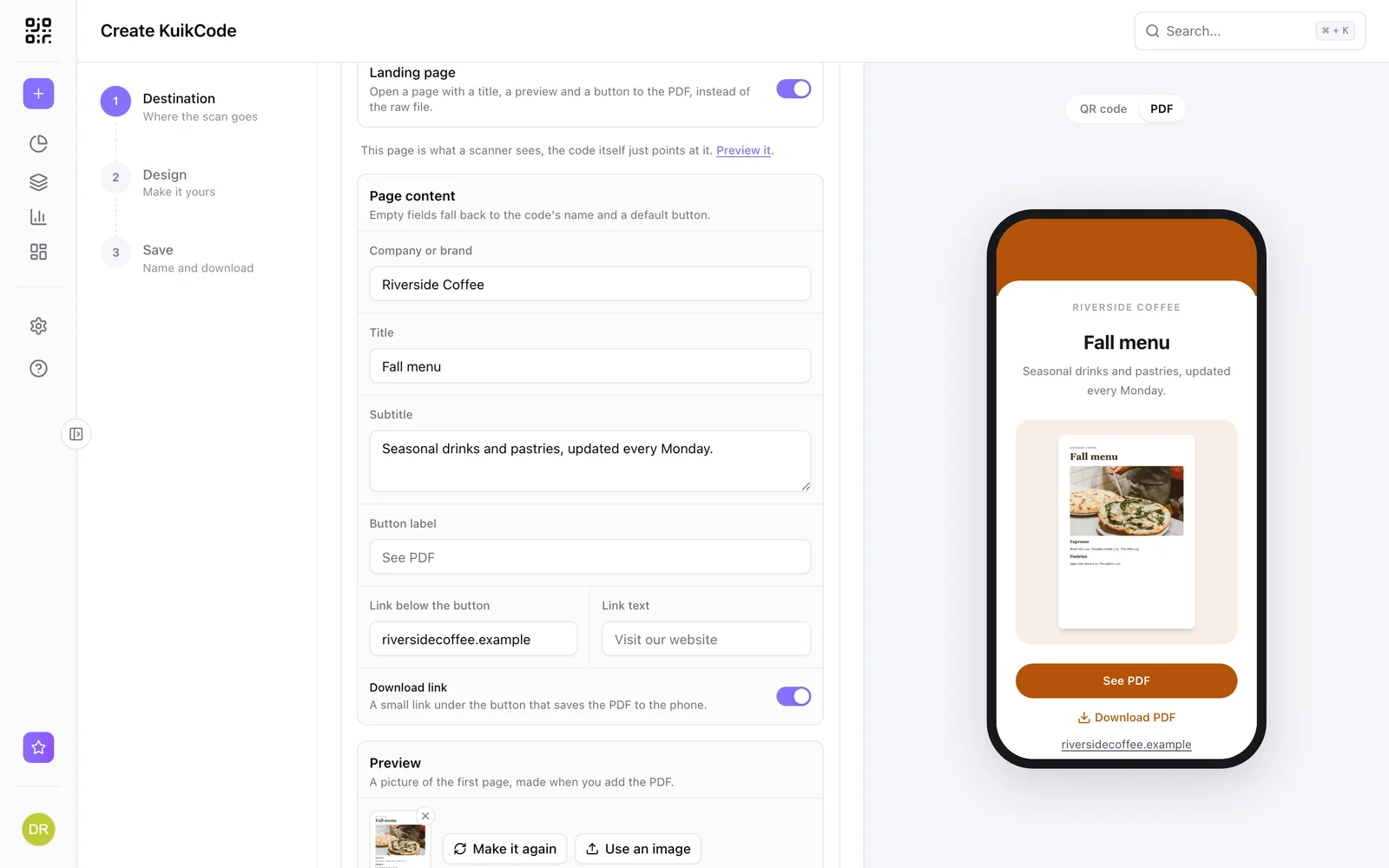
In KuikCode, PDF codes open a short landing page first:
- Your company name and an optional logo.
- A title and a one line subtitle, like Fall menu and Updated every Monday.
- A preview of the first page, made automatically from your PDF.
- A clear See PDF button, plus a Download PDF link to save it.
- An optional link underneath, for example to online ordering or reservations.
You choose the header style, a band in your accent color, a photo or none, and the page follows your colors. If you prefer, switch the landing page off and the code opens the file directly.
Make the PDF phone friendly
Most people will read your menu on a phone, often on mobile data:
- Keep it light. Compress images and aim for a file of a few megabytes.
- Design for a narrow screen. A single column reads better than a two page spread.
- Use large text. People should not need to pinch and zoom to find prices.
- Put the essentials first. Today's specials and the most popular items belong on page one.
Step by step in KuikCode
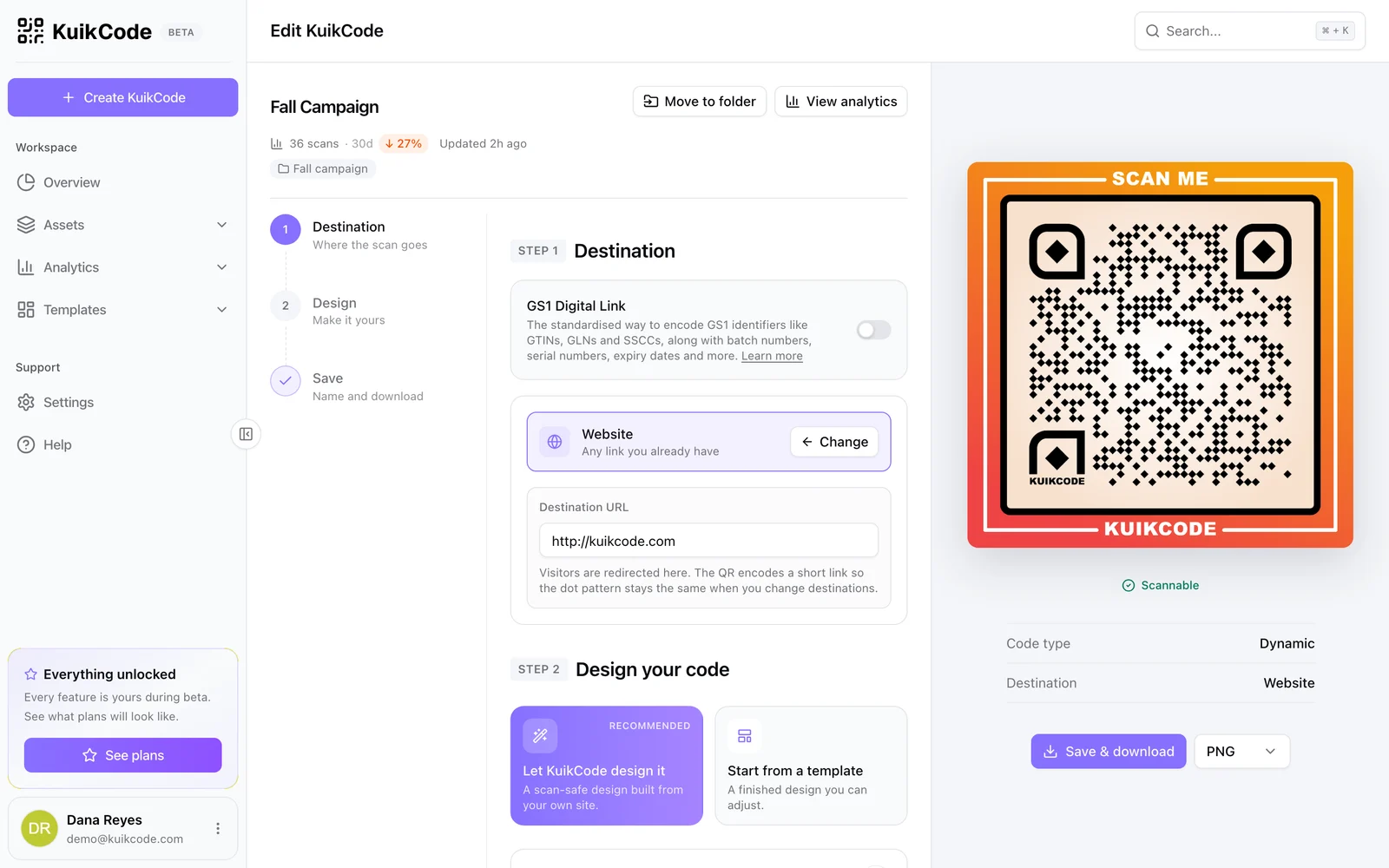
- Click Create and choose PDF.
- Upload your file or pick one from your Library.
- Keep Landing page on, add your company name, a title and a link if you want one.
- Flip the preview to PDF to see the page exactly as a scanner will.
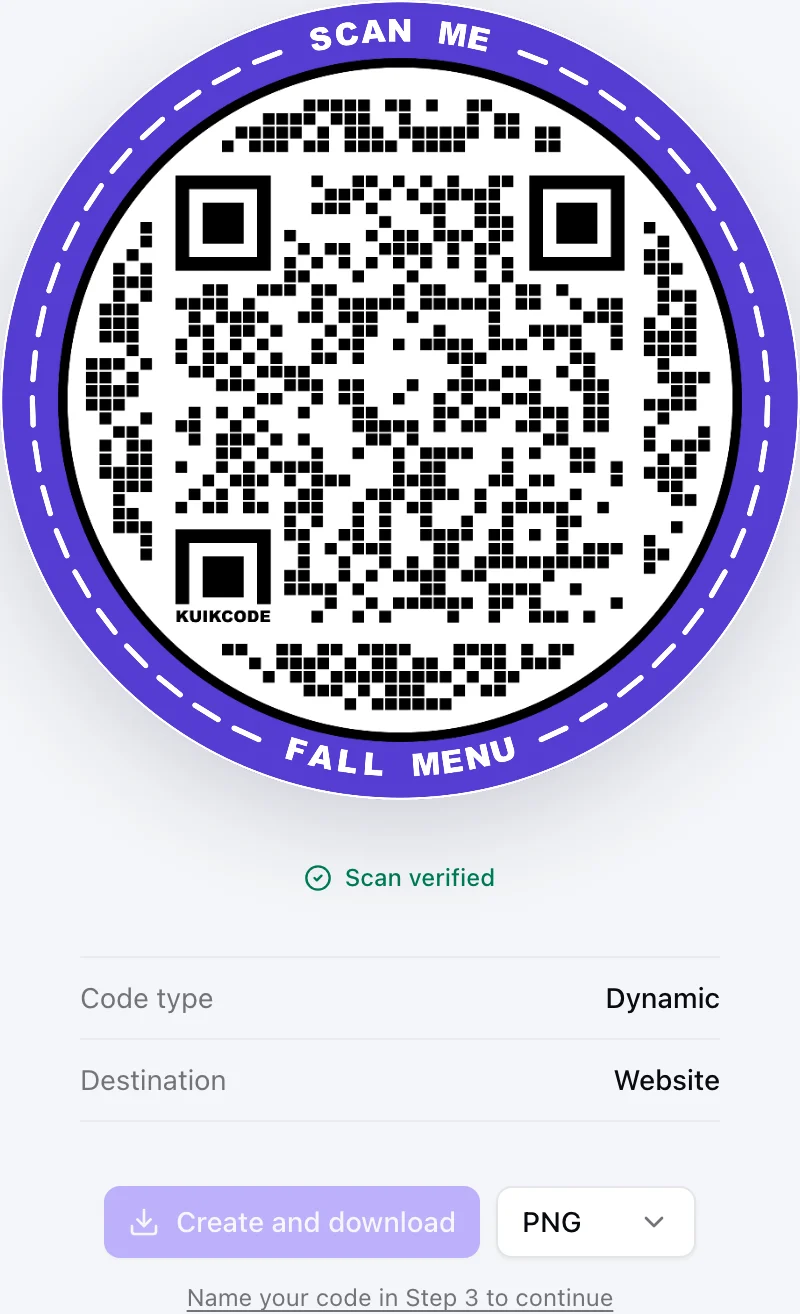
- Design the code with your colors and a call to action like Scan for the menu.
- Create and download, then print.
When the menu changes, open the code, upload the new PDF and save. The preview of the first page is made again from the new file.
Menus in more than one language
If your customers speak different languages, one code can serve a different PDF for each phone language, with a default file for everyone else. This is available on the PRO plan.
When a PDF is not enough
If you want several files, photos, opening hours and buttons on one page, a KuikPage is a better fit than a single PDF. Menu templates are ready to use, and the same QR code can point at the page instead. Our guide to building a digital restaurant menu walks through it.
Frequently asked questions
01Can I update the PDF without changing the QR code?+
Yes, if the code is dynamic. Upload the new PDF to the same code and every printed copy opens the new file within about a minute.
02What is the best file size for a PDF menu?+
As small as you can keep it while staying readable, ideally a few megabytes. People open menus on phone data at the table, and a heavy file makes them wait.
03Can the same code show a different PDF by language?+
Yes. On the PRO plan, a KuikCode can serve a different file based on the phone's language, with a default file for everyone else.
04Should the code open the PDF directly or a landing page?+
A landing page is usually better. It shows who the menu belongs to and a preview before the file loads, and it gives you room for a download link and a link to ordering. You can still switch the landing page off and open the file directly.