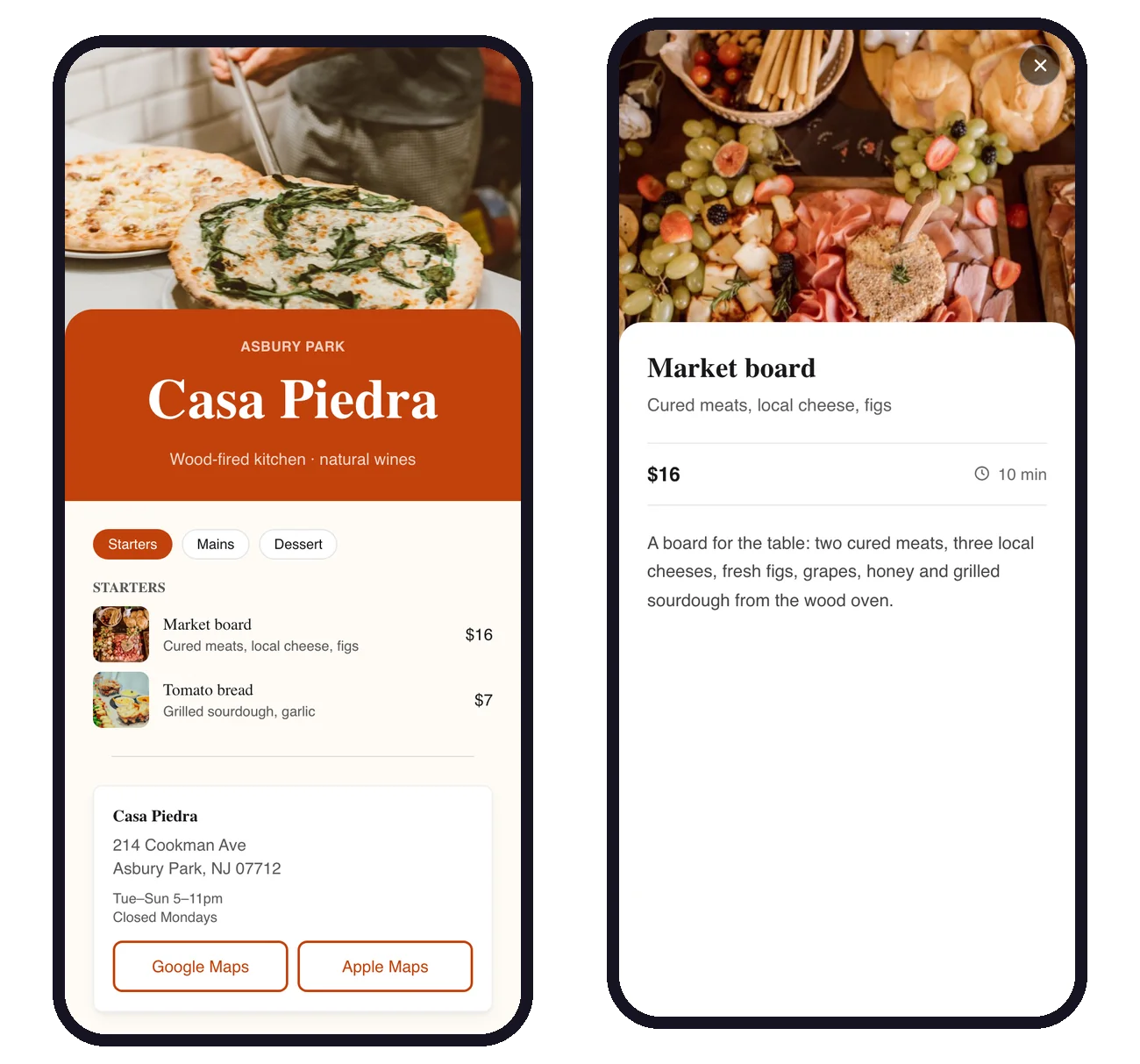
Paper menus get stained, prices go out of date, and the special of the day never makes it into print. A digital menu behind a QR code fixes all three: guests scan the code on the table and your current menu opens on their phone, ready to read.
This guide shows how to build a real menu page, not just a PDF, and put it behind a code you never have to reprint.
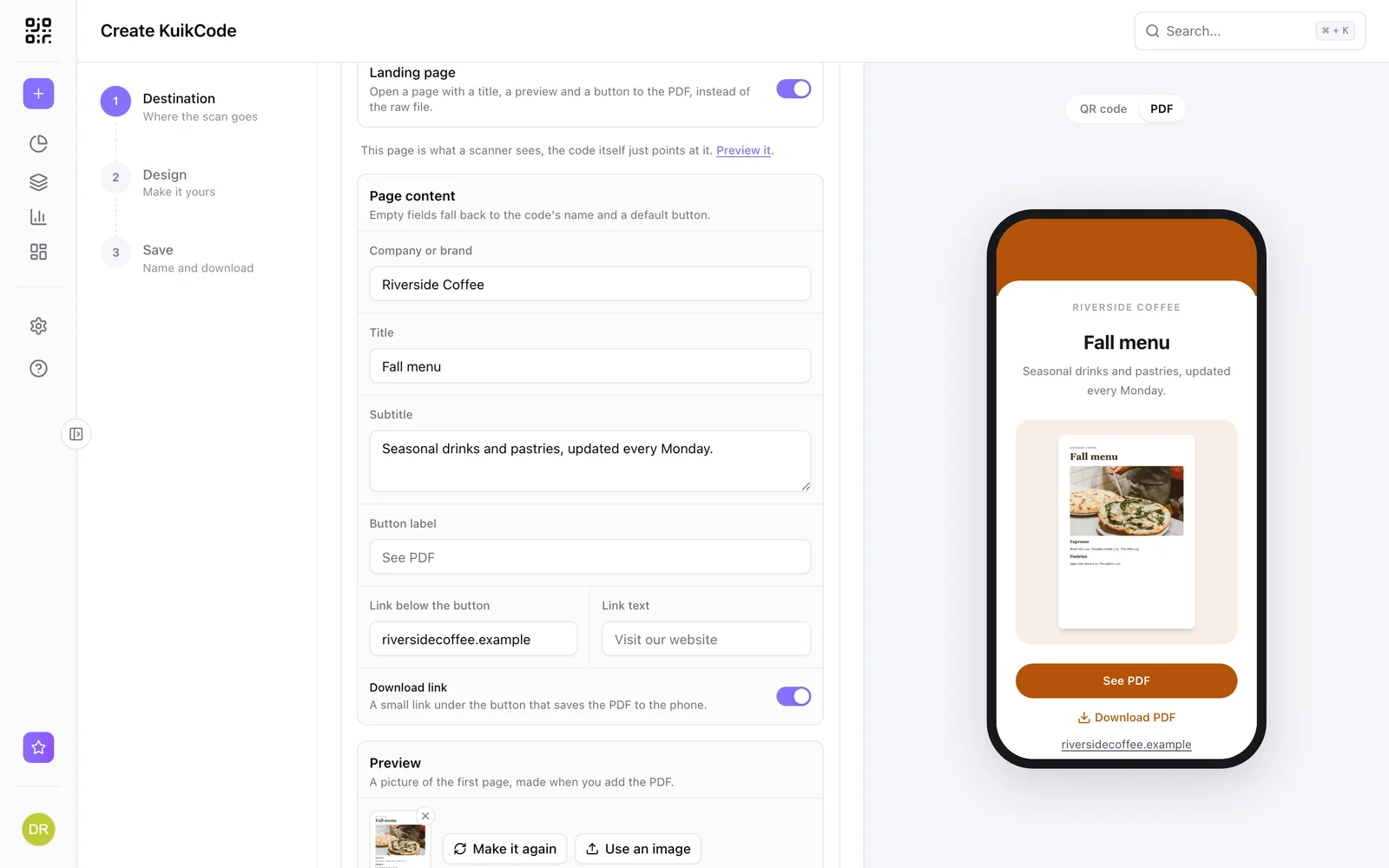
PDF menu or menu page?
There are two ways to put a menu behind a QR code, and both work with KuikCode.
| PDF menu | Menu page | |
|---|---|---|
| Reading on a phone | Guests zoom and scroll a printed layout | Built for the phone screen, large text |
| Loading | The whole file downloads first | Opens in a moment, photos load as you scroll |
| Updating one price | Edit the design, export and upload a new file | Change the price and publish |
| Dish photos and details | Only what fits on the page | Tap a dish for a photo, description and cook time |
| Directions, hours, socials | Separate links | On the same page, under the menu |
| Plans | Every plan | Starter and up |
If your menu already exists as a designed PDF, our guide to a QR code for a PDF menu covers that route. For everything else, a menu page gives guests a better experience and gives you less work every time something changes.
Start from the Restaurant Menu template
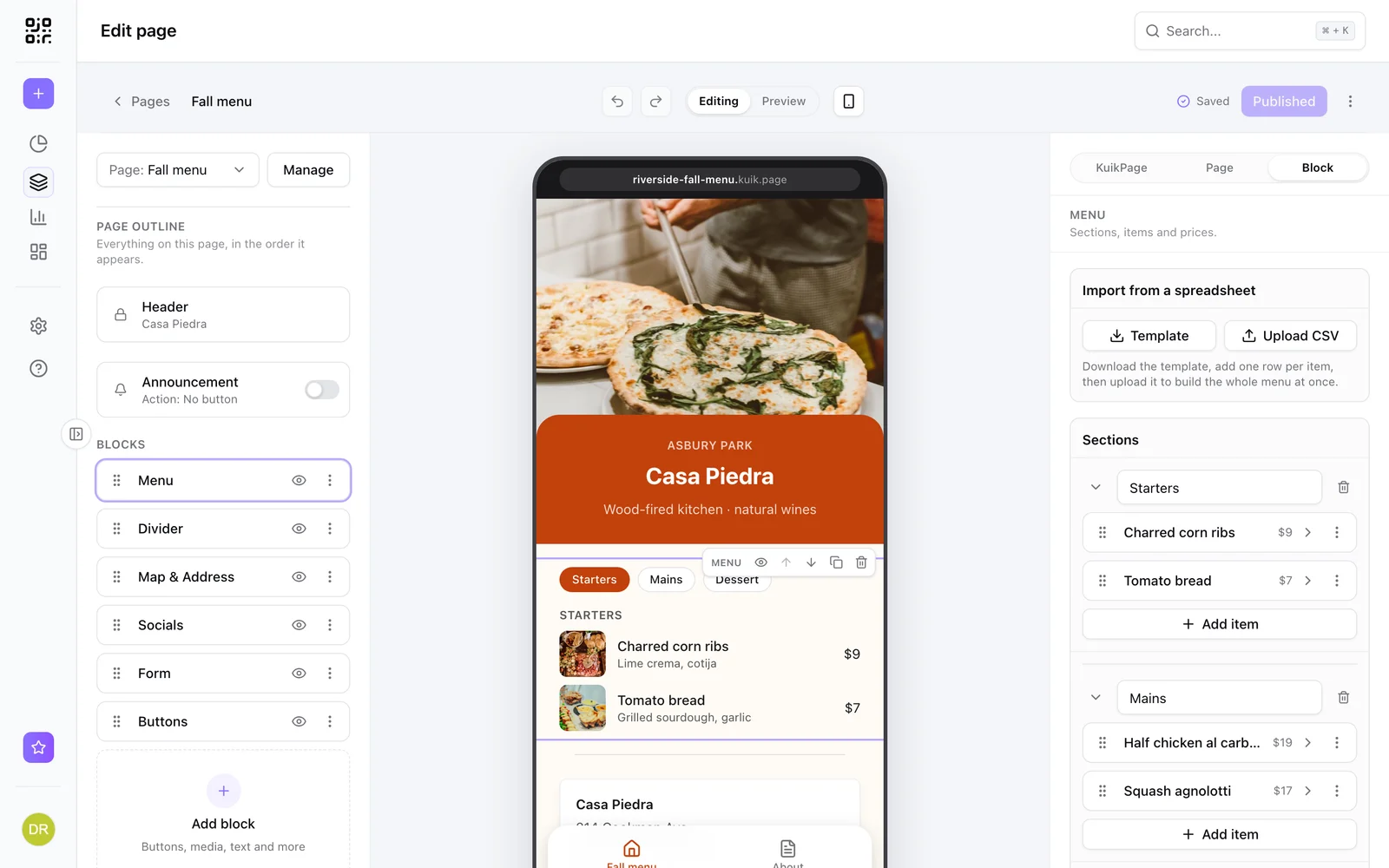
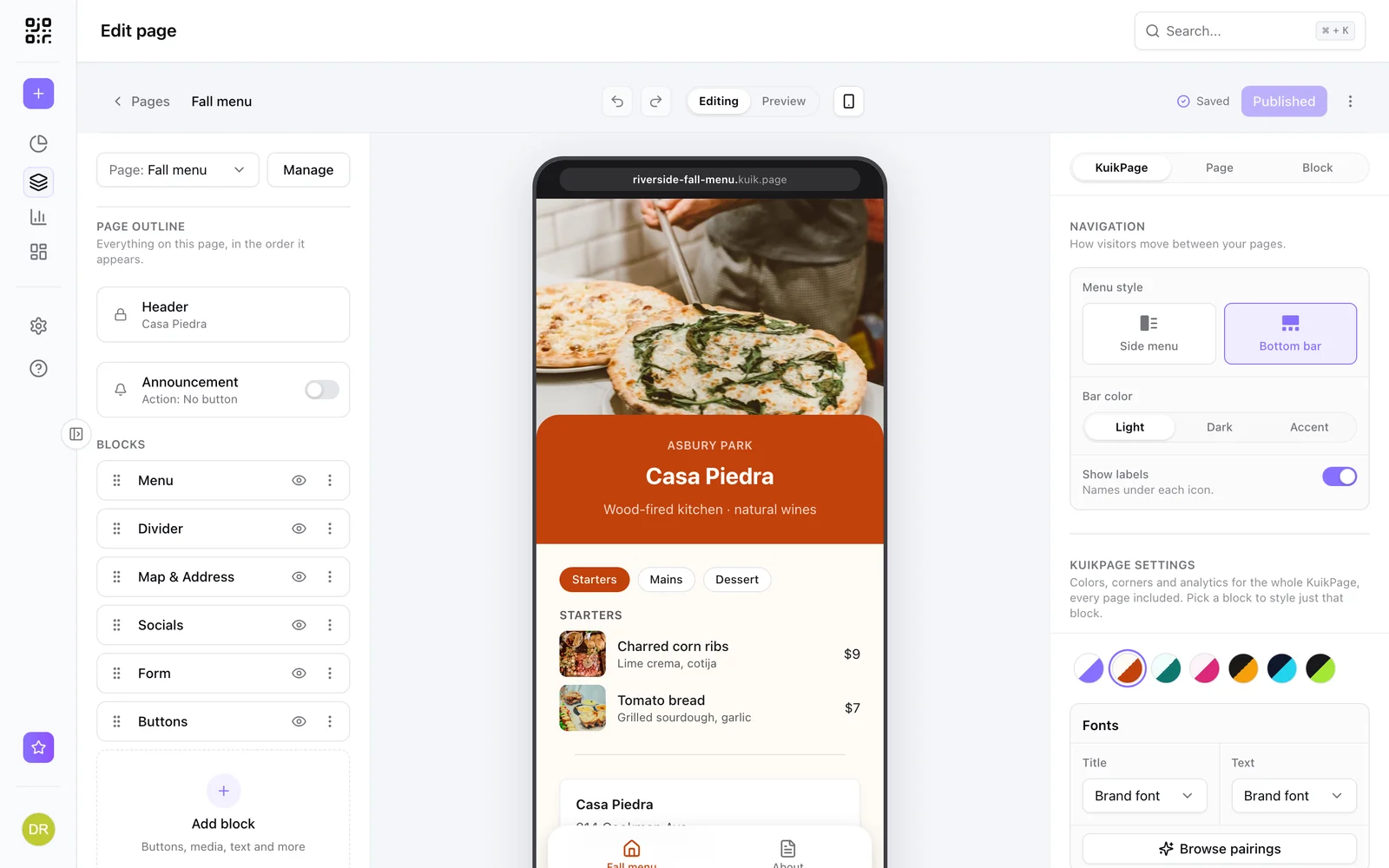
In KuikPages, choose the Restaurant Menu template. It comes with a header for your name and a photo, a Menu block with sections and dishes, your address with opening hours and map buttons, and links to your socials. Replace the words and photos with yours and publish.
The Menu block is where the menu lives:
- Sections such as Starters, Mains, Desserts and Drinks. Each section becomes a tab at the top of the menu, so guests jump straight to what they want.
- Dishes with a name, a short description and a price. Up to 30 dishes per section and 10 sections per block.
- Import from a spreadsheet. Download the Template CSV, add one row per dish with its section, name, description and price, then Upload CSV to build the whole menu at once.
Add dish photos and details
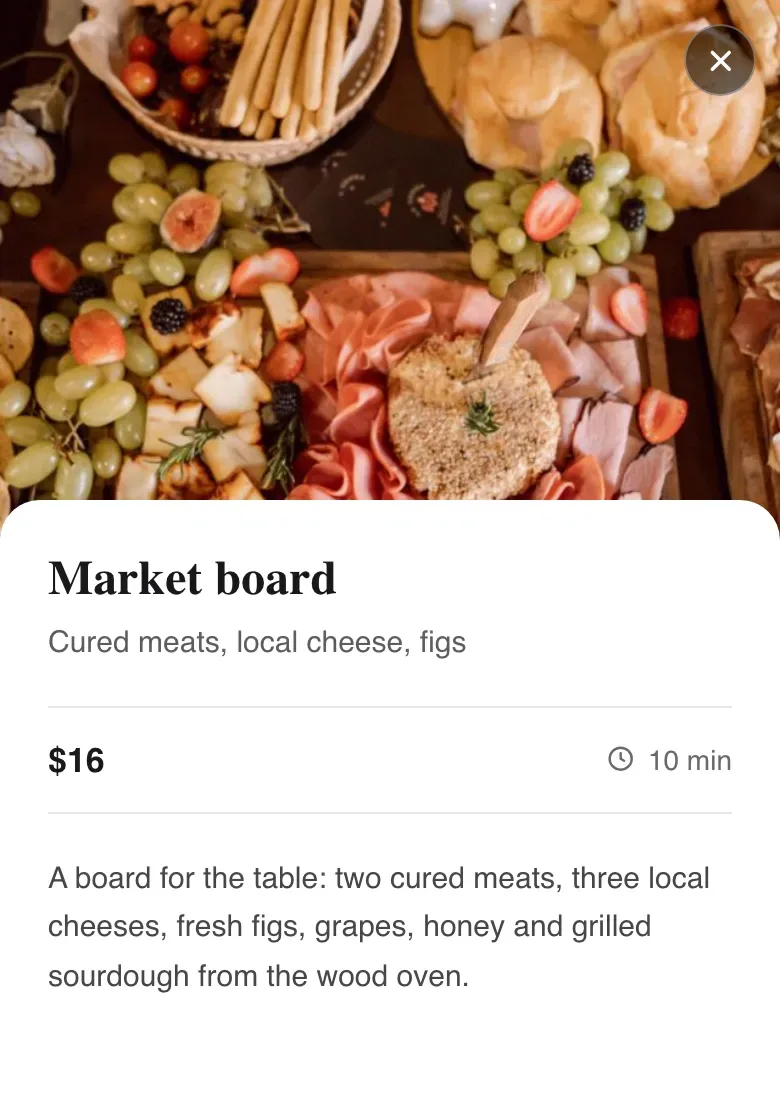
Give a dish a photo and it becomes tappable. Guests see a larger picture, the full description and the price, plus a cook time if you add one, like 10 min or 15 to 20 min. The detail text is a good place for the things guests ask your servers about: ingredients, how it is prepared, and allergens.
Keep the short description in the list brief, a few words, and put the longer story in the details. The list stays easy to scan and the details are there for anyone who wants them.
Put the essentials under the menu
A guest who scans your code often wants more than the menu. Add the blocks they are looking for:
- Map and address with your opening hours and buttons that open Google Maps or Apple Maps.
- Buttons for reservations, online ordering, gift cards or catering.
- Socials so guests can follow you before they leave the table.
- A review request after the meal, with the Review funnel block on PRO.
Design the QR code and print it
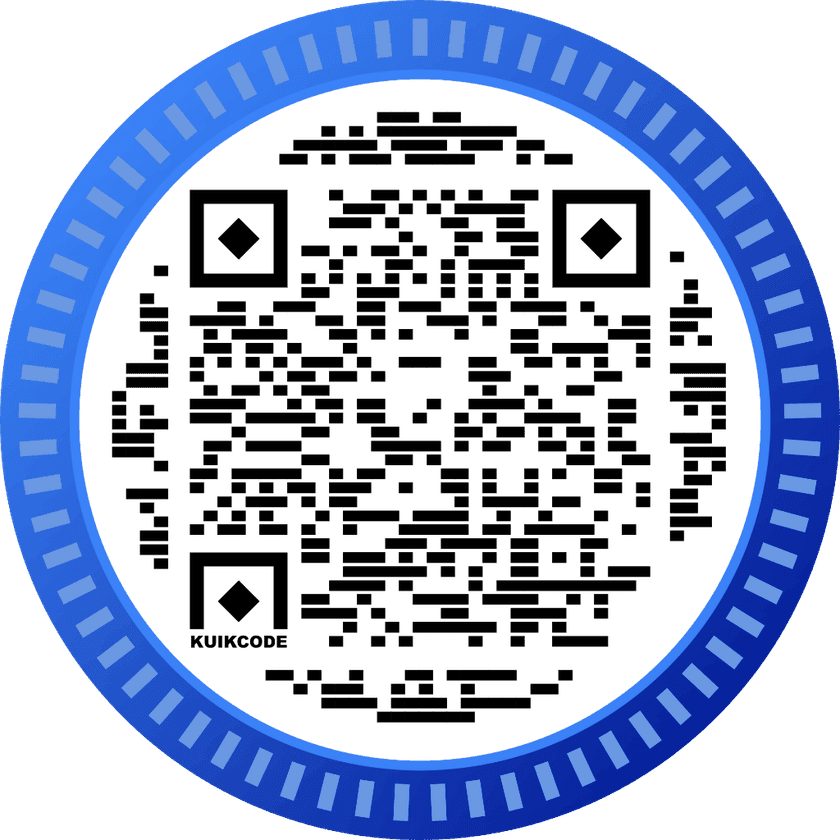
Your code should look like it belongs to the restaurant. Match it to your colors, add your logo in the middle and a frame with a short call to action like Scan for the menu. KuikCode checks every design so it still scans reliably.
Where to put it:
- Table tents and stickers on every table, facing the seats.
- The window or door so people passing by can check the menu before they walk in.
- The counter and the bar for guests ordering standing up.
- Takeout bags and receipts to bring people back to order again.
Print it large enough to scan from a seat, at least 2.5 cm (1 inch) across on a table, and bigger on windows and posters.
Update the menu anytime
This is where a dynamic code pays off. The code on your tables points to your page, not to a file, so the menu can change as often as your kitchen does:
- Change a price, rename a dish or remove one that sold out.
- Add today's special at the top of the Starters.
- Swap the photos when the season changes.
Make the change in the editor and publish, and every printed code shows the new menu. Nothing on the tables has to be reprinted, ever.
Menus by time of day and language
On PRO and up, one printed code can show different menus with smart rules:
- By time. Breakfast in the morning, lunch at noon and the dinner menu in the evening, each as its own page.
- By language. Guests whose phones are set to Spanish see the Spanish menu, everyone else sees English.
See how guests use it
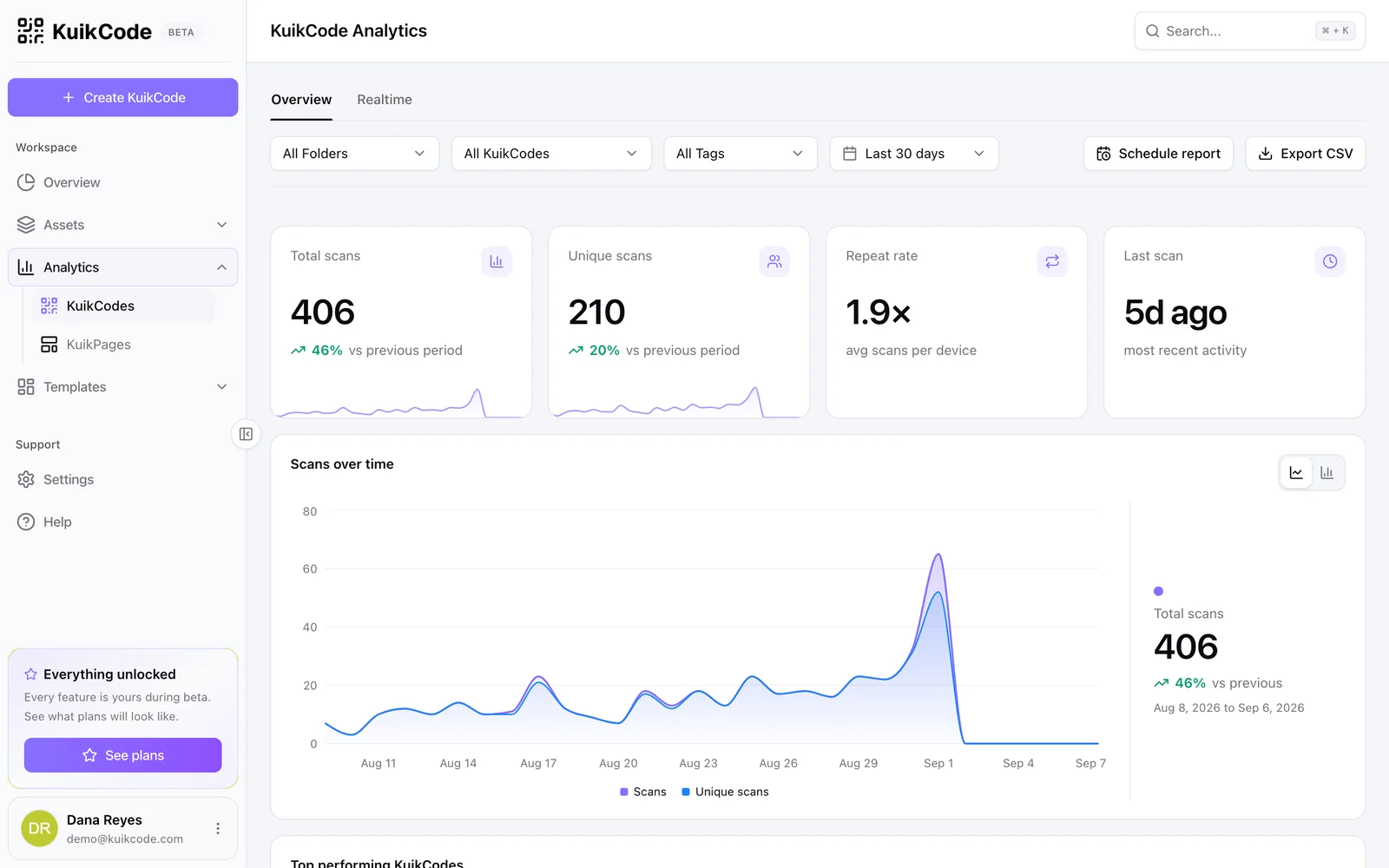
Every scan is counted in realtime, with the time, city, device and language. You can see which hours are busiest, compare table tents with the window sticker, and notice if tourists start scanning in another language.
Plans
Menu pages are part of KuikPages, available on Starter and up, and the Menu block is included. A PDF menu works on every plan, including Free. Smart rules for time of day and language come with PRO.
Learn more about restaurant codes on our page for QR codes for restaurants and menus, or read the step by step Menu block documentation.
Frequently asked questions
01What is a digital menu QR code?+
It is a QR code on the table, the window or the counter that opens your menu on the guest's phone. With a dynamic code the menu behind it can change at any time while the printed code stays the same.
02Is a menu page better than a PDF menu?+
For most restaurants, yes. A menu page is built for a phone screen, loads quickly and is easy to update item by item. A PDF works too and is available on every plan, but guests have to zoom in to read it and every change means uploading a new file.
03Can I import my menu instead of typing it?+
Yes. Download the CSV template from the Menu block, fill in one row per dish with its section, name, description and price, and upload it to build the whole menu at once.
04How big can the menu be?+
A Menu block holds up to 10 sections with up to 30 dishes each. Very large menus can be split across the pages of a multi page KuikPage, for example food, drinks and desserts.
05Can I show a different menu at breakfast and dinner?+
Yes, on PRO and up. Smart rules can send the same code to different pages by time of day, and to a different language by the phone's settings.
06Do guests need an app to see the menu?+
No. Any phone camera reads the code and the menu opens in the browser.
07How do I know if people use the QR menu?+
Every scan is counted in realtime with the time, city, device and language, so you can see busy hours and which tables or signs get scanned.