To make a QR code for a Google Doc, a Sheet, a Slides deck or any file in Google Drive, share it with anyone who has the link, copy that link and turn it into a QR code. Scanning opens the file in the browser or the Google app. It takes two minutes, and almost every problem with these codes comes from one setting, so start there.
Step 1: share the file with anyone who has the link
- Open the file in Docs, Sheets or Slides, or select it in Drive.
- Click Share.
- Under General access, change Restricted to Anyone with the link.
- Set the role to Viewer.
- Click Copy link, then Done.
That last setting matters more than it looks. Viewer lets people read. Commenter lets them leave comments. Editor lets anyone who scans the code change or delete what's in your file. For anything printed, choose Viewer.
Anyone with the link isn't the same as public. Google doesn't list the file in search results; only people with the link, or the code, can open it.
Step 2: test the link signed out
Open the link in a private browser window, where you're not signed in to Google. You should see the file. If you see Request access or a sign-in page, the code will show the same thing to everyone who scans it.
The usual causes:
- General access is still Restricted. Change it as in step 1.
- A work or school account. Your administrator can block sharing outside the organization. Ask them, or host the file somewhere else (see the PDF option below).
- The file sits in a shared drive whose settings don't allow link sharing. A manager of that drive can change it.
Step 3: turn the link into a QR code
The free QR code generator makes the code with no sign up and no watermark:
- Choose Link under What should it open? and paste the file's link.
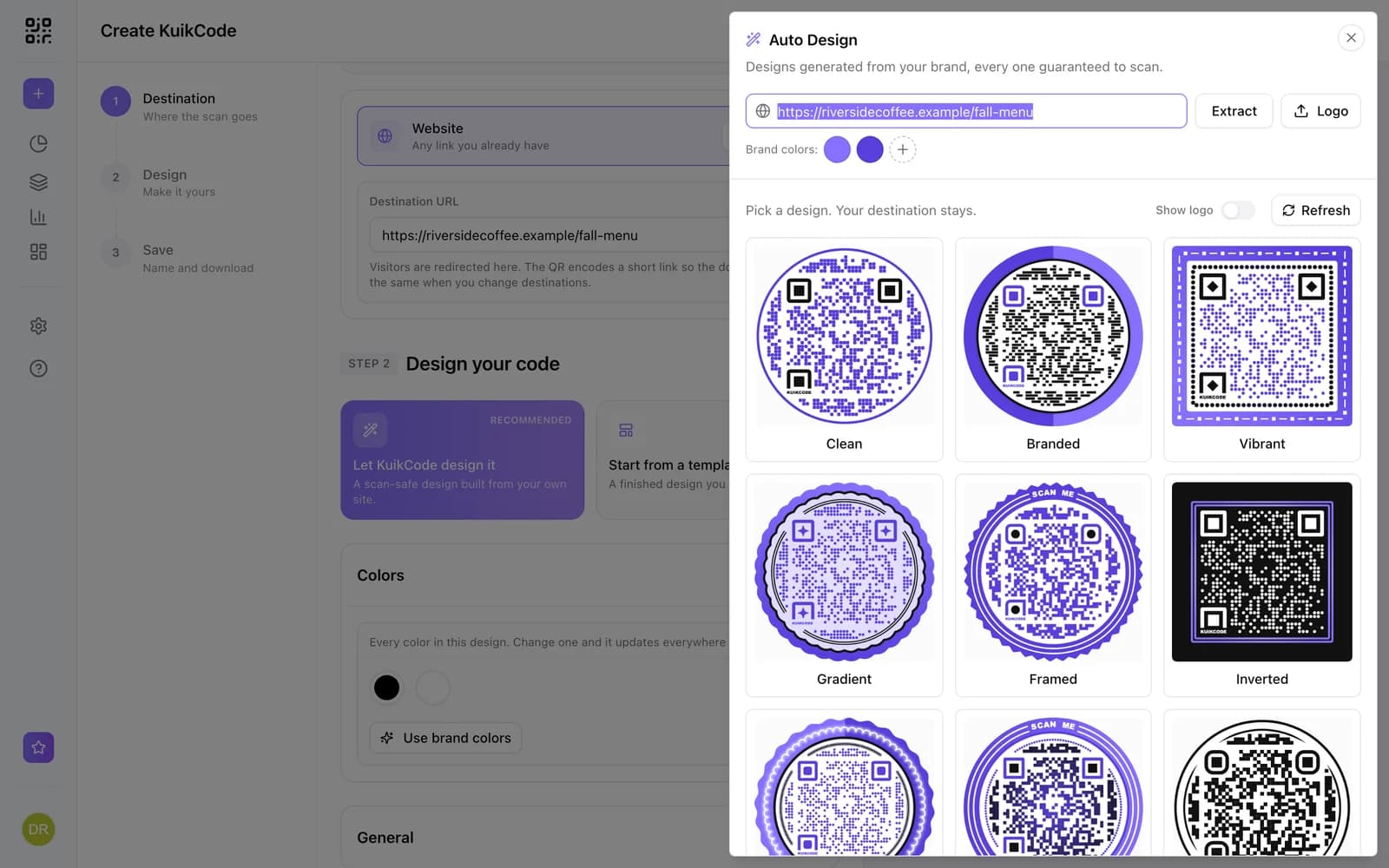
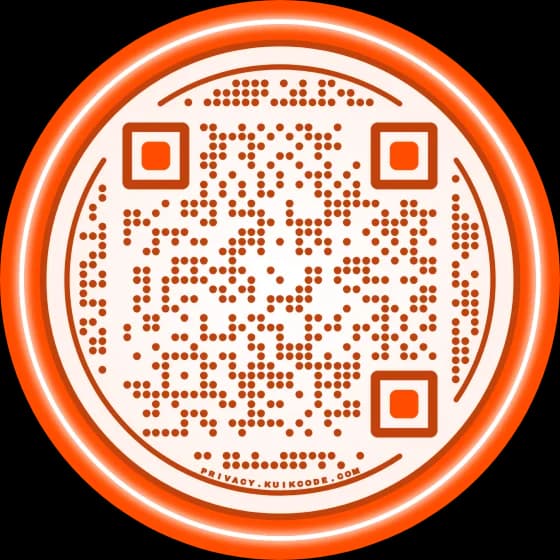
- Make it yours. Colors, shape, dots and corner squares. Keep the dots much darker than the background.
- Add a frame that says what people get: Read the guide, See the schedule, Slides from today.
- Download a PNG for screens or an SVG for print.
That gives you a static code: the link lives inside the pattern and can never change. Edits to the same Doc still show up, because the link stays the same. A new file gets a new link and needs a new code.
How to swap the file after printing
Files get replaced more often than people expect: next semester's syllabus, a new price list, the updated manual, a deck you rebuilt in a fresh copy. Each one has a different link.
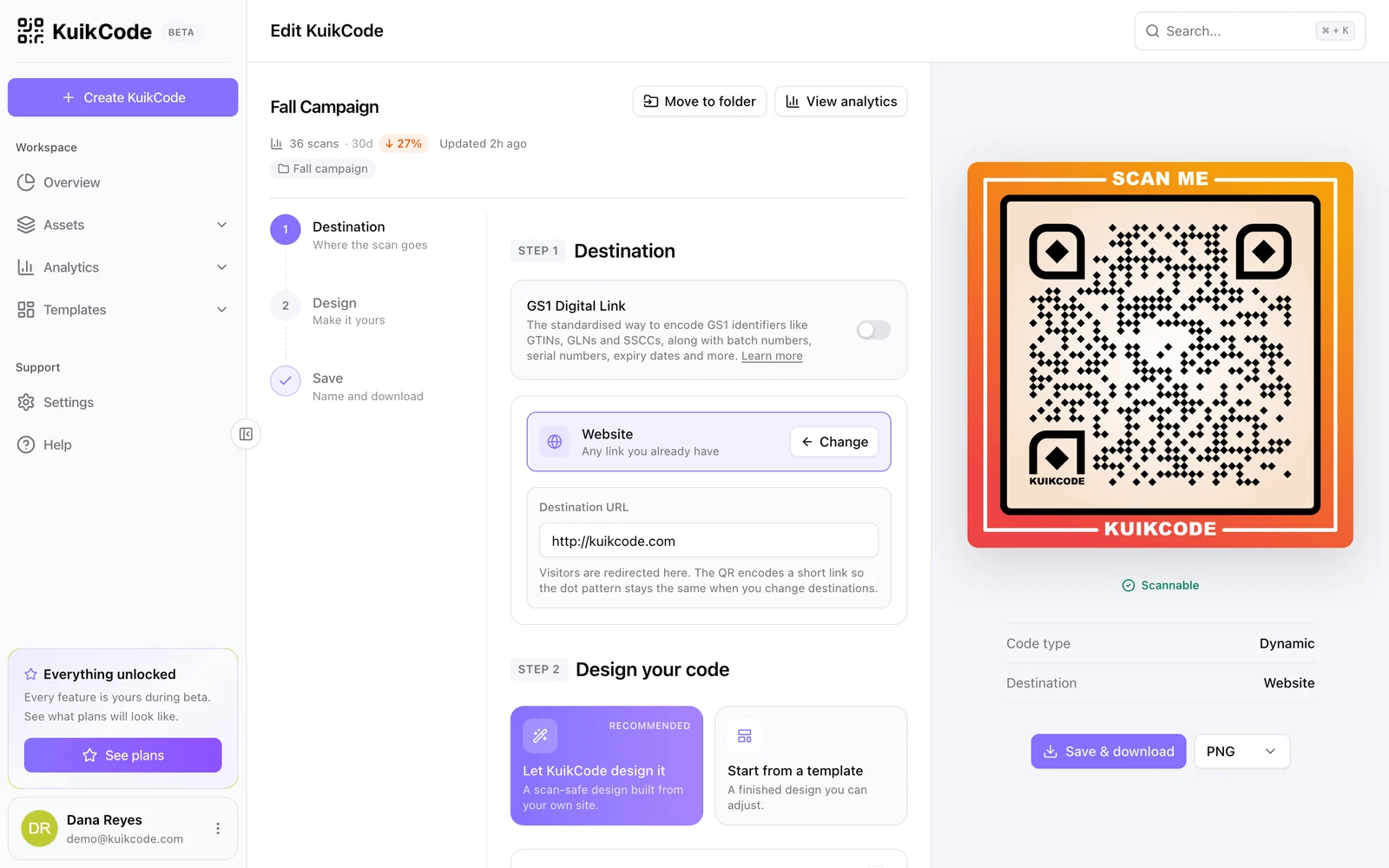
A KuikCode stores a short link you control. Make a code with the Website destination and paste the Drive link. When the file changes, paste the new link and save. Every printed copy opens the new file from the next scan. You also see every scan with its time, city and device, which Drive won't show you. The Google Drive QR code page shows it in the editor, and changing what a printed QR code opens explains how it works.
One Drive trick helps too: for an uploaded file like a PDF, Drive can manage versions and replace the file under the same link. That keeps even a static code working, as long as you update that one file.
Skip Drive for PDFs
If the file is a PDF, you don't need Drive at all. Create a KuikCode, choose Show a PDF and upload the file. Scanning opens a page with your title, a short line, a preview of the first page and a See PDF button, plus a download link if you want one.
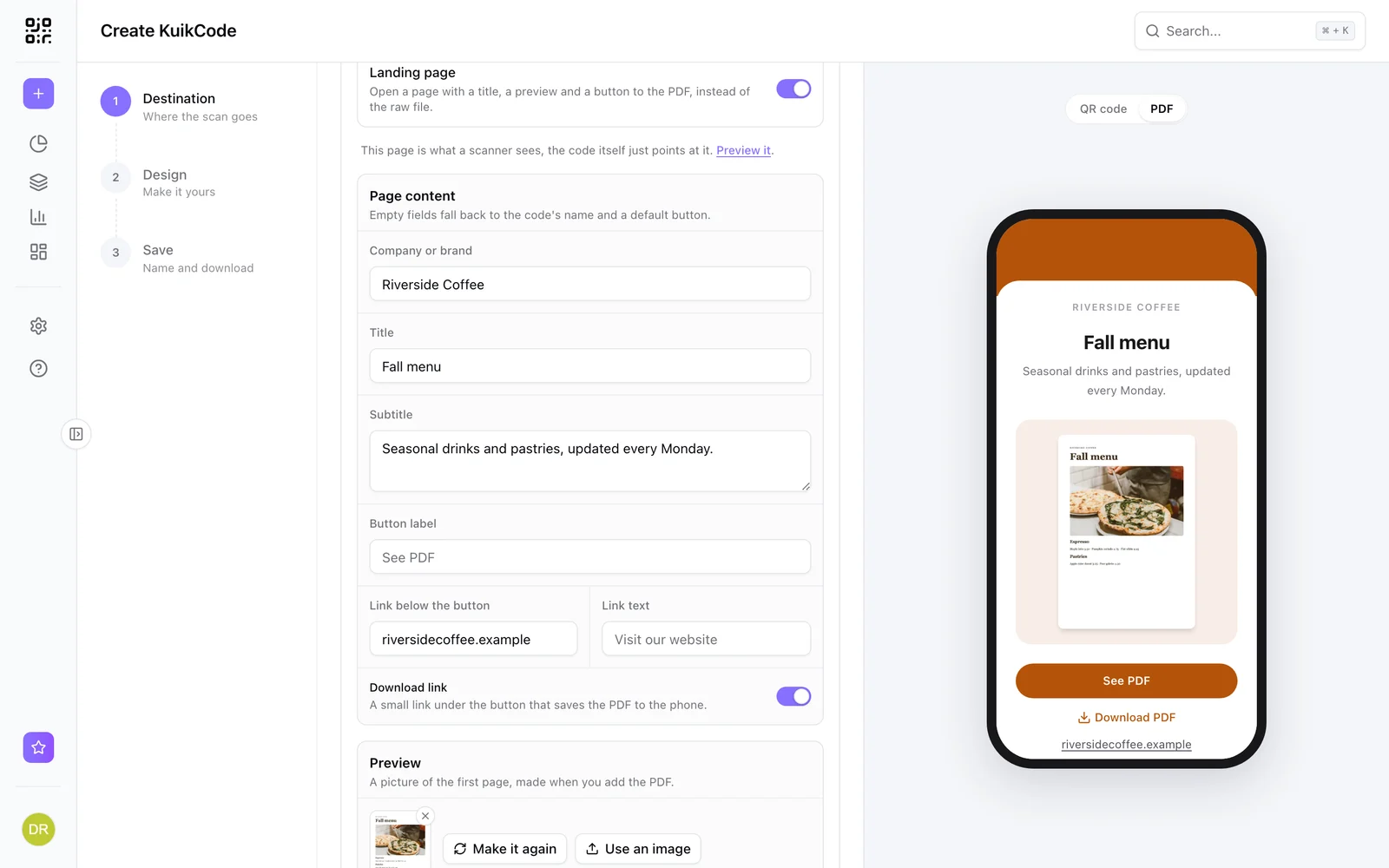
No permission walls, no Google interface, and you swap the PDF any time. Files can be up to 2 MB on Basic and up to 20 MB on Business. See the PDF QR code page for more.
Docs, Sheets, Slides, folders and forms
- Google Docs: a handout, a menu, a guide, a reading list.
- Google Sheets: a price list, a schedule, a sign-up sheet. For a sign-up, a form is usually safer than an editable sheet: see how to make a QR code for a Google Form.
- Google Slides: share the deck on the last slide of a talk, so people can take it home.
- Drive folders: share the folder with anyone who has the link, and the code opens the list of files inside.
- Any file in Drive: photos, videos and PDFs open in Drive's viewer with a download button.
Test before you print
Scan the printed proof with a phone that isn't signed in to your Google account, and open the file. Print the code big enough for where people will stand: QR code size for print has the numbers. If it won't scan, check contrast, size and the quiet zone in why a QR code is not scanning.
Frequently asked questions
01How do I make a QR code for a Google Doc?+
In the Doc, click Share, set General access to Anyone with the link with the Viewer role, and click Copy link. Paste the link into a QR code generator as a link, design the code and download it.
02Why does my Google Drive QR code say I need access?+
The file is still restricted to the people you added. Open Share, change General access to Anyone with the link and save. In a work or school account, your administrator may block sharing outside the organization; then ask them, or host the file somewhere else.
03Do people need a Google account to open the file?+
No. With Anyone with the link, the file opens in the browser or the Google app without signing in. People who aren't signed in appear as anonymous animals if they view a Doc while you have it open.
04Can I make a QR code for a whole Google Drive folder?+
Yes. Share the folder with Anyone with the link, copy the folder's link and make a code from it. Scanning shows the list of files in the folder, which works well for a set of handouts or photos.
05Can I change the file after printing the QR code?+
Edits to the same Doc show up right away, because the link stays the same. A different file has a different link, so a static code would need a reprint. A dynamic KuikCode stores a short link you control, so you point it at the new file and every printed copy follows.
06Is there a way to share a PDF without Drive's permissions?+
Yes. Upload the PDF straight to a KuikCode with the Show a PDF destination. Scanning opens a page with your title, a preview of the first page and a button to the file, with no sign in and no sharing settings to get wrong.