To make a QR code for a Google Form, copy the form's responder link and turn that link into a QR code. Anyone who scans it lands on the form, ready to fill it in. It takes about two minutes, and the step most people skip is the one that decides whether the code works for everyone: checking who is allowed to answer.
Step 1: copy your form's responder link
- Open the form in Google Forms and make sure it's published.
- Click Share (or Published) at the top right, then Copy responder link. That's the link respondents use, not the editor's link.
- Tick Shorten URL if you see it. You get a short
forms.gle/...link instead of a longdocs.google.com/forms/...one.
Sharing a document instead of a form? See how to make a QR code for a Google Doc or a Drive file.
The short link matters for a free code. Every character goes into the pattern, so a shorter link draws a simpler code with bigger dots that scans from farther away and prints smaller.
Step 2: check who can answer
This is where most Google Form codes fail. Students and colleagues scan fine, and then a parent or a customer gets a sign-in screen.
- Responders: in a school or company account, a form can be limited to people in your organization. Anyone outside it is asked to sign in and can't answer. Set it to anyone with the link if the code goes on public paper.
- Limit to 1 response: this setting needs a Google account to work, so it asks everyone to sign in first. Leave it off unless you really need it.
- Test it signed out: open the link in a private browser window. If you see the form, the code will work for everyone.
Step 3: turn the link into a QR code
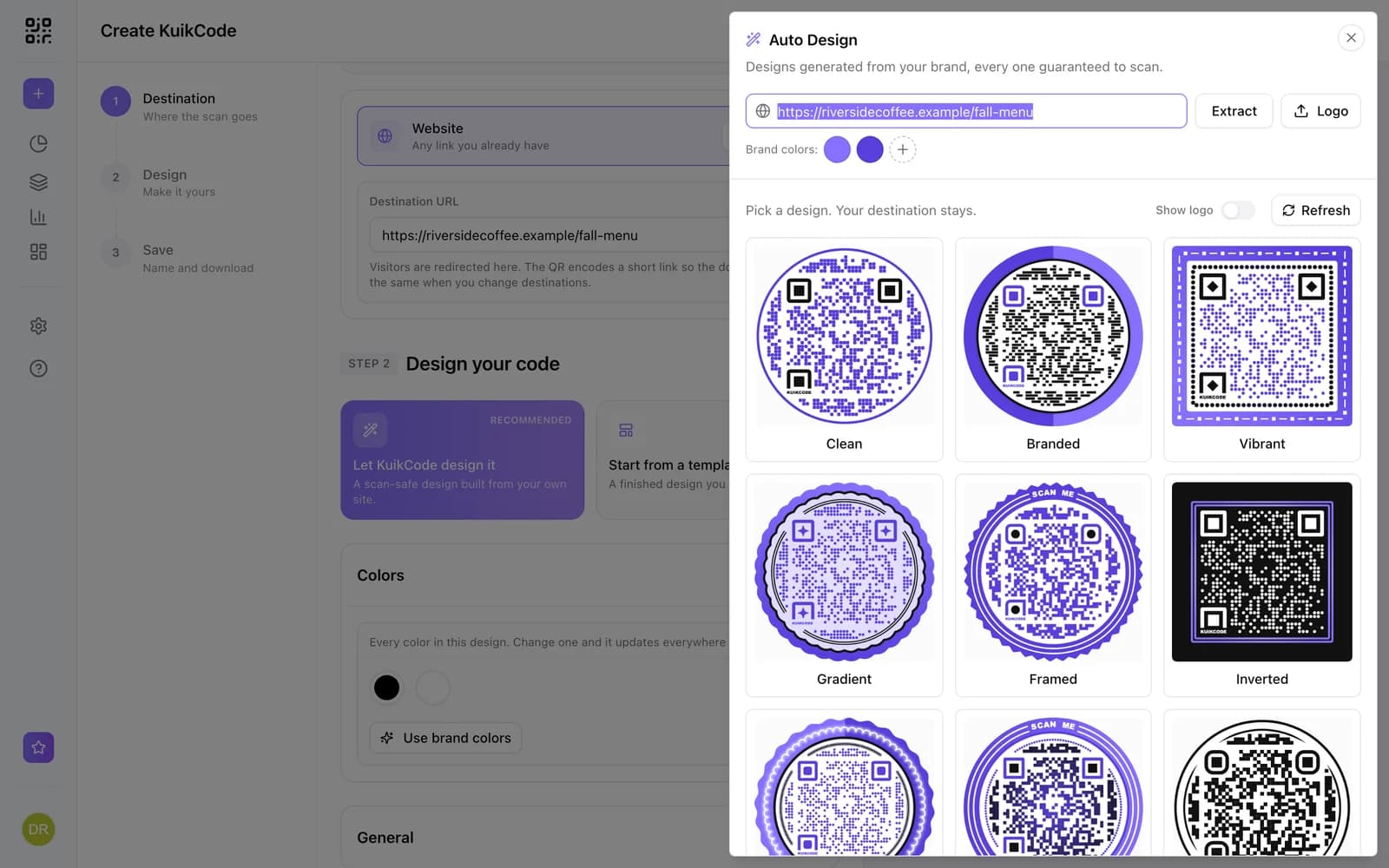
The free QR code generator makes the code with no sign up and no watermark:
- Choose Link under What should it open? and paste the form's link.
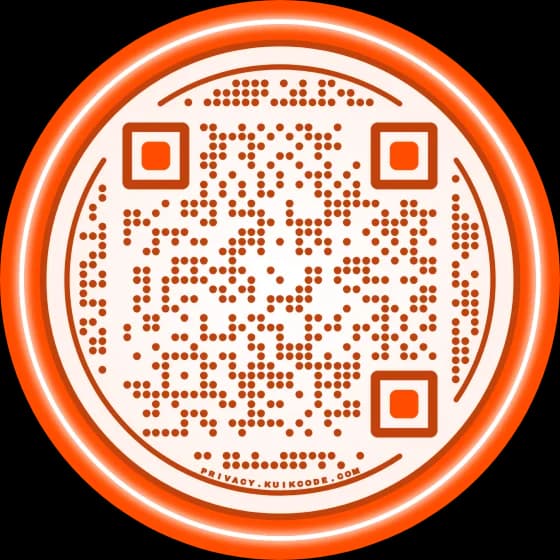
- Make it yours. Pick a shape, dots, corner squares and colors. Keep the dots much darker than the background.
- Add a frame with a line that says what the form is for: Sign up, Tell us how we did, RSVP here.
- Download a PNG for slides and documents, or an SVG for print.
This is a static code. The link lives inside the pattern, it works as long as the form does, and it can never change. If you edit the questions in the same form, the code keeps working, because the link stays the same. If you make a new form, you need a new code.
When to use a dynamic code instead
A form on a slide for one class can be static. A form on a poster, a product label or a stack of printed handouts usually outlives its first version: next term's sign up, next year's survey, a form that moved to a new account.
Teachers use this for quizzes and exit tickets every day; see more ways to use QR codes in the classroom.
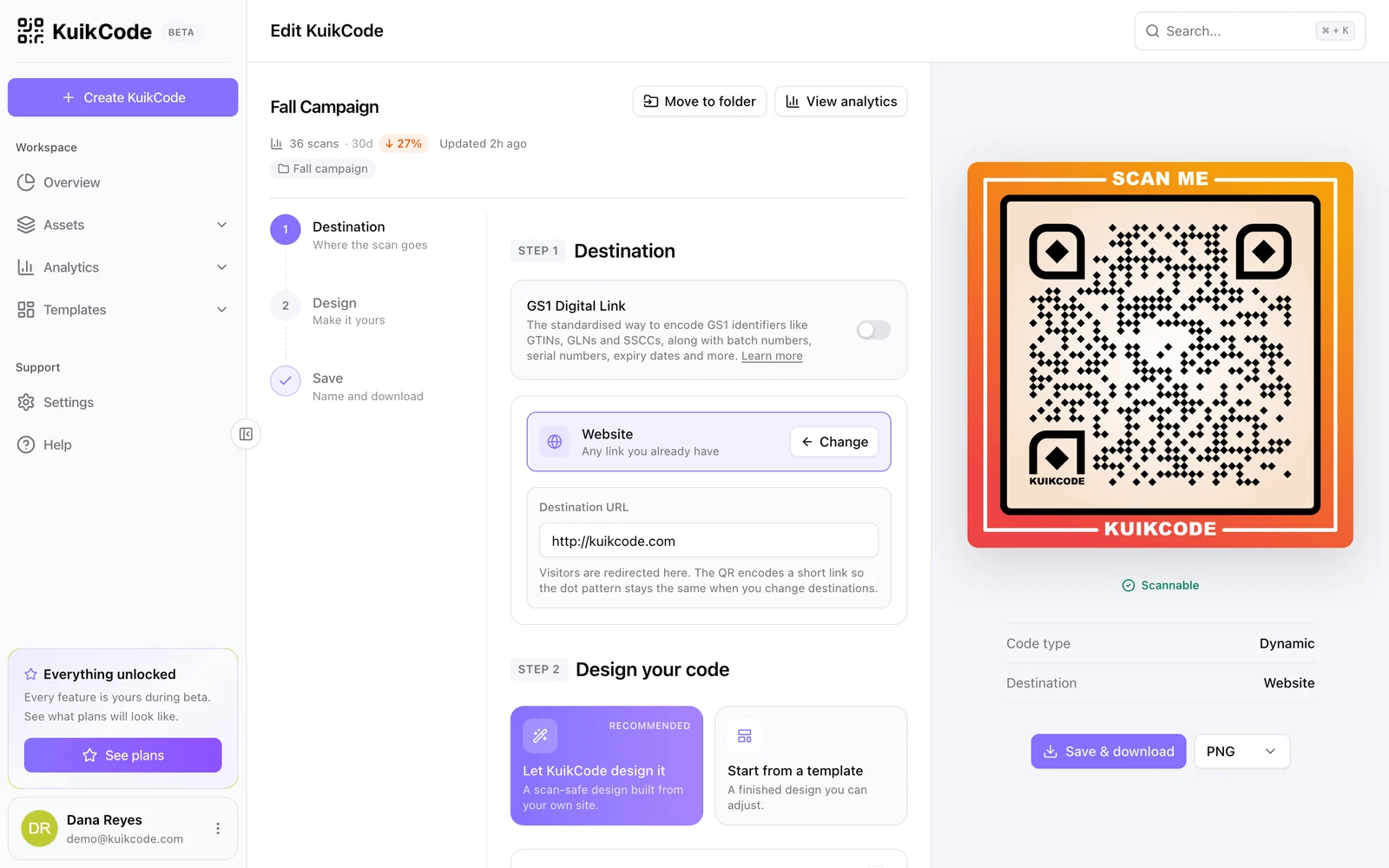
A KuikCode stores a short link that you control. To make one, create a code, pick Website and paste the form's link. When the form changes, open the code, paste the new link and save. Every printed copy opens the new form from the next scan.
You also get what Google Forms can't tell you: how many people scanned. Forms counts responses, and a KuikCode counts every scan with its time, city and device. If 200 people scanned the poster and 40 answered, the form is too long, not the poster too small. Give each spot its own code and you'll see which one brings answers. The Google Form QR code page shows both options in the editor.
Put the form on your own page
Opening a bare Google Form from a poster works, but people see a generic page with no name they recognize. A KuikPage puts the form under your logo with a short intro, and anything else people need next to it: the event's date, a map, a link to your website.
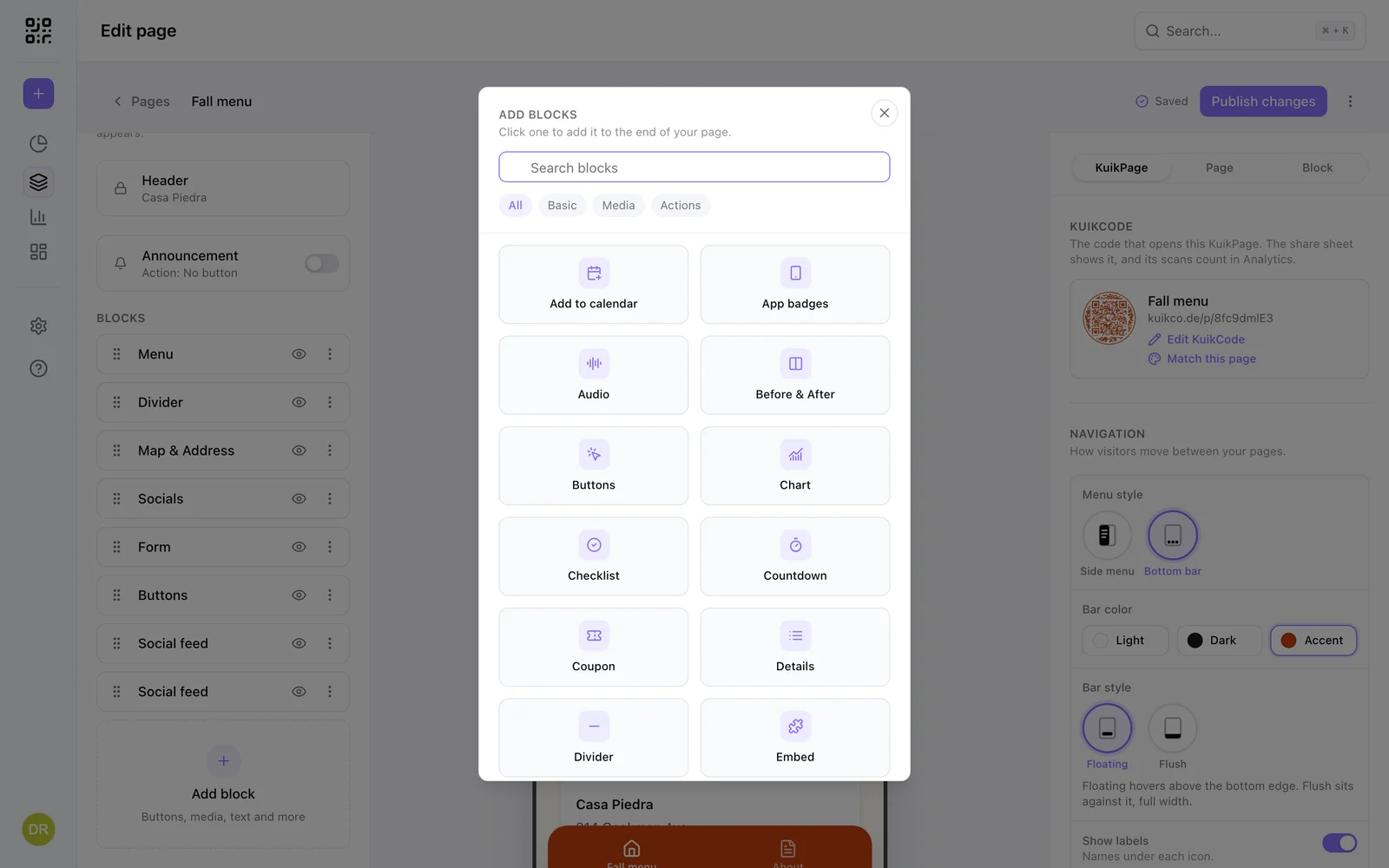
Add the Embed block, choose Google Forms and paste the responder link. The form appears inside the page, and responses still land in Google Forms and your linked sheet. Embeds work with Google Forms, Typeform, Tally, Jotform, Calendly and Cal.com, from the Core plan.
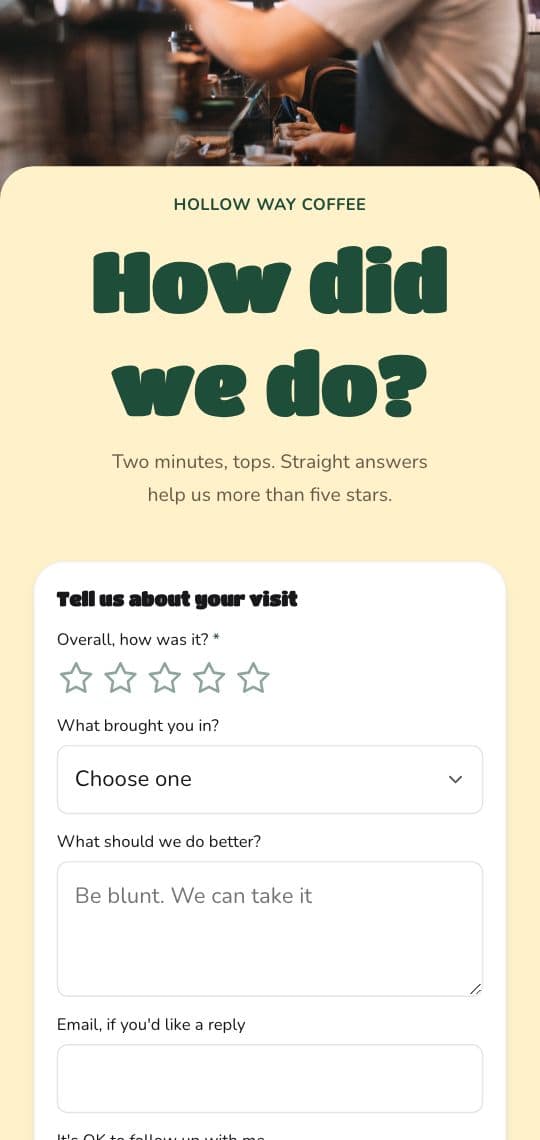
If you'd rather not use Google at all, the KuikPage Form block collects answers itself, like the Feedback Survey template on the cover, with ready forms for RSVPs, feedback, waitlists and contact details. It's on the Core plan too. Submissions show up in your dashboard, can email you each one and export to CSV. And to send scans or submissions to Google Sheets automatically, see QR scans to Google Sheets with Zapier.
Ideas that work well
- Classrooms: sign ups, exit tickets and permission slips on the board or a handout.
- Events: registration at the door and a feedback form on the last slide.
- Restaurants and shops: a three-question survey on the table card or the receipt.
- Offices: IT requests or onboarding checklists on the break room wall.
- One form, many places: in Google Forms, Get pre-filled link fills in an answer for people, like Table 4 or Front door. Give each spot its own pre-filled link and its own code, and every response says where it came from. Pre-filled links are long, so they draw much denser free codes; a dynamic code keeps the pattern simple whatever the link.
Test before you print
Scan the printed proof with two phones, one signed out of Google, and send one test response. Print it big enough for where people stand: QR code size for print has the numbers. If it won't scan, check contrast, size and the quiet zone in why a QR code is not scanning.
Frequently asked questions
01How do I get a QR code for my Google Form?+
Open the form in Google Forms, click Share or Published and choose Copy responder link. Paste that link into a QR code generator, such as the free KuikCode generator, under Link, design the code and download it.
02Does Google Forms make a QR code on its own?+
Google Forms gives you the link, not a printable code. Chrome on a computer can make a plain code for the page you are on, but it has no design options and can never change. A QR code generator gives you a code in your colors, and a dynamic one can change after printing.
03Why does my Google Form QR code ask people to sign in?+
The form is limited to people in your organization, or it is set to one response per person, which needs a Google account. Change who can respond in the form's settings, then open the link in a private window to check that it opens without signing in.
04Can I change the form after printing the QR code?+
Edits to the same form show up right away, because the link stays the same. A new form has a new link, so a static code would need a reprint. A dynamic code, like a KuikCode, stores a short link you control, so you point it at the new form and every printed copy follows.
05Can I see how many people scanned my Google Form QR code?+
Google Forms counts responses, not scans. A KuikCode counts every scan with its time, city and device, so you can see how many people opened the form and how many of them finished it.
06Should I use the short forms.gle link or the full link?+
For a free static code, use the short link. Fewer characters make a simpler code with bigger dots that scans from farther away. A dynamic code always stores its own short link, so there you can paste either one.