A printed list at the door is slow, and a link to an event page lets anyone in. QR code tickets fix both: every guest gets a code made just for them, and the door scans each one once. Here's how they work and how to set them up for your next event.
What a QR code ticket is
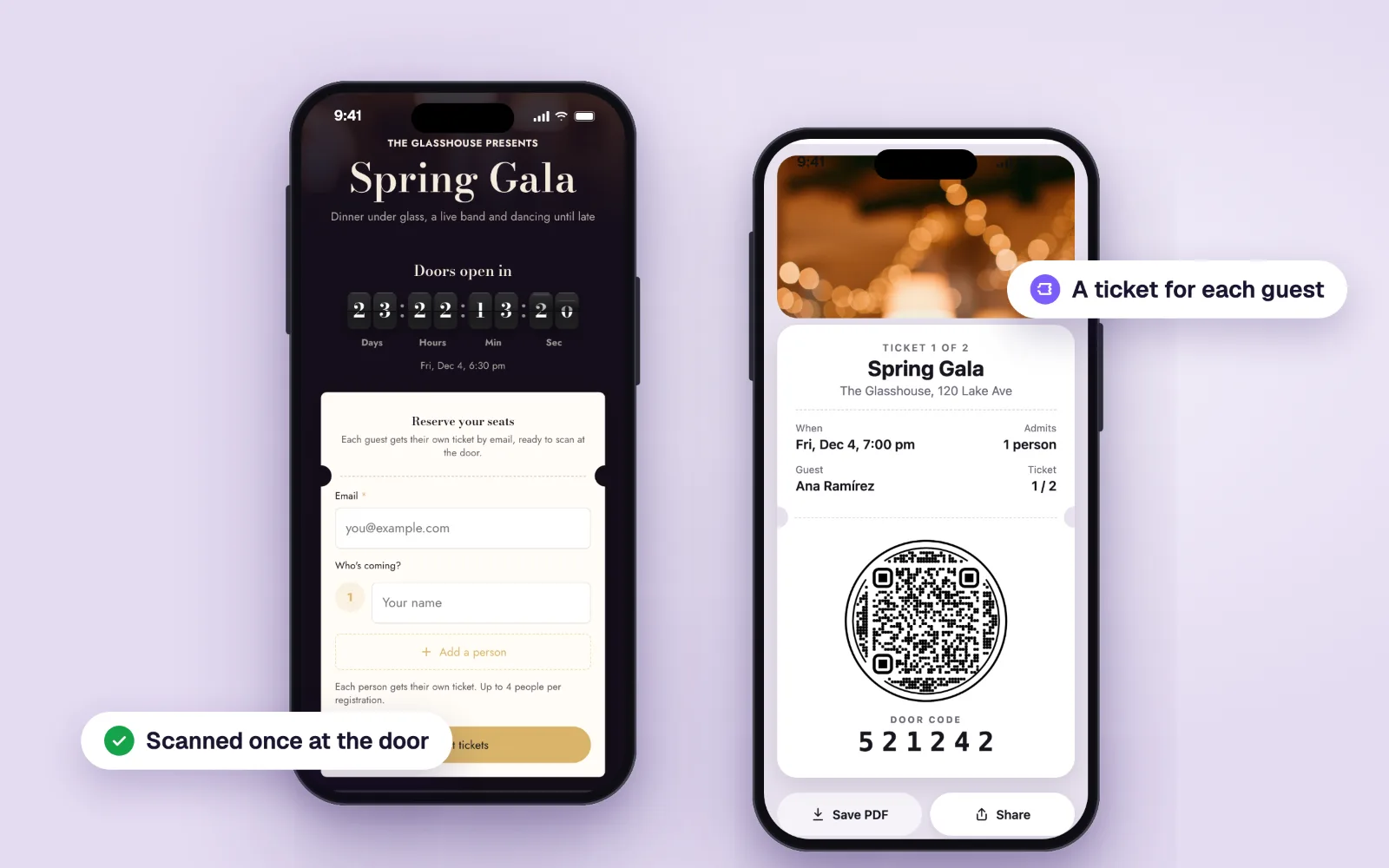
A QR code ticket belongs to one guest. It opens their ticket, with their name, the event and a door code, and it's meant to be scanned once at the door. Scan the same ticket again and the scanner says it's already been used, with the time it got in. That's what makes it a ticket and not just a link: a forwarded screenshot can't let a second person in.
An event usually needs two kinds of code:
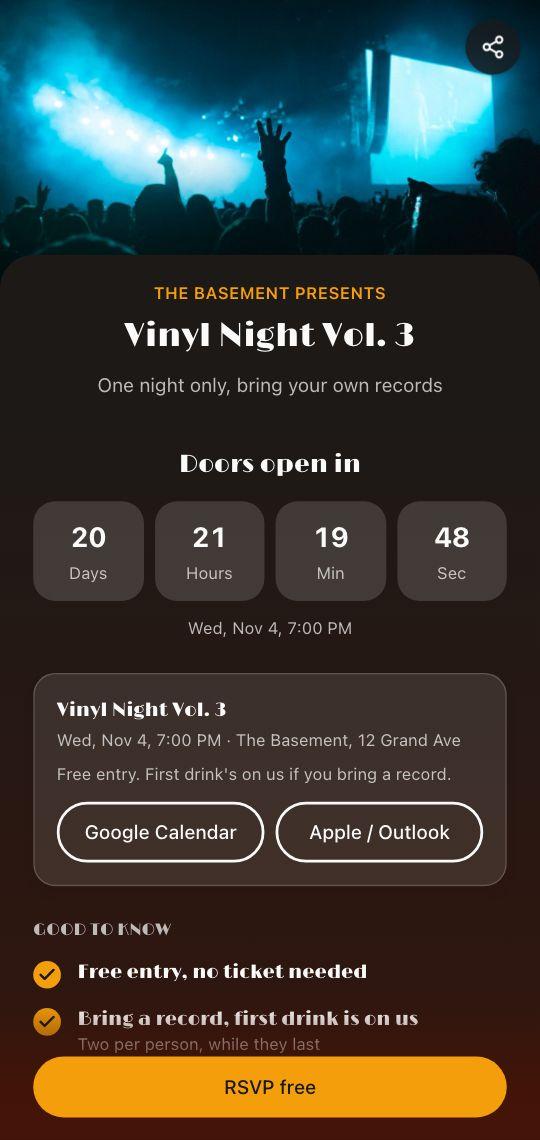
- The event code on posters, flyers and social posts. It opens the event page with the details and the registration form, the same for everyone.
- The ticket codes, one per guest, sent after they register. Only these get scanned at the door.
How guests get their tickets
The ticket comes from the registration form on the event page:
- The guest scans the event code and opens the event page.
- They fill in the form: their email, and who's coming, a name for each person.
- Every person gets their own ticket right away on screen, by email and as a PDF to print.
A group can arrive separately, because each person has a ticket of their own. The person who registered gets every ticket in the group; a guest who adds their own email gets theirs too. Register again with the same email and the same tickets come back, so nobody ends up with duplicates.
How to set it up in KuikCode
KuikCode builds the page, the form and the tickets for you:
- Click Create KuikCode and pick Event, then Get tickets.
- Add when it starts, the place and a cover photo. The name can wait.
- Click Create event page. KuikCode builds a page from the Event with tickets template with your details in it, publishes it and points your code at it.
- In the page editor, open the form's Tickets settings to set the Spots, the People per registration and the photo on each ticket.
- Design your event code and print it on posters and flyers.
Already have a KuikPage? Add a Form block, turn on Send a ticket to each person, and it becomes a registration with tickets.
Checking guests in at the door
The door needs a phone and nothing to install:
- Open the page's Guests panel and click Scan tickets, or scan its QR from Staff links with your phone.
- A Valid ticket checks the guest in. Already used shows when and by whom. Not valid catches a cancelled ticket or a ticket for another event.
- When a QR won't scan, use Find: search the guest's name or type their six-digit door code.
- For a door team, create a Staff link for 1, 3 or 7 days. Staff can scan and find guests without a KuikCode account, from the link or by typing its join code at app.kuikcode.com/door.
The scanner keeps the guest list on the phone, so a basement with no signal doesn't stop the line: check-ins sync when the connection is back. Our guide on whether QR codes work without internet explains the difference between a code and the page it opens, and the event check-in page shows the scanner, staff links and guest list up close.
For bigger and longer events
- Spots closes registration when the tickets reach the number you set.
- Runs more than one day makes each ticket work once a day, for a festival, a conference or a weekend. The day starts over at 5:00 AM, so a late night still counts as one day.
- Add guests in the Guests panel makes tickets from a list you already have, pasted or as a CSV, and Invite only hides the form so only those guests get tickets.
- The Guests panel shows who's in, who hasn't arrived and who cancelled, with Export CSV for after the event.
What you need
Event tickets are on PRO, up to 300 tickets per event and 1,000 ticket emails a month, and on Business, unlimited per event and 5,000 emails. Planning a party with a guest list instead of tickets? See how to use a QR code on a party invitation, or QR codes for events for more ways to use the same page on the day.
Frequently asked questions
01How do QR code tickets work?+
Each guest gets a ticket with a QR code made just for them. At the door, staff scan it with a phone: a valid ticket checks the guest in, and the same ticket scanned again shows as already used, with the time it got in.
02How do I make QR code tickets for an event?+
Make an event page with a registration form and turn on tickets. Everyone who registers gets their own QR code ticket on screen and by email, with a PDF. In KuikCode, pick Event in the QR editor and choose Get tickets to build the page in one step.
03What app do I need to scan QR code tickets?+
None to install. In KuikCode the door scanner runs in the phone's browser, signed in or through a staff link that works without an account.
04Can QR code tickets be scanned without internet?+
Yes. The scanner keeps the guest list on the phone, so it checks tickets in with no signal and syncs when the connection is back.
05Can one person register a group?+
Yes. The registration asks who's coming, and every person gets their own ticket, so a group can arrive separately. The person who registered gets all the tickets, and a guest who adds their own email gets theirs too.
06What if a QR code won't scan at the door?+
Every ticket has a six-digit door code. Staff type it in the scanner, or search the guest's name, and check them in the same way.