A scan to pay sign is a QR code that opens a payment app with your name already filled in. Venmo, Cash App and PayPal each give you one way or another. The catch is that each one only helps the customers who use that app, and nobody walks up to a market stall wondering which app you picked.
Below: where to find each app's code or link, why Apple Pay has nothing to print, and how one code can open every app at once.
Every payment app has its own way to get paid by scan
Venmo
Every Venmo profile has its own QR code. In the app, open the Me tab, tap the QR code button on your profile picture and choose Venmo me. Anyone who scans it lands on your profile, ready to pay you or request money.
To scan someone else's code, open Venmo, tap Scan and center the camera on the code. If you sell to customers, Venmo offers business profiles for that.
PayPal
PayPal has two things you can share. Your PayPal.Me link comes from the handle you choose in your profile, and payments sent to it go to your PayPal account. The app also has a QR code: on the home screen, tap the QR code button at the top right and choose Your code. PayPal also offers a Seller QR code for selling, and fees apply to it.
Cash App
Cash App people pay each other with a $Cashtag, your public name that starts with $. Your profile also has a payment link you can share by text or email, and that link is what a QR code can open.
To scan a code in Cash App, tap the Payments tab (the $ sign), then the QR scanner in the top left corner, and hold the camera over the code.
Zelle
Zelle works inside each bank's app, with an email address or a US mobile number. There's no single Zelle link to put behind a code, so the customer needs to see the email or number you use.
Does Apple Pay have a QR code?
Not one you can print. Apple Pay in a store works when the customer holds their iPhone or Apple Watch near a contactless reader. That needs a card terminal that takes tap payments, not a sign.
Apple does show a code in one case: when someone pays online in a browser like Chrome or Edge, the checkout can show a code they scan with their iPhone. That code comes from the shop's checkout, changes every few seconds and works for a single scan. There's nothing in it you could print and leave on a counter.
So if a customer asks for Apple Pay at a stall without a card reader, the honest answer is one of the apps above.
One code for every app
A sign with four codes on it is a puzzle. Customers scan the wrong one, or scan none. The cleaner way is one code that opens a small page with a button for each app:
- Collect your links. Your Venmo profile, your Cash App payment link and your PayPal.Me link.
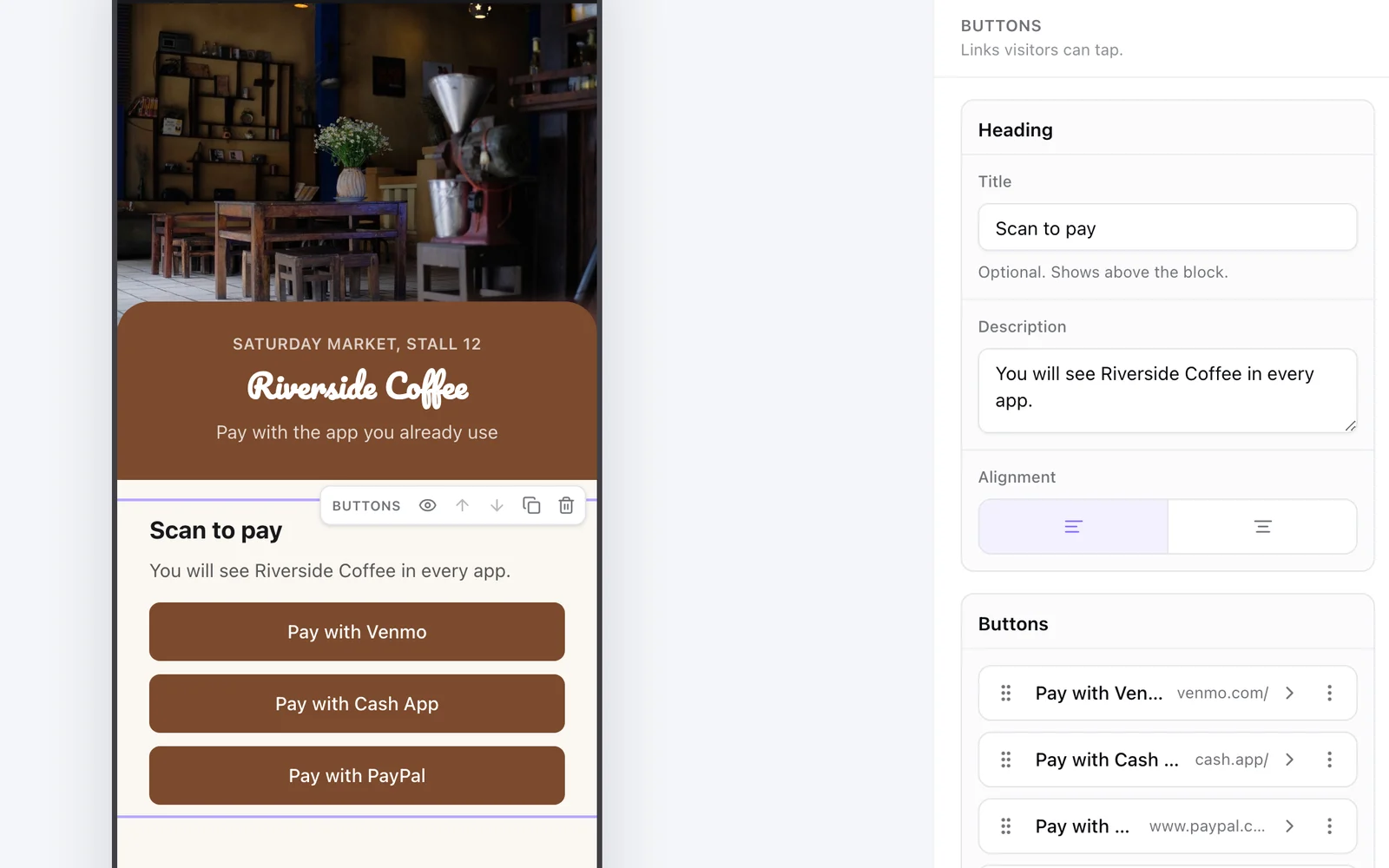
- Make the page. In a KuikPage, add a Buttons block with the Website link type and one button per app: Pay with Venmo, Pay with Cash App, Pay with PayPal. For Zelle, add a second Buttons block with the Drawer type: tapping it slides up a card with the email or number to send to.
- Say who gets paid. In the block's description, write the name customers will see in their app, like You will see Riverside Coffee in every app. It's the check that keeps people from paying the wrong account.
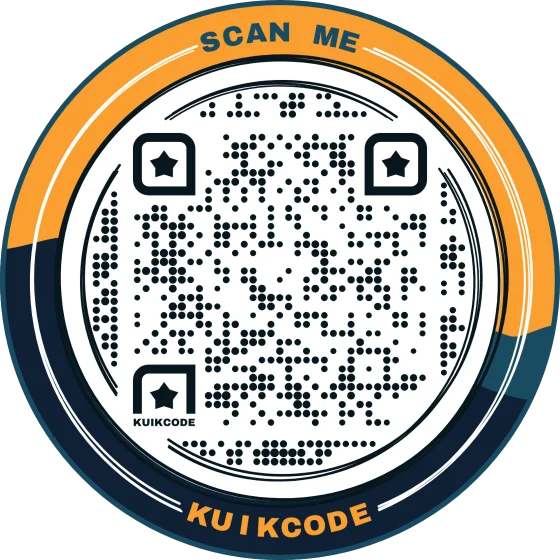
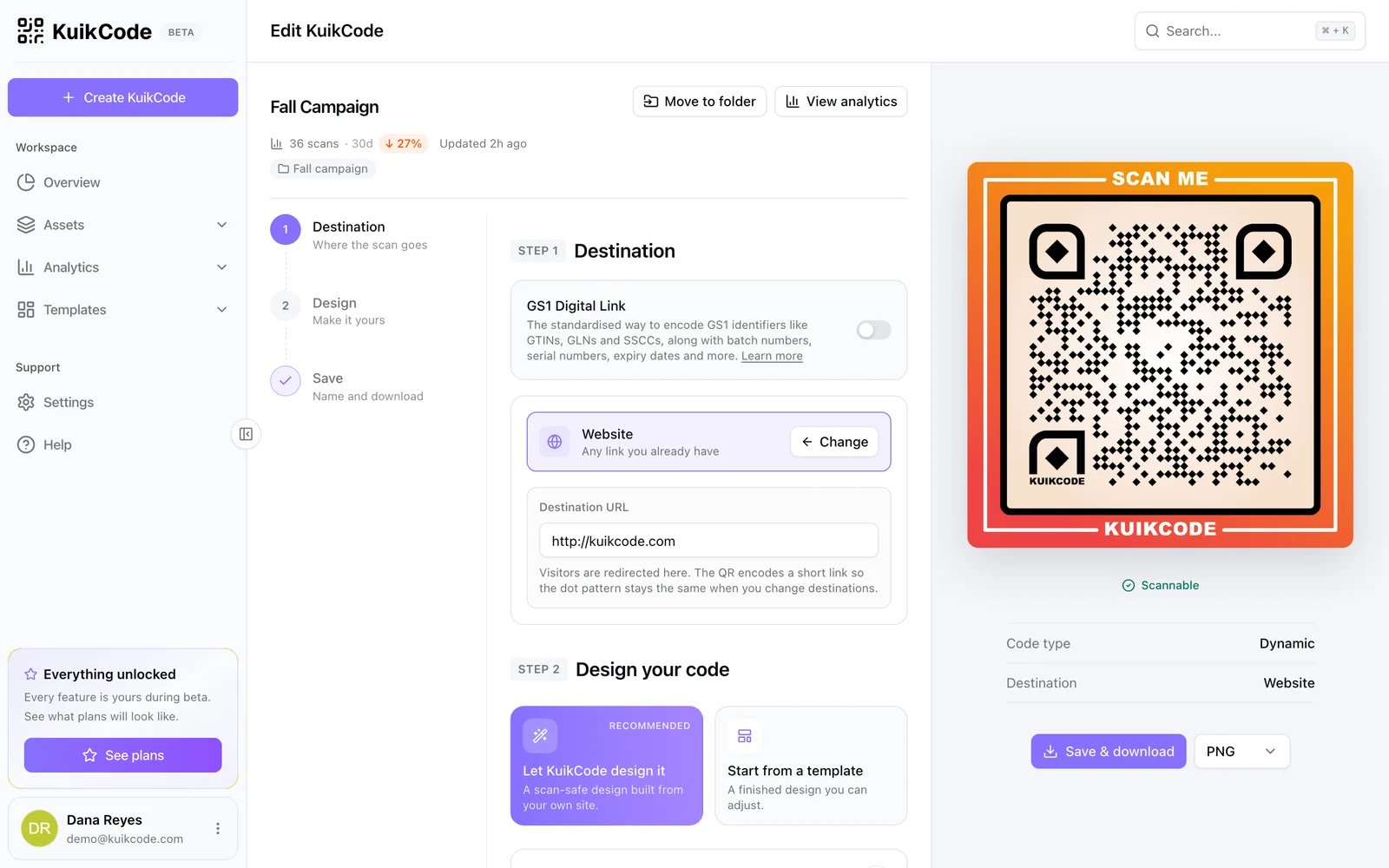
- Point a KuikCode at the page. Design it in your colors, add a frame that says Scan to pay, and download it for print.
Every KuikCode is dynamic, so the code itself never has to change. If you switch from a personal profile to a business one, change your handle or drop an app, edit the page and every printed sign follows.
What to put on a scan to pay sign
- The words "Scan to pay" on the code's frame, so nobody wonders what it does.
- The apps it takes. List them under the code: Venmo, Cash App, PayPal, Zelle.
- The name they'll see. The business or person name as it shows in each app.
- The price, if it's fixed. A parking fee, a class, a tip jar with a suggested amount.
- Enough size to scan from where people stand. A counter sign scanned from arm's length needs less than a poster across a booth. The QR code size guide has the numbers.
Before you print, scan the sign with an iPhone and an Android and go as far as the payment screen in every app. Then check that the name on that screen is yours.
Keep your sign safe
A payment sign is worth tampering with. A sticker over your code can send customers to someone else's account, and that's the scam behind most stories about unsafe QR codes.
- Print the name customers should see, so a wrong name stands out.
- Look at your signs at the start of each day, and laminate or frame the ones left out in public.
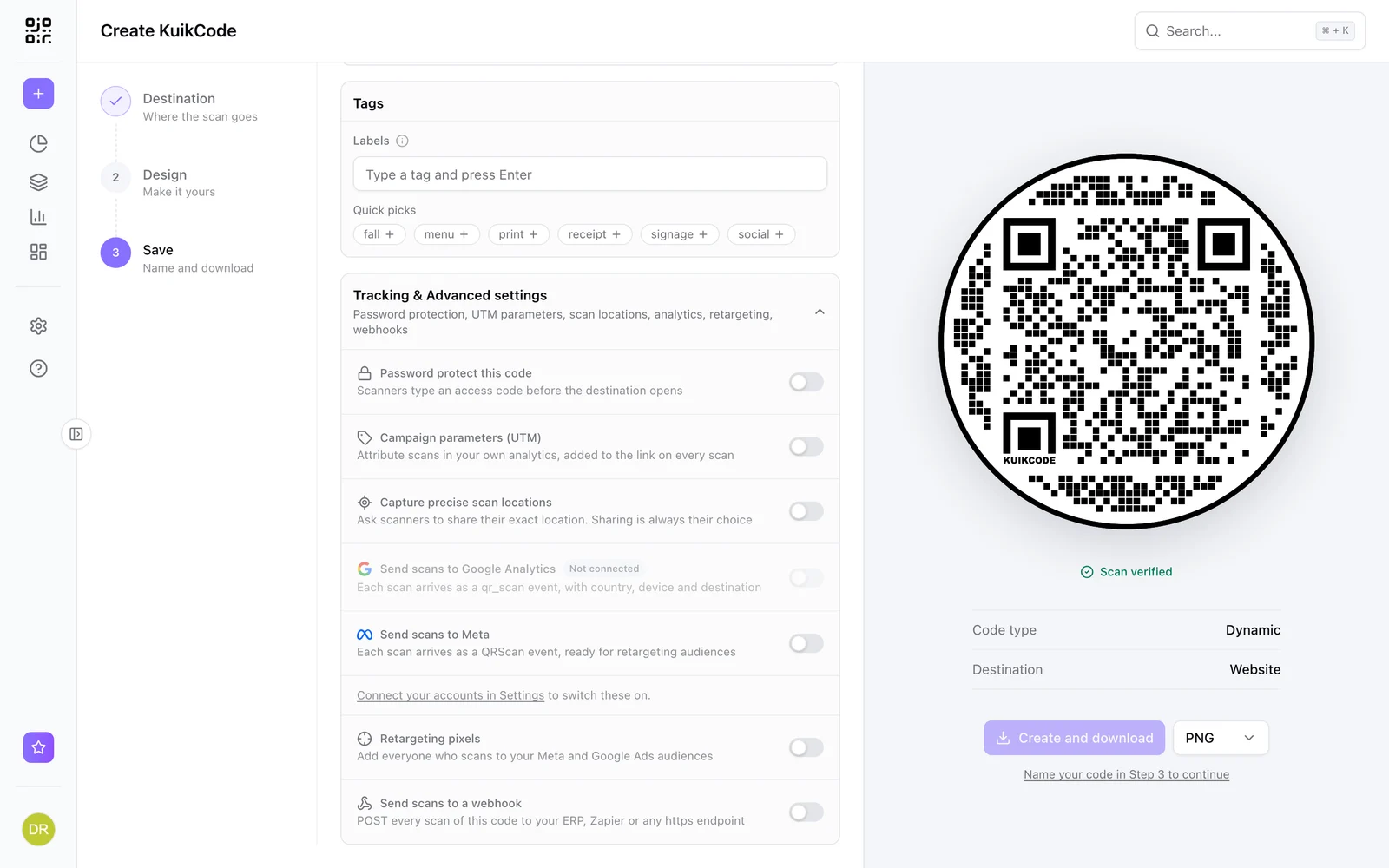
- Use a code you can check from your phone. KuikCode checks the link when you save a code, and its scan analytics show where and when your sign is scanned.
KuikCode never handles the payment. The code opens the page, the customer taps their app, and the money moves inside Venmo, Cash App, PayPal or their bank, under that app's own rules.
Frequently asked questions
01Can one QR code accept Venmo, Cash App and PayPal?+
Yes, through a page. Point the QR code at a page with one button per app, each opening your Venmo, Cash App or PayPal payment link. The customer taps the app they use and pays you there.
02Does Apple Pay have a QR code?+
Not one you can print. Apple Pay works in stores when the customer holds their phone near a contactless reader. Apple does show a code when someone pays online in another browser, but it changes every few seconds and works for one scan, so it can't go on a sign.
03How do I scan a Cash App code?+
Open Cash App, tap the Payments tab (the $ sign) and then the QR scanner in the top left corner, and hold the camera over the code. Cash App needs permission to use your camera.
04Where is my Venmo QR code?+
In the Venmo app, open the Me tab, tap the QR code button on your profile picture and choose Venmo me. Anyone who scans it lands on your profile, ready to pay you.
05Does a scan to pay QR code charge fees?+
The QR code itself never touches the money, so it adds no fee. Each payment app has its own rules: personal payments and business payments can be priced differently, so check the fee page of each app you list.
06Is a scan to pay QR code safe?+
It's as safe as the account it opens. Customers should check that the name in their payment app matches yours before sending money, so print that name on the sign. Check your signs now and then for stickers placed over your code.