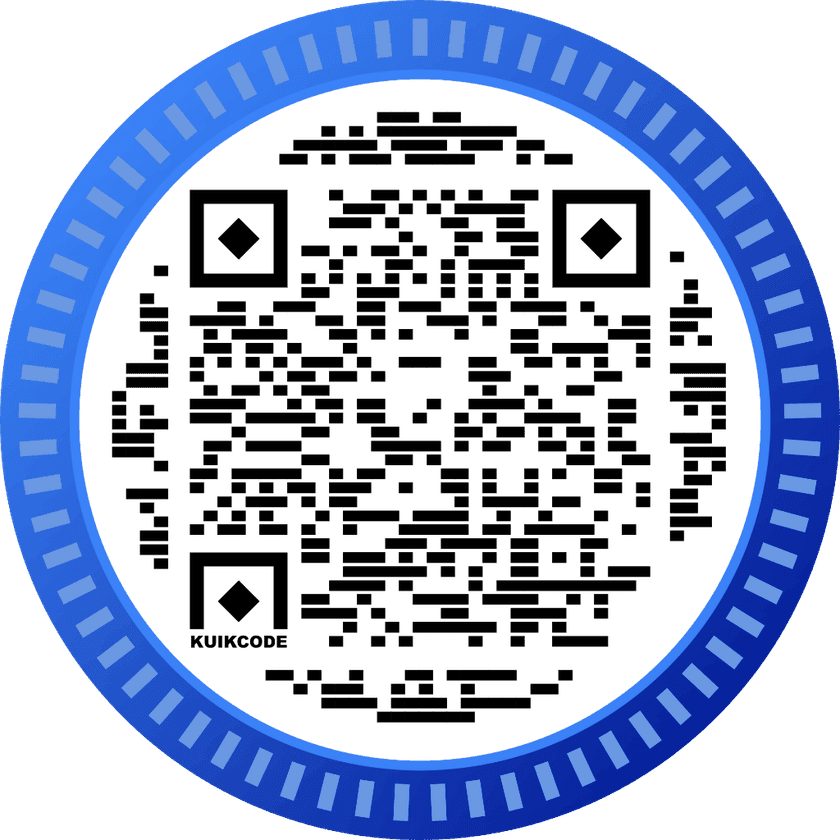
A business card has room for a name, a title and a few lines of contact details. A QR code adds everything else: guests at a conference, clients at a meeting or buyers at an open house scan it and save you to their phone in one tap, with nothing to type.
What the QR code on a business card should open
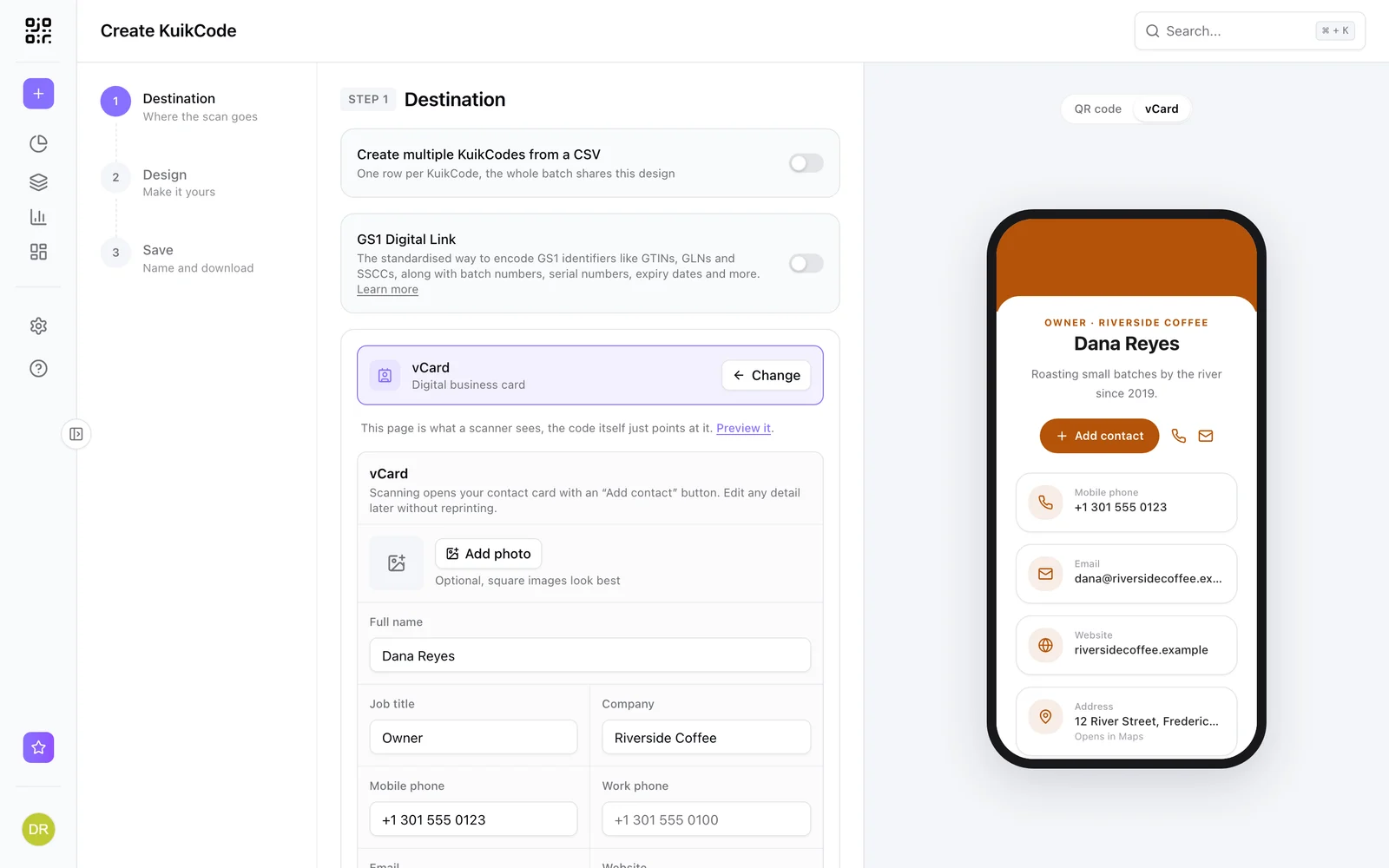
The most useful destination is a digital contact card, often called a vCard. When someone scans it they see your card on their phone, with your photo and details and a save to contacts button. One tap and you are in their address book, spelled correctly, with the right number.
In KuikCode the contact card can carry:
- Full name, job title and company.
- Mobile and work phone, email and website.
- Address and a short About line.
- Profile photo, square looks best.
- Social links, one button each for Instagram, LinkedIn, Facebook, TikTok, YouTube or WhatsApp.
You also choose the card's accent color and corners, so it matches the printed card.
Why the code should be dynamic
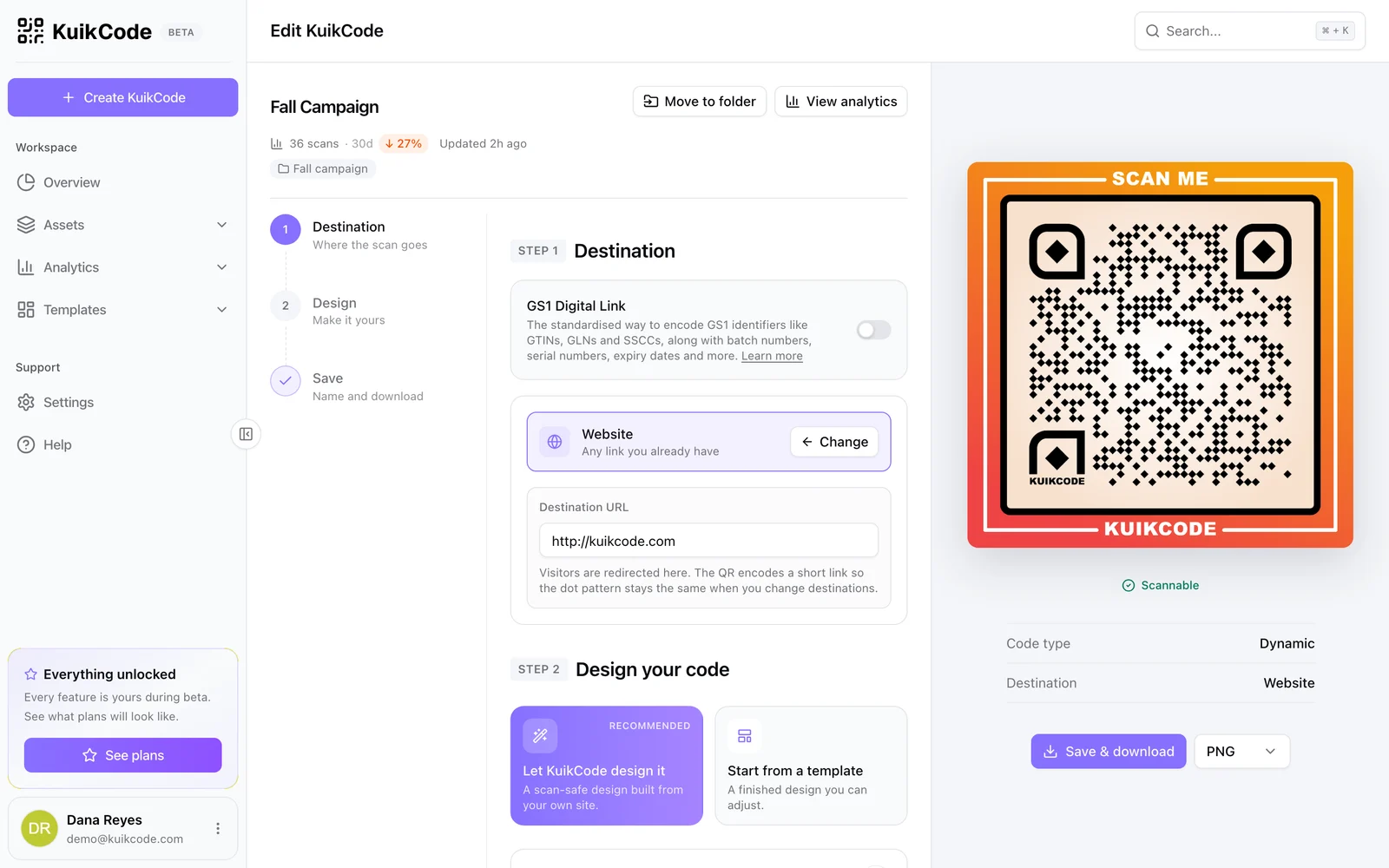
A static code writes your contact details into the pattern itself. Change jobs, get a new number or fix a typo, and every printed card is out of date.
A dynamic code points to a short link, and the contact card is generated from your current details every time someone scans. Update your title in KuikCode, save, and every card already in someone's wallet shows the new version. See what a dynamic QR code is for more.
How to make one in KuikCode
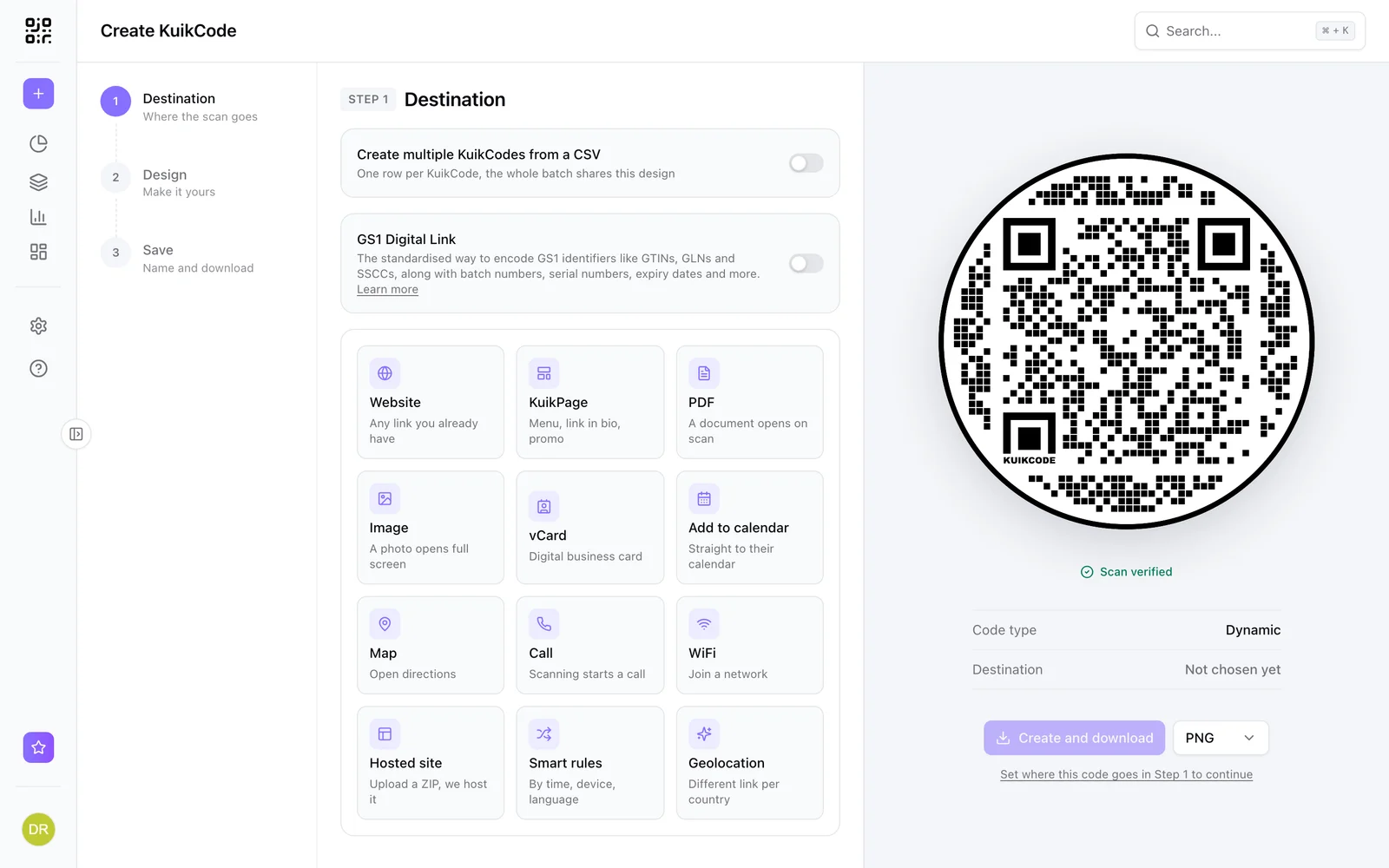
- Click Create and choose vCard.
- Fill in your details, add a photo and your social links.
- Flip the preview to see the card exactly as someone scanning will.
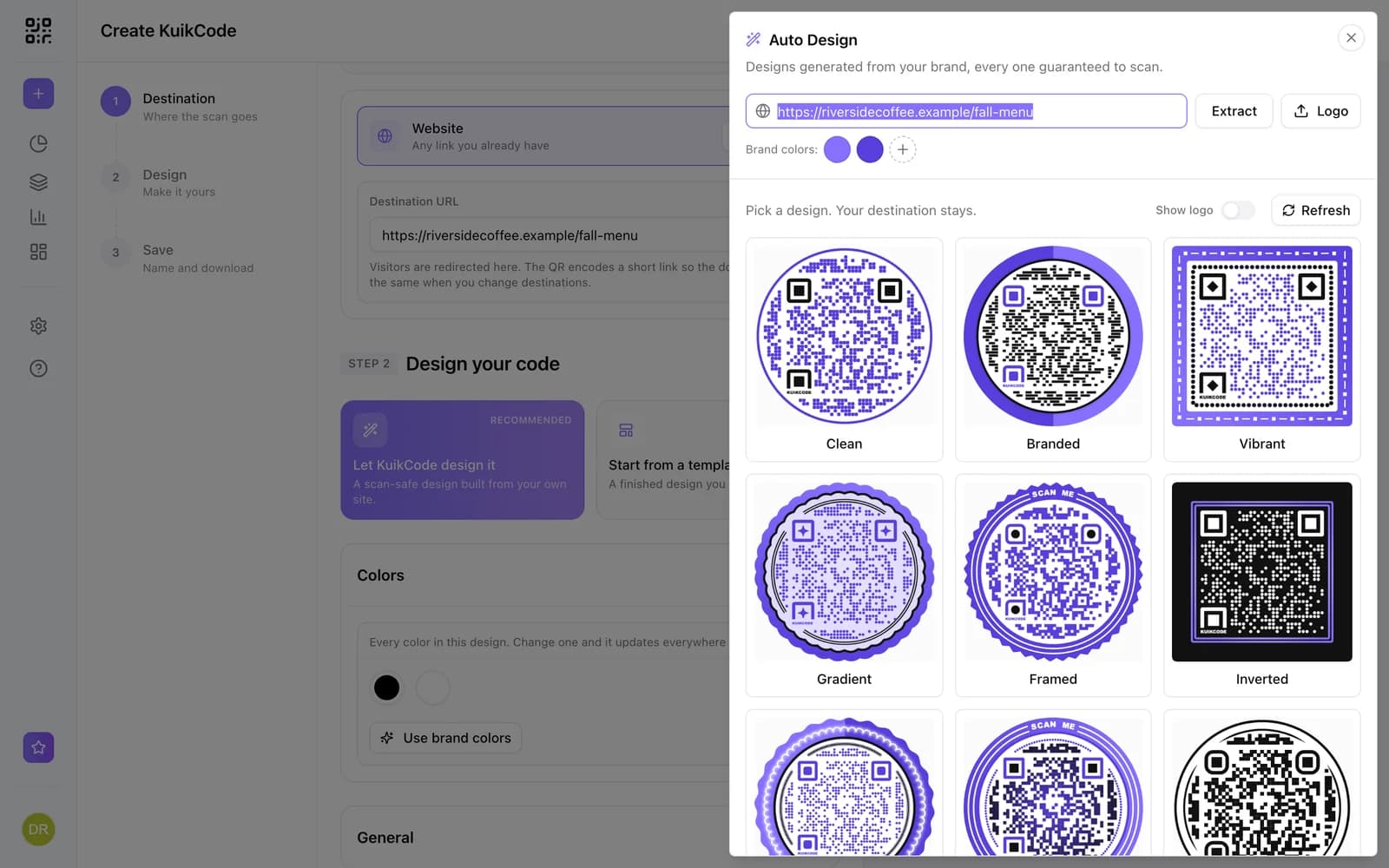
- Design the code with your brand colors, and add a frame with a short call to action.
- Create and download it as SVG or PDF for your printer.
Design tips for the card
- Size. At least 2 cm (0.8 inch) across, larger if the card has room.
- Quiet zone. Leave empty space around the code so the camera can find its edges.
- Contrast. Dark code on a light background scans most reliably. KuikCode checks every design before you download it.
- Say why. A short line such as Scan to save my contact tells people what they get.
- Test before you print. Scan a proof with a couple of different phones.
Going beyond a contact card
If you want people to see your work too, build a KuikPage with your bio, portfolio images, a booking button and your contact details, and point the code at it. The printed card stays the same, and you can switch between the contact card and the page anytime.
See who scans
Every scan is counted with its time, city and device. After a trade show or a networking evening you can see how many people actually opened your card, and when.
Frequently asked questions
01What should a business card QR code link to?+
A digital contact card is the most useful choice. It shows your name, title, company, phone, email, website and social links, with a button that saves everything to the phone's contacts in one tap.
02Can I update the details after the cards are printed?+
Yes, with a dynamic code. The contact file is generated from your current details each time someone scans, so a new number or job title shows up without reprinting.
03How big should the QR code be on a business card?+
At least 2 cm (0.8 inch) across, with some empty space around it. Keep the design simple enough that it scans quickly in the low light of a conference room or a restaurant.
04Is a vCard QR code free?+
The contact card destination is available on every KuikCode plan, including Free.
05Can a contact card link to my portfolio or booking page?+
Yes. Add your website and social links to the card, or build a KuikPage with your bio, work samples and a booking button and point the code at it instead.