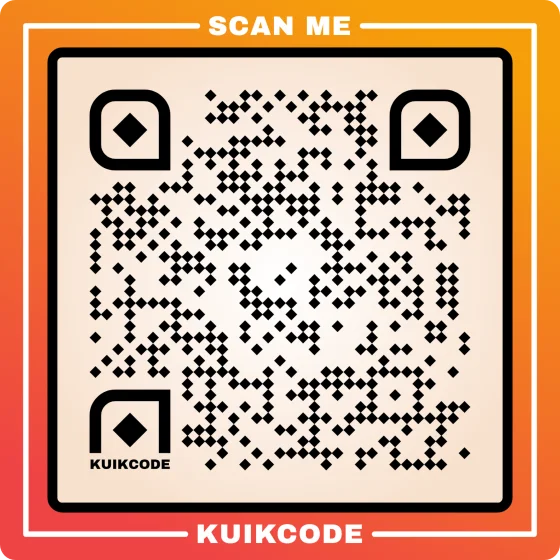
To put a QR code in a Word document or a PowerPoint slide, make the code in a QR code generator, download it as an SVG or PNG file and insert it like any picture: Insert, Pictures, This Device. That works in every version of Word and PowerPoint, on Windows, Mac and the web. Word on a computer can also draw a plain QR code itself with a field code, which is handy for mail merges. Both ways are below.
Step 1: make the code and download it
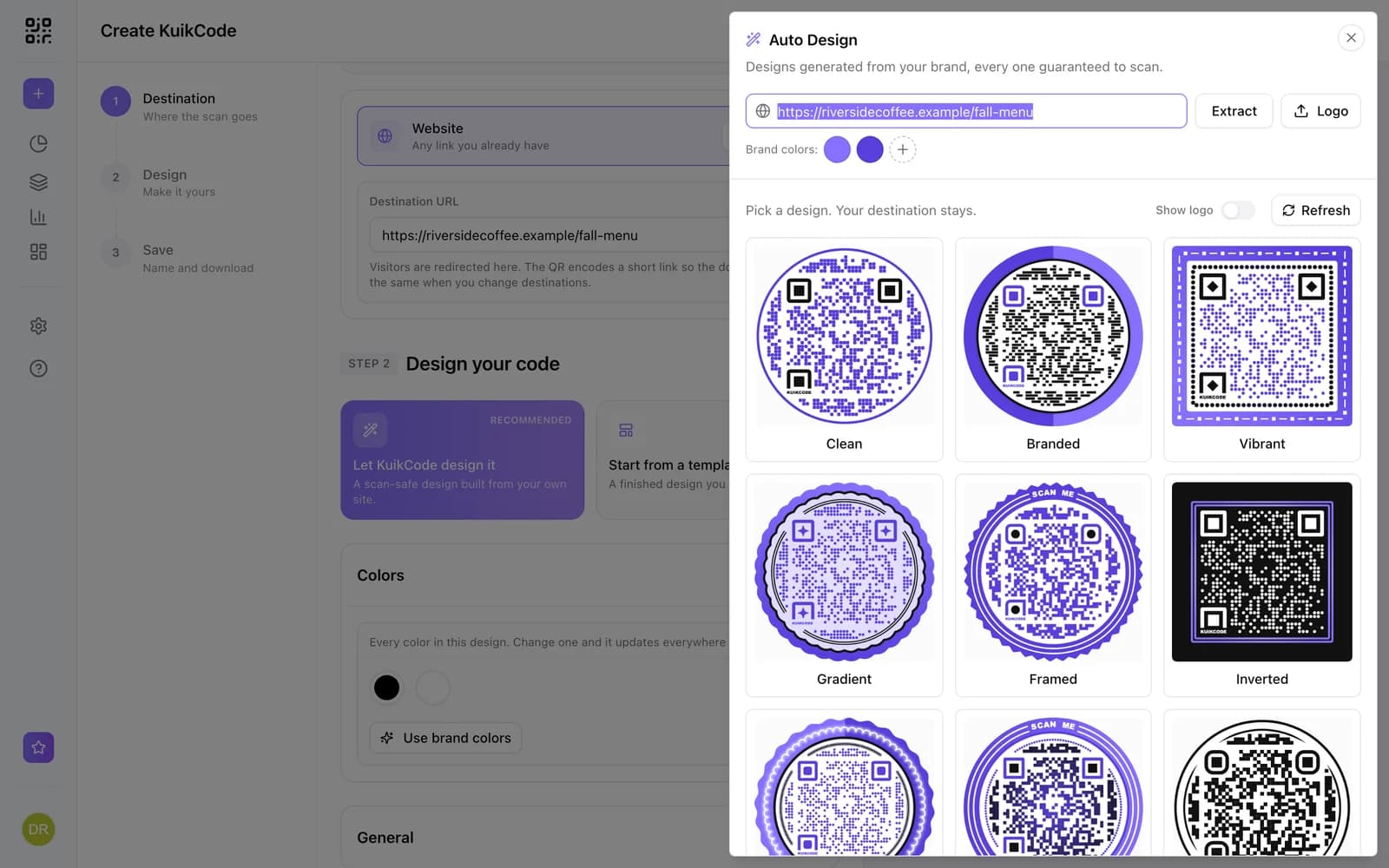
- Open a QR code generator. Our free QR code generator works in your browser with no sign up and no watermark.
- Paste the link, or type the text, the code should hold.
- Download it as SVG if you can. It's made of shapes instead of pixels, so it stays sharp at any size and Word doesn't compress it. If you need a picture file, choose PNG at the largest size, at least 1000 pixels wide.
- Scan it with your phone before it goes anywhere near the document.
A JPG works too, but its compression blurs the edges of the squares. PNG and SVG keep them crisp.
Step 2: insert it in Word
- Click where the code should go.
- Choose Insert, Pictures, This Device (on a Mac, Picture from File) and pick the file.
- Drag a corner to size it. Corners keep it square; the side handles stretch it, and a stretched code can fail.
- Under Wrap Text, In Line with Text keeps it attached to its paragraph. Use Square if text should flow around it.
- Add one line under it that says what the scan opens: "Scan for the full menu", "Scan to register".
How big? At least 2 x 2 cm (0.8 in) for a page held in the hand, bigger on anything read from a distance: about a tenth of the scanning distance. Our QR code size guide has the numbers.
Keep it sharp. Word compresses pictures when you save, which can soften a small PNG. To turn that off, go to File, Options, Advanced and tick Do not compress images in file. An SVG isn't affected.
Or let Word draw it: the DISPLAYBARCODE field
Word on Windows and Mac has a field that turns text into a QR code, with no generator and no image file. It's well hidden but it works:
- Press Ctrl+F9 (Cmd+F9 on a Mac) to insert a pair of field braces
{ }. Typing the braces yourself doesn't work. - Inside them, type:
DISPLAYBARCODE "https://example.com/menu" QR \q 3- Press F9 to update the field, or right click it and choose Update Field. The code appears.
- To edit the link later, right click the code, choose Toggle Field Codes, change it and press F9 again.
Two switches are worth knowing:
\q 0to\q 3sets the error correction from low to high. 3 survives scratches and creases best.\s 150scales it, in percent, from 10 to 1000.
Be honest with yourself about the limits: the code is plain squares, it's static (the link is fixed in the document), Word for the web can't insert fields, and other apps opening the file may show nothing or the field's text instead of the code. If you send the document, save it as PDF first so the code goes out as part of the page.
One code per letter with mail merge
The field really pays off in a mail merge. If your list has a column called Link, nest the merge field inside the barcode field (insert both pairs of braces with Ctrl+F9):
{ DISPLAYBARCODE { MERGEFIELD Link } QR \q 3 }Every merged letter, invitation or certificate draws its own code from that row's link. For codes people will scan by the hundreds, such as tickets, equipment tags or numbered certificates, you may prefer a code per row that you can change and track later; see how to make hundreds of QR codes from a spreadsheet.
Step 3: put it on a PowerPoint slide
PowerPoint has no field like Word's, so the code goes in as a picture:
- Choose Insert, Pictures, This Device (or drag the file onto the slide).
- Hold Shift while you drag a corner so it stays square.
- Make it big. A projected code has to work from the back row. About a third of the slide's height is a good start in a meeting room; in a hall, give it half the slide.
- Put it on a plain background: a white panel behind the code beats a photo or a gradient.
- Write the short link under it, for anyone too far away or without a phone camera handy.
- Leave it up. Say what it opens and stay on the slide for 10 seconds or more. People need time to open the camera.
If the deck is shared afterwards as a file or a PDF, the code still works there, because it's a picture.
The same steps work in Google Docs and Google Slides: Insert, Image, Upload from computer.
Static or dynamic for a document?
A document lives longer than you think. A handout gets photocopied, a PDF gets forwarded, a slide deck gets reused next year. With a static code, the link is fixed: when the page moves, every copy breaks and the only fix is a new document.
A dynamic code holds a short link you can point somewhere else later, and it counts every scan, so you also see whether anyone scanned the handout. For a one off flyer, static is fine. For a manual, a form people keep, a menu, a recurring presentation or anything you'll print more than once, dynamic saves the reprint. See static vs dynamic QR codes.
A KuikCode is dynamic, and you can design it with your colors, a frame and your logo before you download it as SVG, PNG, JPG or PDF. If your documents start in Canva, see QR codes in Canva.
Quick fixes when it won't scan
- Blurry: use SVG, or a bigger PNG scaled down, and turn off picture compression.
- Stretched: reset the size and drag a corner, not a side.
- Too small: 2 cm minimum on paper, a third of the slide on a screen.
- Too little contrast: dark code on a light background. A code on a colored slide may need a white panel behind it.
- Too long a link: long links make dense codes that are hard to scan small. A dynamic code keeps the link short whatever it points to.
Still stuck? Why is my QR code not scanning goes through every cause.
Frequently asked questions
01How do I create a QR code in Word?+
Make the code in a QR code generator, download it as SVG or PNG, then in Word choose Insert, Pictures, This Device and pick the file. Word on Windows and Mac can also draw one itself: press Ctrl+F9 for field braces, type DISPLAYBARCODE "your link" QR \q 3 inside them and press F9.
02Does Word have a built in QR code generator?+
Sort of. Desktop Word has a DISPLAYBARCODE field that draws QR codes and other barcodes from text or a link. It has no button for it, the code is plain and static, and Word for the web can't insert fields, so most people insert an image instead.
03How do I insert a QR code in PowerPoint?+
Download your code as an SVG or a large PNG, then choose Insert, Pictures and pick the file. Hold Shift while you resize so it stays square, and make it about a third of the slide's height so people at the back can scan it.
04Should I use PNG or SVG for a QR code in Word?+
SVG when your Word version accepts it, because it stays sharp at any size and Word doesn't compress it. Otherwise a PNG at least 1000 pixels wide, scaled down in the document, never up.
05Can I make a different QR code for every letter in a mail merge?+
Yes. Put DISPLAYBARCODE inside the merge with the link field nested in it, like { DISPLAYBARCODE { MERGEFIELD Link } QR \q 3 }. Each merged letter draws its own code from that row's link.
06Will the QR code still work if I send the document?+
An inserted picture travels with the file and works anywhere. A DISPLAYBARCODE field only draws in desktop Word, so other apps may show nothing or the field text. Save as PDF before you send it, and the code goes out as part of the page.