Paper RSVP cards get lost, arrive late or come back with a name you can't read. A QR code on the wedding invitation fixes that: guests scan it, reply in a minute from their phone, and you see every answer in one place. Done well, it does more than a reply card ever could, because it knows who's invited.
Open your guest list, not a blank form
The usual RSVP QR code opens a form that asks for a name and a head count. Anyone with the link can reply, spell their name three ways or bring a guest you didn't invite, and you end up matching answers to your spreadsheet by hand.
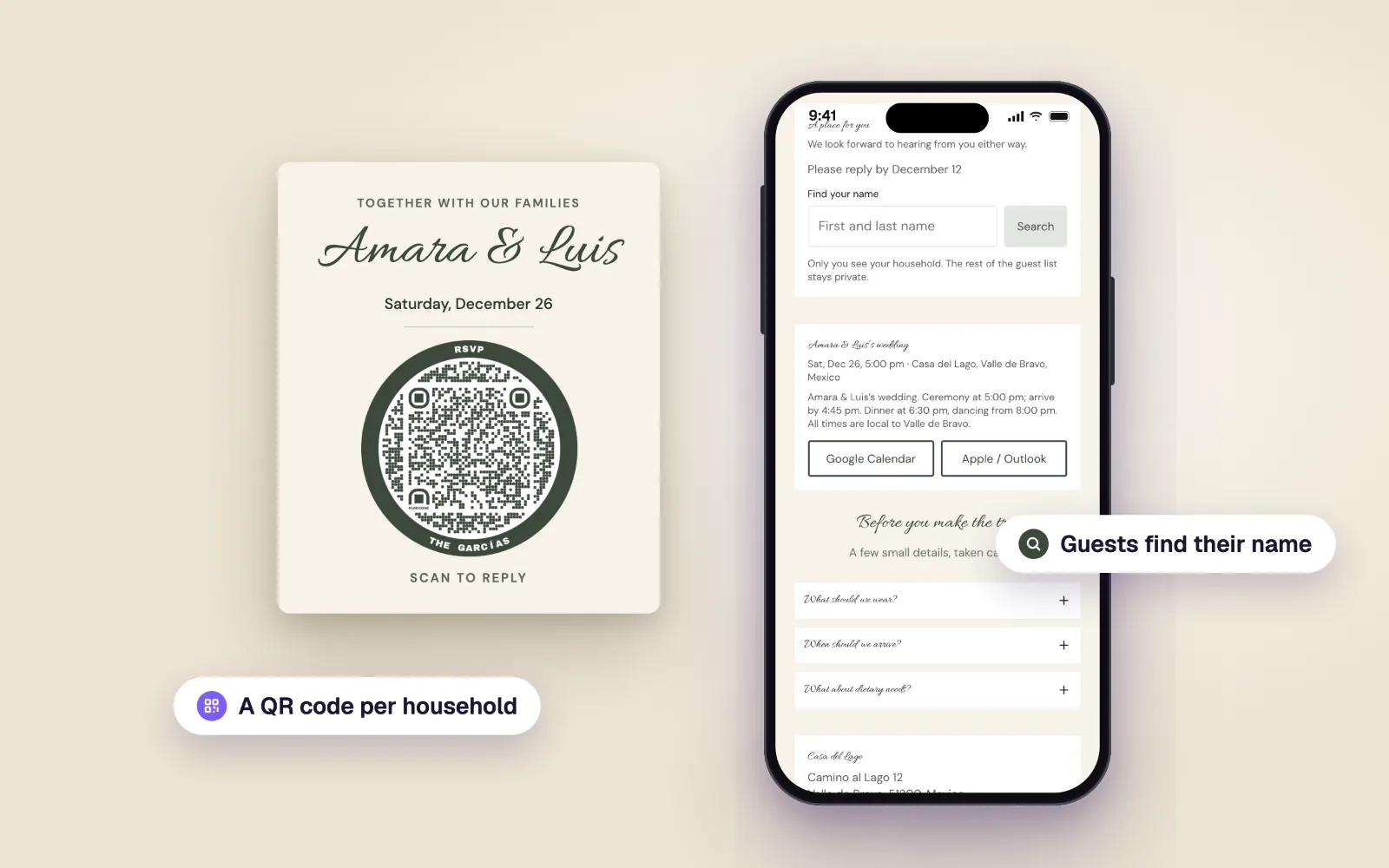
A better RSVP checks replies against your guest list:
- Guests find their own name and see only their household.
- They reply for each person on the invitation, yes or no.
- They pick a dinner choice for each person who's coming, if you ask.
- They can only fill the seats their household has, so no surprise plus ones.
- You see who's coming, who declined and who hasn't replied yet, without matching anything.
Give every household its own code
One shared code on every invitation works: the guest types their name and picks their household. But you can go one step further and print a different QR code on each invitation. Scanning it opens that household's names straight away, no search at all. It's the fastest reply a guest can make, and it works for the aunt who never types anything on her phone.
Each code carries the household's personal link, so you can also send it by WhatsApp or email to anyone who gets a digital invitation.
How to set it up in KuikCode
KuikCode builds the page and the codes for you:
- Start from the Wedding or Wedding Invitation template. Both come with the guest list RSVP on. You can also turn on Reply against a guest list on any Form block.
- In the form's Guest list settings, set a Reply by date and, if you want, the Dinner choices, one per line.
- Open RSVP replies in the editor's menu and click Add guests. Paste your list or upload a CSV, one household per line: its name, the people in it, the seats, and an email or phone if you want. For example:
The Garcías; Miguel García, Laura García; 2; laura@example.com. - Click Publish.
- Back in RSVP replies, open a household's QR menu to download its code as a PNG for printing or an SVG for your designer, or click Download all codes for a zip with every household's code, named after each household.
Already making a QR code for the wedding? In the KuikCode editor, pick Event, then RSVP: it builds the RSVP page in the Wedding Invitation look with your date and venue, and points the code at it.
What to print on the invitation
The code carries the reply, but the card still does its job:
- The essentials stay on the card: your names, the date, the place and the reply-by date. Some guests will never scan.
- A short line next to the code, like Scan to RSVP. Say what the scan does; more ideas in our call to action examples.
- Size: at least 2 cm across on a card people hold, with clear space around it. The QR code size guide has the numbers for bigger prints.
- Contrast: dark dots on a light background. A dark card can still work if the code sits on a light panel.
- One test print: scan a printed card with two phones before you print the rest.
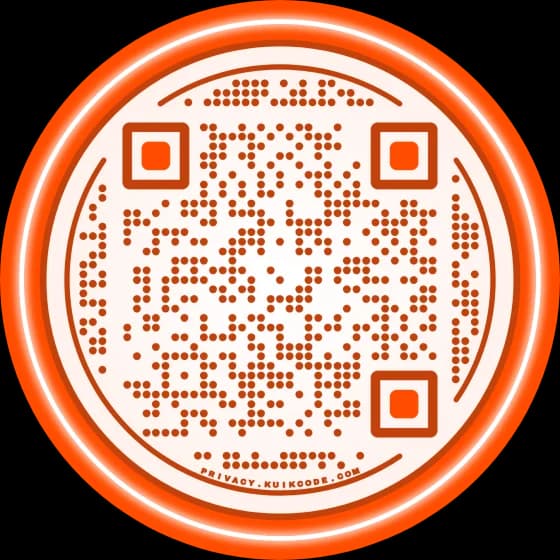
The codes KuikCode makes take your page's design, with RSVP and the household's name around the ring, so they look like part of the stationery instead of a sticker on top of it.
While the replies come in
RSVP replies keeps the count for you: tabs for Not replied yet, Attending, Declined and Unmatched, the total seats, and how many chose each dinner. Search a name, copy a household's link to send a reminder, or Export CSV for the venue and the caterer.
Guests can come back to the same link to change their reply until you close it. And if you let people who aren't on the list reply, their answers land in Unmatched, for you to add or remove.
After the wedding
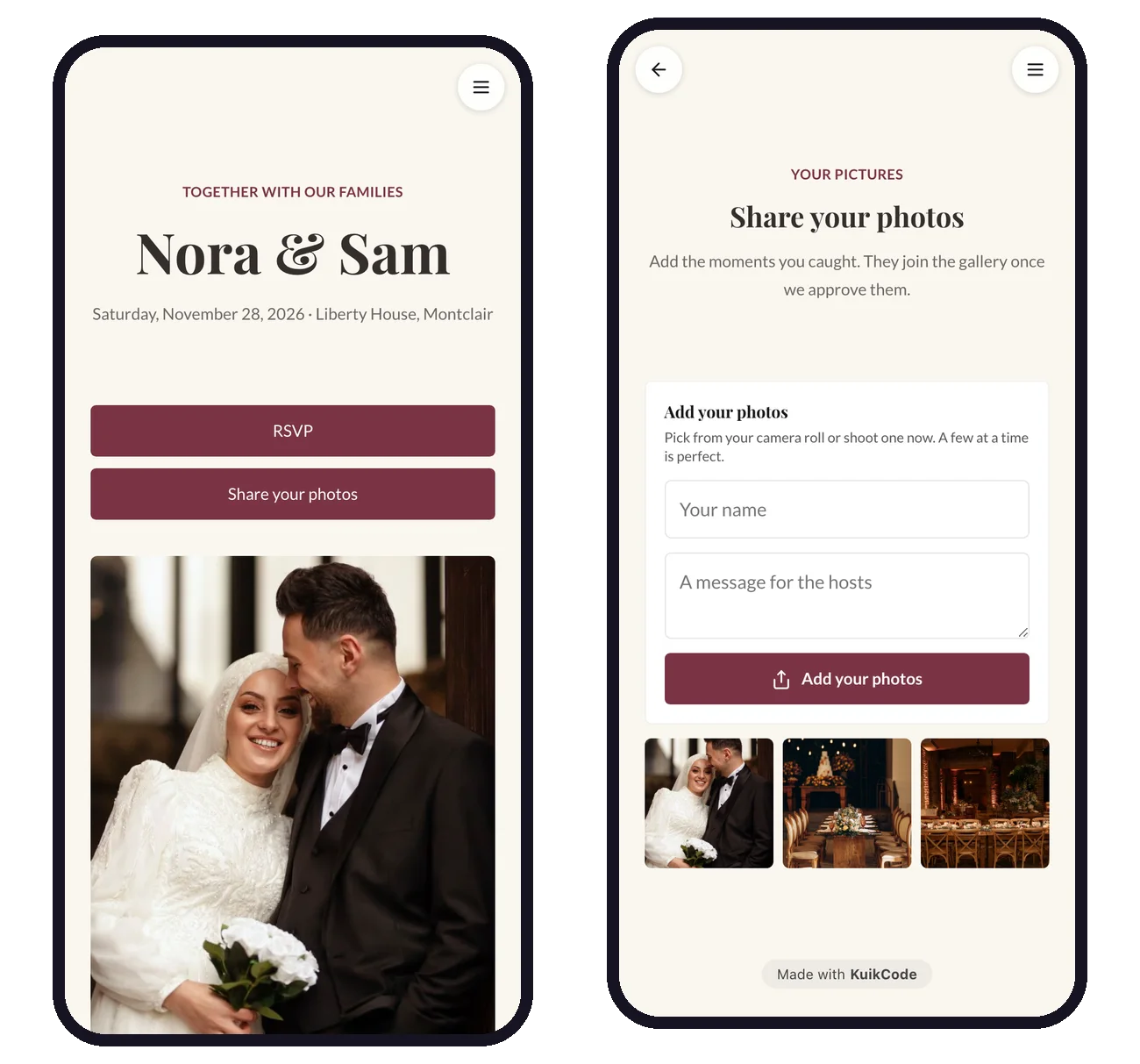
The same page can collect everyone's photos: add a Guest uploads block and put the code on the tables too. Our guide on collecting wedding photos from guests shows the setup.
What you need
The guest list RSVP, the household codes and RSVP replies are on Core and up, like the Form block. Guest uploads are on PRO. See the wedding website builder for everything else a wedding page can hold.
Frequently asked questions
01How do I add a QR code RSVP to my wedding invitations?+
Make a wedding page with an RSVP form, load your guest list, and print a QR code on the invitation that opens the page. With a code per household, each invitation opens that household's names directly. Print one test card and scan it before printing them all.
02Can each wedding invitation have its own QR code?+
Yes. In KuikCode every household on your guest list gets a personal link and a QR code in your page's design. Download them one by one or all at once as a zip, and give each code to the invitation it belongs to.
03What happens when a guest scans the RSVP QR code?+
The page opens on their phone, with no app. With a household code, their names are already there; with the shared code, they type their name and pick their household. They answer yes or no for each person, choose dinner if you asked, and send.
04Can guests see who else is invited?+
No. A guest only sees their own household after finding their name. The rest of the list stays private.
05How do I stop guests from adding a plus one?+
Give each household a number of seats. Guests can reply for the people on their invitation and fill an open seat only if the household has one, so nobody can add guests beyond their seats.
06How big should the RSVP QR code be on the invitation?+
At least 2 cm across on a card people hold in their hand, with a clear margin around it. Dark dots on a light background scan best.