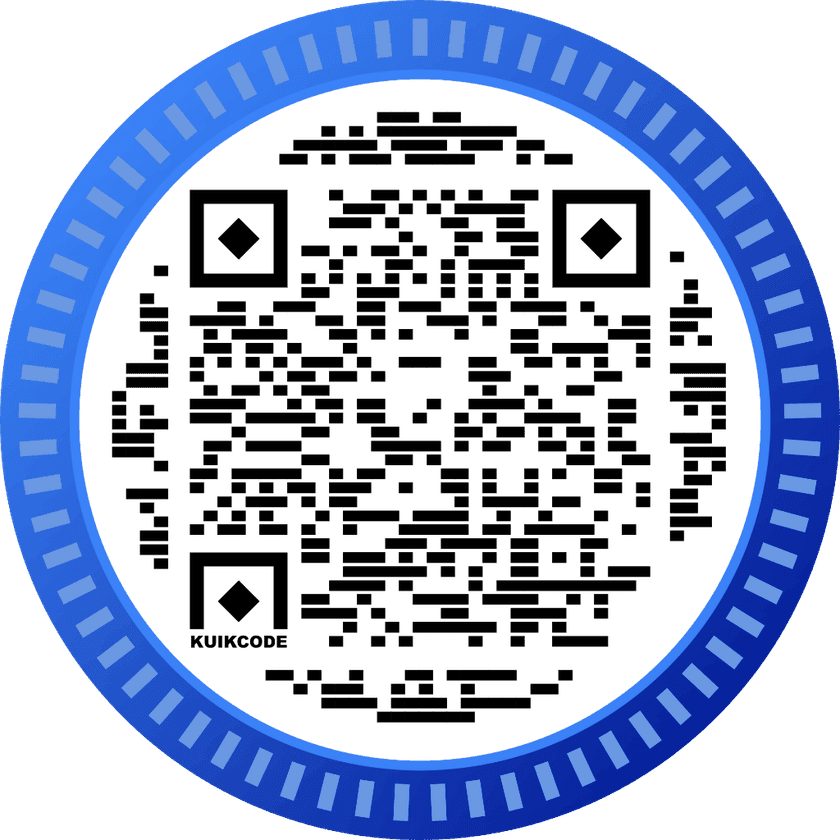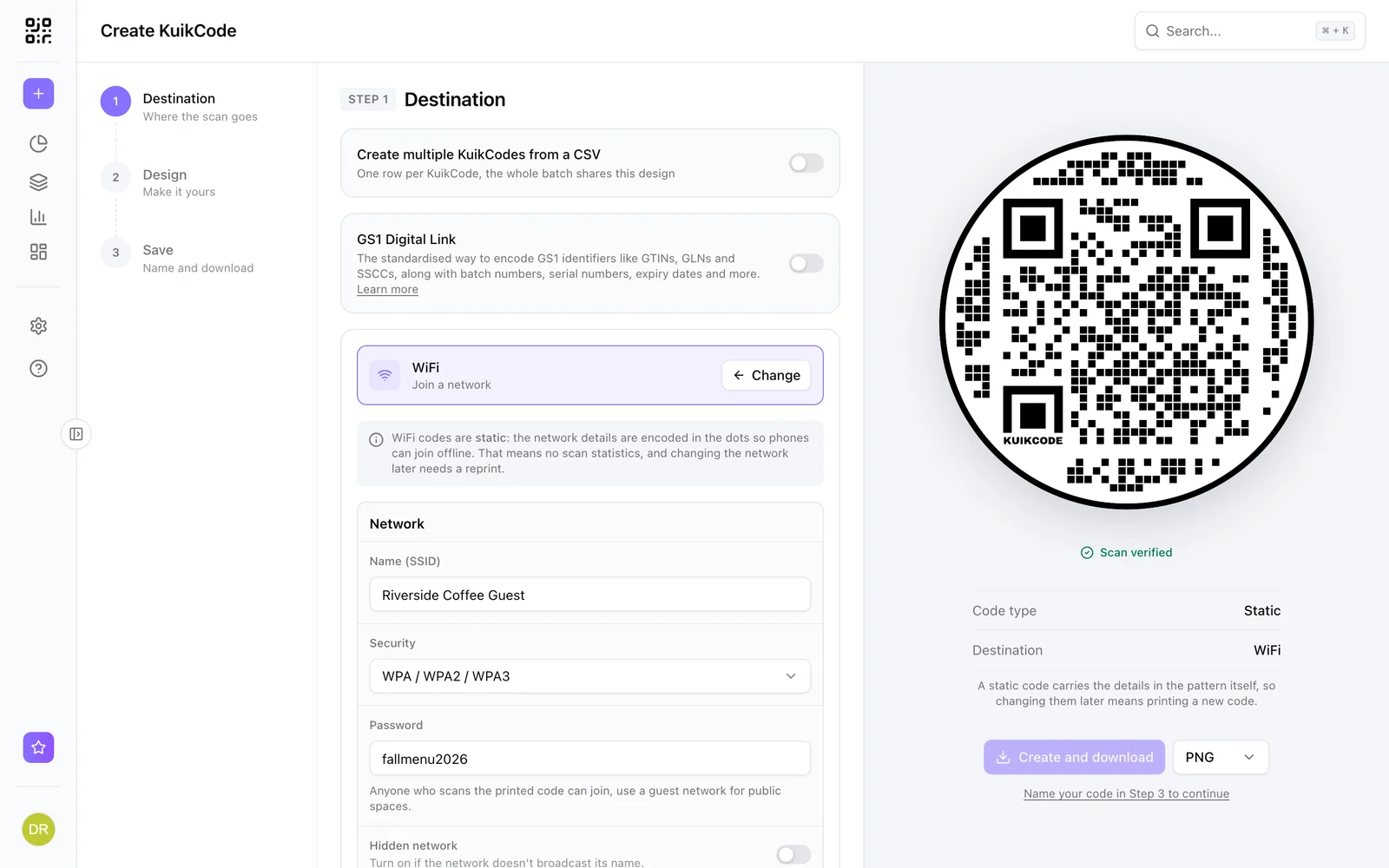
Typing a long WiFi password on a phone is nobody's favorite part of a visit. A WiFi QR code skips it: guests point their camera at the code, tap Join, and they are online.
How a WiFi QR code works
A WiFi code stores three things in a standard format that phones understand:
- Network name, the SSID.
- Security type, WPA, WPA2 or WPA3, WEP, or none.
- Password.
When a phone camera reads the code, it offers to join the network. Current iPhones and Android phones do this with the built in camera, no app needed.
WiFi codes are static, and that is on purpose
Most KuikCodes are dynamic: they point to a short link, so you can change the destination after printing and see every scan. WiFi is the exception. The network details are written straight into the pattern, so a phone can join without being online first. A guest who needs WiFi has no internet to look anything up.
That has three consequences worth knowing before you print:
- A new password means a new code. The old one stops working the moment the password changes.
- No scan analytics. A static code never passes through our servers, so there is nothing to count.
- It works offline, always. No service has to be up for the code to work.
KuikCode's preview shows Code type: Static for WiFi, so you always know what you are printing. Our guide to static and dynamic codes explains the difference in depth.
How to make one in KuikCode
- Click Create and choose WiFi.
- Enter the Name (SSID), pick the Security type and enter the Password.
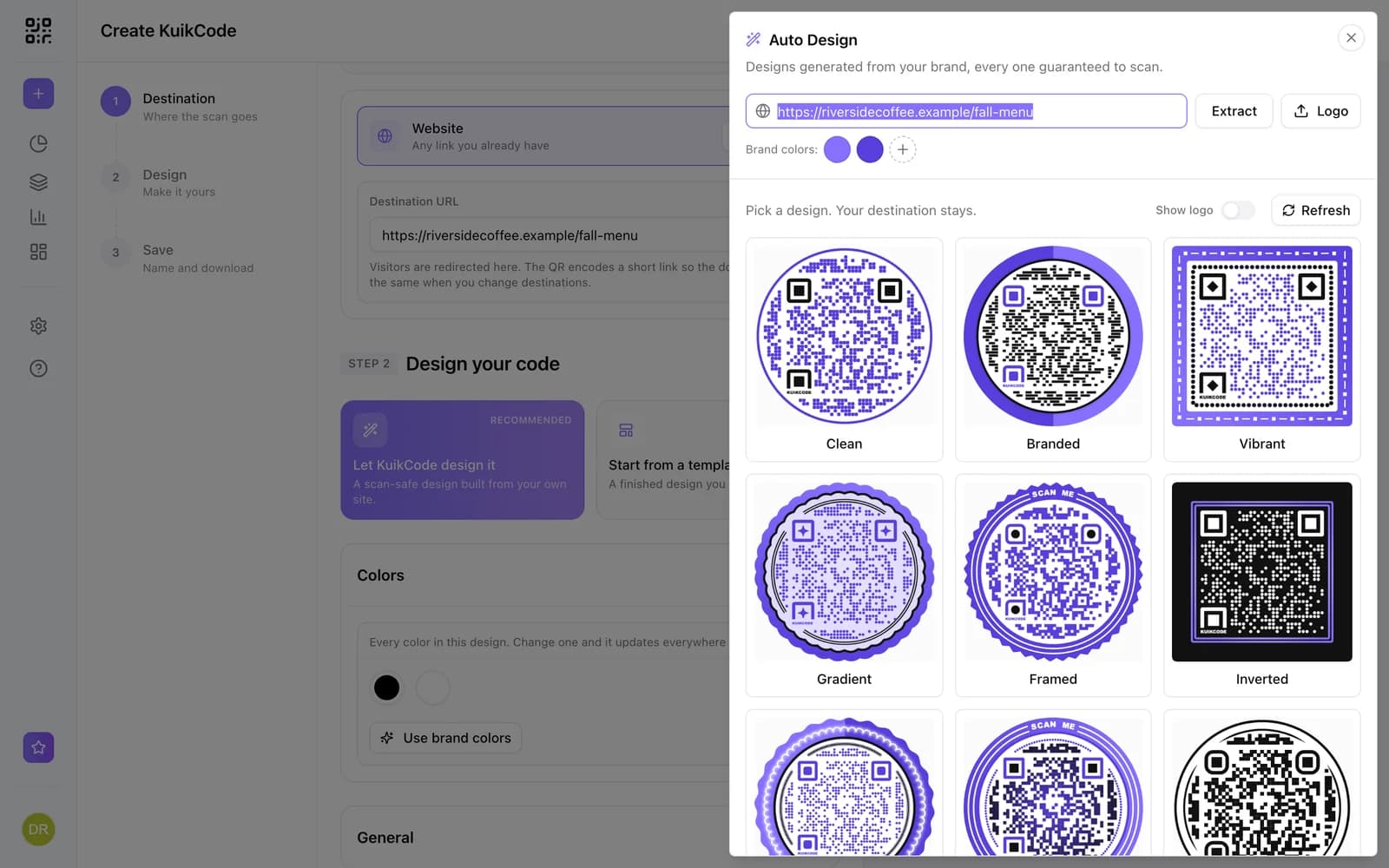
- Design the code with your colors and a frame that says Scan for WiFi.
- Download it and print.
WiFi codes are available on every plan, including Free.
Where to put it
- Cafes and restaurants. Table tents, the counter and the menu.
- Rentals and hotels. The welcome book, the fridge or a frame by the door.
- Offices and coworking. Meeting rooms and reception.
- Events. Badges, signage and the registration desk.
Security tips
- Use a guest network. Keep guests off the network your registers, cameras or office computers use.
- Rotate the password now and then, and print a fresh code when you do.
- Put codes where you would put the password. Anyone who can see the code can join.
Want more than WiFi on the card?
A rental welcome card often needs WiFi, house rules and check out times together. Put the WiFi code next to a dynamic code that opens a KuikPage with everything else, like the Rental Welcome template. The page can change anytime, and the WiFi code handles the one job it is best at.
Frequently asked questions
01How does a WiFi QR code work?+
The code stores the network name, the security type and the password in a standard format. Phone cameras read it and offer to join the network, with nothing to type.
02Can I change the WiFi password without reprinting the code?+
No. A WiFi code is static, so the password is written into the pattern. When you change the password, create a new code and replace the printed ones.
03Why is a WiFi QR code static?+
So a phone can join without being online first. A dynamic code needs an internet connection to look up where to go, which a guest trying to get online does not have yet.
04Do WiFi QR codes work on iPhone and Android?+
Yes. Current iPhones and Android phones read WiFi codes with the built in camera.
05Is it safe to put the WiFi password in a QR code?+
Anyone who scans the code can join, the same as anyone who reads a password on a sign. Use a guest network that is separate from the one your business systems use.