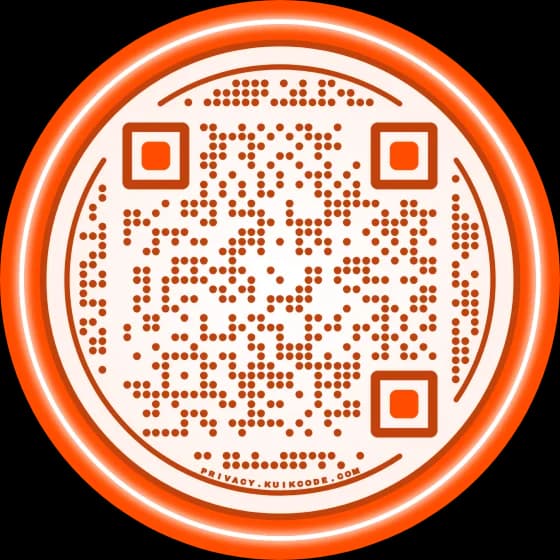
You can't put a video inside a QR code, but you can make a code that opens one in a second. The code holds a link; the video plays from wherever it lives. That leaves three good ways to do it, from a two minute job to a code you can keep using for years.
Why the video can't live inside the code
A QR code holds at most about 3,000 characters. That's plenty for a web address and a few sentences, and nowhere near a video: even a short clip from a phone is millions of bytes. So every "video QR code" works the same way underneath. The code stores a link, and the phone opens it.
That's good news. It means you choose where the video plays, and with the right kind of code, you can change it later.
Option 1: a QR code for a YouTube or Vimeo link
The quickest way is a code that opens the video on YouTube or Vimeo.
For songs, playlists and audio files, see how to make a QR code for music.
Video lessons are one of eight ideas in our guide to QR codes for teachers.
- Copy the link. On YouTube, tap Share under the video and Copy link. It looks like
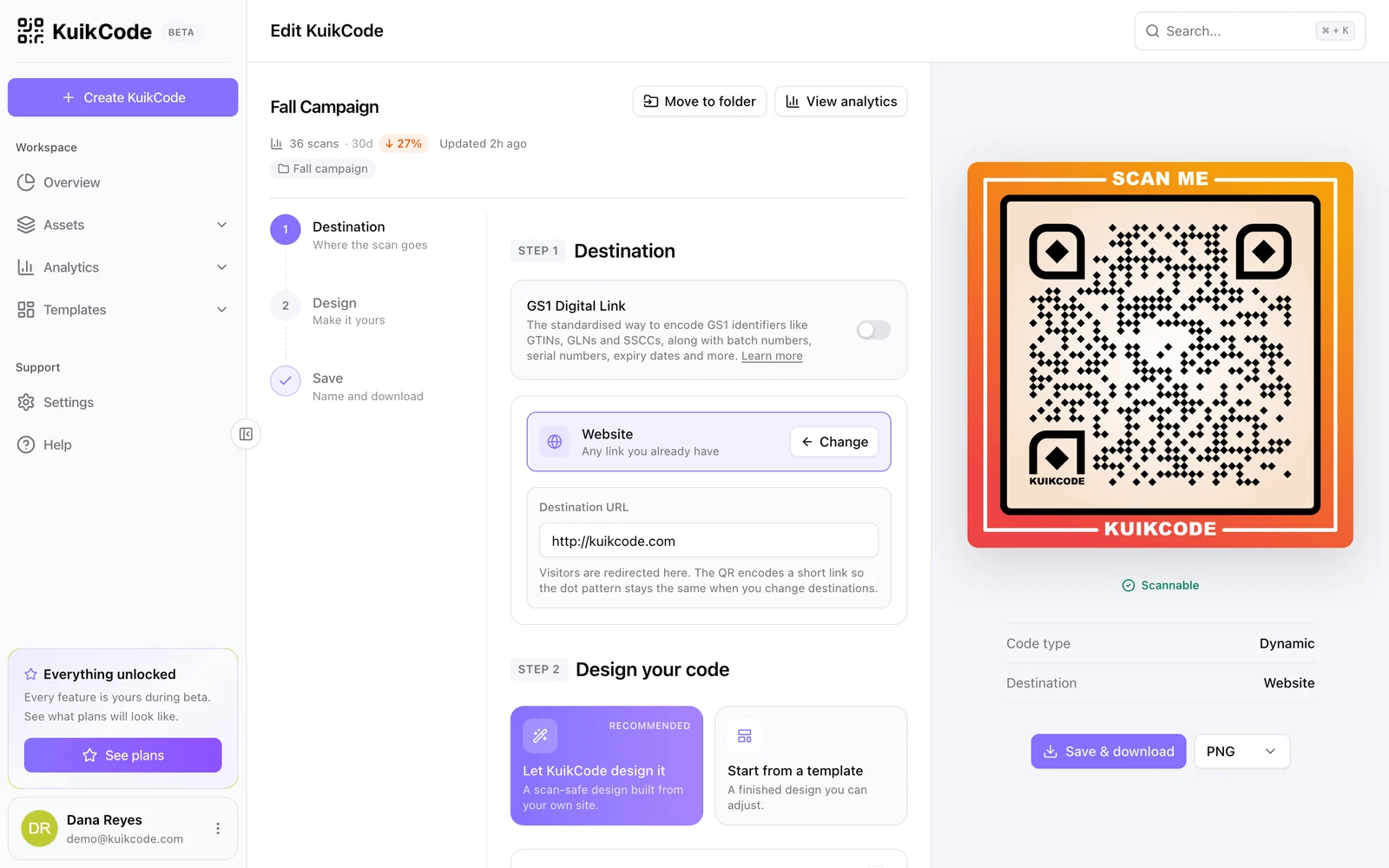
https://youtu.be/followed by the video's ID. On Vimeo, use Share and copy the link too. - Make the code. Paste the link into the free QR code generator under Link, or into a KuikCode with the Website destination.
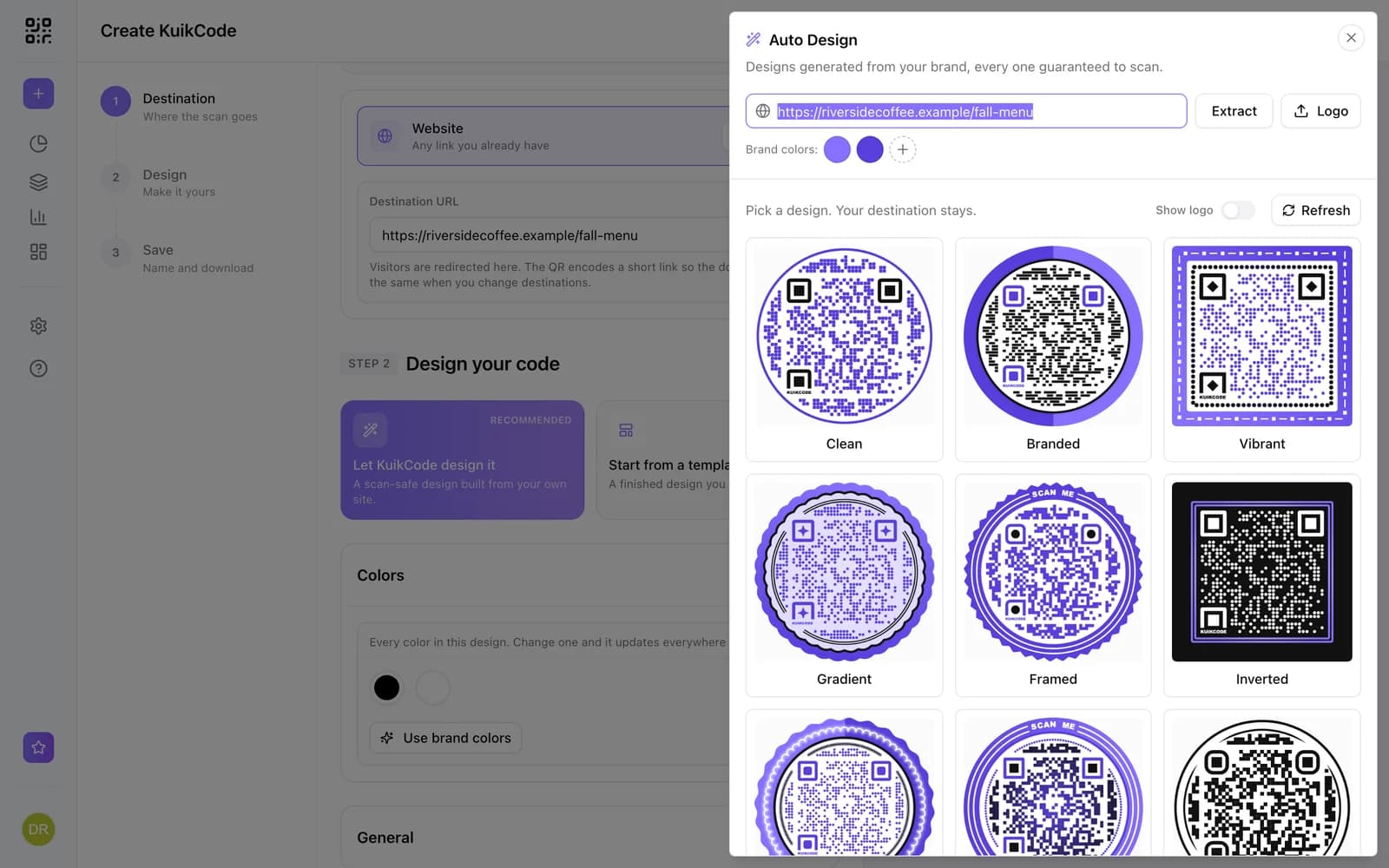
- Design and download. Add your colors and, for print, a frame that says what happens: Watch the video.
Scanning opens the video in the YouTube app if the person has it, or in the browser if they don't.
A few details that save trouble:
- Unlisted videos work. Anyone with the link can watch an unlisted video, so a code is a good way to share a video you don't want in search. Private videos only play for accounts you invite, so a code to one shows an error to everyone else.
- Start at the right moment. On YouTube's Share panel on a computer, tick Start at to add the time to the link, so the code skips the intro.
- Channels and Shorts work too. For a channel, use its address, like
youtube.com/@yourname. Shorts have their own links and open the same way.
Option 2: a page built around your video
A bare video link opens a player and nothing else. When the video is part of something bigger, like a product demo, a training module, a trailer or a message in a gift, people need a little context: a title, a few lines, and a button for what comes next.
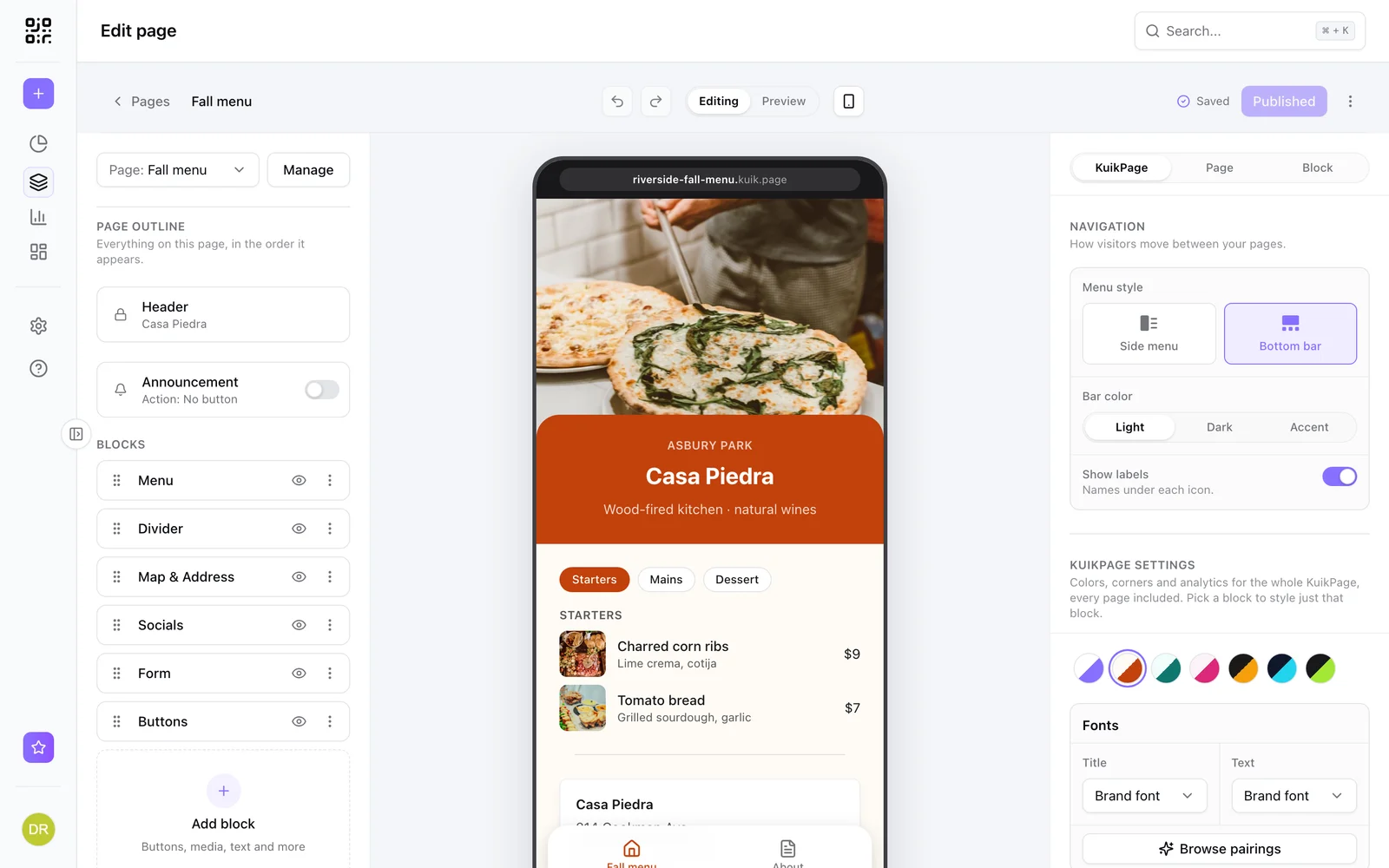
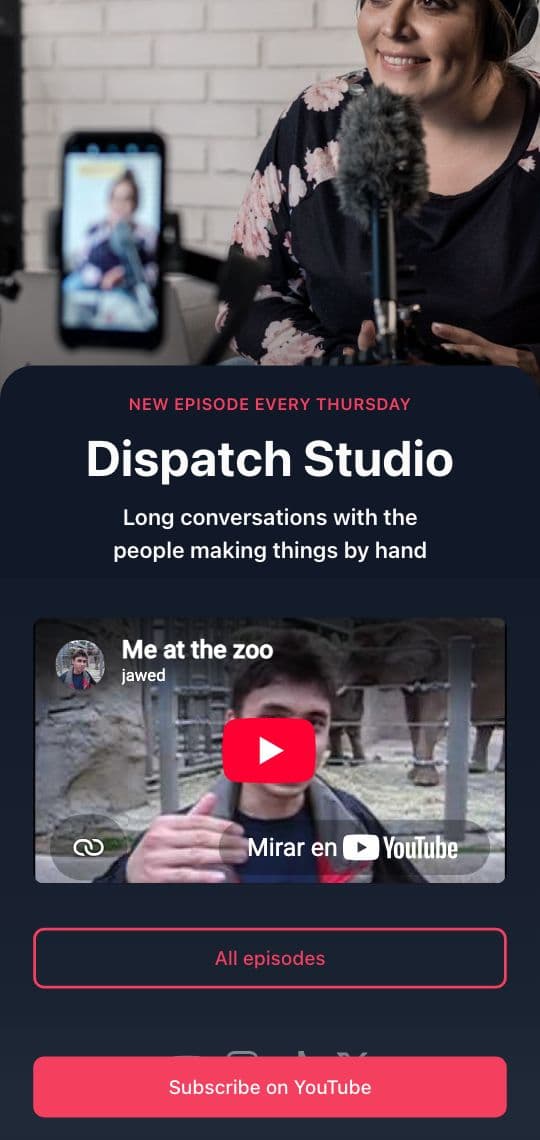
That's what a KuikPage is for. Add a Video block, then either upload a clip (MP4 or WebM) or paste a YouTube or Vimeo link. Put a heading and some text above it and buttons below: Buy the refill, Book a demo, All episodes. YouTube and Vimeo videos play in their privacy-enhanced modes, and nothing plays until the visitor taps.
The Video / Creator template on the cover of this guide is a ready-made starting point: a header photo, the show's name, the latest episode and two buttons. Swap in your own video and colors and the page is done. The Video block is part of KuikPages from the Core plan.
Option 3: a code you can point at a new video
Videos get replaced. A new product version needs a new demo, a course gets re-recorded, last season's trailer gives way to this one. If the video link is printed inside a static code, the old one plays forever.
A KuikCode is dynamic: it stores a short link you control. When the video changes, you edit the destination, or swap the video on the KuikPage, and every printed code plays the new one from the next scan. No reprint, and every scan is counted, so you can see whether the box, the poster or the manual brings the most viewers. More in how to change a QR code after printing.
Make the video work on a phone
People scan with a phone in one hand, often standing, often on mobile data, often somewhere they can't play sound.
- Keep it short. A how to that answers one question beats a full tour.
- Add captions. Many people watch muted, especially in shops, offices and on transit.
- Shoot vertical when you can. It fills the screen the way people hold the phone.
- Test on mobile data, not office WiFi, before you print.
- Say what the scan opens. Watch the 2 minute setup video gets more scans than a bare code.
Where video QR codes work well
- Product packaging and manuals: the setup or care video, right where the question comes up.
- Posters and print ads: a trailer or a launch film.
- Training and onboarding: short videos next to the machine, the poster or the checklist.
- Greeting cards and gifts: a recorded message behind the card. Our guide on making a QR code with a message has ideas.
- Events: the highlight reel on the program, or the speaker's talk on the badge.
Before you print, check the size: a code people scan from a poster across a room needs to be far bigger than one on a box. What size should a QR code be has the numbers.
Frequently asked questions
01Can you put a video in a QR code?+
Not the video itself. A QR code holds at most about 3,000 characters of data, and a few seconds of video is millions of bytes. The code holds a link instead, and the video plays from YouTube, Vimeo or a page you host.
02How do I make a QR code for a YouTube video?+
Open the video on YouTube, tap Share and copy the link. Paste it into a QR code generator as a link, design the code and download it. Scanning opens the video in the YouTube app or the browser.
03How do I make a QR code for my YouTube channel?+
Use your channel's address, which looks like youtube.com/@yourname. Make a QR code for that link, and scanning opens your channel page with the Subscribe button.
04Can a QR code open a video I recorded on my phone?+
Yes, once the video is online. Upload it to YouTube or Vimeo and use its link, or add it to a KuikPage with the Video block, which takes an MP4 or WebM file, and point the code at the page.
05Can I change the video after printing the QR code?+
With a dynamic code, yes. A KuikCode stores a short link you control, so you can point it at a new video, or swap the video on its KuikPage, and every printed code plays the new one.
06Will the video play automatically when someone scans?+
No. Phones open the video or the page and wait for a tap on play. That's on purpose: people often scan in quiet places or on mobile data, and a video that starts on its own with sound is the fastest way to lose them.