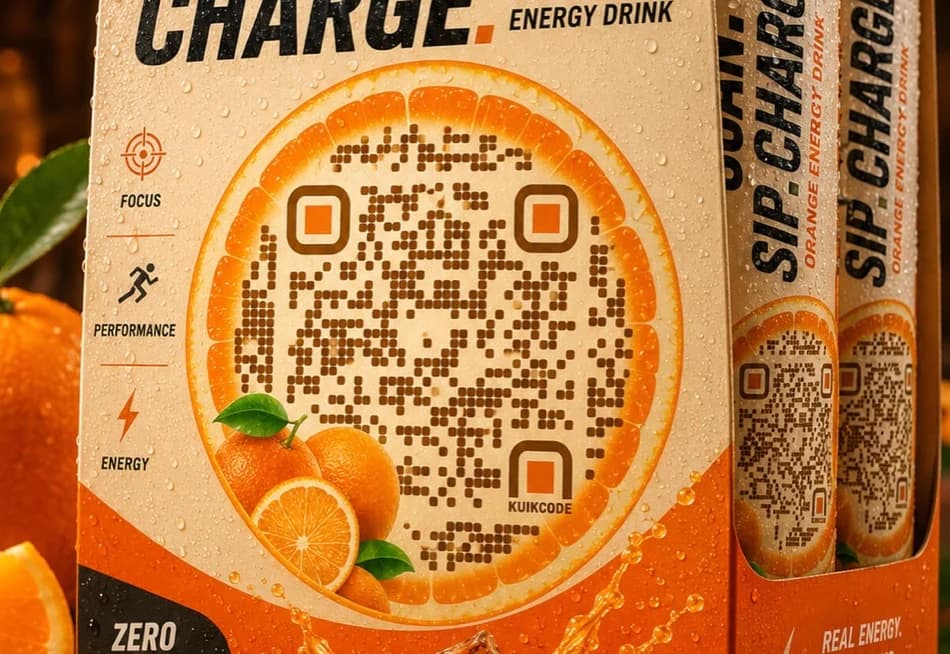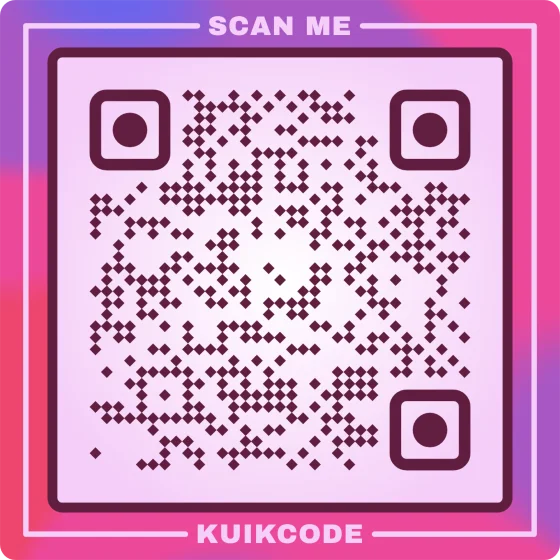
A QR code label connects an object to a page. It goes on a product, a box, a machine or a shelf, and whoever scans it sees the product details, the ingredients, a manual, a WhatsApp chat or the maintenance history. Making one is simple; making it scan on the real material, at the real size, is the part to get right. This guide covers both: how to make QR code labels and stickers, what size, on what material, and how to print them.
What a QR code label is for
- Product information. Ingredients, instructions, a how-to video or the manual and warranty, without filling the label with text.
- Packaging. A code on the box that opens your store, an offer or recipes. If the product sells in stores, see how GS1 Digital Link works on packaging.
- Inventory and assets. One label per machine, tool or box, each with its own serial number and its own page.
- Direct contact. A code that opens a WhatsApp chat with the message already written, for orders or support.
- Reviews and surveys. A label on the table or the package that asks for a Google review or a quick survey.
- Maintenance. A label on a machine that opens its log or a form to report a problem.
How to make QR code labels, step by step
- Decide where it should open. A web page, a product sheet, a PDF, a WhatsApp chat. For many different products, each one can have its own page.
- Pick static or dynamic. A static code holds the address in its dots and can't change. A dynamic code holds a short link you can point somewhere else later. For stock that will be out there for months, go dynamic. More in static vs dynamic QR codes.
- Make the code. For a fixed code, the free QR code generator downloads SVG or PNG with no sign up. For a dynamic code, or one per unit, use a KuikCode account.
- Design the label. Place the code with its white margin and a line that says what's on the other side: "Scan for ingredients", "Scan to order on WhatsApp". Use your label printer's software, a design tool like Canva, or Word.
- Print a proof on the real material and stick it where it will go.
- Scan it with two phones, from the normal distance, before you label everything.
What size should a QR code label be?
Two rules decide it. The code should be at least 2 cm (0.8 in) for anything scanned in the hand, and about a tenth of the scanning distance. On top of that it needs a white margin of about four of the code's squares on each side, which adds up to almost a third of the code's width.
| Where it's scanned | Code | Smallest square label | Smallest round sticker |
|---|---|---|---|
| In the hand (product, jar, card) | 2 to 2.5 cm (0.8 to 1 in) | 2.7 to 3.3 cm (1.1 to 1.3 in) | 3.8 to 4.7 cm (1.5 to 1.9 in) |
| On a shelf or a machine (30 to 50 cm) | 3 to 5 cm (1.2 to 2 in) | 4 to 6.6 cm (1.6 to 2.6 in) | 5.7 to 9.3 cm (2.2 to 3.7 in) |
| On a box or a pallet (0.5 to 1 m) | 5 to 10 cm (2 to 4 in) | 6.6 to 13 cm (2.6 to 5.2 in) | 9.3 to 19 cm (3.7 to 7.4 in) |
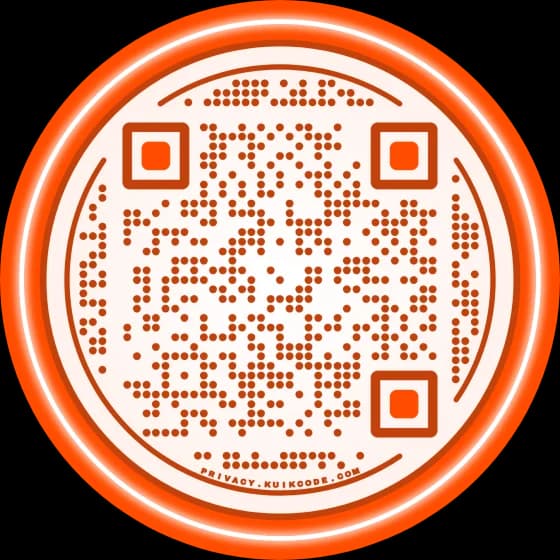
- A round sticker needs more room. A square code inside a circle leaves the edges empty, so the circle has to be almost twice as wide as the code. A round QR code fills the circle and makes better use of that space.
- A long link needs a bigger code. More characters mean more squares, and smaller squares at the same size. A short link, like a dynamic code's, keeps the code simple.
- A logo in the middle also needs a little more size.
Our QR code size guide has the full table by distance.
The label material
| Material | Good for | Watch out for |
|---|---|---|
| Matte paper | Dry indoor spots: boxes, folders, shelves | Tears and gets wet |
| Glossy paper | Gift products, bright colors | Glare under strong lights can stop a scan |
| Vinyl or polypropylene | Bottles, fridges, bathrooms, outdoors | Costs more; pick a freezer adhesive for the cold |
| Direct thermal | Shipping and labels that last weeks | Darkens with heat and sun; not for long term stock |
| Thermal transfer (with ribbon) | Inventory and asset tags that last years | Needs a matching printer and ribbon |
| Clear | Glass and packaging that shows the product | Needs a white backing behind the code |
A matte finish scans better than a glossy one. If the label goes on a bottle or a jar, put it where the surface is flattest and test the code once it's stuck on: a tight curve bends the squares.
How to print QR code labels
On a regular printer, use Letter or A4 adhesive label sheets and the sheet maker's template. It's fine for short runs. Print at actual size (100%, no "fit to page") so the code comes out the size you designed.
On a thermal label printer, it's faster for many labels. Check the resolution:
- At 203 dpi it prints about 8 dots per millimeter. Give each square of the code at least 4 dots (half a millimeter), which in practice means codes of 1.5 cm (0.6 in) or more.
- At 300 dpi it prints about 12 dots per millimeter, better for very small labels.
Either way, start from an SVG or a large PNG: stretching a small image leaves the edges soft. Our guide to printing QR codes covers the file, ink and paper, and our blurred QR code test shows when a soft print stops scanning.
A different code on every label
For inventory, assets or products with serial numbers, each label can open its own page. Put one row per unit in a spreadsheet, with its name and link, and create every code at once. Our guide to QR codes with serial numbers shows how to build the list, and QR codes from a spreadsheet how to create the batch.
In KuikCode, bulk creation makes batches of up to 100 codes on PRO and 500 on Business, all with the same design and each with its own link. Every code is dynamic, so you see the scans of each label on its own, and if a page changes you change it in the dashboard without peeling anything off.
Before you label everything
- Scan the proof once it's stuck on, on the real product, with an iPhone and an Android.
- Open it on mobile data, not only on the office WiFi.
- Check the page on a phone: quick to load, and it says what the label promised.
- Leave the label in place for a day if it goes into the cold, water or sun, and scan it again.
If a printed code stopped opening the right page, see how to change a QR code's destination after printing.
Frequently asked questions
01What size should a QR code sticker be?+
For something scanned up close, the code should be at least 2 cm (0.8 in) wide, and a square sticker about 2.7 cm (1.1 in) so there's a white margin around it. For scanning from further away, make the code about a tenth of the distance. A round sticker needs a diameter of almost twice the code's width.
02How do I make QR code labels?+
Decide where the code should open, make the code (a free generator for a fixed code, a dynamic one if you want to change it later), place it on the label design with its margin and a line like Scan for ingredients, print a proof on the real material and scan it before labeling everything.
03What printer do I need for QR code labels?+
Any inkjet or laser printer with adhesive label sheets works for short runs. For many labels, a thermal label printer is faster. At 203 dpi it prints 8 dots per millimeter: give each square of the code at least 4 dots, or move to 300 dpi for very small labels.
04Can each QR code label open a different page?+
Yes. Make one code per unit from a spreadsheet, with its own link on each row, and every label opens its own page. It works for serial numbers, inventory and warranties.
05Do QR code labels expire?+
The printed code doesn't expire. A static code opens its address for as long as that page exists. A dynamic code depends on the service that runs its short link, so check what happens if you cancel before you label a lot of stock.